WisExpenseOpen the app
Topics

Find and filter transactions

Narrow the list of transactions by wallet, date, category or provider.

Show steps for

Filters keep only the transactions you want in the list, so you can check a month, a category or a shop.

Before you start

You need some transactions to look through.

Steps

Web
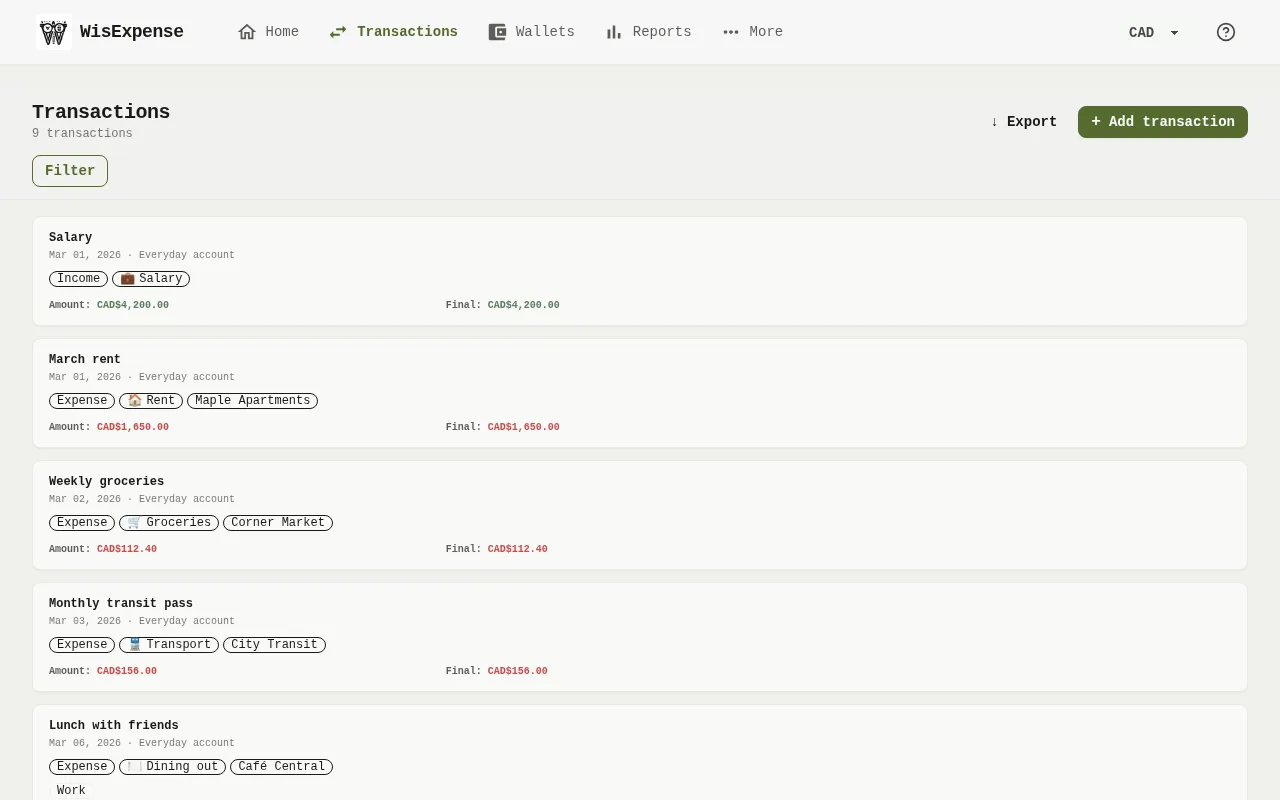
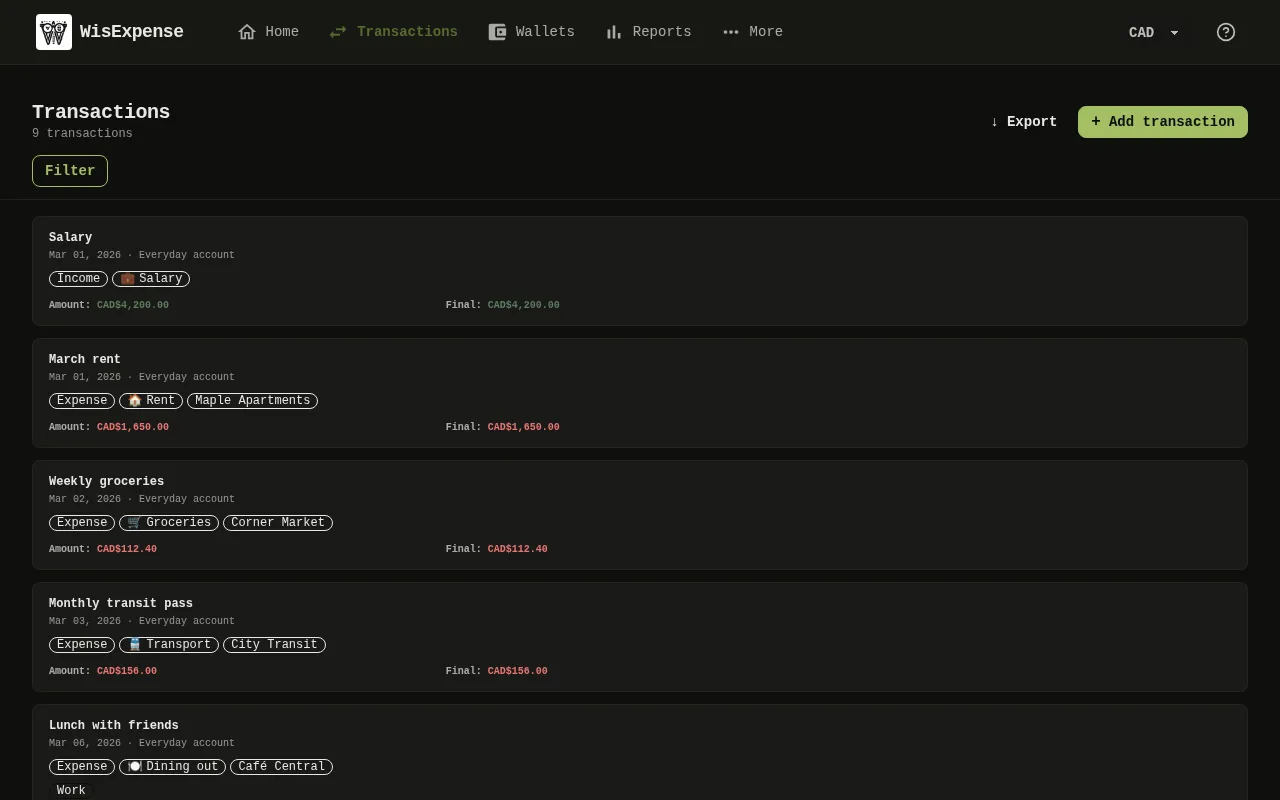
The Transactions screen of the web app, with the wallet filter, the advanced filter button and a transaction in the list. 1: Select Filter; 2: To open the list in a spreadsheet, select ↓ Export.The Transactions screen of the web app, with the wallet filter, the advanced filter button and a transaction in the list. 1: Select Filter; 2: To open the list in a spreadsheet, select ↓ Export.
  1. Select Transactions in the menu. The number under the title is how many transactions match.
  2. Select Filter Marker 1.
  3. Choose a From Date and a To Date, then pick wallets, categories or providers.
  4. Select Apply.
  5. To remove the filters, select Reset filters.
  6. To open the list in a spreadsheet, select ↓ Export Marker 2.

Mobile
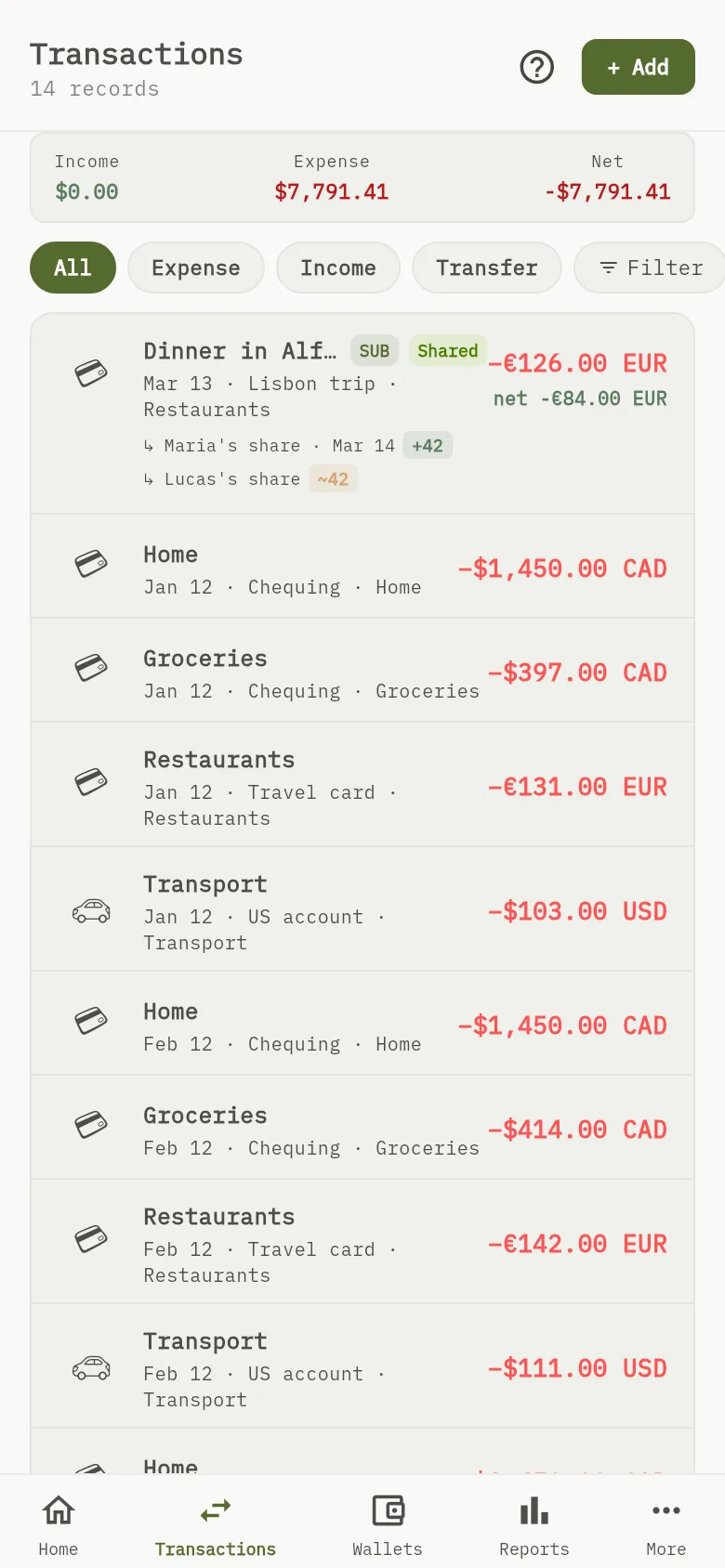
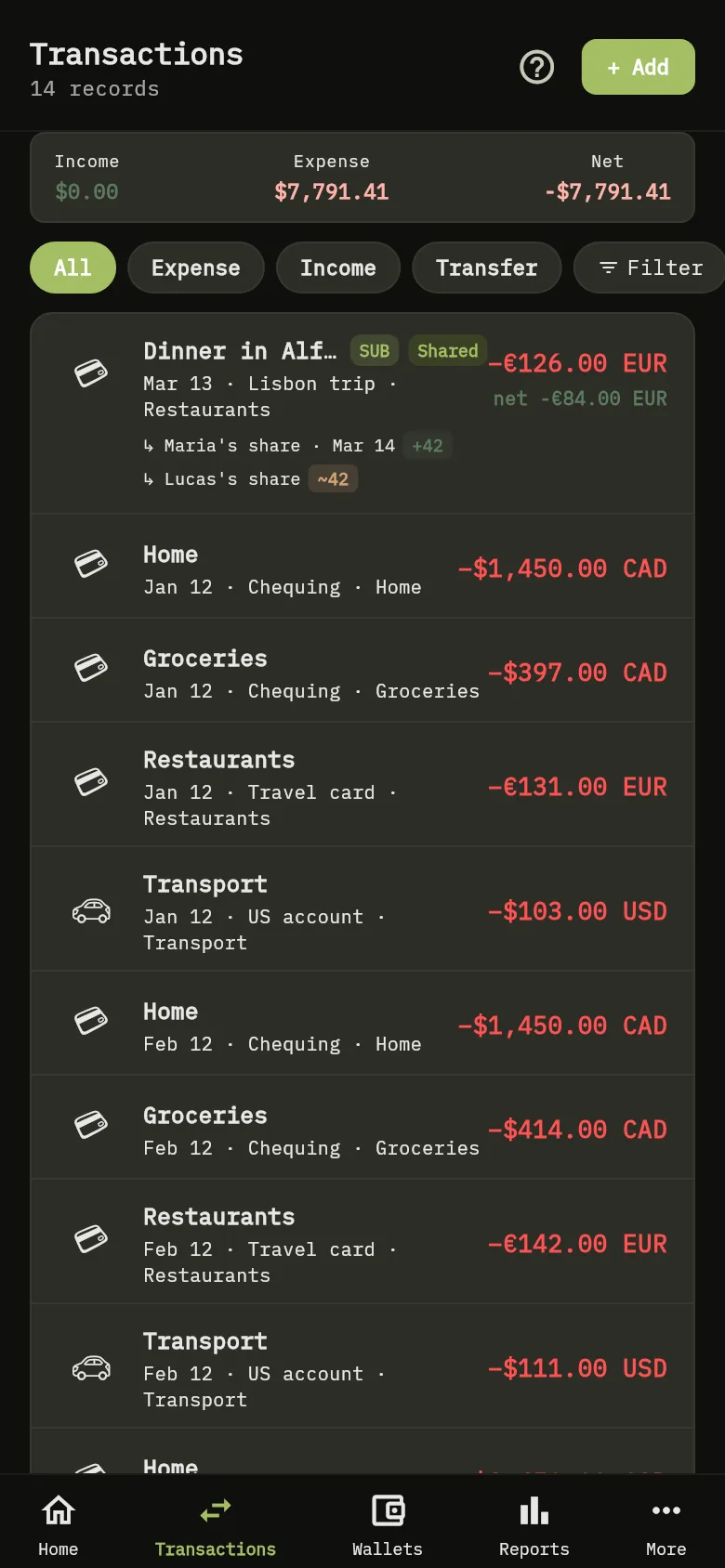
The Transactions screen of the mobile app, with the filter button and the summary of the list. 3: Tap Transactions, then tap Filter.The Transactions screen of the mobile app, with the filter button and the summary of the list. 3: Tap Transactions, then tap Filter.
  1. Tap Transactions, then tap Filter Marker 3.
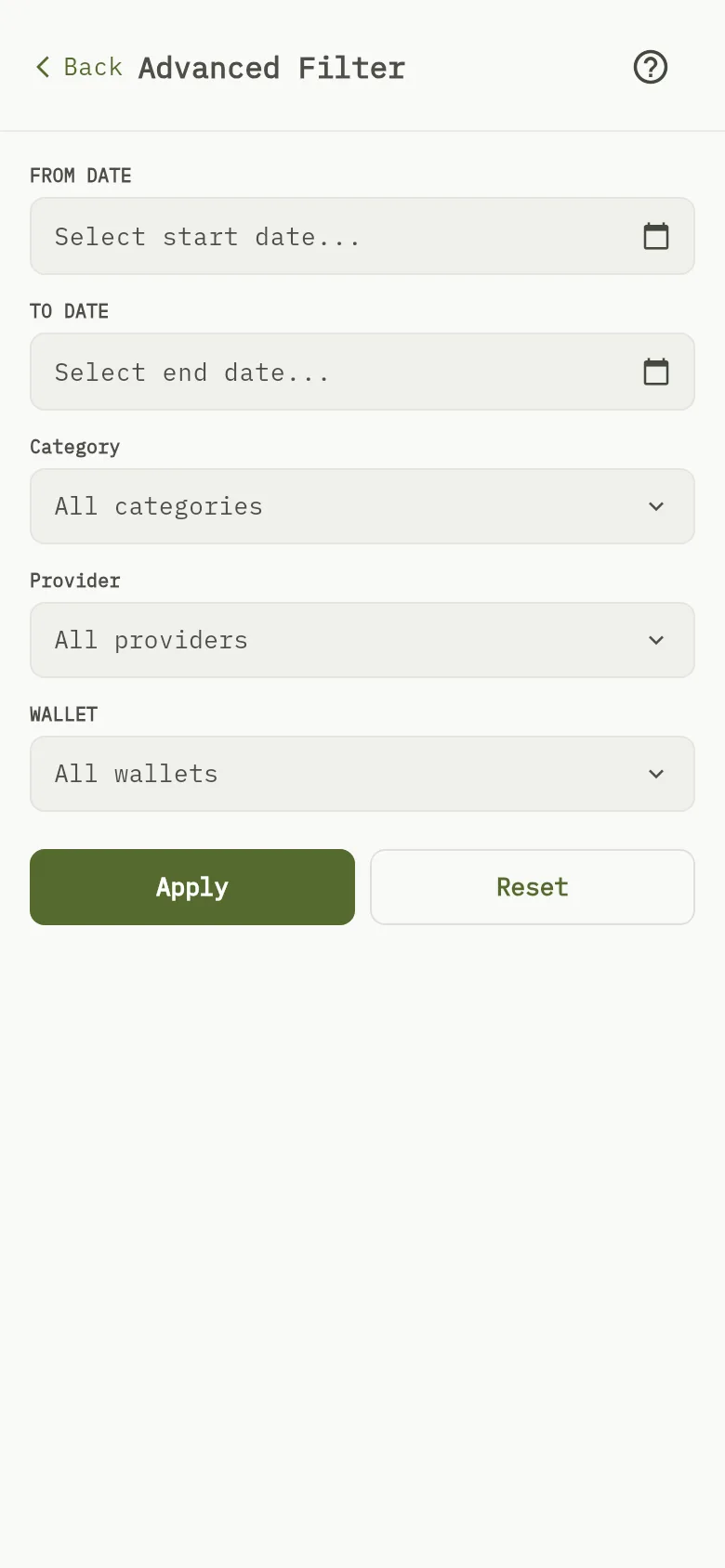
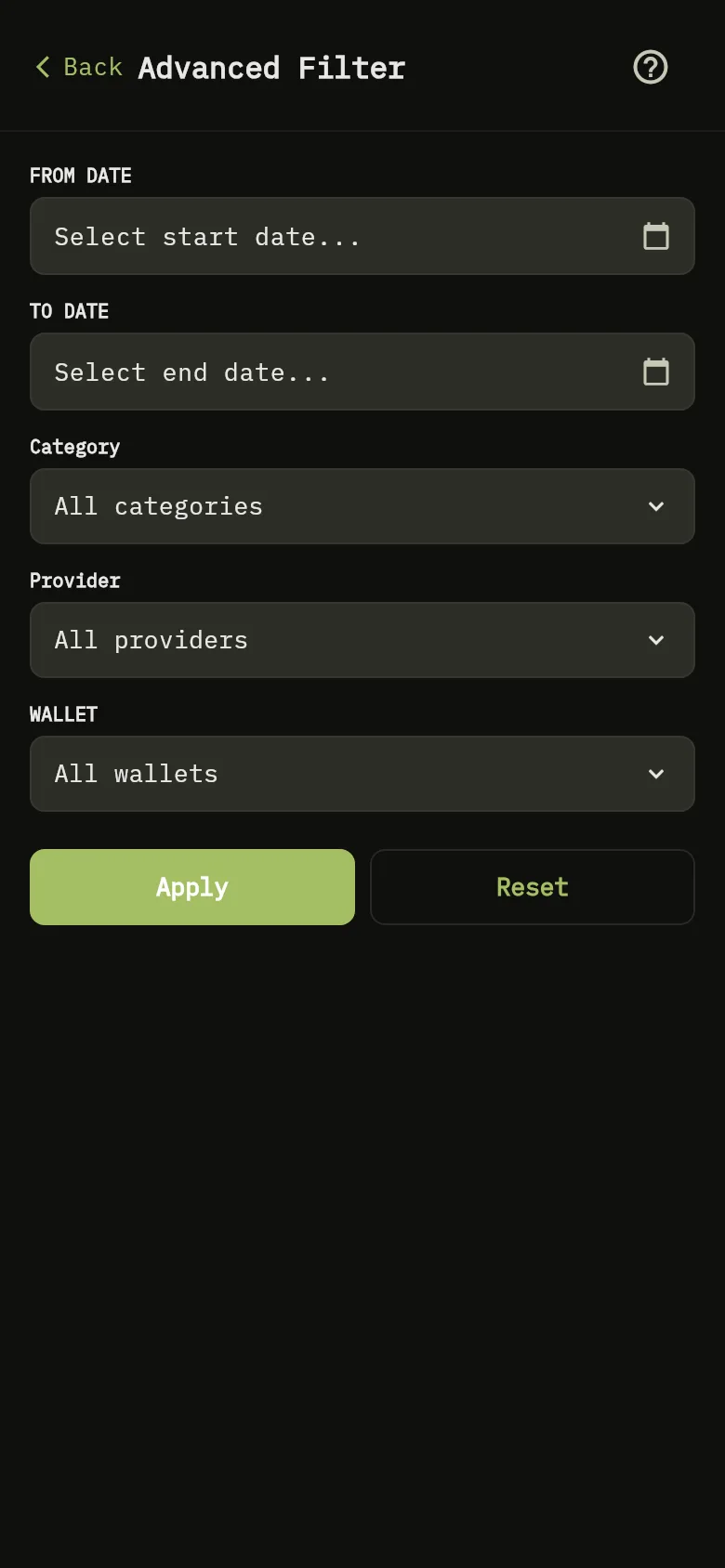
The advanced filter screen of the mobile app, with the dates, the category, the provider and the wallet, and the button to apply them. 4: Choose a From Date and a To Date; 5: Choose some categories, providers or wallets; 6: Choose some categories, providers or wallets; 7: Choose some categories, providers or wallets; 8: Tap Apply. To start again, tap Reset.The advanced filter screen of the mobile app, with the dates, the category, the provider and the wallet, and the button to apply them. 4: Choose a From Date and a To Date; 5: Choose some categories, providers or wallets; 6: Choose some categories, providers or wallets; 7: Choose some categories, providers or wallets; 8: Tap Apply. To start again, tap Reset.
  1. Choose a From Date Marker 4 and a To Date.
  2. Choose some categories Marker 5, providers Marker 6 or wallets Marker 7.
  3. Tap Apply Marker 8. To start again, tap Reset.

What you see

The list shows only the transactions that match every filter you chose.

Edit or delete a transaction.