
Edit or delete a transaction
Correct a transaction that has a mistake, or remove one you don’t want.
Edit a transaction to fix its amount, category or date. Delete it when it should not be there at all. The wallet’s balance follows either change.
Before you start
You can edit or delete a transaction only in a wallet where you have the access to do it. To delete a transfer, you need that access in both of its wallets.
Steps
Web
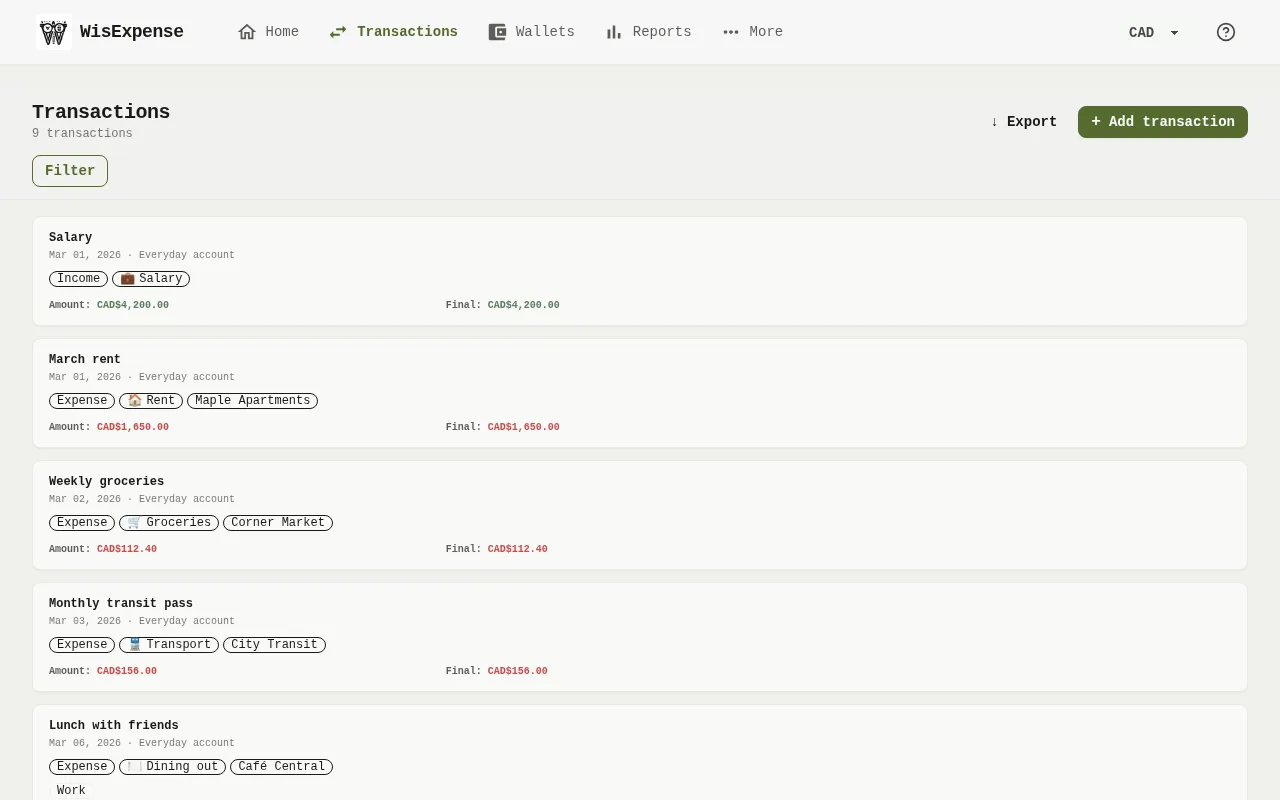
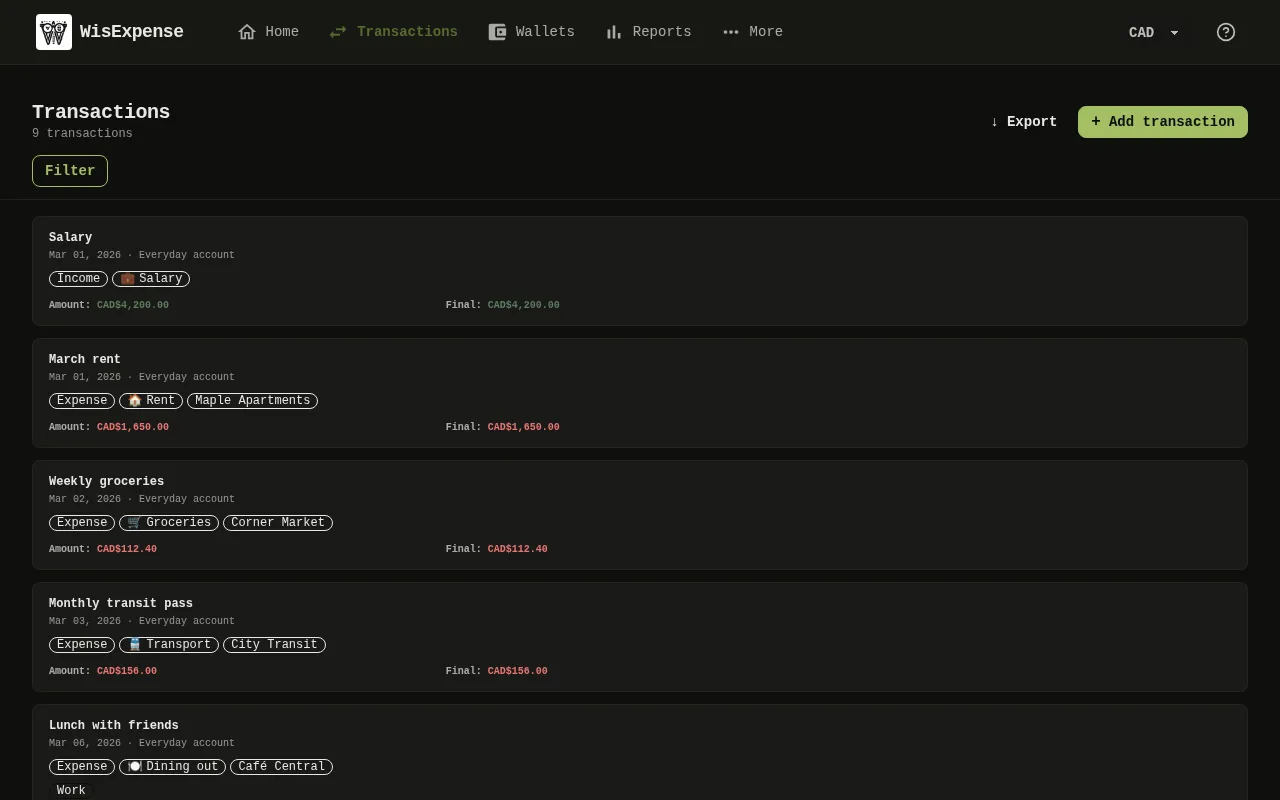
- Select Transactions in the menu.
- Find the transaction Marker 1 and open its three-dot menu.
- Select Edit, change what is wrong, then select Save. Or select Delete to remove it.
Mobile
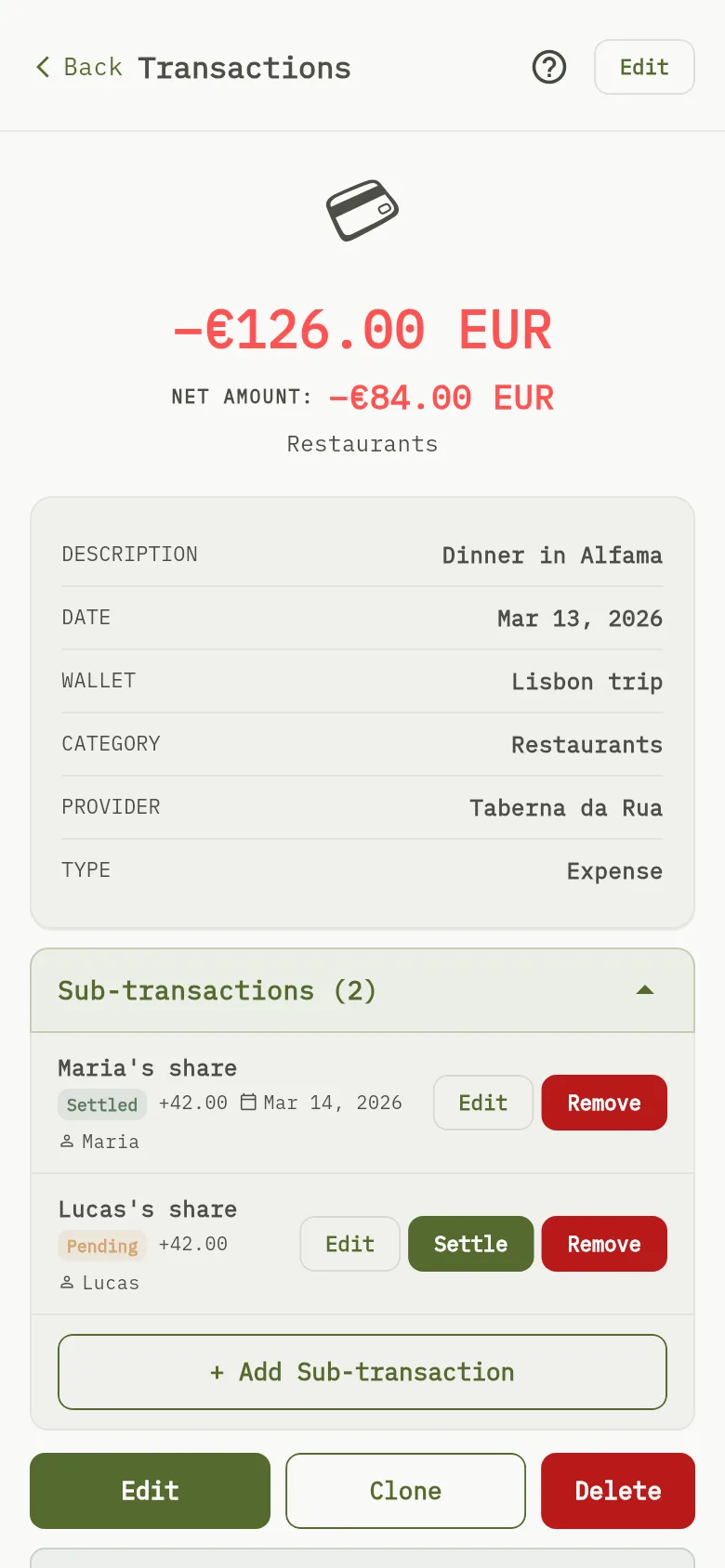
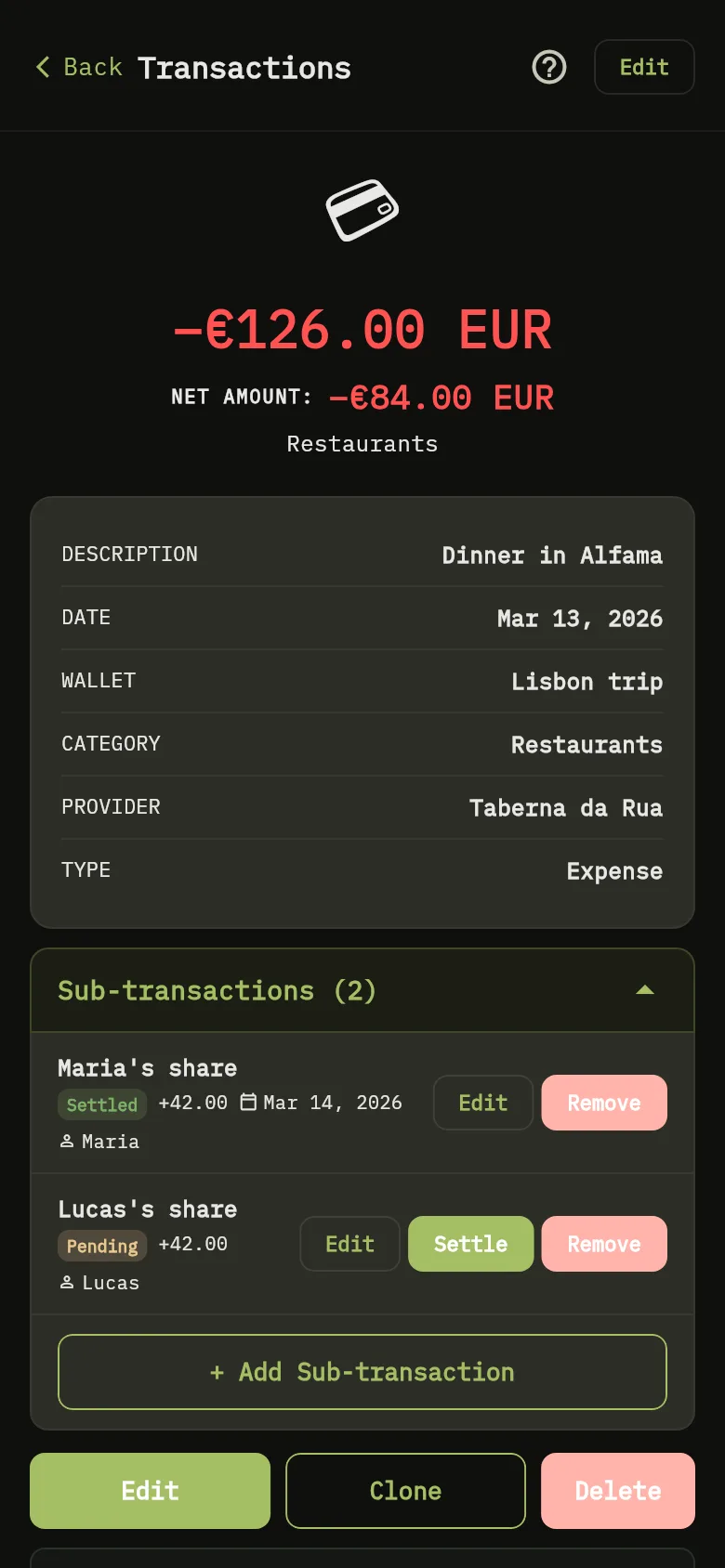
- Tap Transactions, then tap the transaction.
- Tap Edit Marker 2, change what is wrong, then tap Save.
- Or tap Delete, then tap Delete again to confirm.
Tip
The web app deletes the transaction at once, without asking you to confirm, so check the row before you select Delete.
What you see
An edited transaction shows its new details. A deleted transaction leaves the list. In both cases the balance of the wallet, or of both wallets for a transfer, is updated.