
Copy a transaction
Start a new transaction from an existing one, to record something you repeat.
Copying opens a new transaction already filled in with the details of an existing one, so you only change what differs. The original stays as it is.
Before you start
You need an existing transaction to copy.
Steps
Web
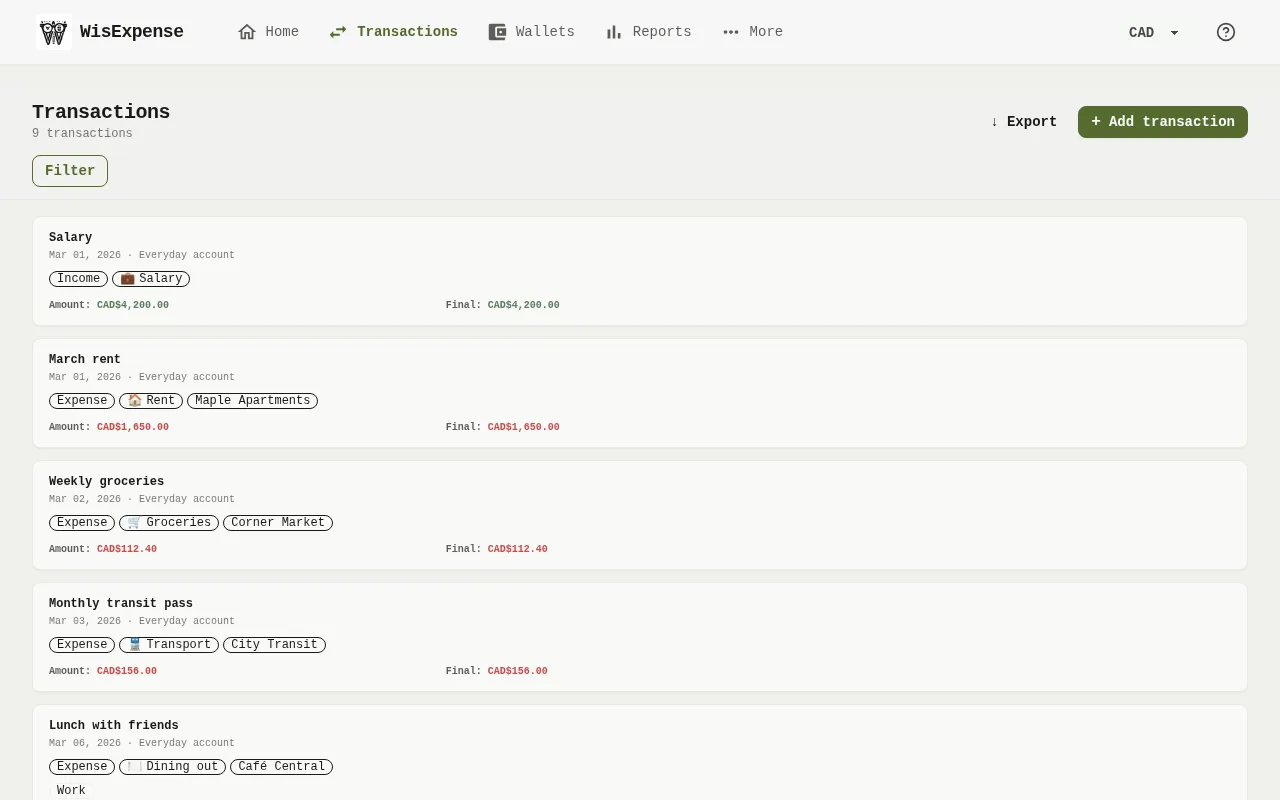
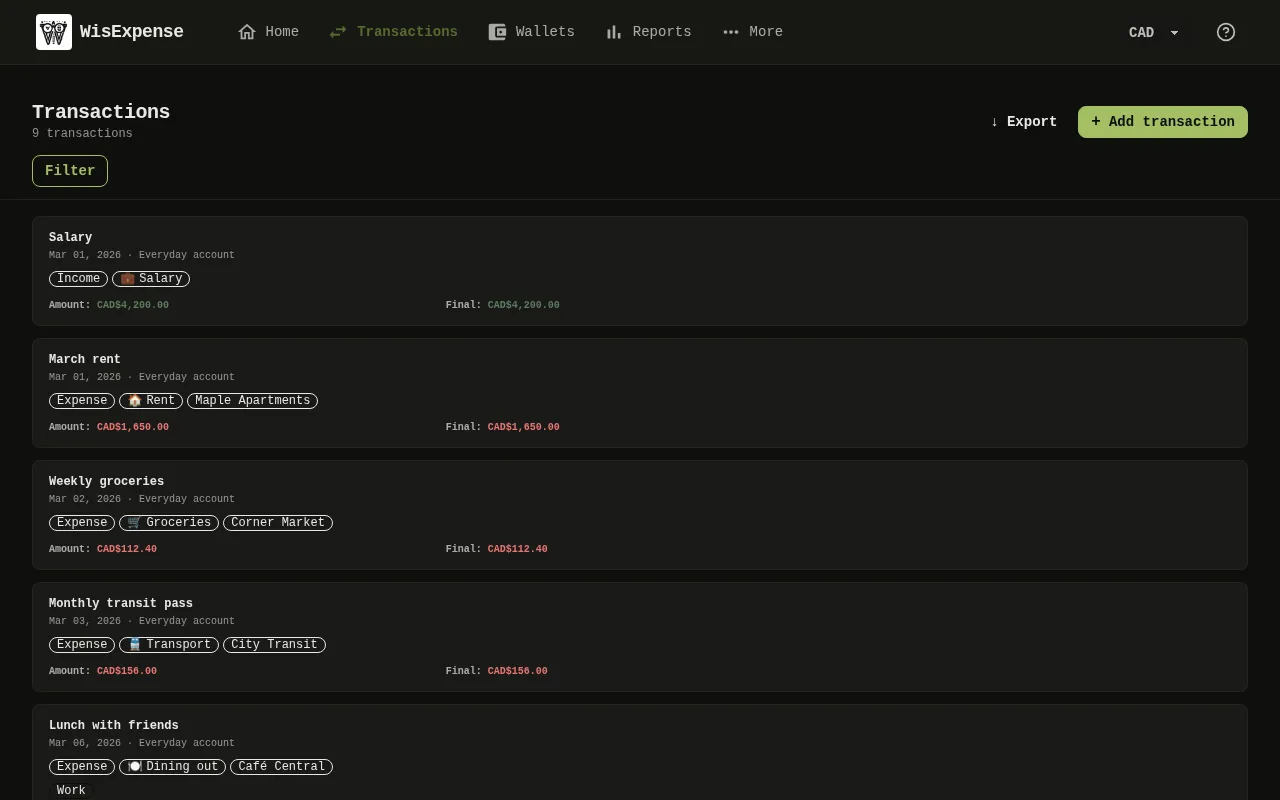
- Select Transactions in the menu.
- Find the transaction Marker 1 and open its three-dot menu.
- Select Clone. The form opens with the same details, and the date set to today.
- Change what differs, such as the amount.
- Select Save.
Mobile
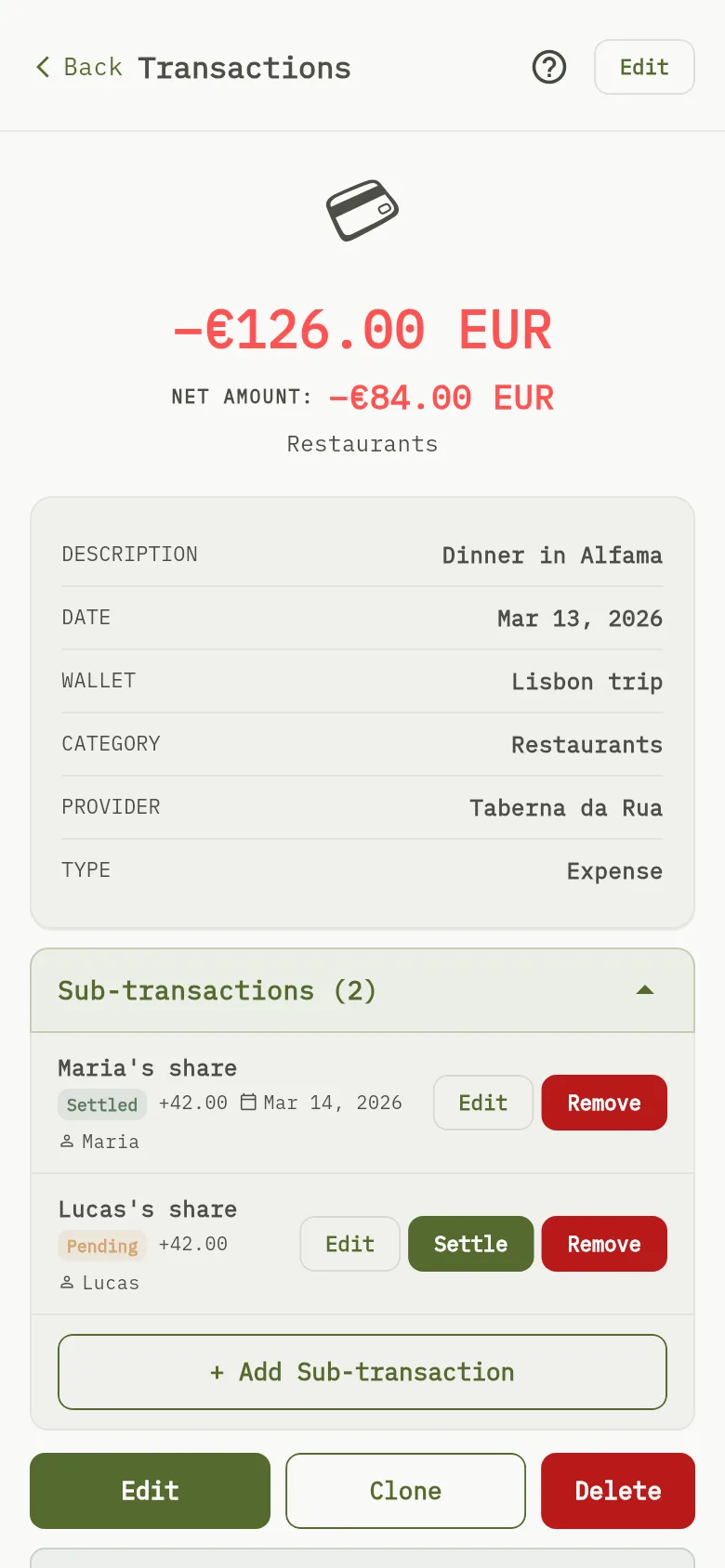
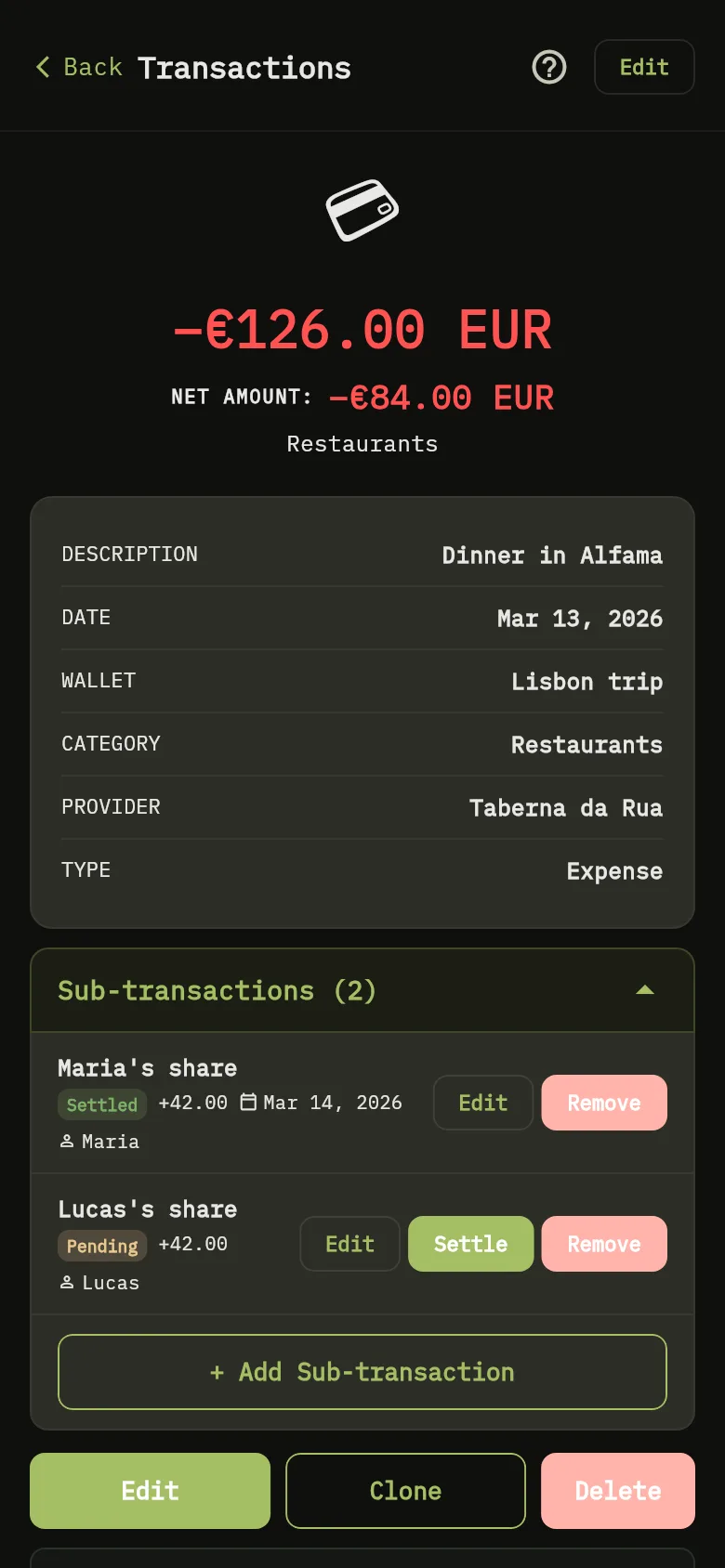
- Tap Transactions, then tap the transaction.
- Tap Clone. The form opens with the same details.
- Change what differs, such as the amount.
- Tap Save.
What you see
A new transaction is saved, and the original is unchanged.