
Set money aside with designations
Reserve part of a wallet’s balance for a purpose, move it to another wallet, and fix a wallet that has more set aside than it holds.
A designation sets money aside inside a wallet for a purpose. The money stays in the wallet but no longer counts as available.
Before you start
You need a wallet with a balance. You can also link a designation to a savings goal.
Steps
Web
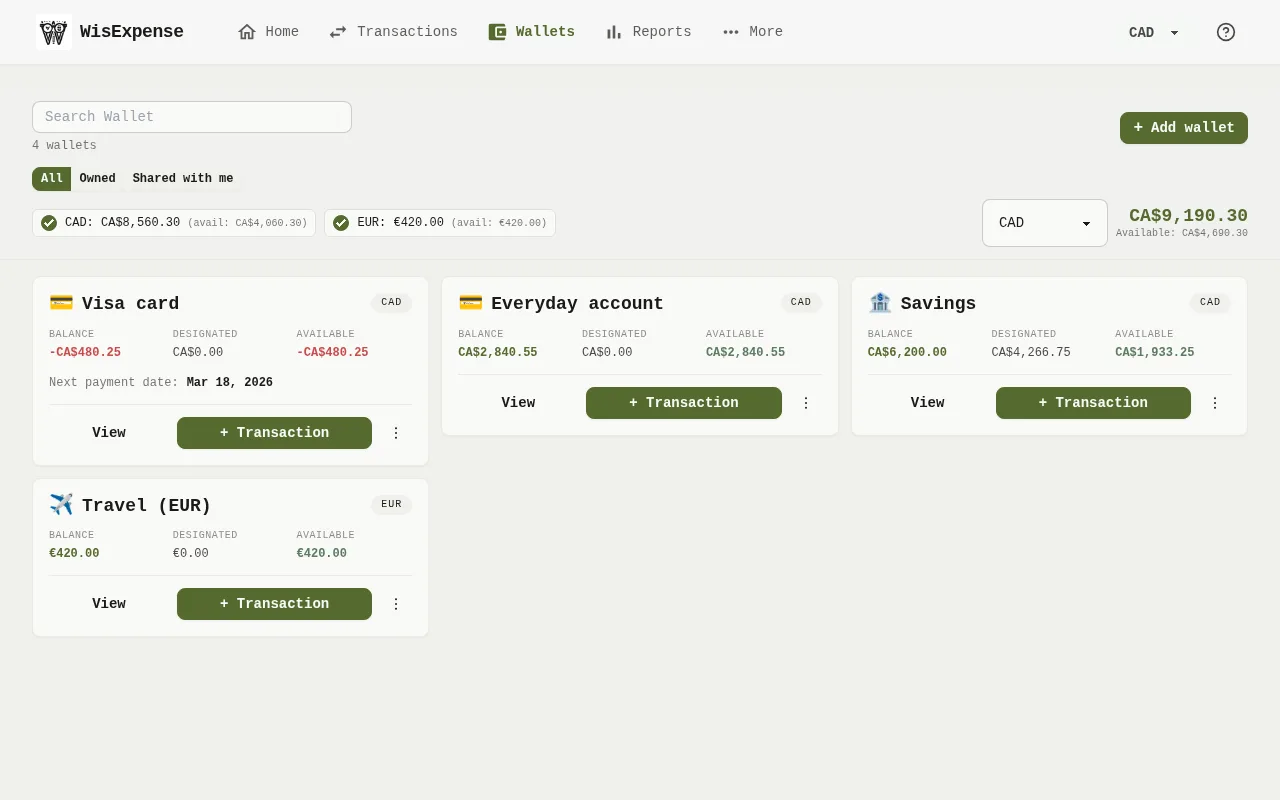
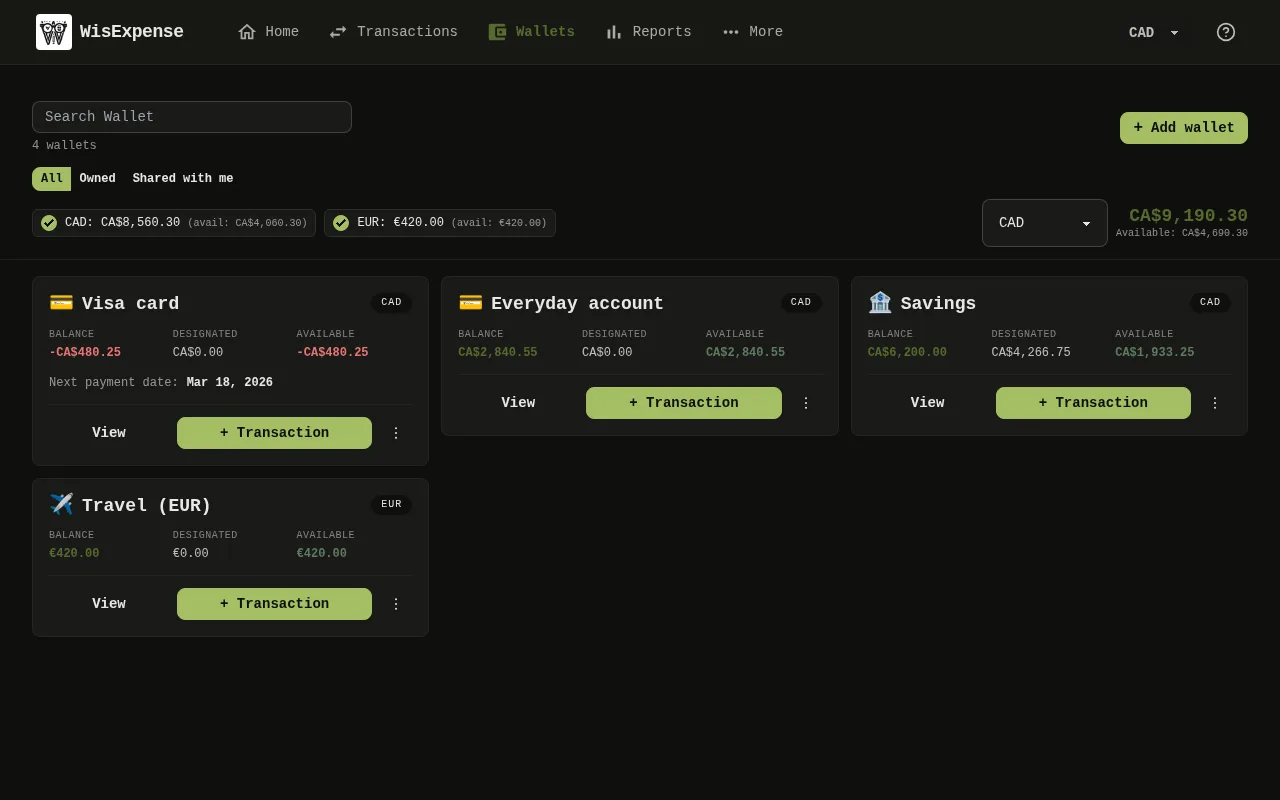
- On Wallets, find the wallet Marker 1.
- Select + Add Designation on its card.
- Type the Designation name and the Allocated amount.
- If you like, choose a goal under Link to Goal (optional).
- Select Save. To list the designations of a wallet, select its card to open the wallet; the Designations section lists them.
Mobile
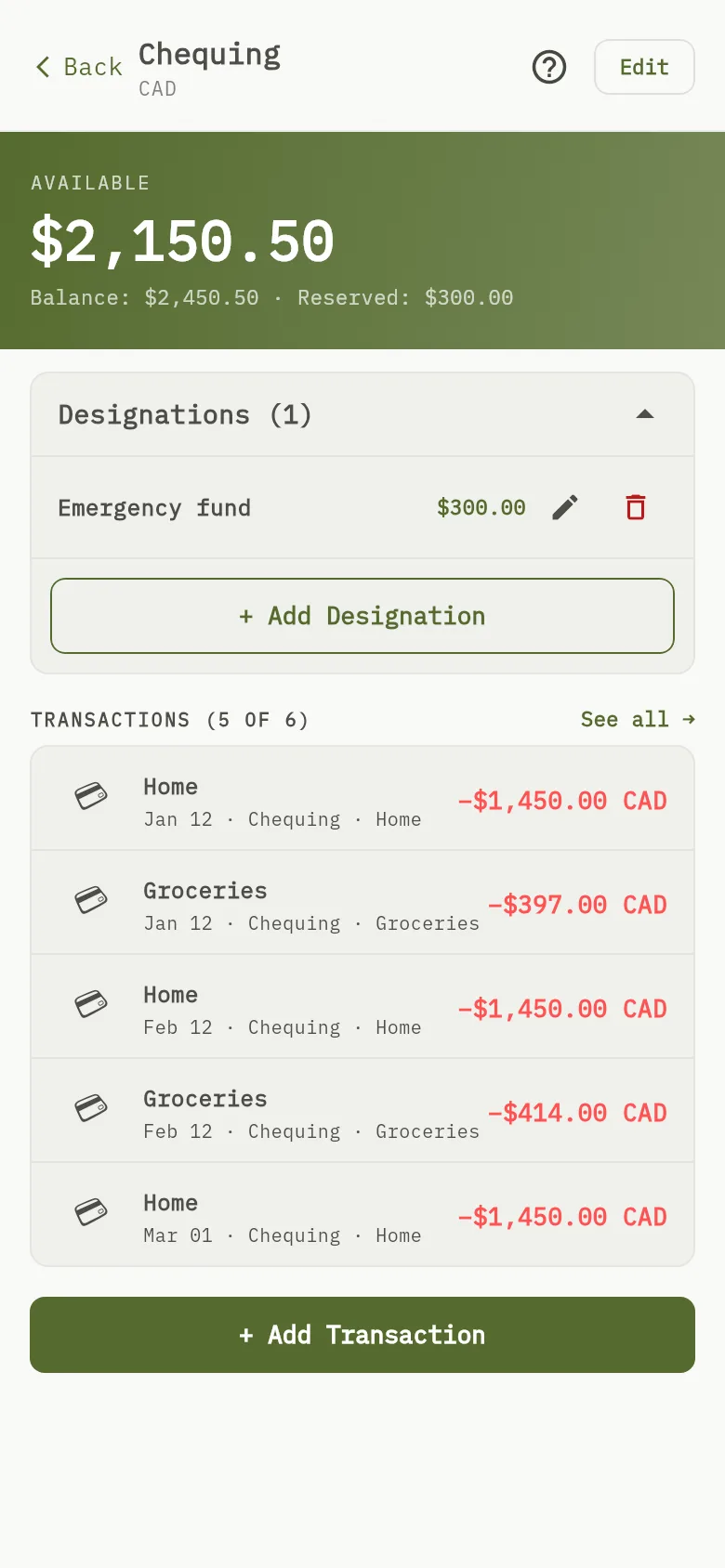
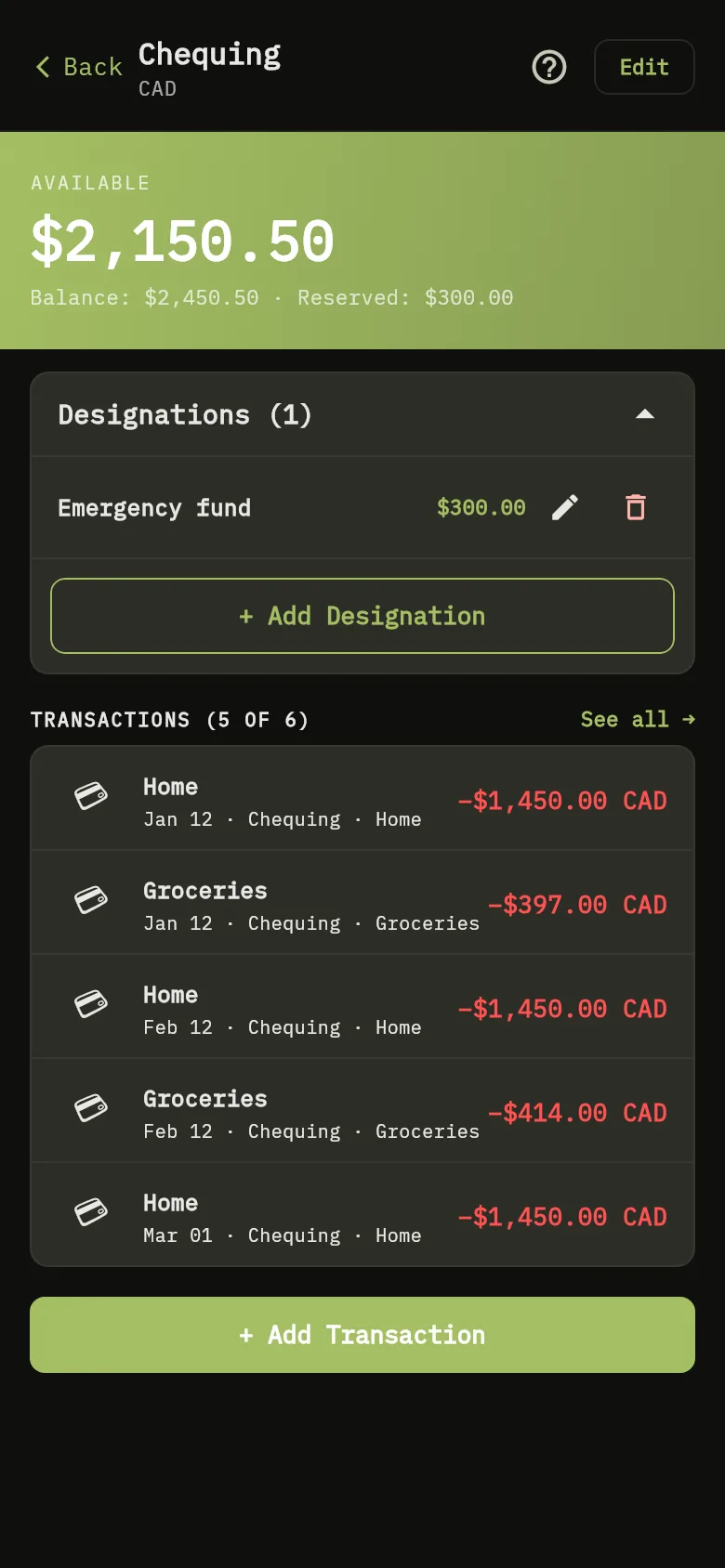
- Tap Wallets, then tap View on the wallet.
- In the designations section Marker 2, tap + Add Designation.
- Type the Designation Name and the Allocated Amount. If you like, choose a goal under Link to Goal (optional).
- Tap Save.
Move a designation to another wallet
You can move what is set aside for a goal from one wallet to another without making a transaction. The goal’s total plan does not change.
Web
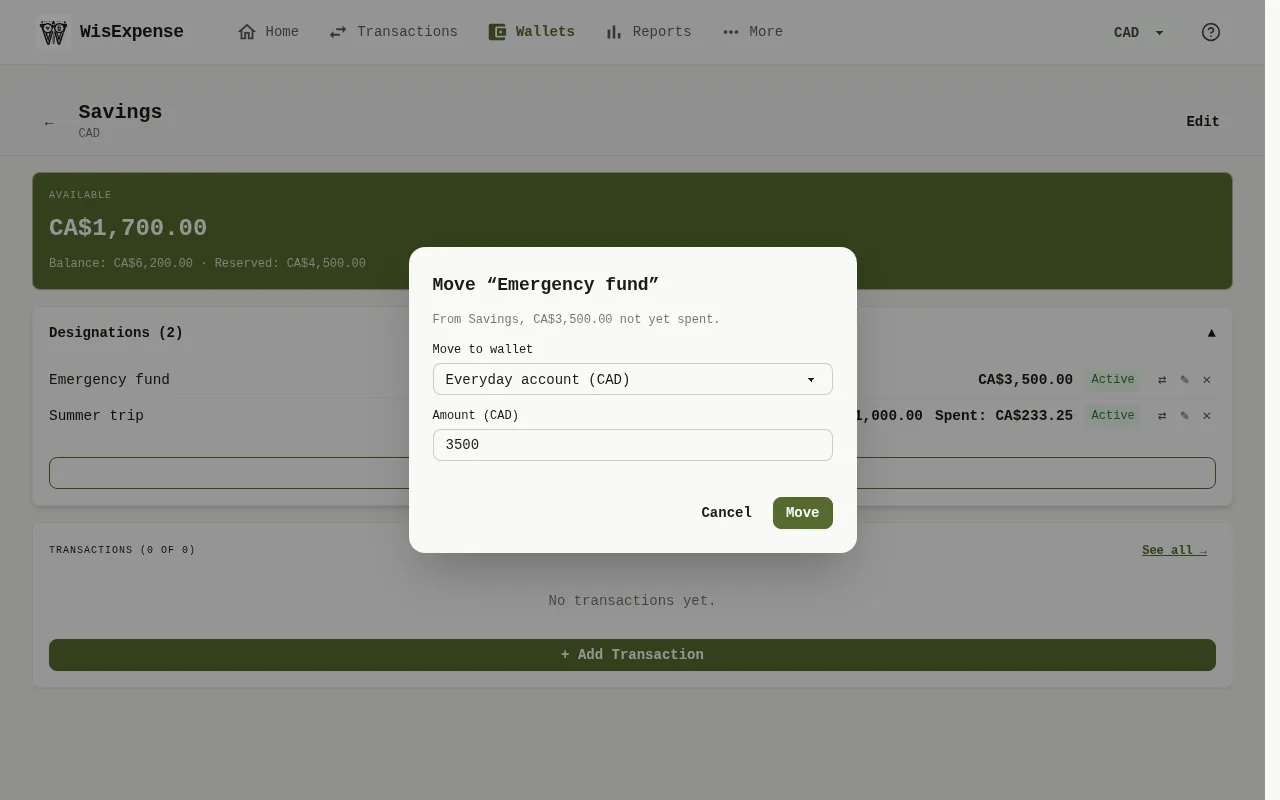
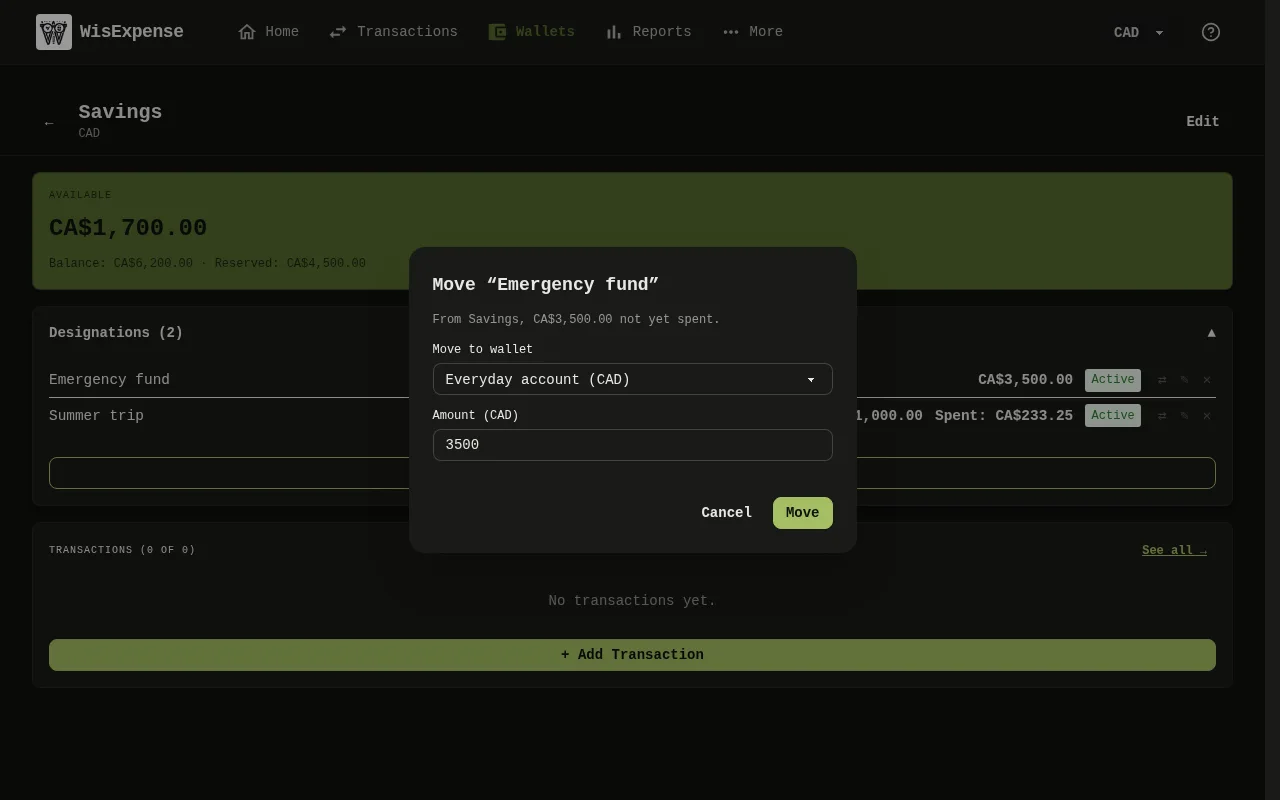
- Open the wallet and its Designations section, then select the arrows (Move to another wallet) on the designation.
- Choose the wallet under Move to wallet Marker 3.
- Check the Amount Marker 4. It starts at what is not yet spent. If the wallets use different currencies, you also see the amount received in the other currency, worked out with the exchange rate, and you can change it.
- Select Move Marker 5.
Mobile
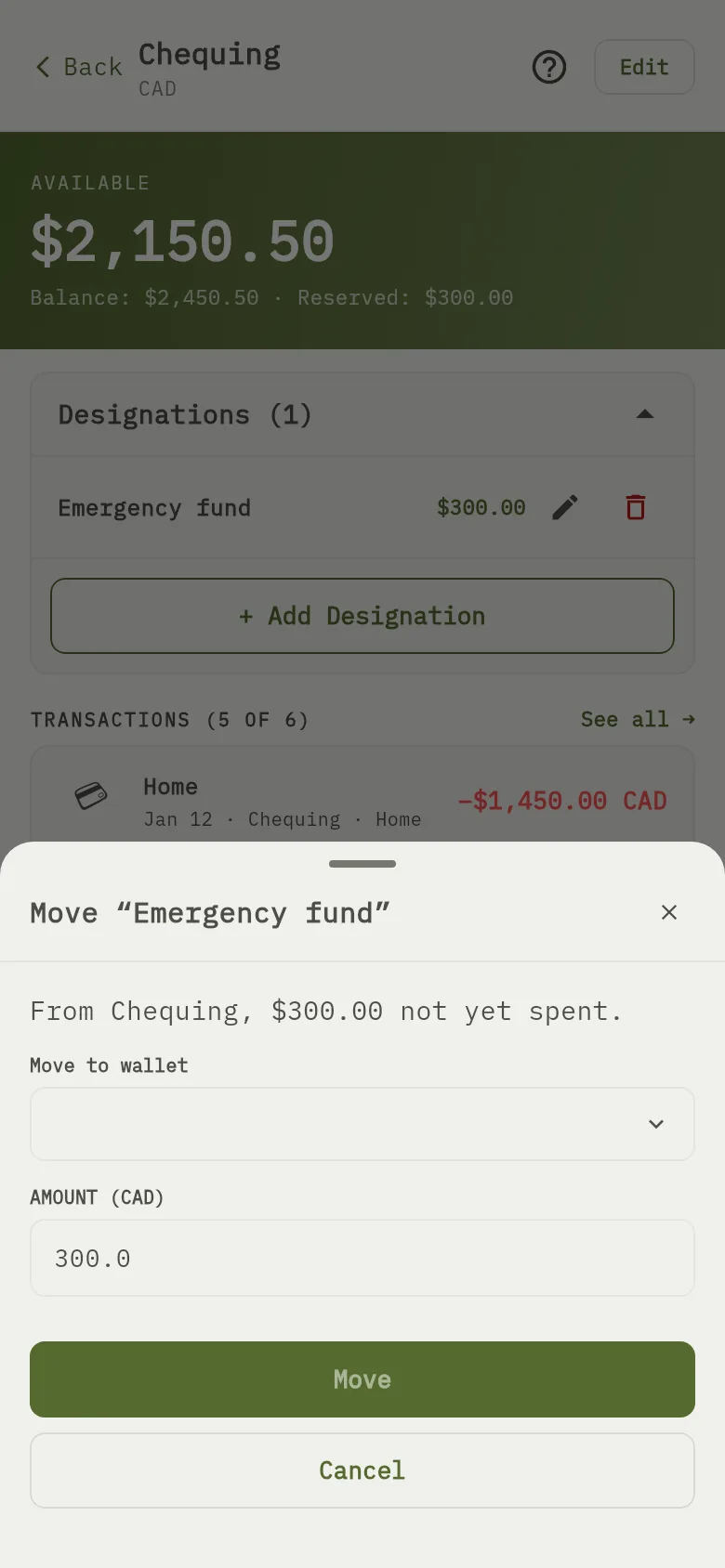
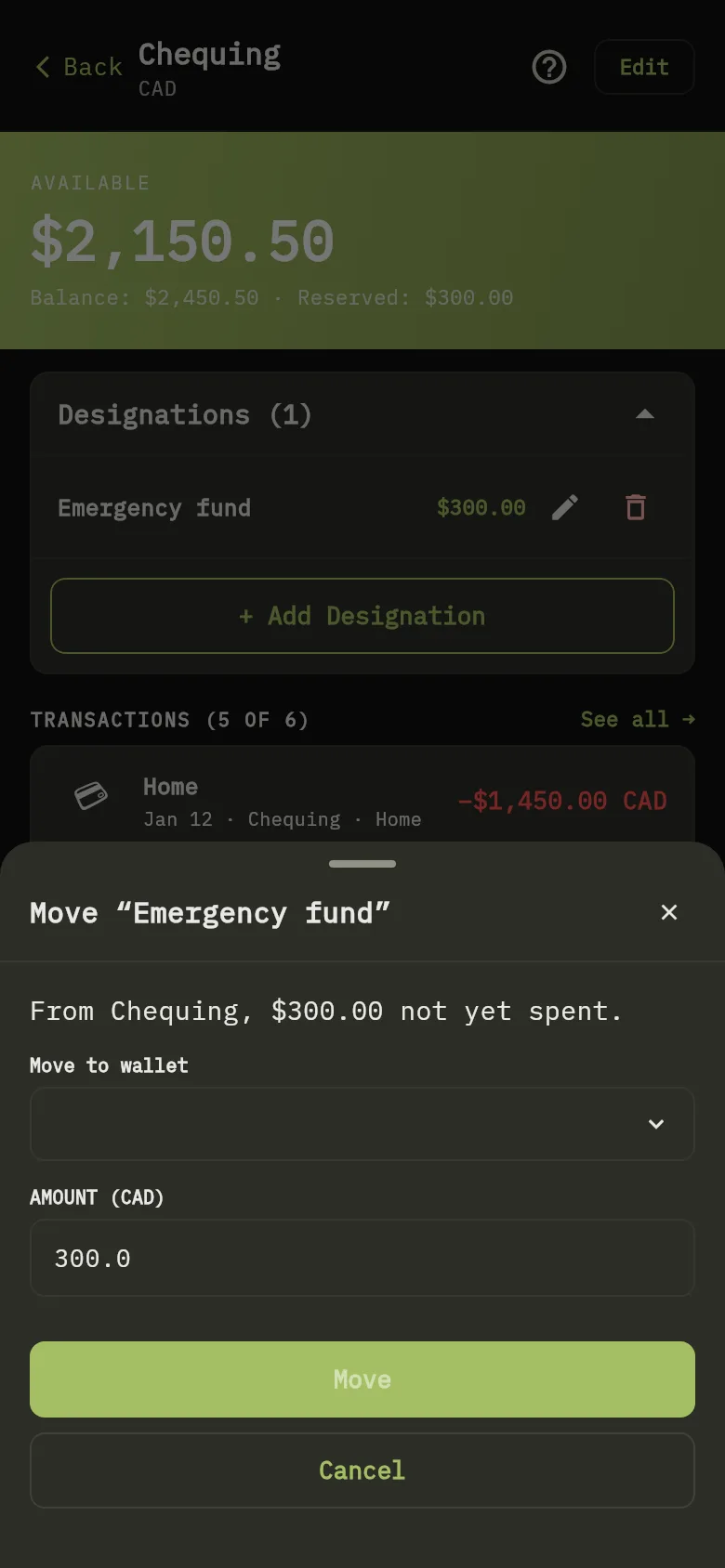
- Open the wallet, and in the designations section tap Move to another wallet on the designation.
- Choose the wallet under Move to wallet Marker 3.
- Check the Amount Marker 4. It starts at what is not yet spent. If the wallets use different currencies, you also see the amount received in the other currency, worked out with the exchange rate, and you can change it.
- Tap Move Marker 5.
If you move more than the designation has left, it is emptied (never below zero) and the rest is added as a new designation in the other wallet, so the goal’s plan grows by that difference. The window says so: This is more than is left here. The rest is added as new designation in the other wallet.
Carry a designation along with a transfer
When you transfer money between wallets, the form shows Carry designations if the sending wallet has money set aside for goals. Tick a goal to move part of its designation to the receiving wallet with the transfer. The amount starts at what the sending wallet has set aside for that goal and you can change it. It cannot be more than that, and it is worked out in the receiving wallet’s currency from the amount it receives. Carrying is optional. If you later change or delete the transfer, both wallets’ designations are worked out again.
When an expense is paid from a designation on another wallet
When you link an expense to a goal whose money is set aside on another wallet, saving the expense moves the part it uses from that wallet’s designation to the wallet the expense is recorded in, without you using the move above. The goal’s total plan does not change. If you later delete the expense or unlink it, what was drawn goes back to the wallet it came from. See Spend toward a goal.
When there is not enough available
Available is the balance minus what is set aside. When a change would leave less available than is set aside for goals, WisExpense asks before saving. This applies to every transaction, whether or not it is linked to a goal, and to adding, raising or moving a designation.
Web
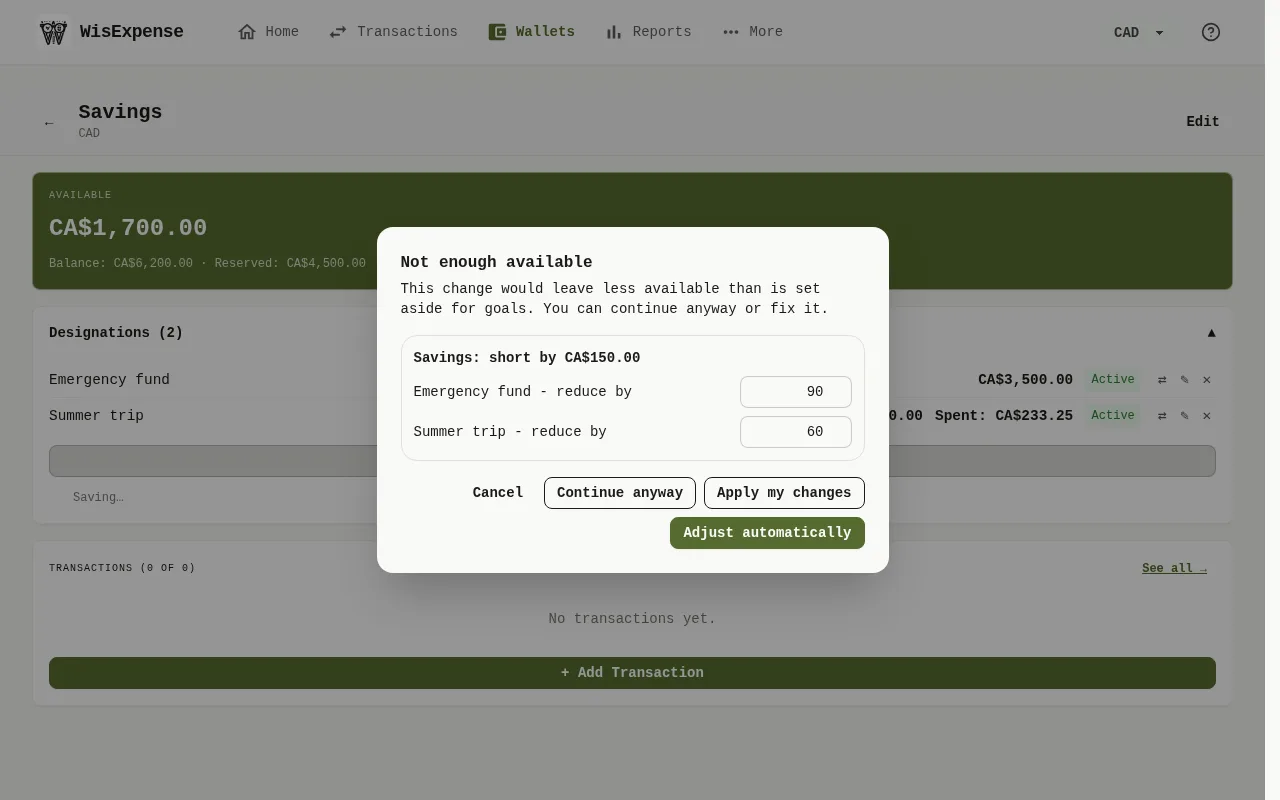
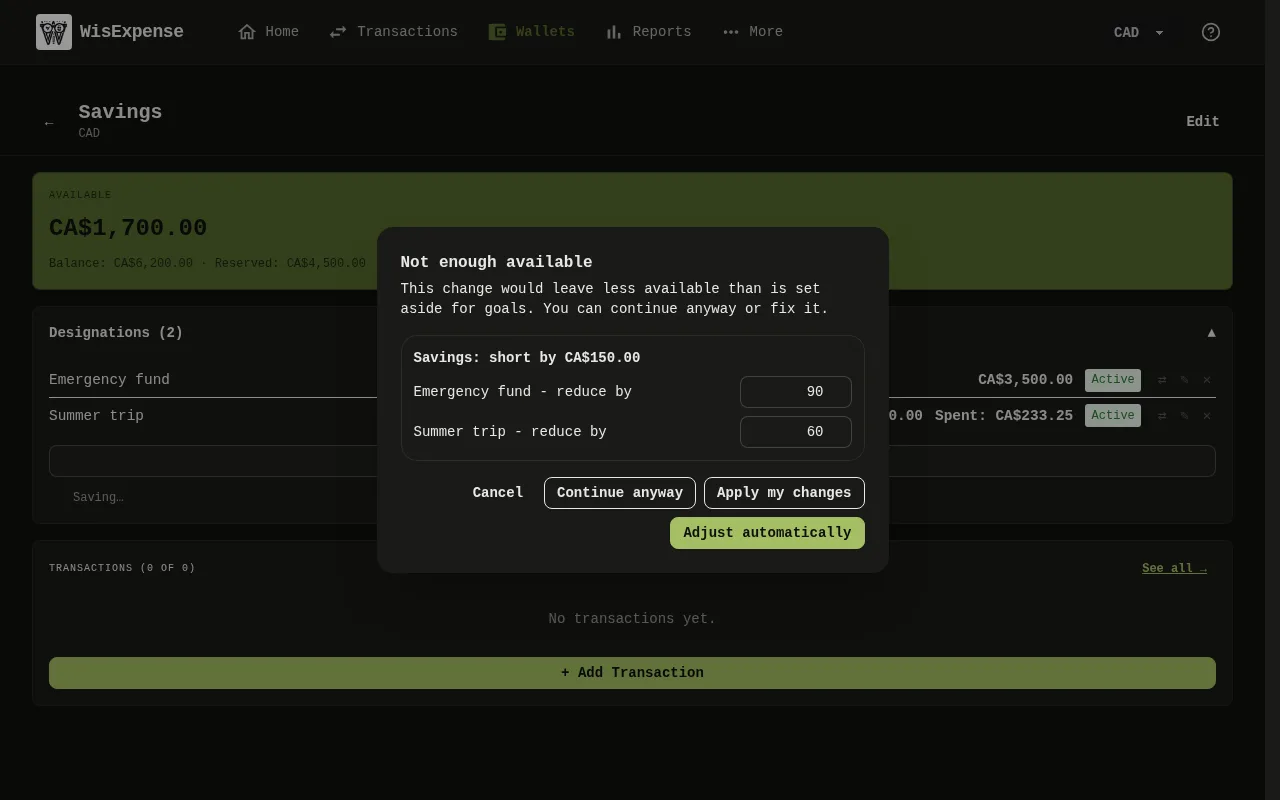
The window Not enough available Marker 6 says which wallet is short by how much, and proposes how much to reduce each goal by.
- Adjust automatically lowers the designations until available is zero, and the transaction is saved. You see which goals were reduced and by how much.
- Apply my changes uses the reductions you typed in instead. Change any amount first. A goal linked to the transaction you are saving is not reduced by its own spending.
- Continue anyway saves without changing the designations.
- Cancel saves nothing.
Mobile
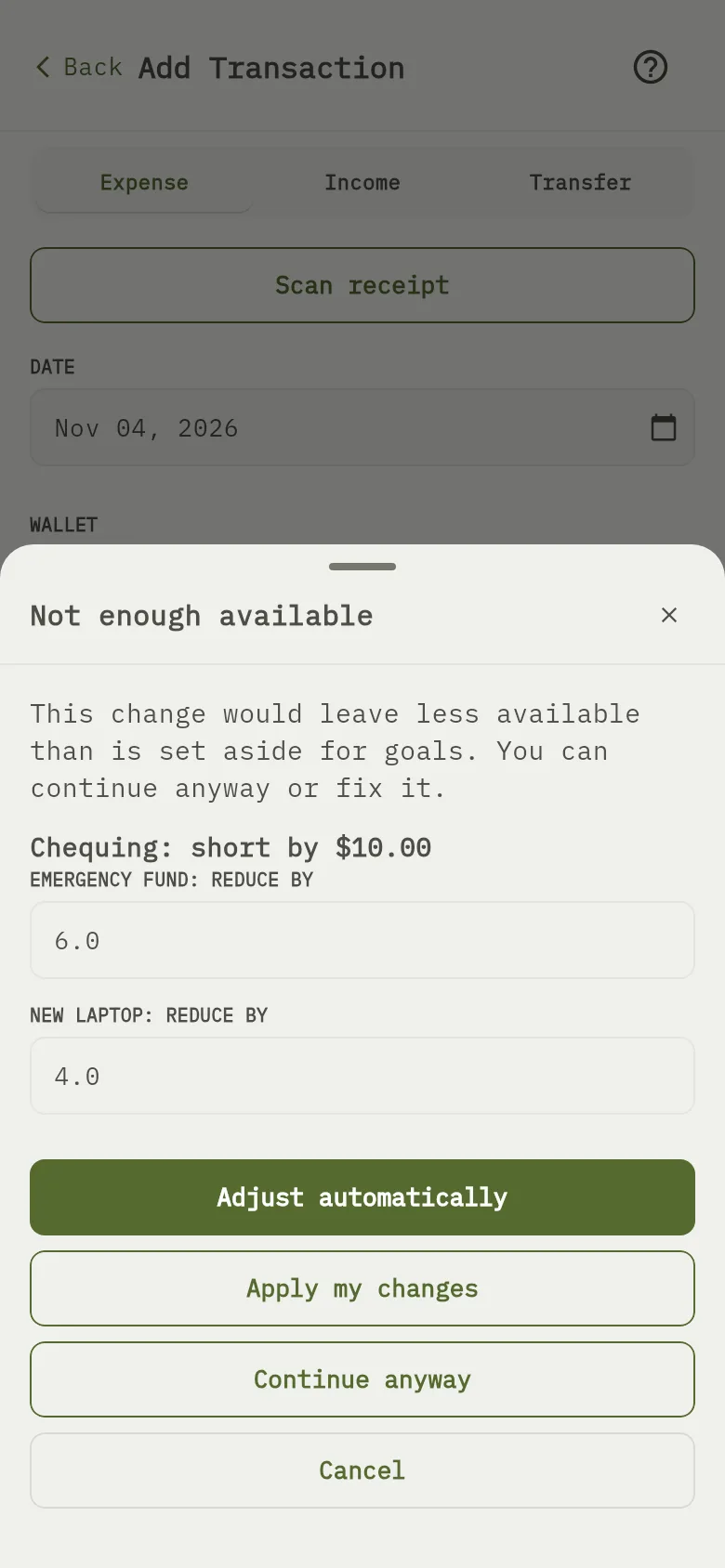
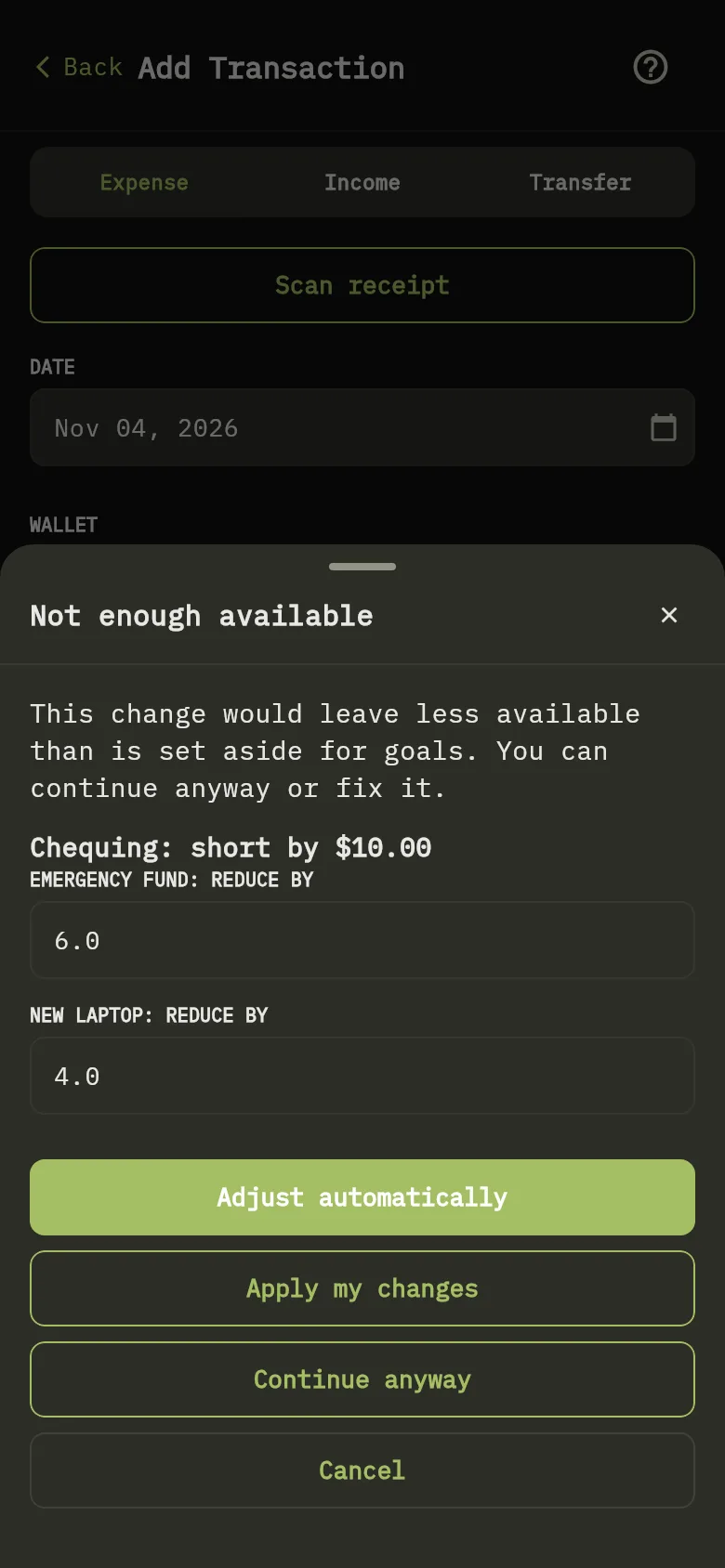
The window Not enough available Marker 6 says which wallet is short by how much, and proposes how much to reduce each goal by.
- Adjust automatically Marker 7 lowers the designations until available is zero, and the transaction is saved. You see which goals were reduced and by how much.
- Apply my changes uses the reductions you typed in instead. Change any amount first. A goal linked to the transaction you are saving is not reduced by its own spending.
- Continue anyway Marker 8 saves without changing the designations.
- Cancel saves nothing.
It is never a hard stop: you can always continue anyway. Whatever you choose, a wallet that still has more set aside than it holds shows More is set aside than the balance with a warning symbol, not only a colour.
If you share a wallet and are not the owner of its goals, the window says Only the goal owner can change designations. You can continue anyway or lower the amount. The adjust buttons are not offered, and the wallet shows the warning to everyone who can see it.
What you see
The designation is listed with the wallet. The designated amount goes up by its allocated amount, and the available amount goes down by the same amount.
Related
Wallet currencies and balances, Spend toward a goal and Transfer money between wallets.