
Wallet currencies and balances
Understand a wallet’s balance, designated and available amounts, and how wallets in different currencies add up.
Every wallet shows three amounts. Totals add your wallets together in one currency, so wallets in different currencies still add up.
Before you start
You need at least one wallet. Create your first wallet if you have none.
Steps
Web
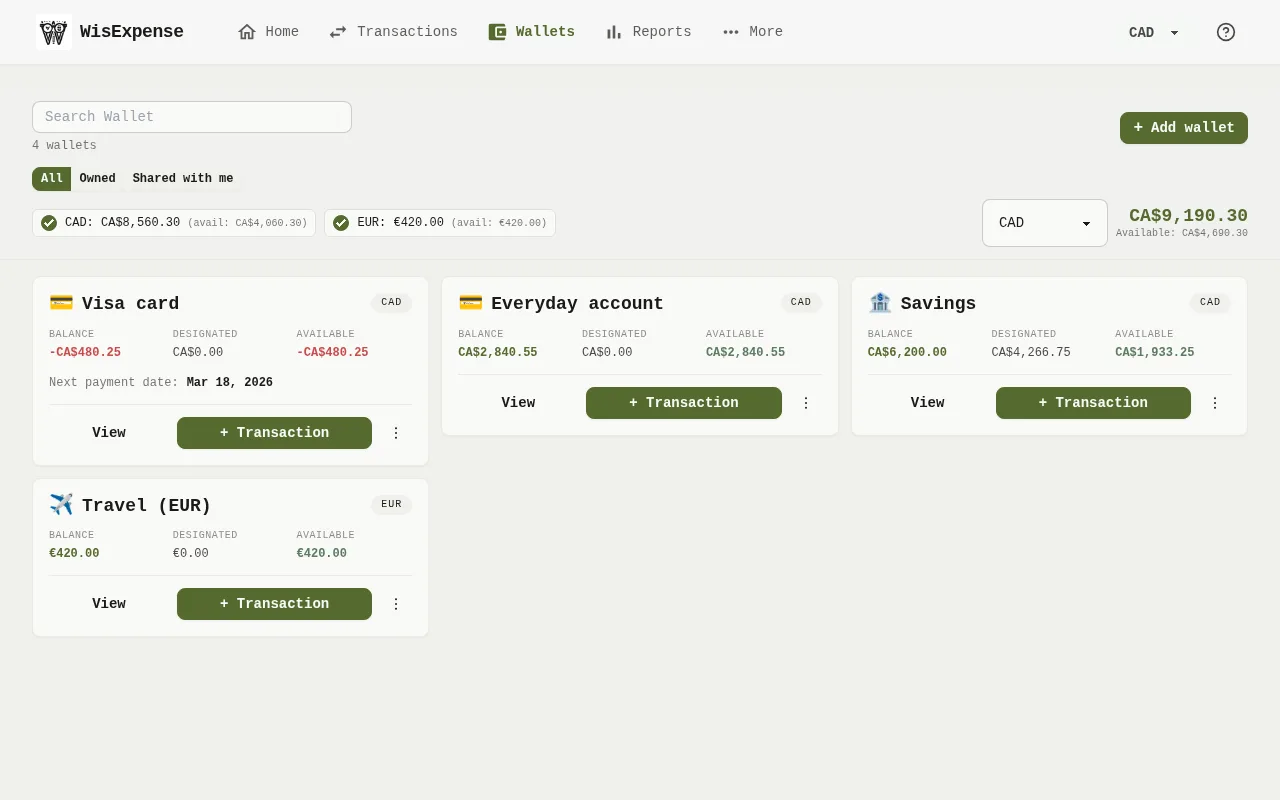
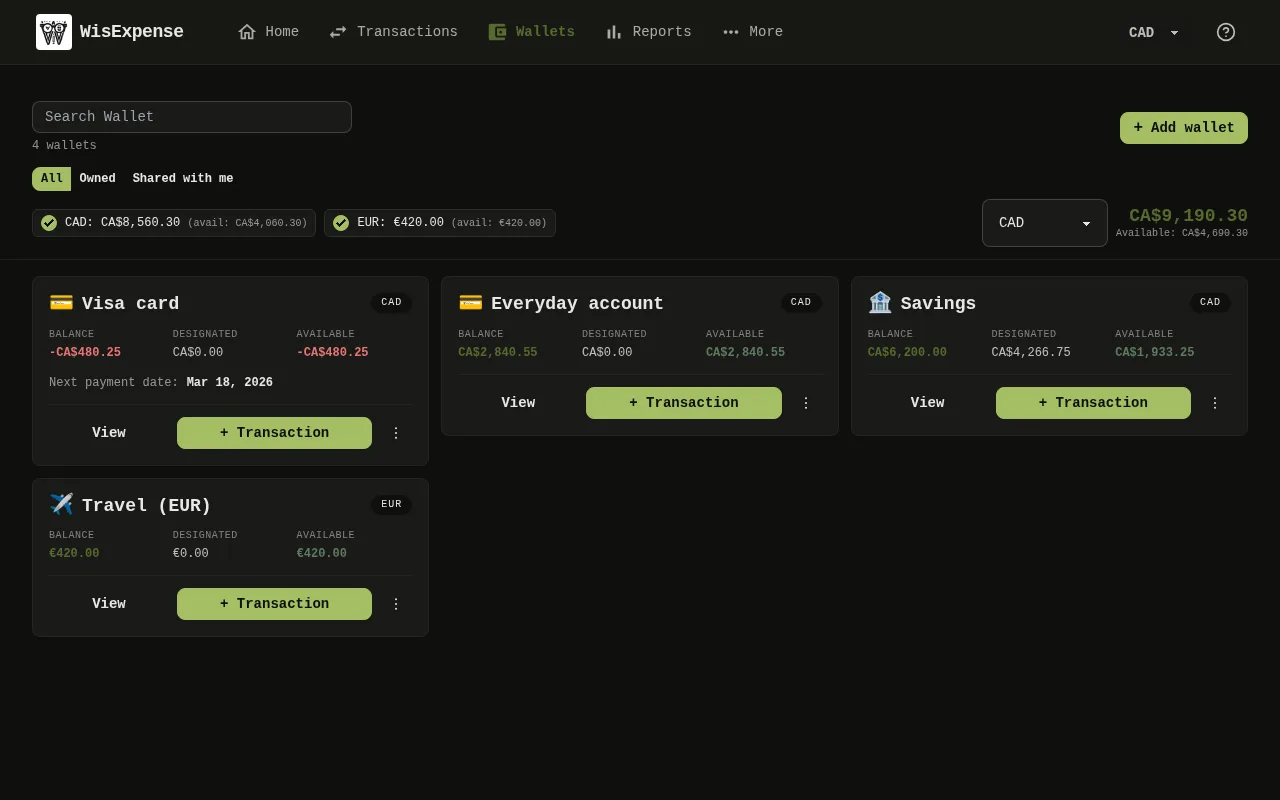
- Find a wallet’s card Marker 1. It shows Balance (the money in the wallet), Designated (the part you have set aside) and Available (what is left to spend).
- Read the total at the top right of the screen. It adds up your wallets in the currency selected next to it.
- Choose another currency in that menu to see the totals in it.
Mobile
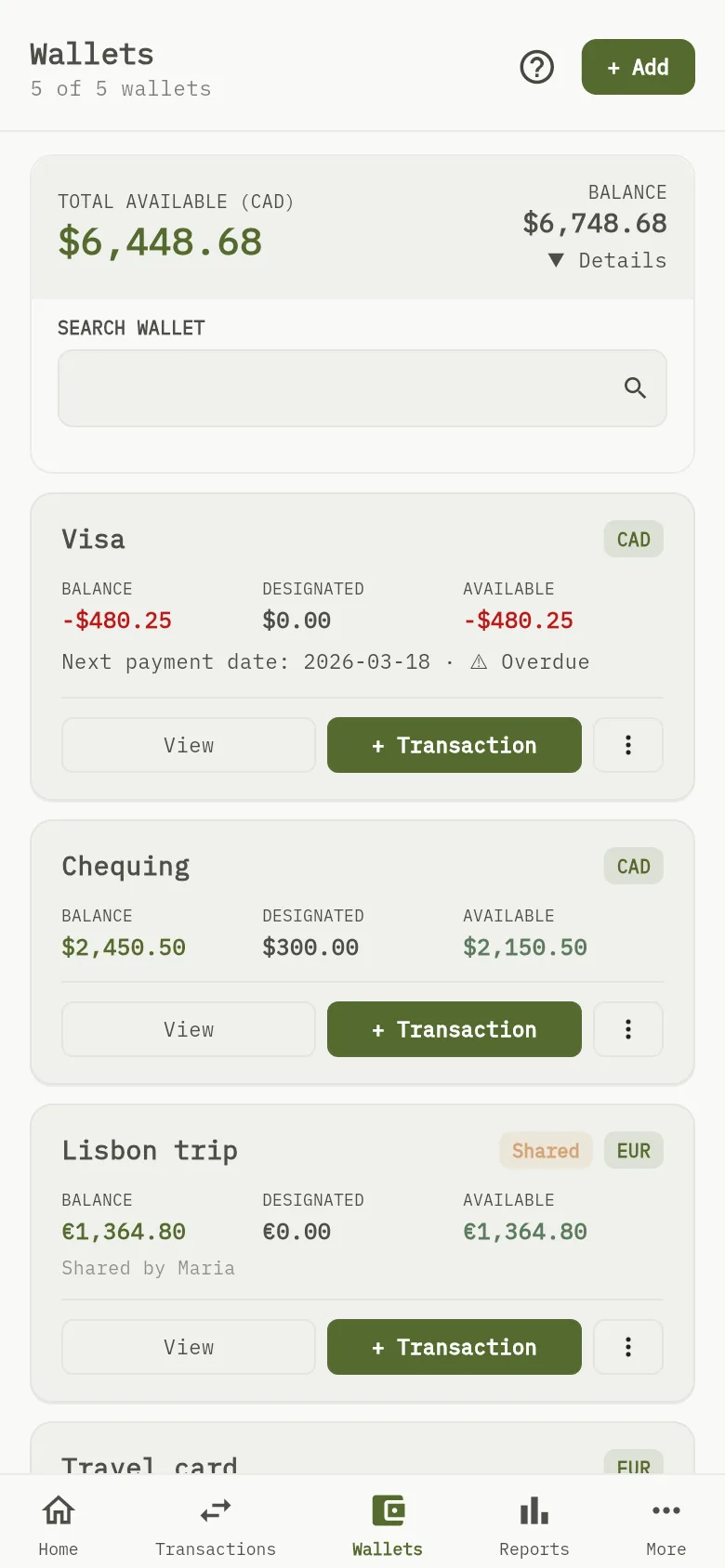
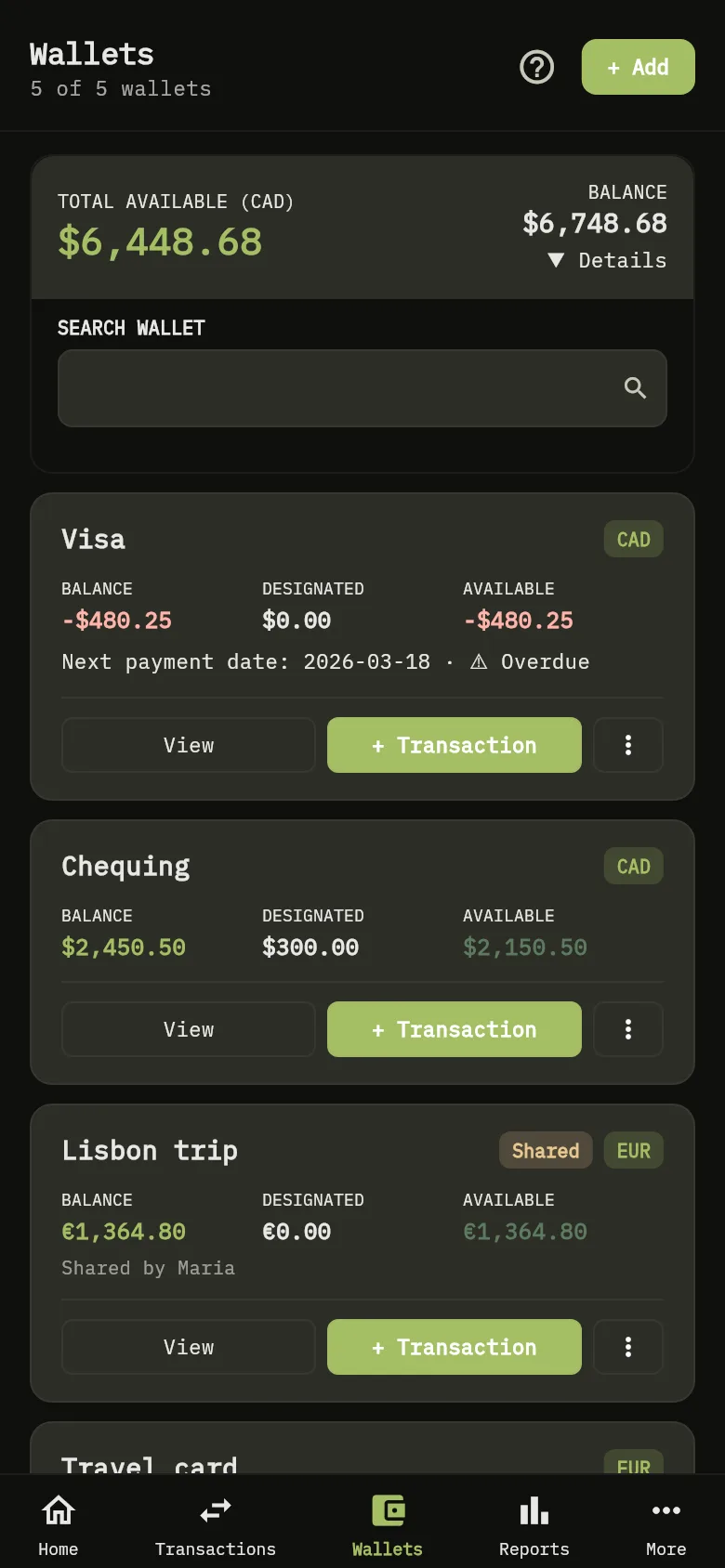
- Tap Wallets. The card at the top Marker 2 shows the total available across your wallets, in your viewing currency.
- Each wallet below it shows BALANCE, DESIGNATED and AVAILABLE.
A credit card also shows its next payment date. Cards you owe money on come first in the list, then wallets with a payment date, earliest first, then the others by name. See Track credit card payments.
How the amounts relate
Money you set aside with a designation stays in the wallet, but it is no longer available to spend. Designated counts only the part of the plan you have not spent yet: when you link an expense to a goal, the expense takes from that designation, so the balance and the designated amount go down together.
When more is set aside than the balance holds, available is negative and the wallet shows More is set aside than the balance, with a warning symbol. Set money aside with designations shows how to fix it.
Wallets in other currencies
To add wallets in different currencies, WisExpense converts each amount into the currency of the total:
It uses the rate between the two currencies, or goes through a third currency when there is no direct rate. When no rate can be found, the amount is added as it is, without converting it.
What you see
You can tell what is in a wallet, what is set aside and not yet spent, and what you can spend, and you know how totals are made.