
Track credit card payments
Mark a wallet as a credit card, record when its payment is due, and pay it from Home.
Mark a wallet as a credit card, and WisExpense reminds you when its payment is due. Home lists the cards you owe money on, and Pay starts a transfer that clears the balance.
Before you start
You need a wallet for the card, with a balance below zero when you owe money on it. You can mark a wallet that you own, or one that was shared with you as Admin or Collaborator. With read-only access you see the card’s dates but can’t change them.
Mark the wallet as a card
Web
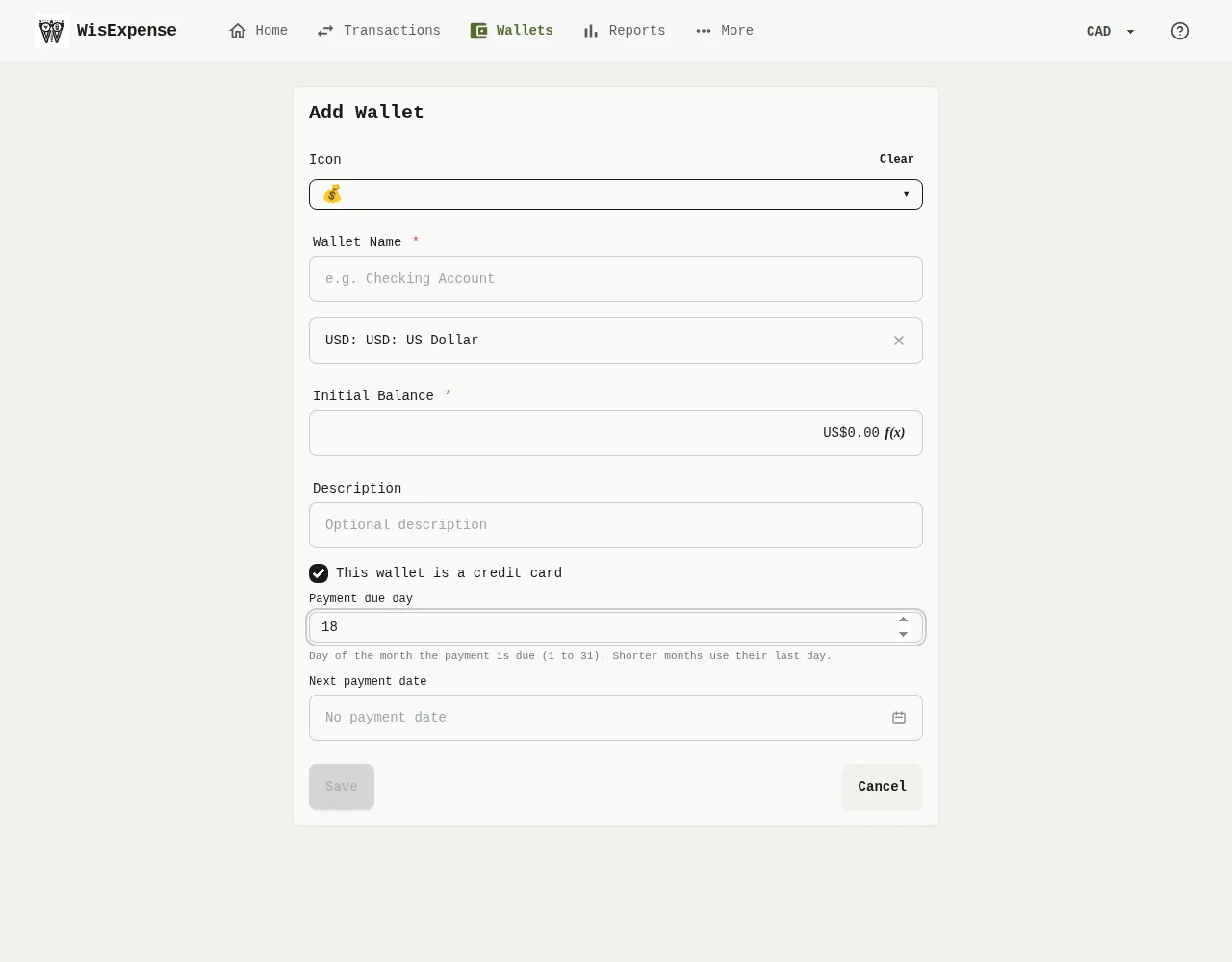
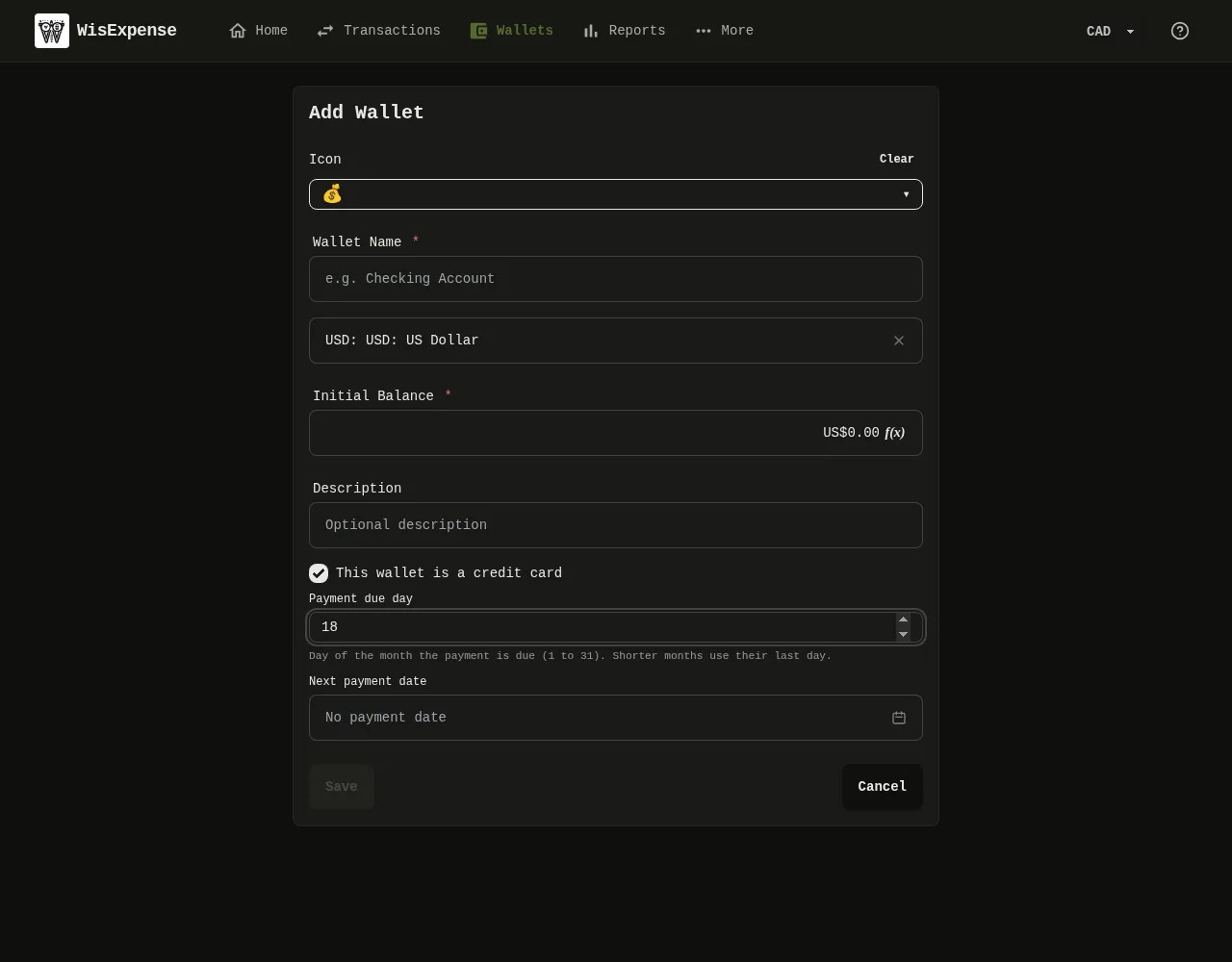
- Open Wallets and select Edit in the three-dot menu of the wallet, or select Add wallet to create one.
- Tick This wallet is a credit card Marker 1.
- Type the Payment due day Marker 2, a whole number from 1 to 31. In a shorter month, the last day of the month is used.
- If you know it, choose the Next payment date Marker 3. You can leave it empty.
- Select Save.
Mobile
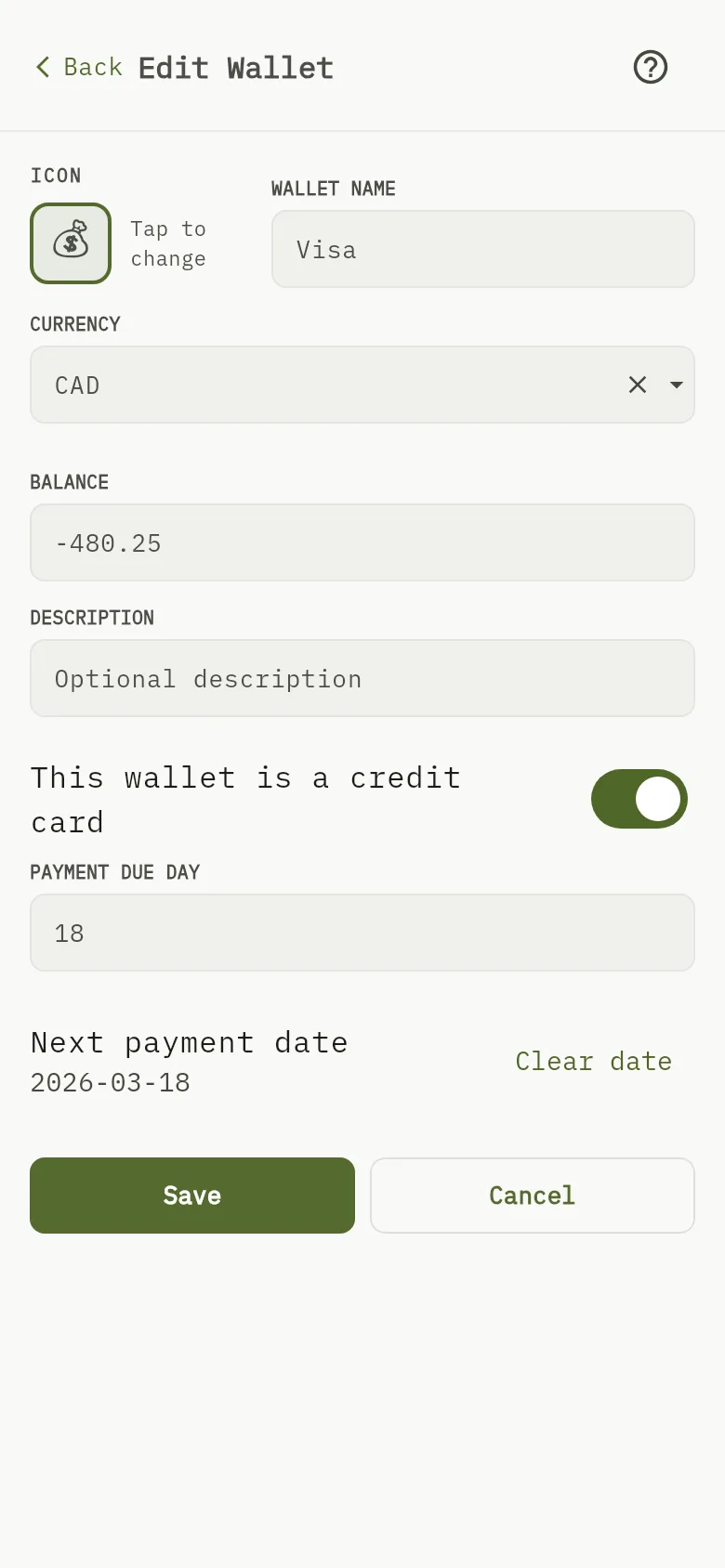
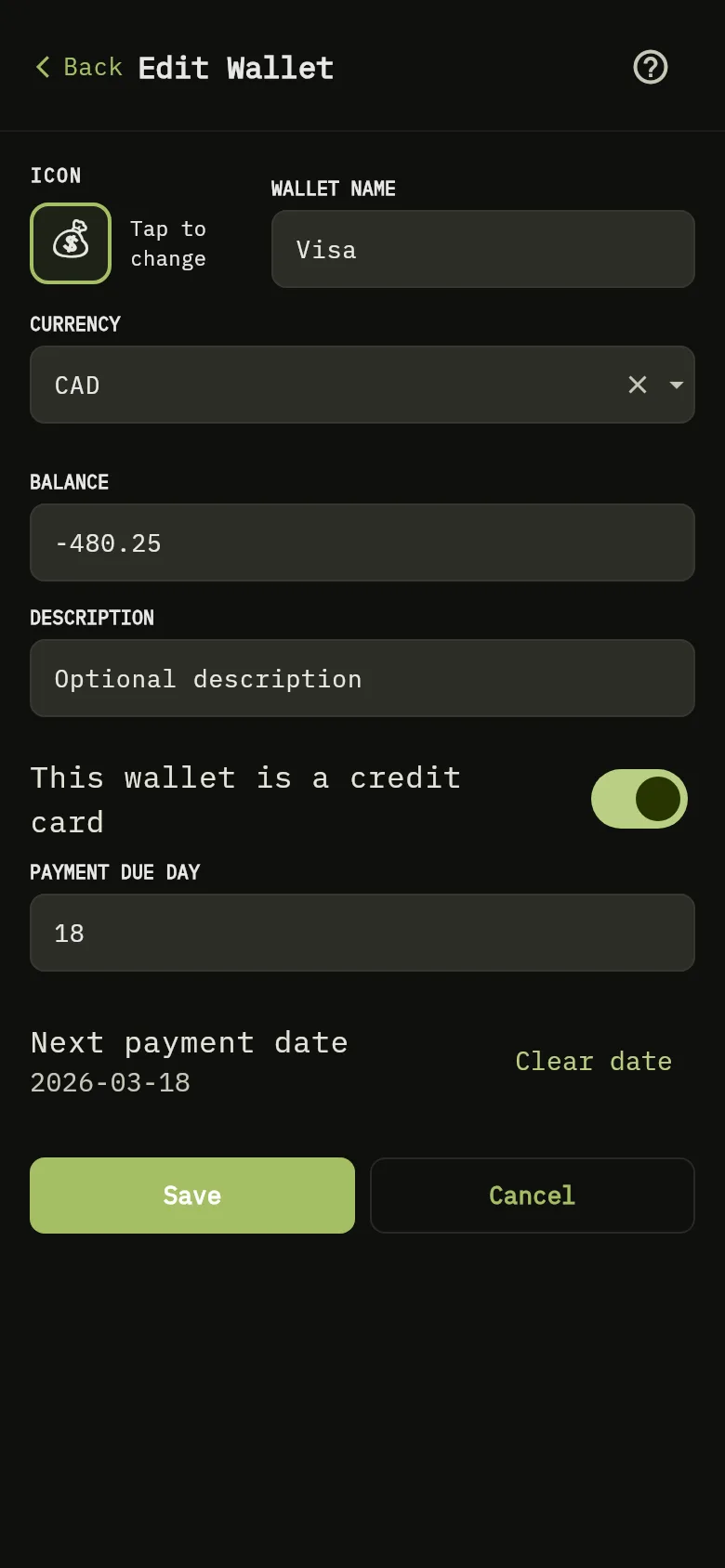
- Tap Wallets, tap View on the wallet, then tap Edit. To make a new wallet, tap + Add instead.
- Switch on This wallet is a credit card Marker 1.
- Type the Payment due day Marker 2, a whole number from 1 to 31. In a shorter month, the last day of the month is used.
- If you know it, set the Next payment date Marker 3. You can leave it empty.
- Tap Save Marker 4.
A day outside 1 to 31 is not accepted: the form shows Enter a whole number from 1 to 31. If you switch the card off again, the wallet loses its due day and its payment date, and it stops appearing on Home as a card.
See the next payment date
Web
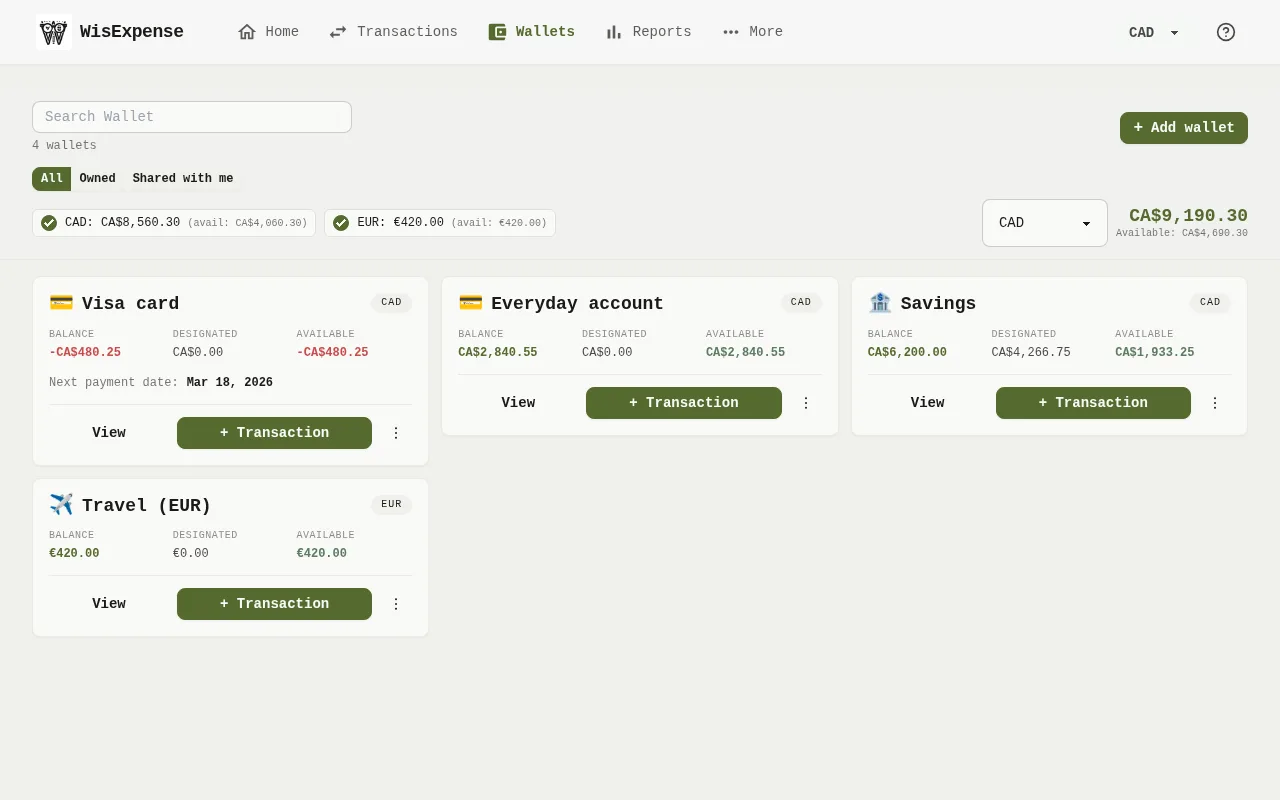
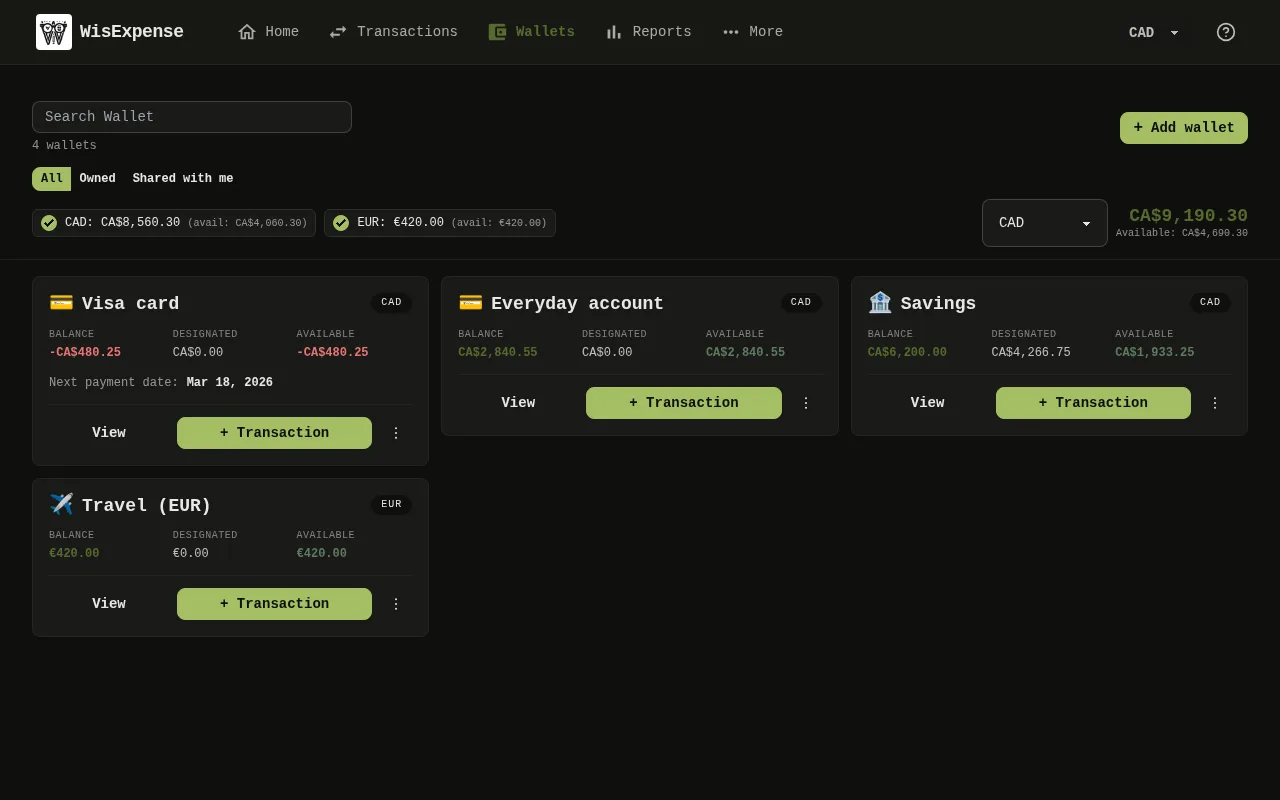
On Wallets, a credit card shows its Next payment date Marker 5 on its card, or No payment date when it has none. A date in the past carries the word Overdue. Cards you owe money on are listed first.
Mobile
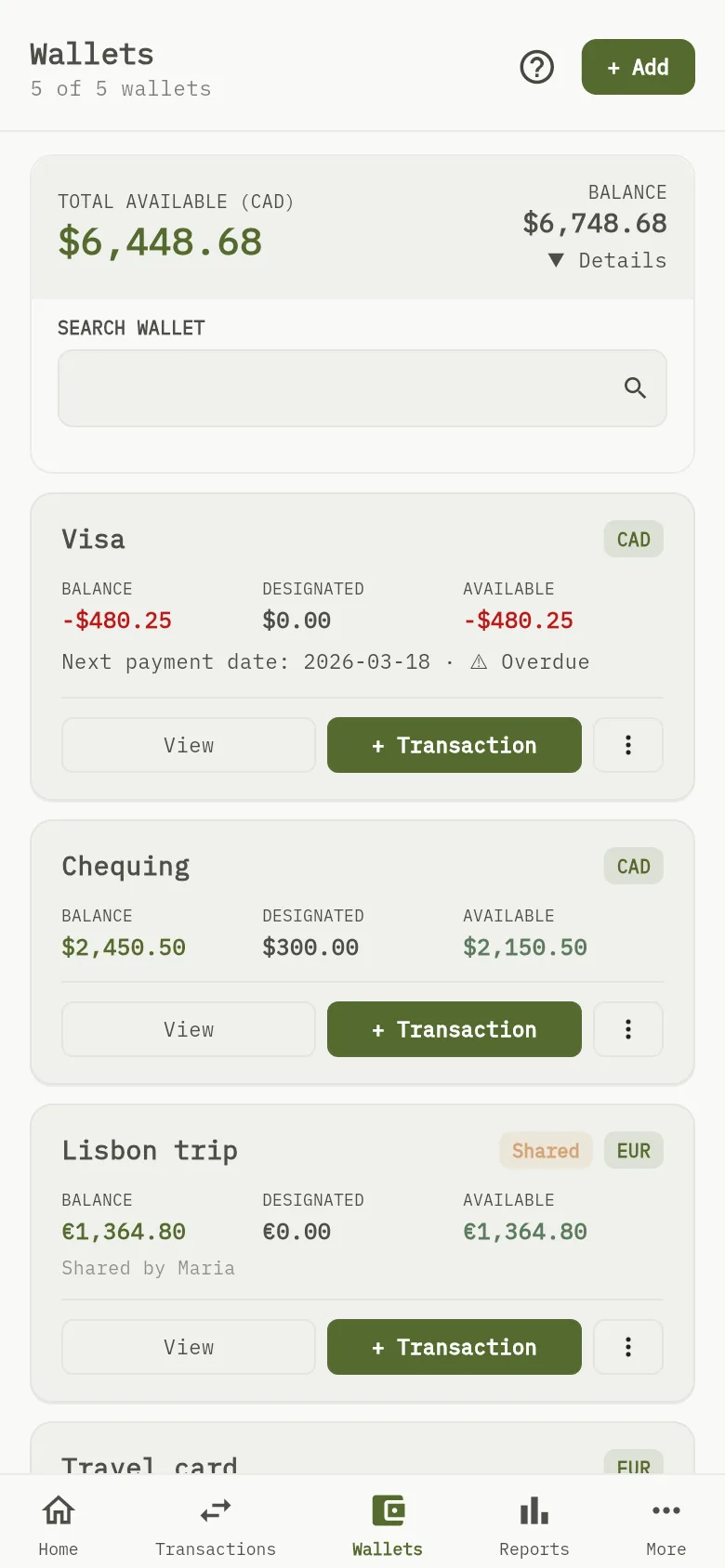
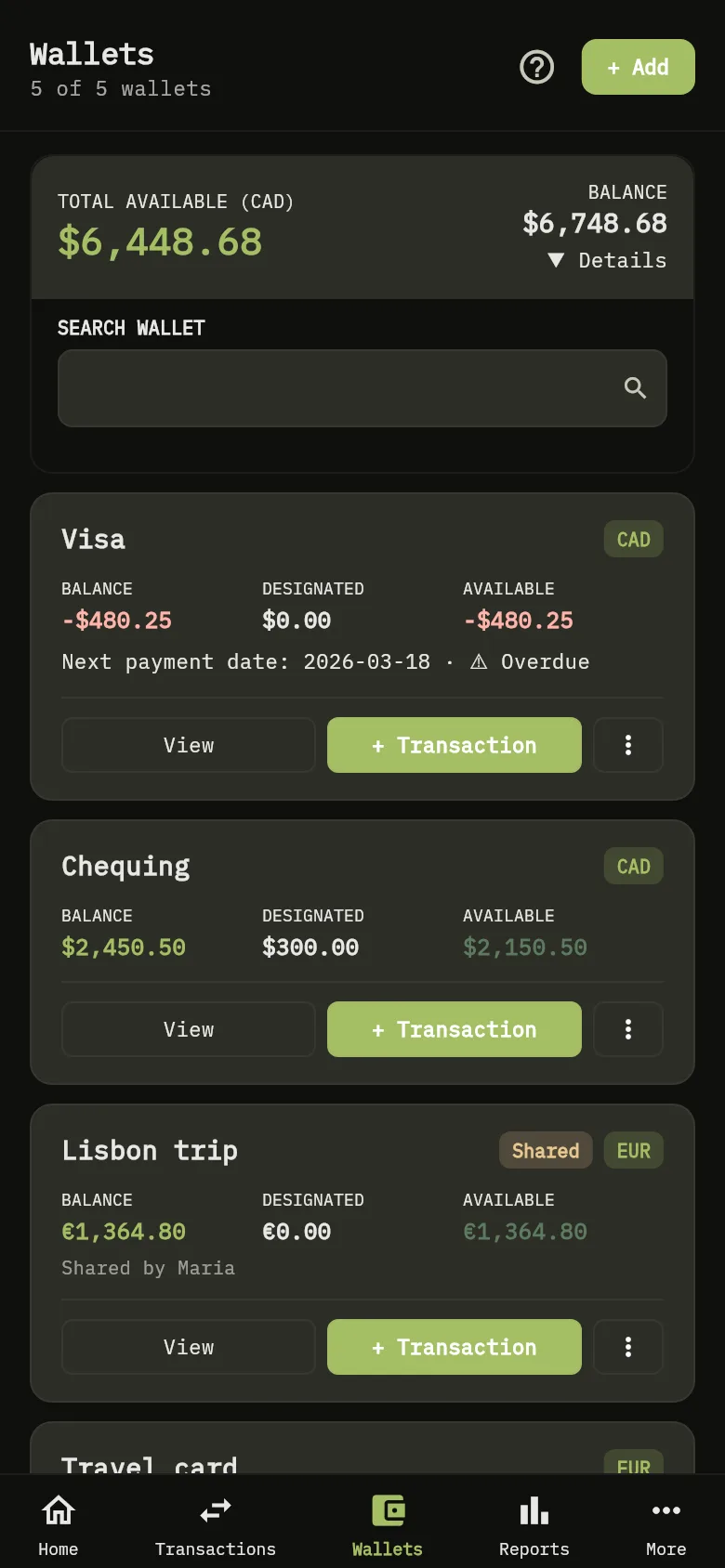
On Wallets, a credit card shows its Next payment date Marker 5, or No payment date when it has none. A date in the past carries the word Overdue. Cards you owe money on are listed first.
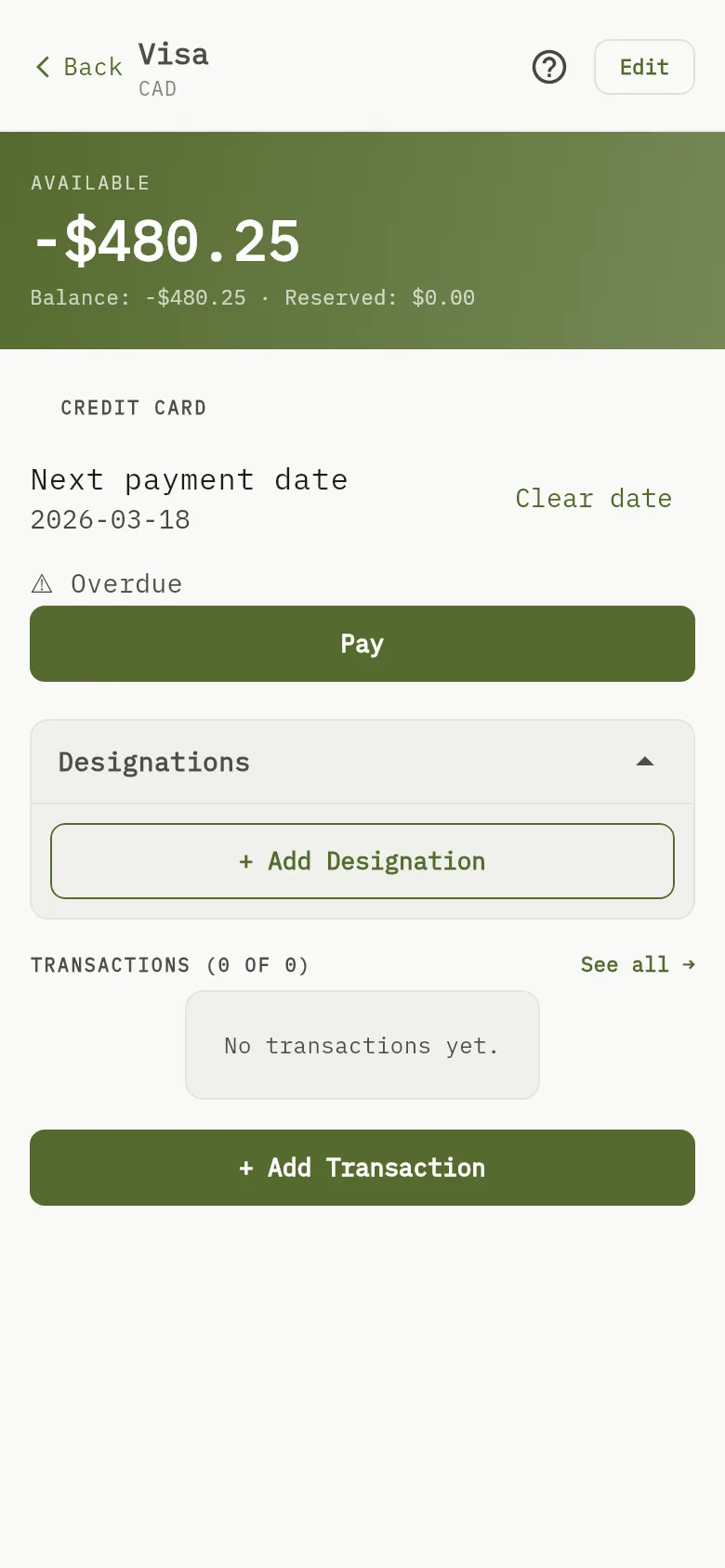
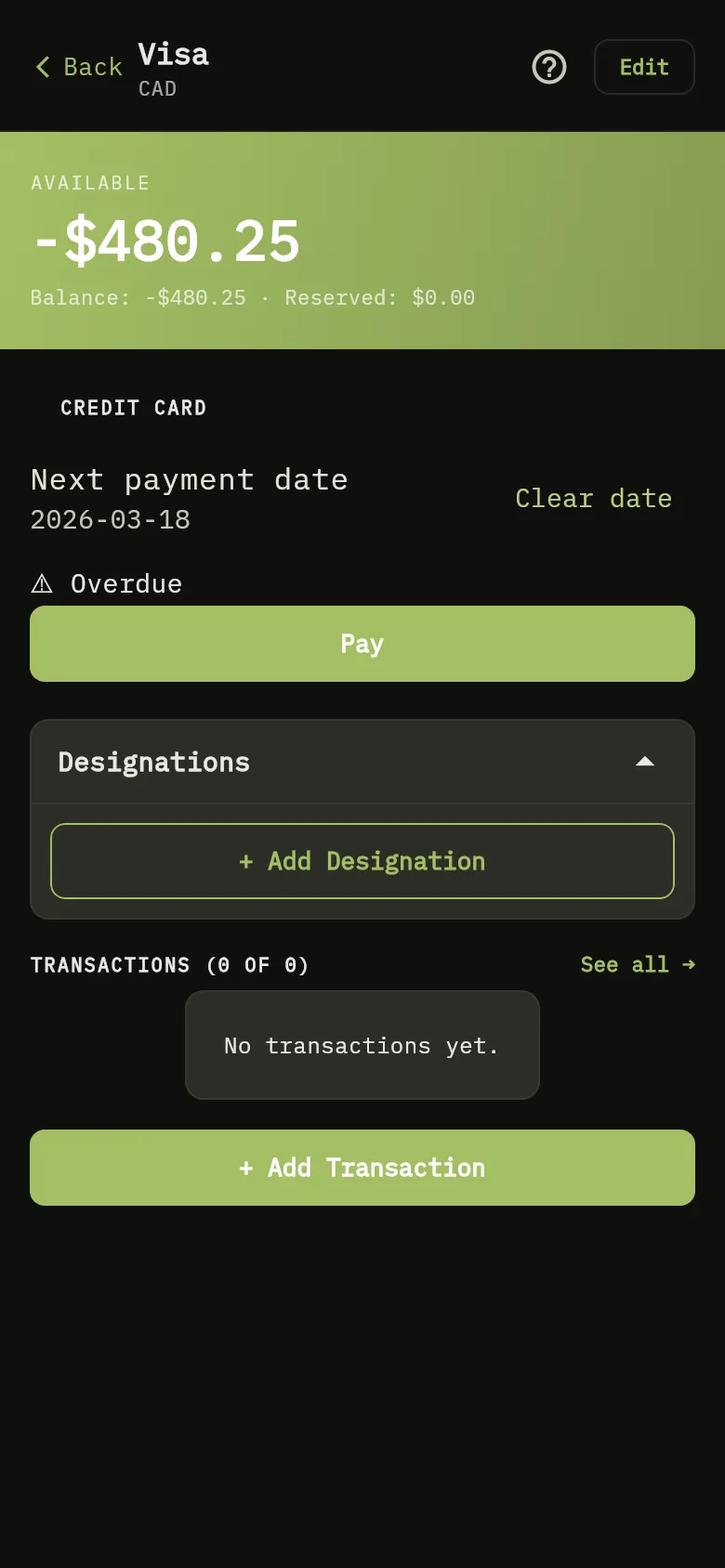
To change the date without recording a transfer, open the wallet and use the Credit card section Marker 6. Tap Clear date to remove it.
Pay the card from Home
Web
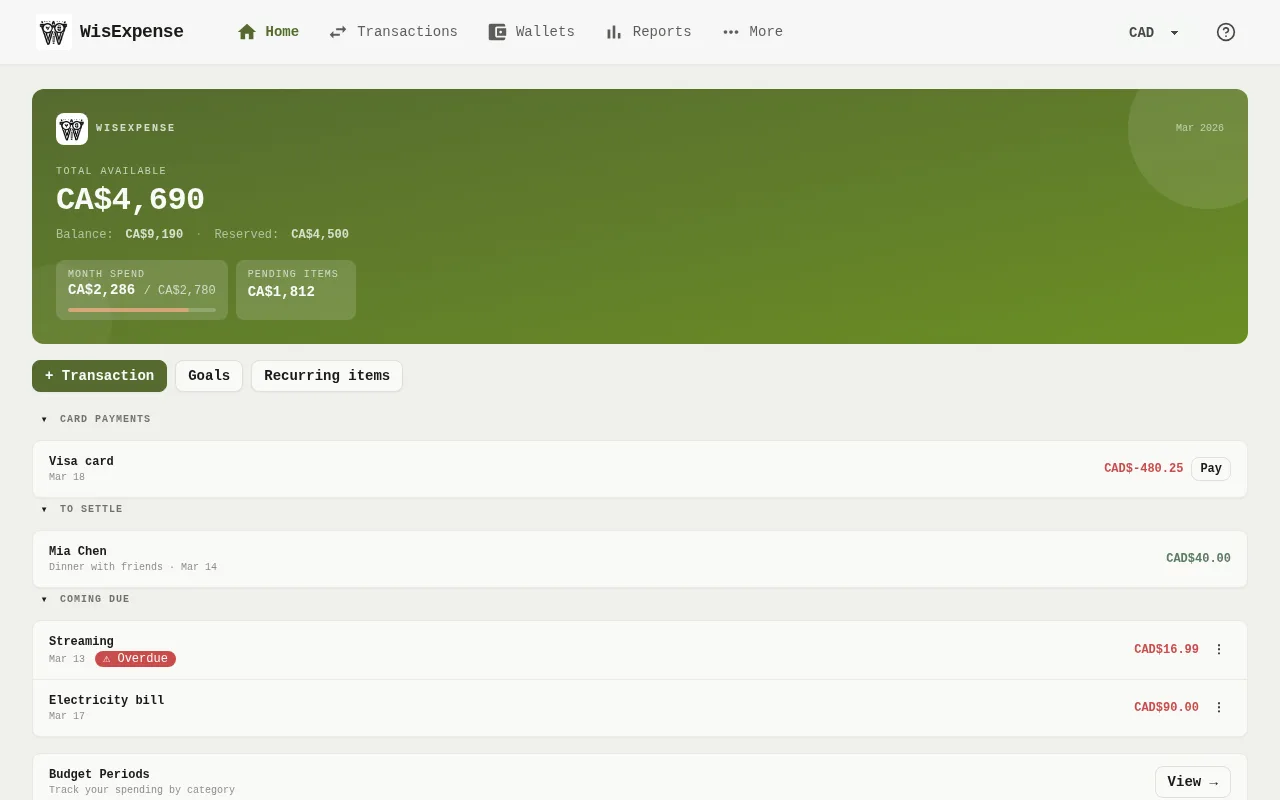
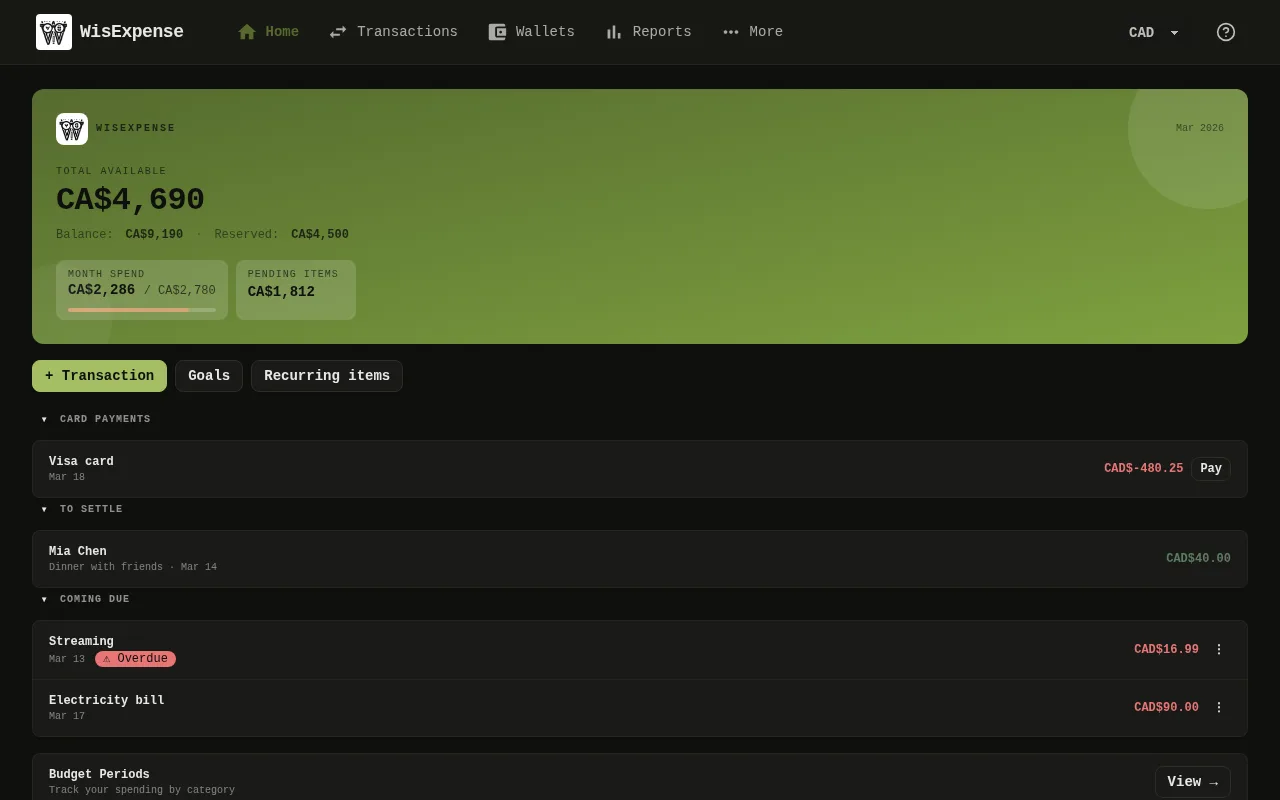
- Open Home. Card payments Marker 7 lists the credit cards that you owe money on and whose payment is overdue or due soon (within the next 7 days, or by the end of your current budget period if that is later), and the cards that have no payment date. Cards with no date come first, then the earliest date.
- Select Pay Marker 8 next to the card. A new transfer opens with the card as destination and the amount that brings its balance to zero.
Mobile
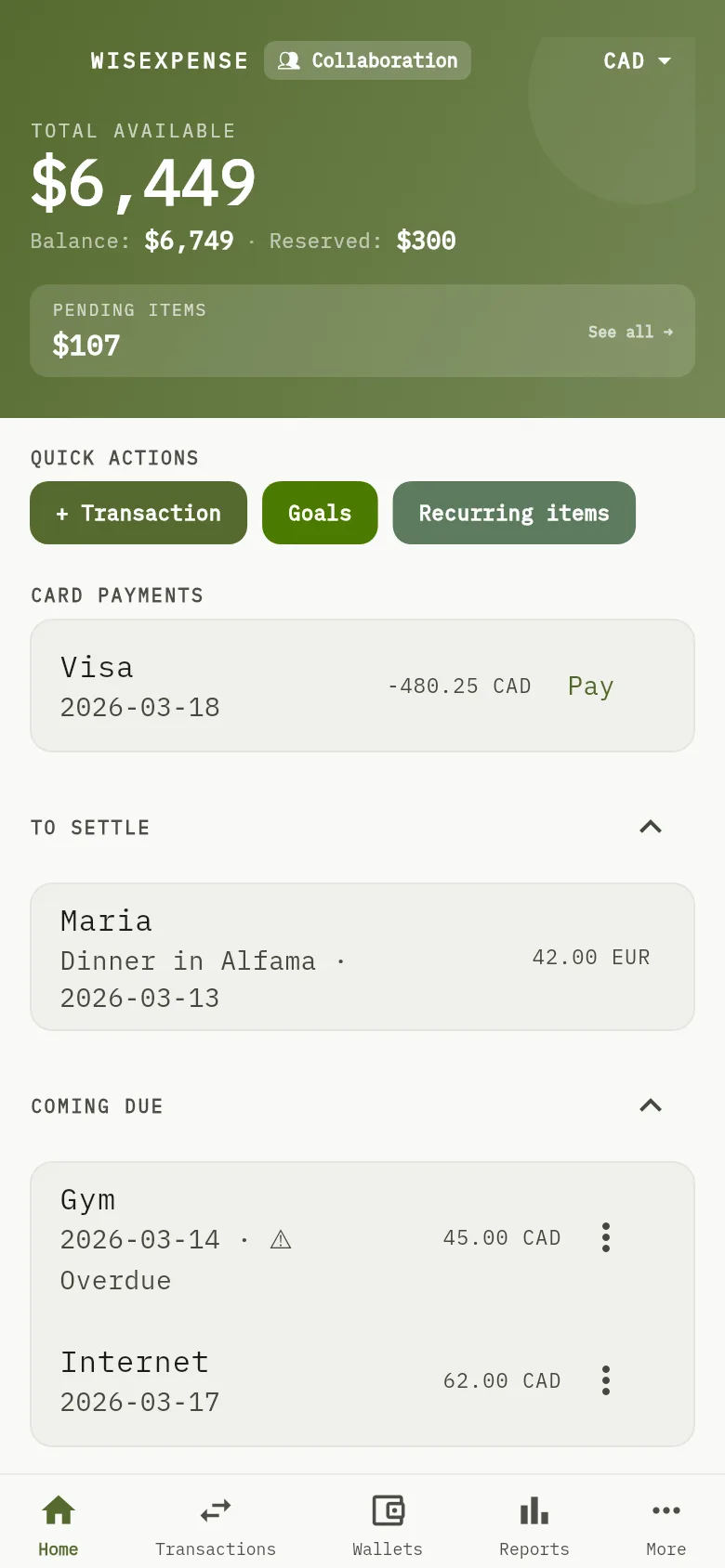
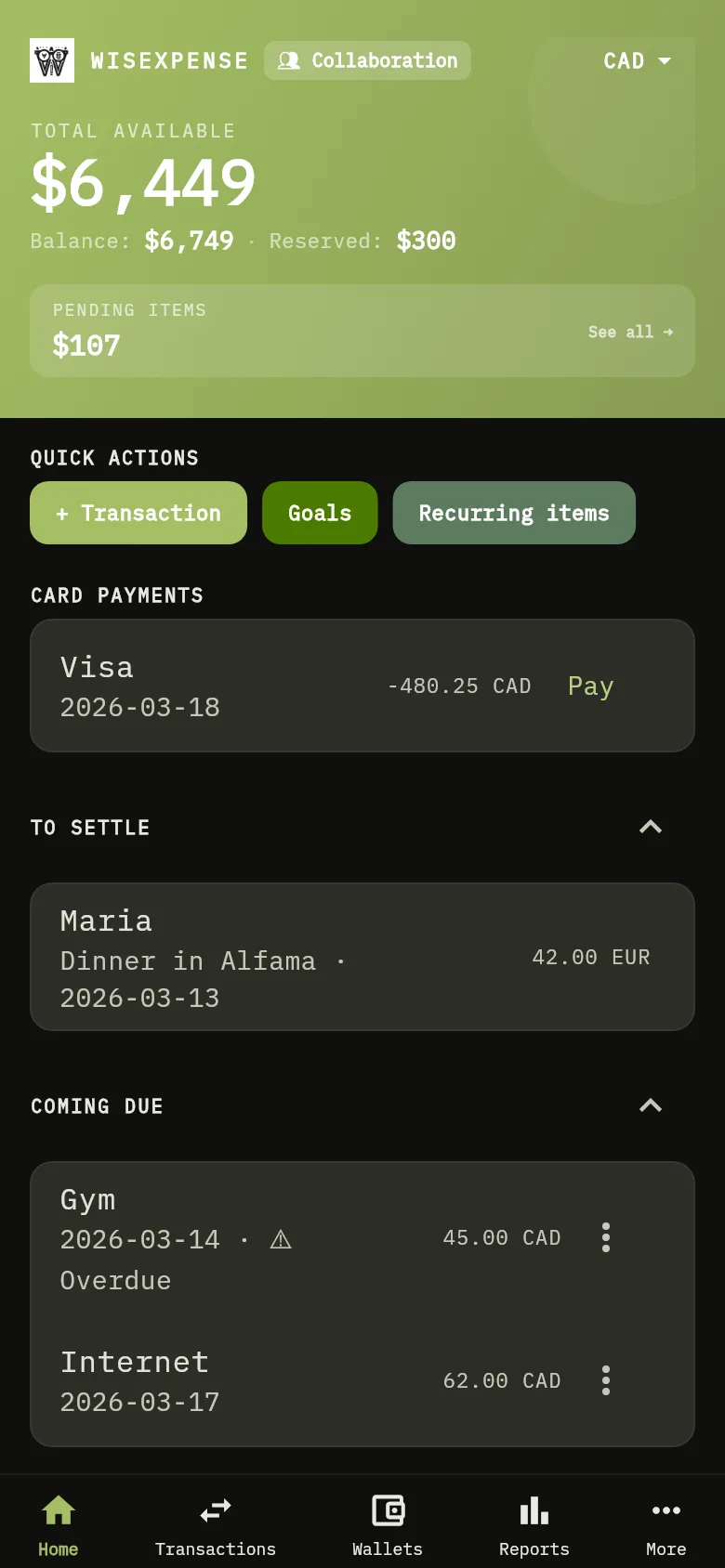
- Open Home. Card payments Marker 7 lists the credit cards that you owe money on and whose payment is overdue or due soon (within the next 7 days, or by the end of your current budget period if that is later), and the cards that have no payment date. Cards with no date come first, then the earliest date.
- Tap Pay next to the card, or on the card’s own screen. A new transfer opens with the card as destination and the amount that brings its balance to zero.
Select the card itself to open its wallet. A card disappears from the list once its balance is zero or above, or once its next payment date is later than that. If you have no credit card at all, the section isn’t shown.
Choose the source and the date
Web
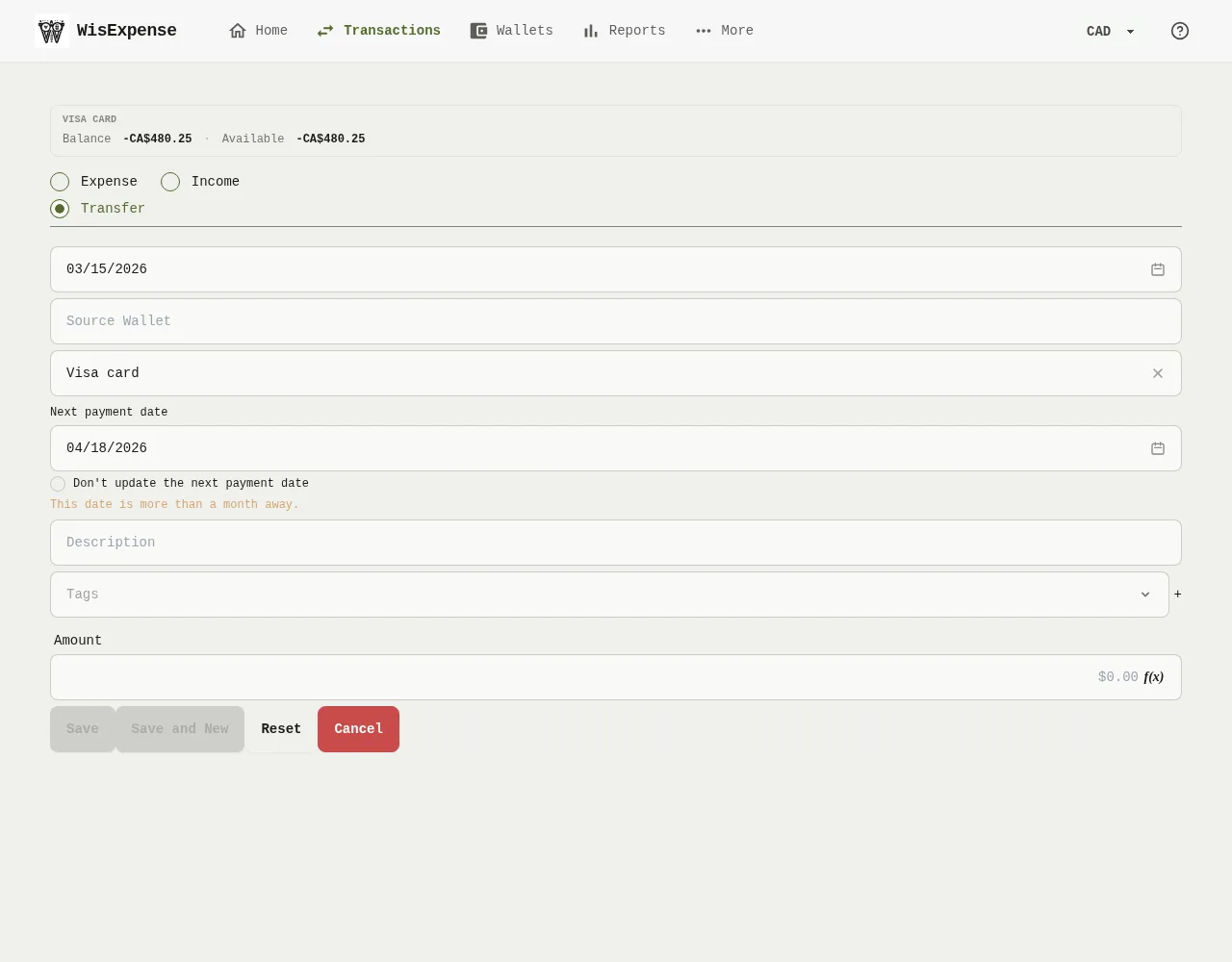
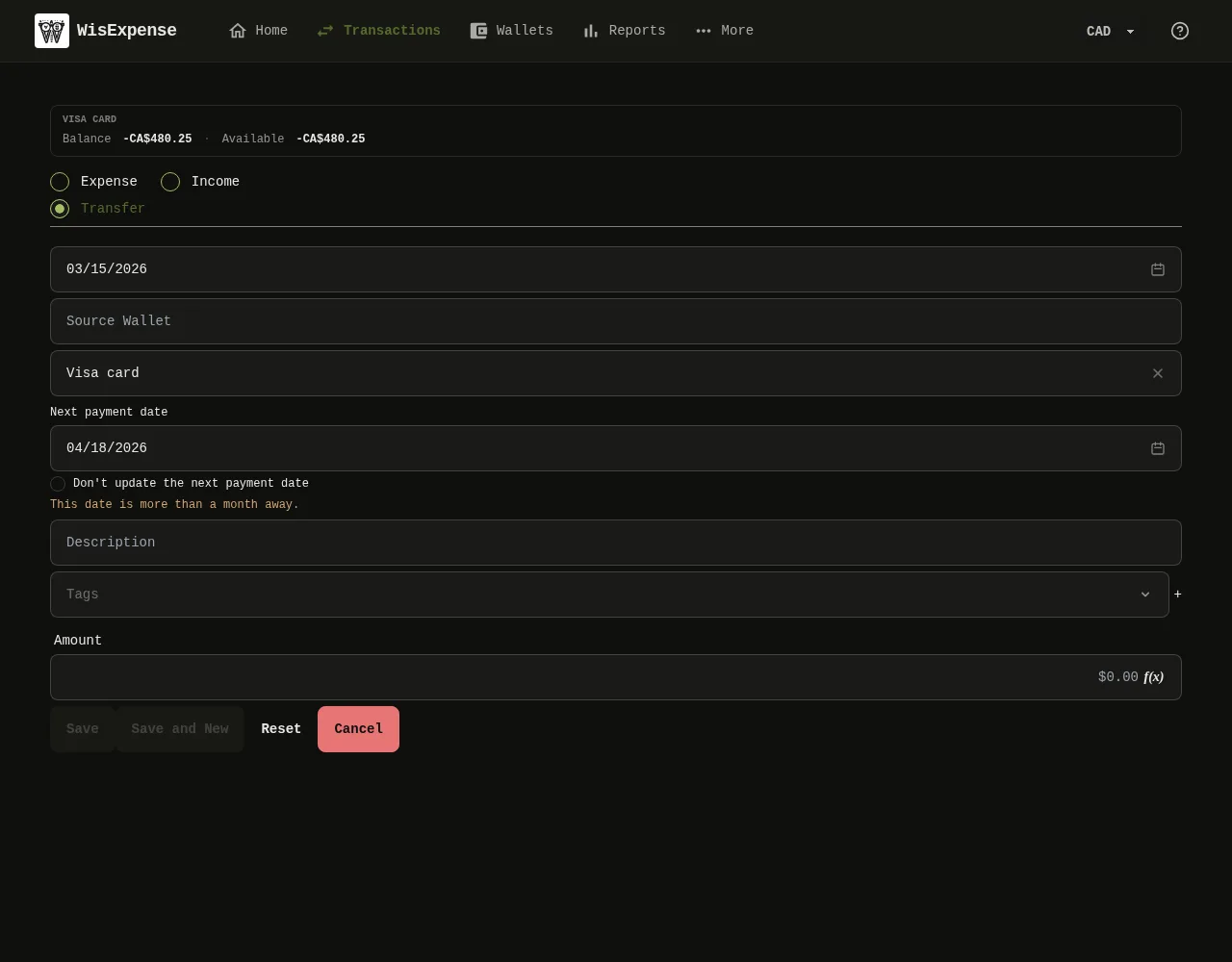
- Choose the Source Wallet, where the money leaves. The amount is already filled in, and you can change it.
- Check the Next payment date Marker 9 that is offered under the destination. Keep it, change it, or tick Don't update the next payment date.
- Select Save Marker 4.
Mobile
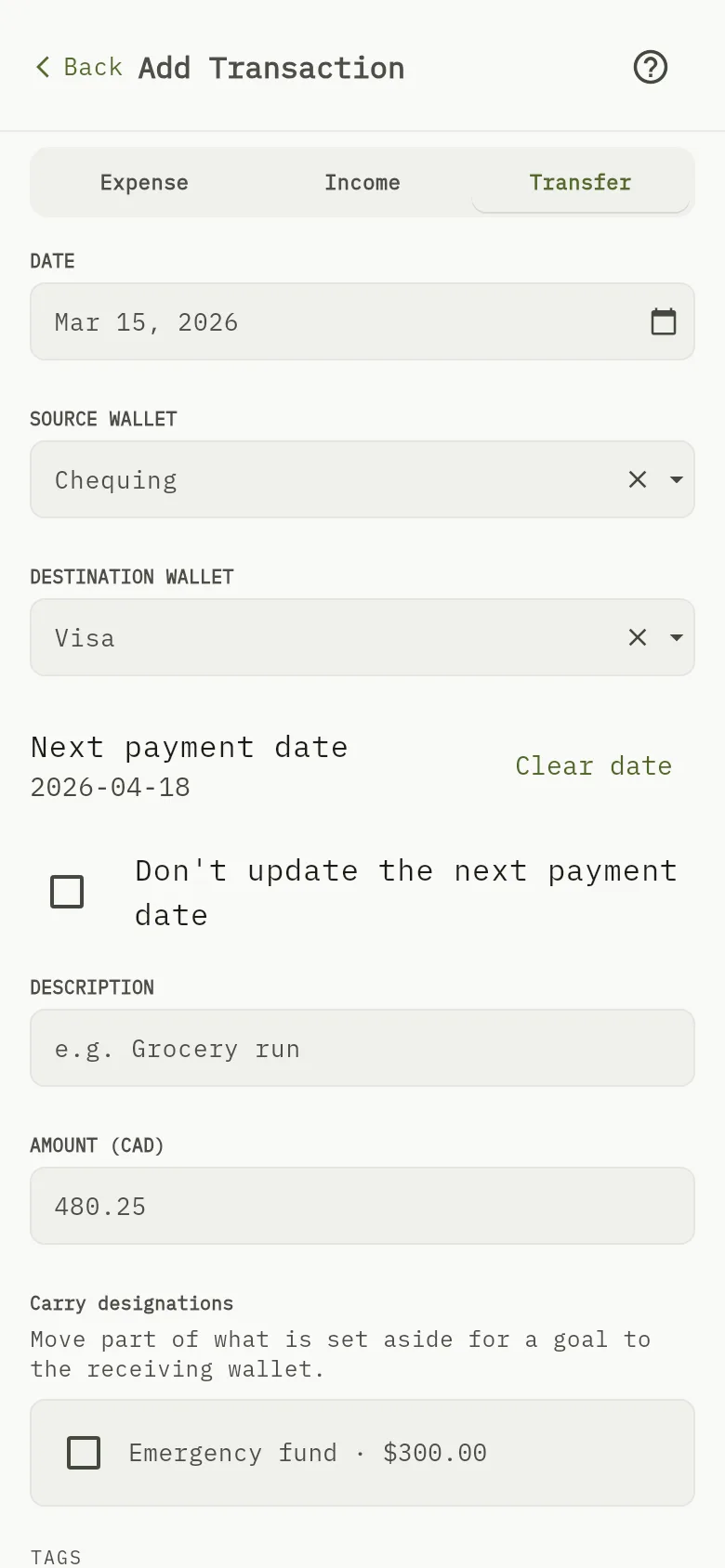
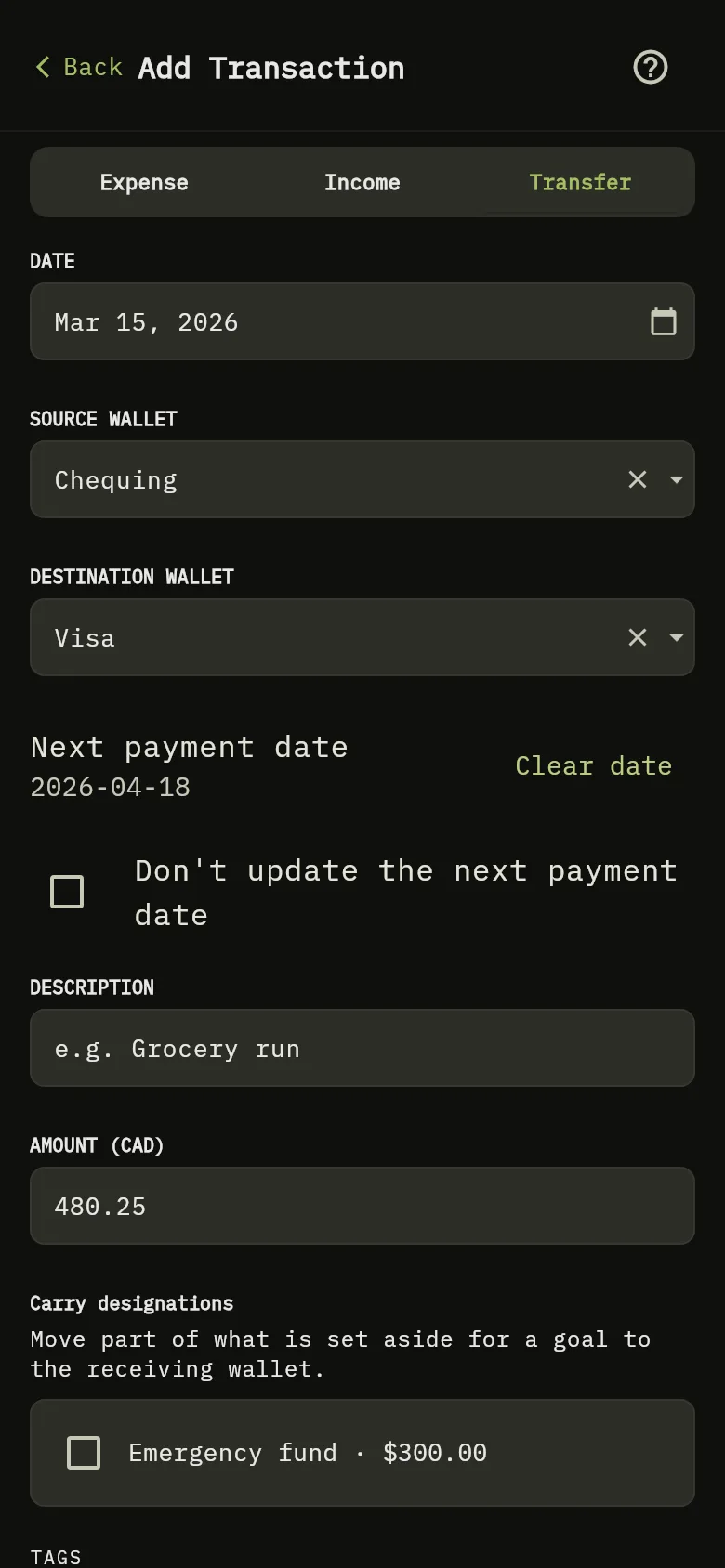
- Choose the Source Wallet, where the money leaves. The amount Marker 10 is already filled in, and you can change it.
- Check the Next payment date Marker 9 that is offered under the destination. Keep it, change it, or tick Don't update the next payment date.
- Tap Save.
The suggested date is one month after the due day that is nearest to the transfer date. With a due day of 15, a transfer on 10 October suggests 15 November, because 15 October is the nearest due date. Without a due day, no date is suggested, and you can type one. When the date is more than a month away, the form says so and still lets you save.
Tip
Editing or deleting the transfer later doesn’t change the card’s next payment date.
What you see
The transfer clears the card’s balance, the card leaves Card payments, and its next payment date shows the date you kept. If another device is open on your wallets, it shows the change without a refresh.