
Split a shared expense
Record what friends owe you for an expense you paid with sub-transactions, then settle each one when they pay you back.
When you pay for something that friends owe you part of, record the whole expense once, then add a sub-transaction for each friend’s share. Settle each one when your friend pays you back.
Before you start
Every plan includes sub-transactions, and your friend doesn’t need to be in WisExpense: Paid By is a name you type, not a friend from your list. Record the expense first: see Record an expense.
There are two types. A Reimbursement is money someone will pay you back, and when it is settled it lowers the final amount of the expense. A Split records a part of the expense that someone else covers, and settling it doesn’t lower the final amount.
Record each share in the expense’s currency. This guide doesn’t cover a share in another currency yet.
Steps
Web
The window and its buttons are in English in every language.
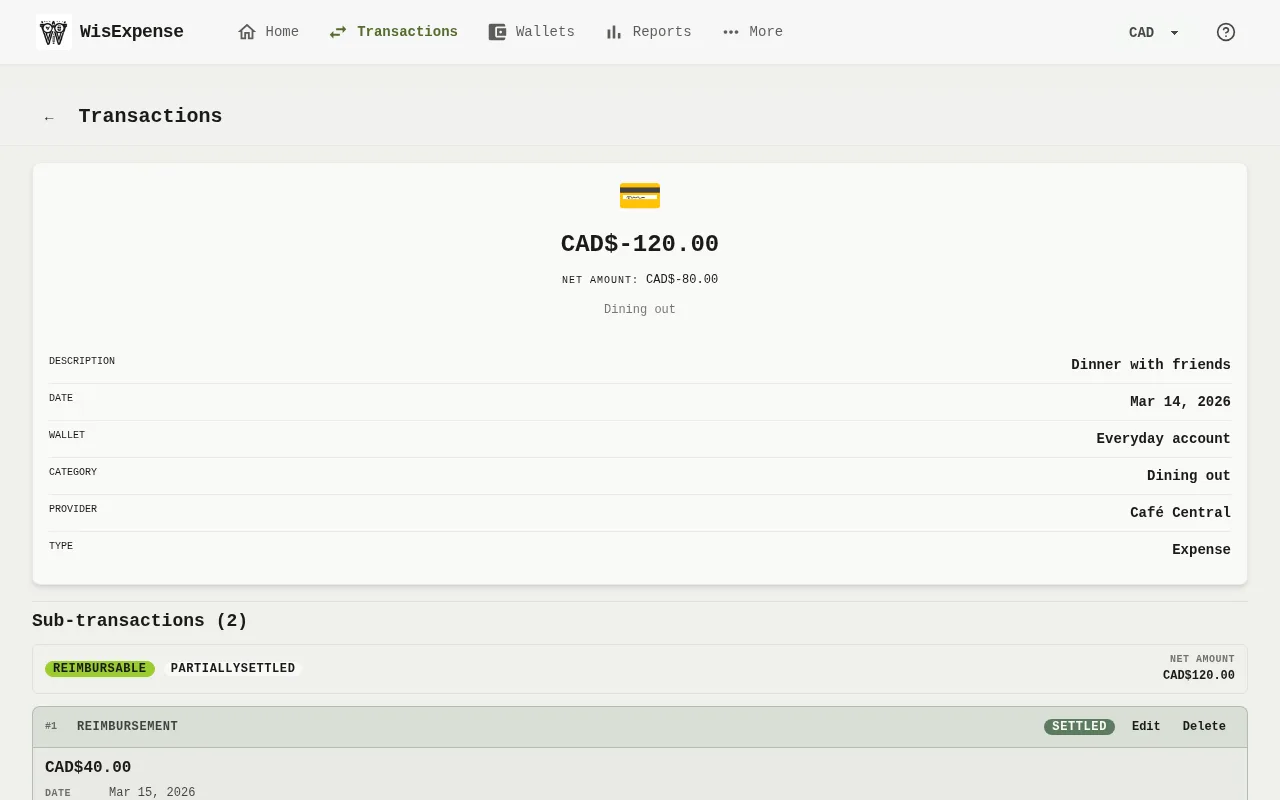
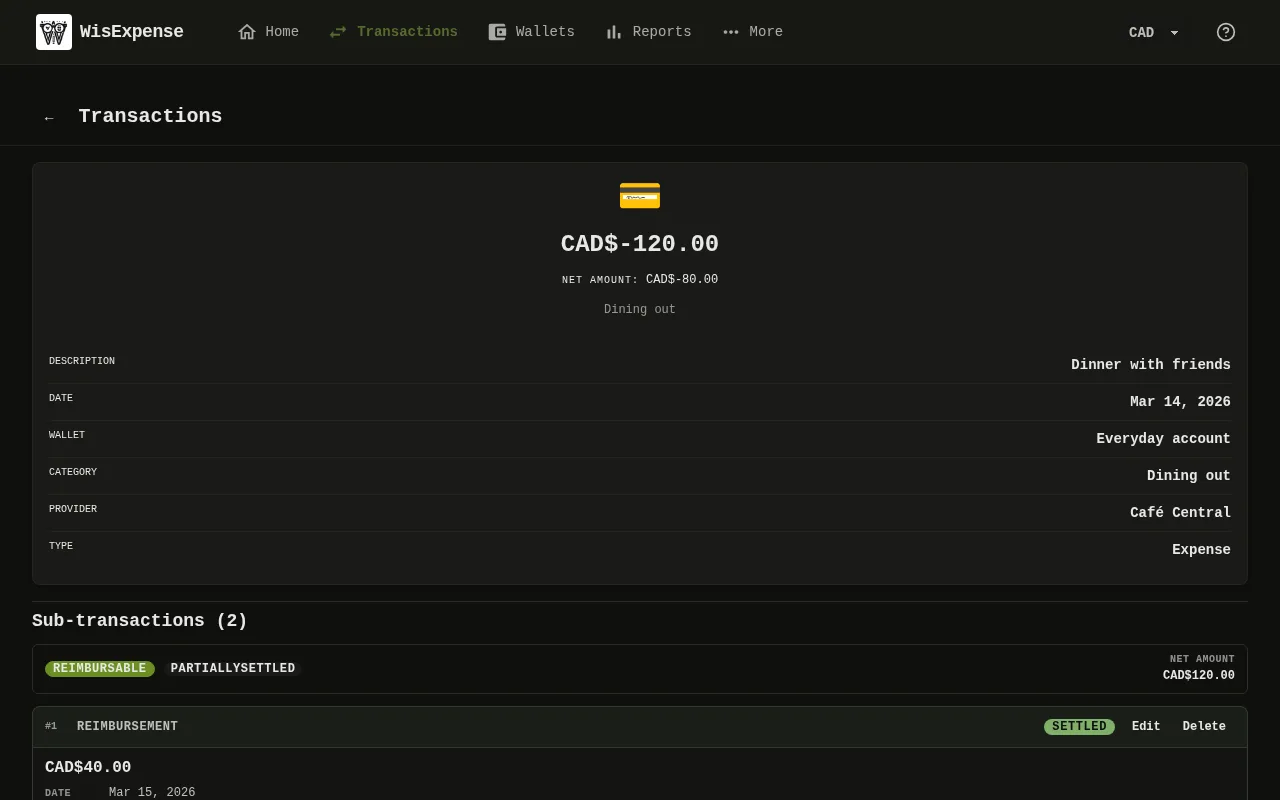
- Select Transactions in the menu, then select the expense to open it Marker 1. Select Sub-tx.
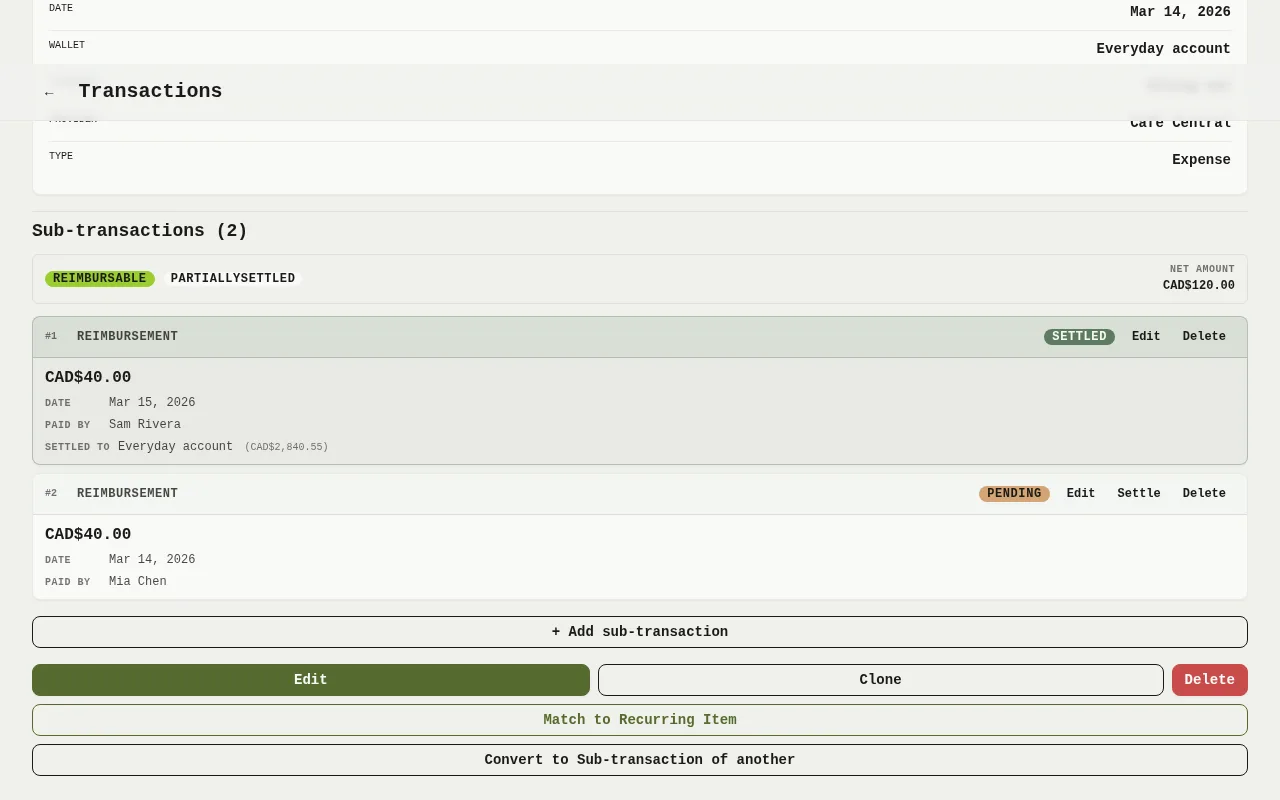
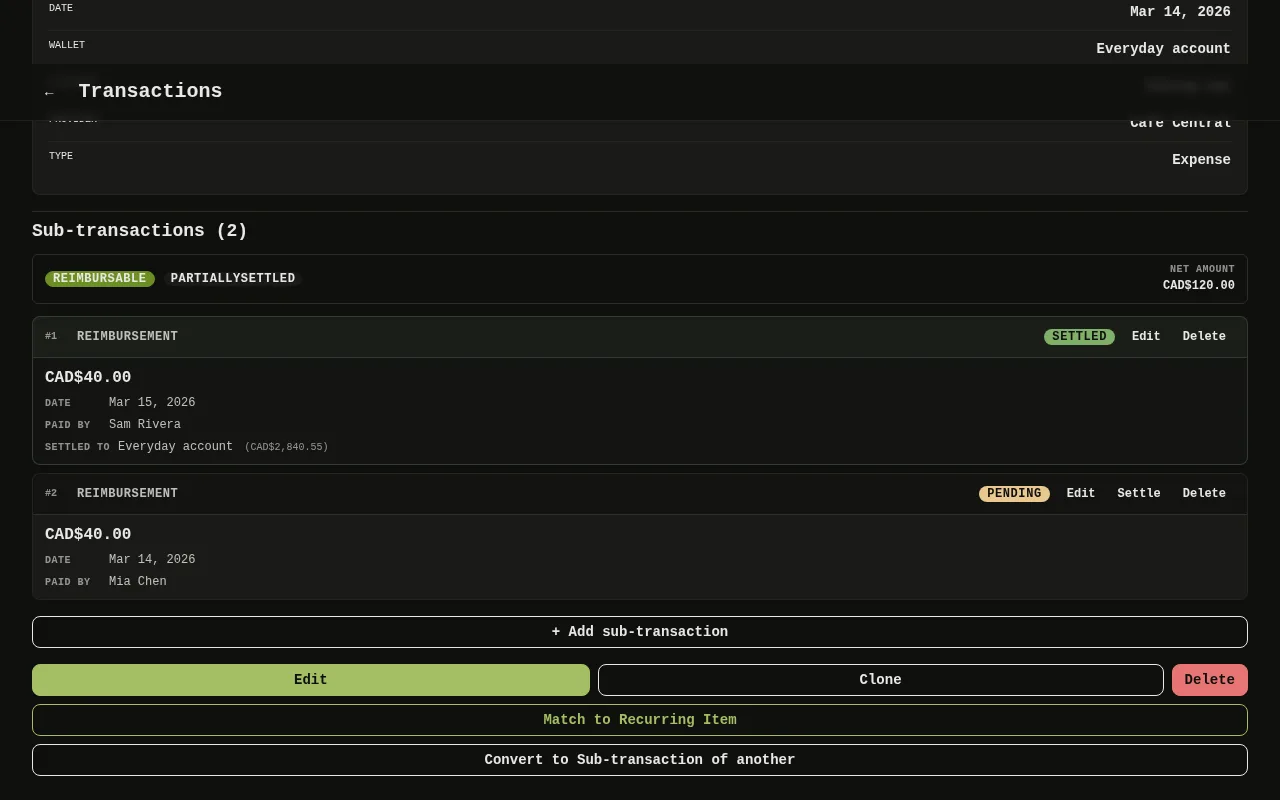
- In the panel, select + Add sub-transaction Marker 2. Each card shows the amount, who paid and its status: Pending or Settled Marker 3.
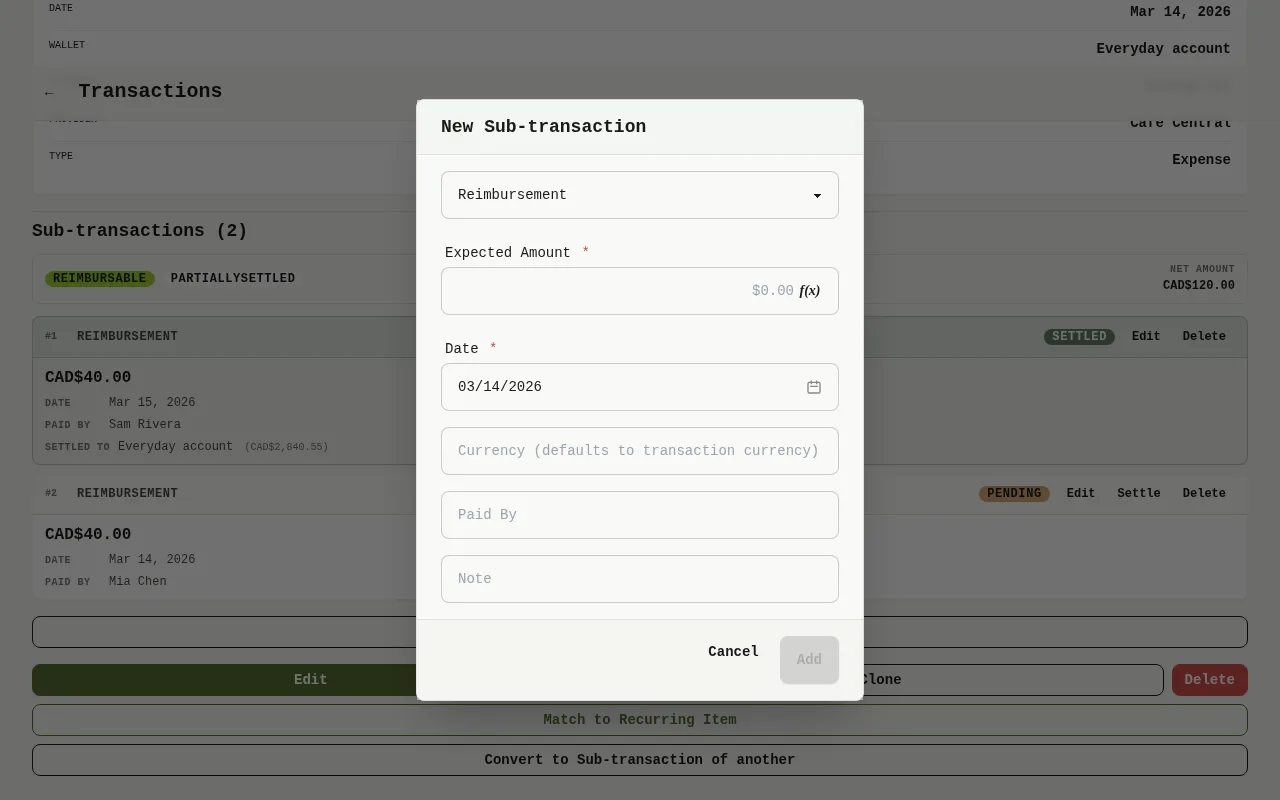
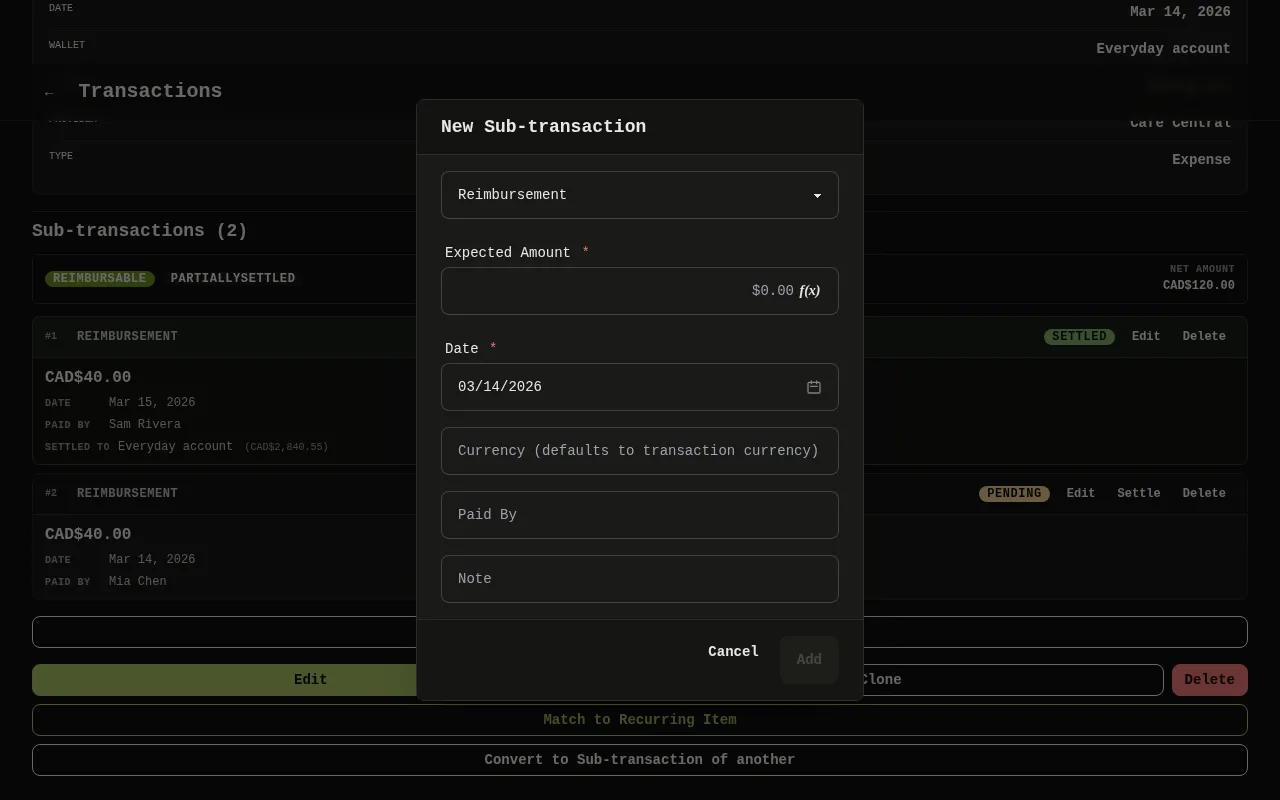
- Choose the Type Marker 4, Reimbursement if your friend will pay you back: only a settled Reimbursement lowers the final amount, a Split doesn’t. Type the Expected Amount Marker 5 and the name of whoever owes it in Paid By Marker 6.
- Select Add Marker 7.
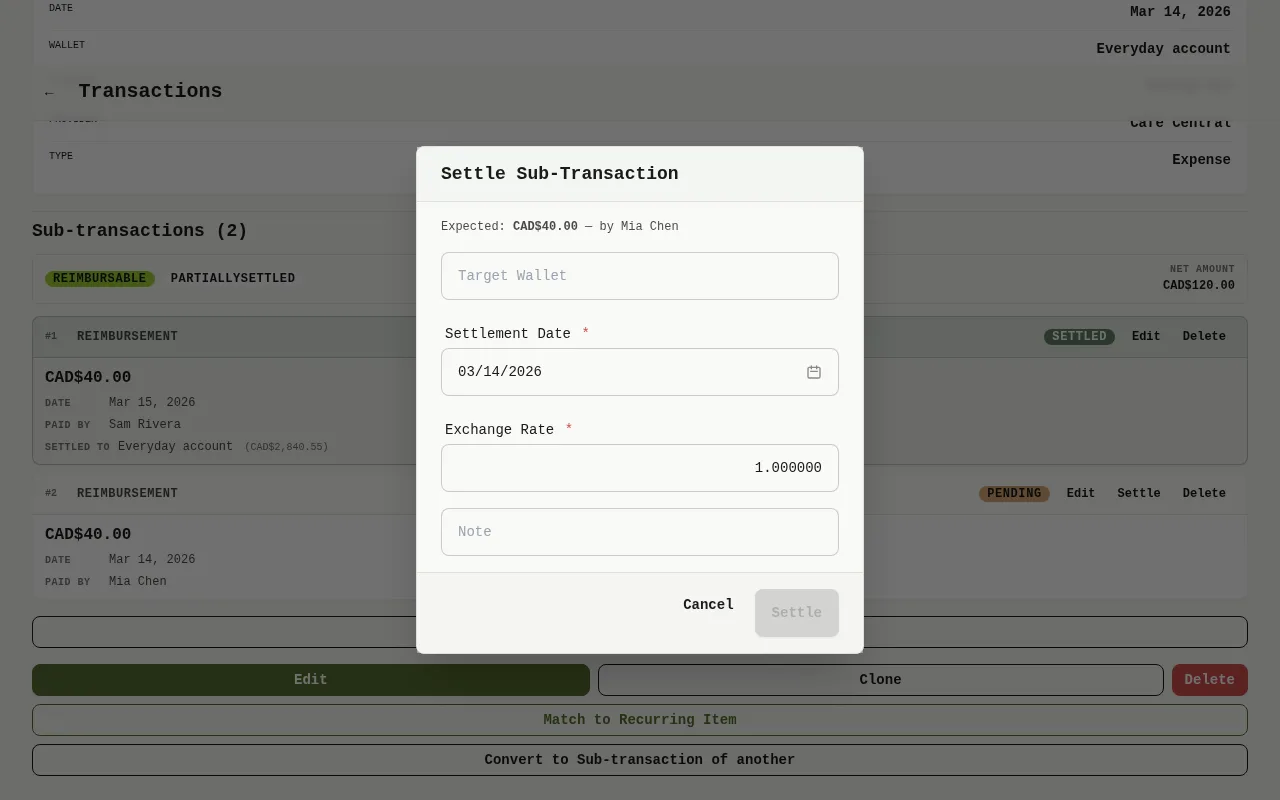
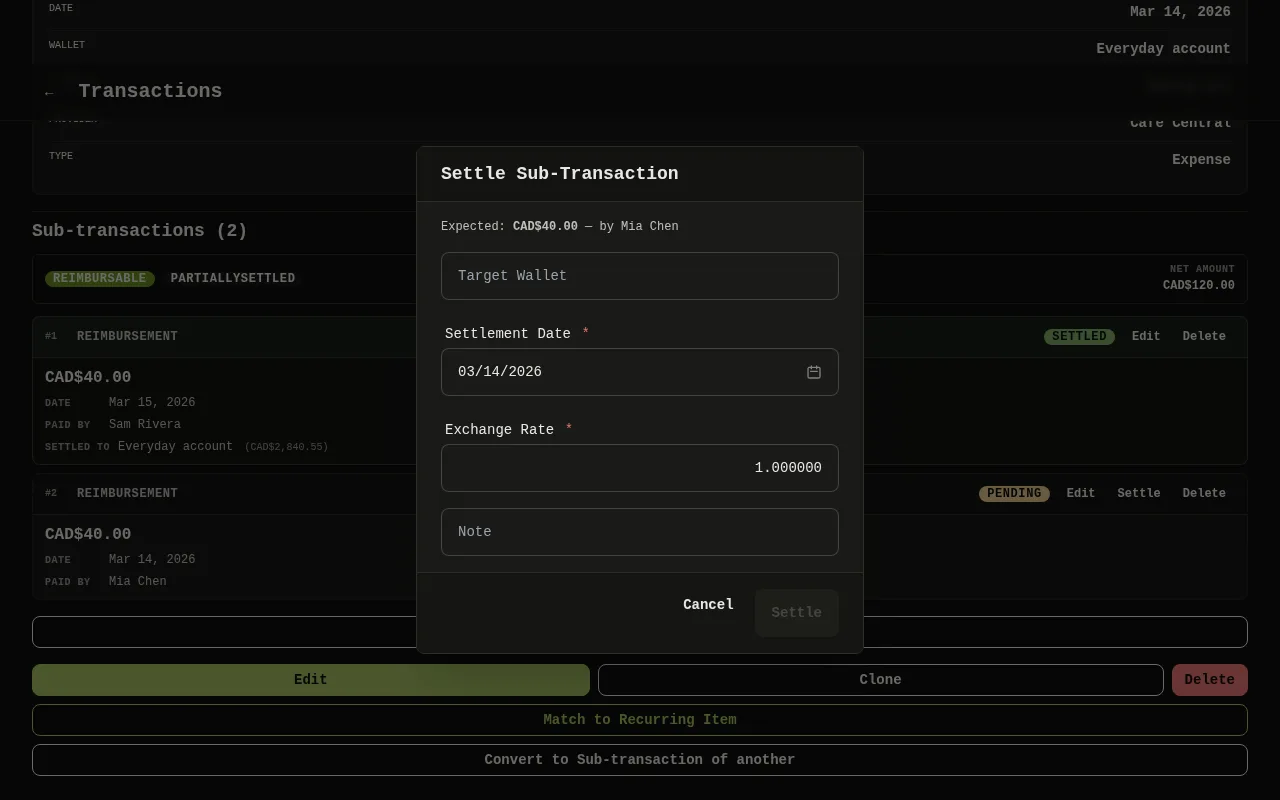
- When your friend pays you back, select Settle Marker 8 on the card. Choose the Target Wallet Marker 9 that receives the money and the Settlement Date Marker 10. If the wallet is in another currency, check the Exchange Rate the window fills in. Then select Settle Marker 11. The amount is added to that wallet and the card shows Settled.
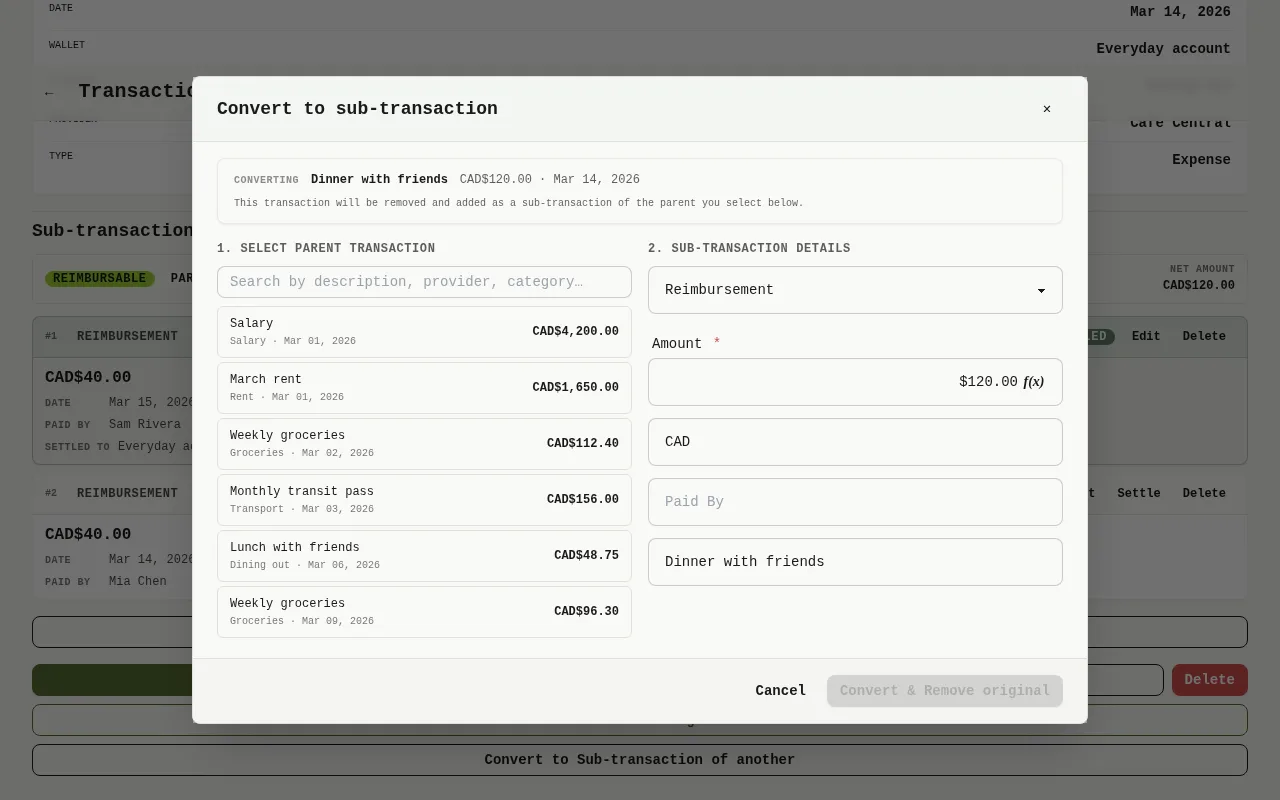
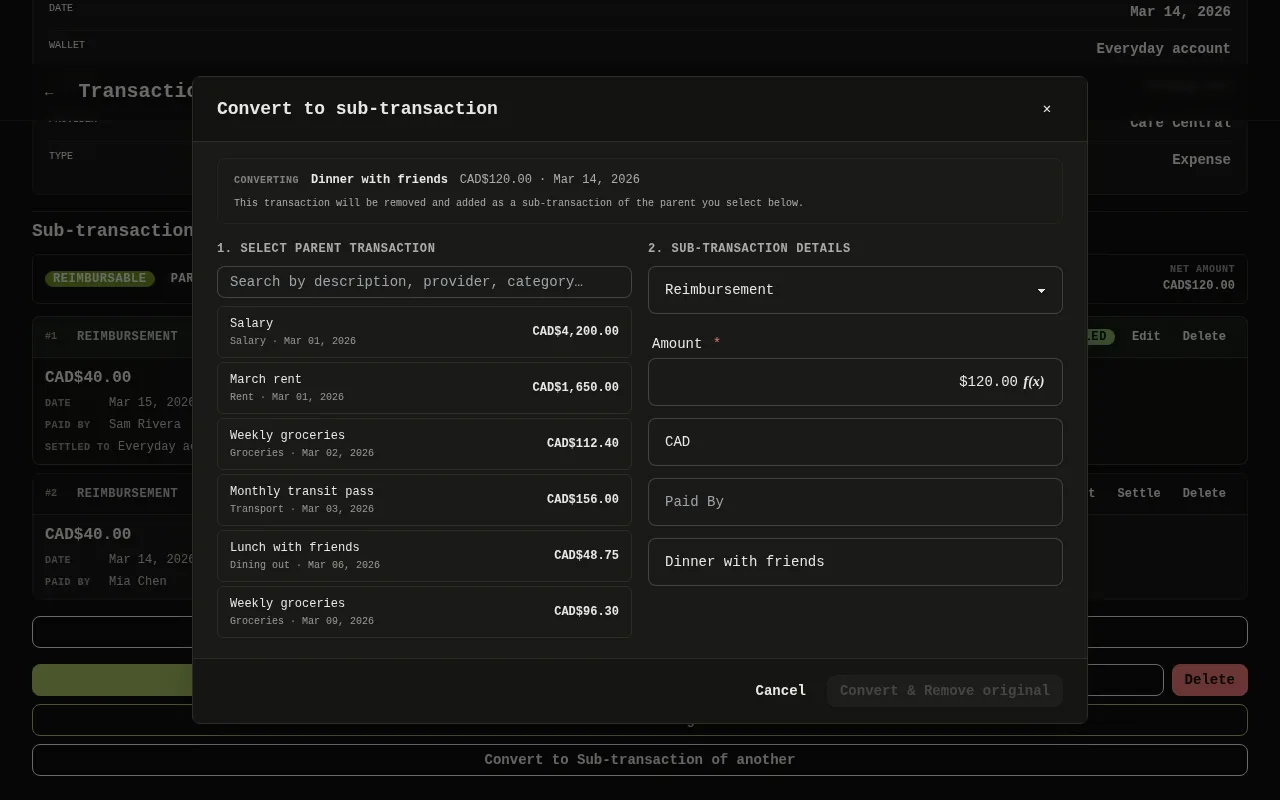
- If you already recorded your friend’s share as a transaction of its own, open it and select Convert. Pick the parent transaction Marker 12, check the details Marker 13 and select Convert & Remove original Marker 14. The original is removed and added as a sub-transaction.
Mobile
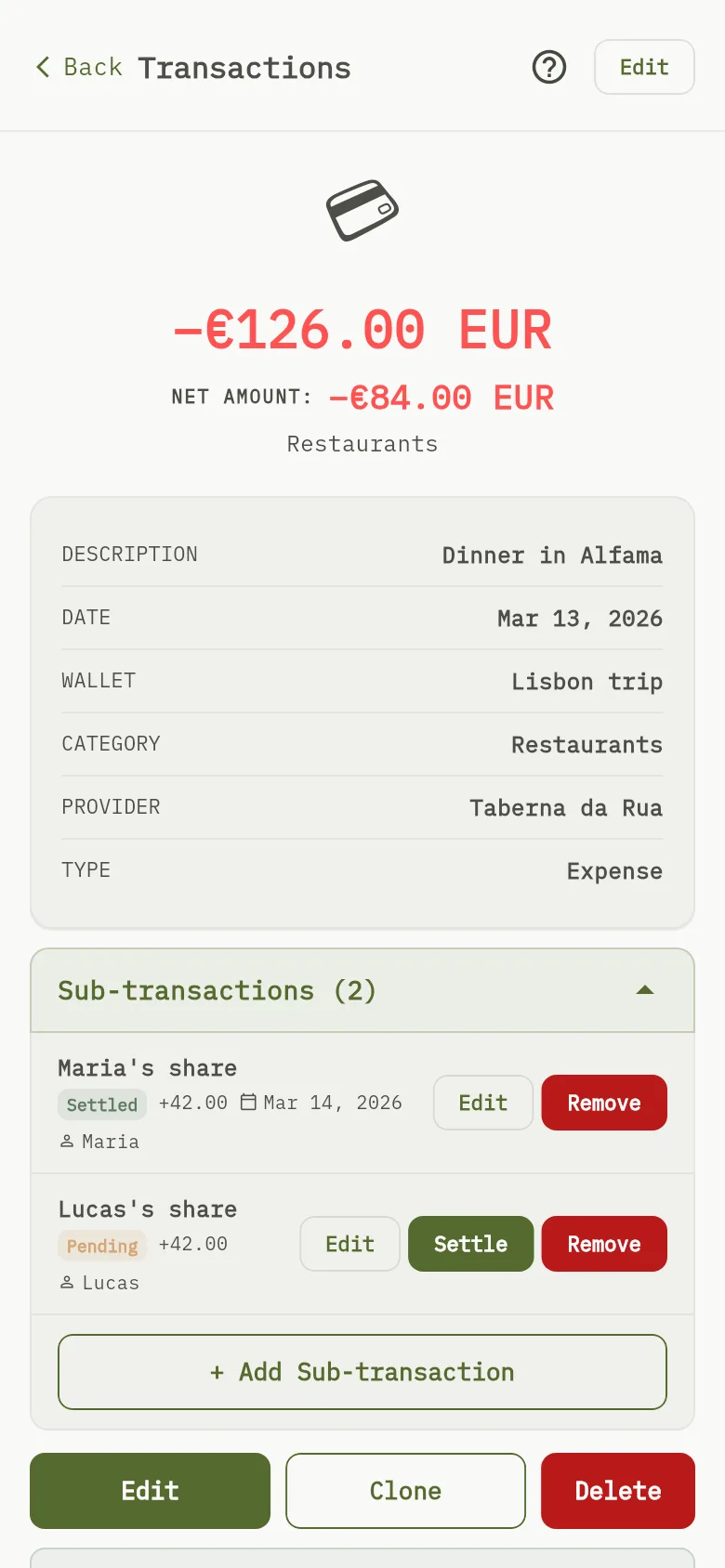
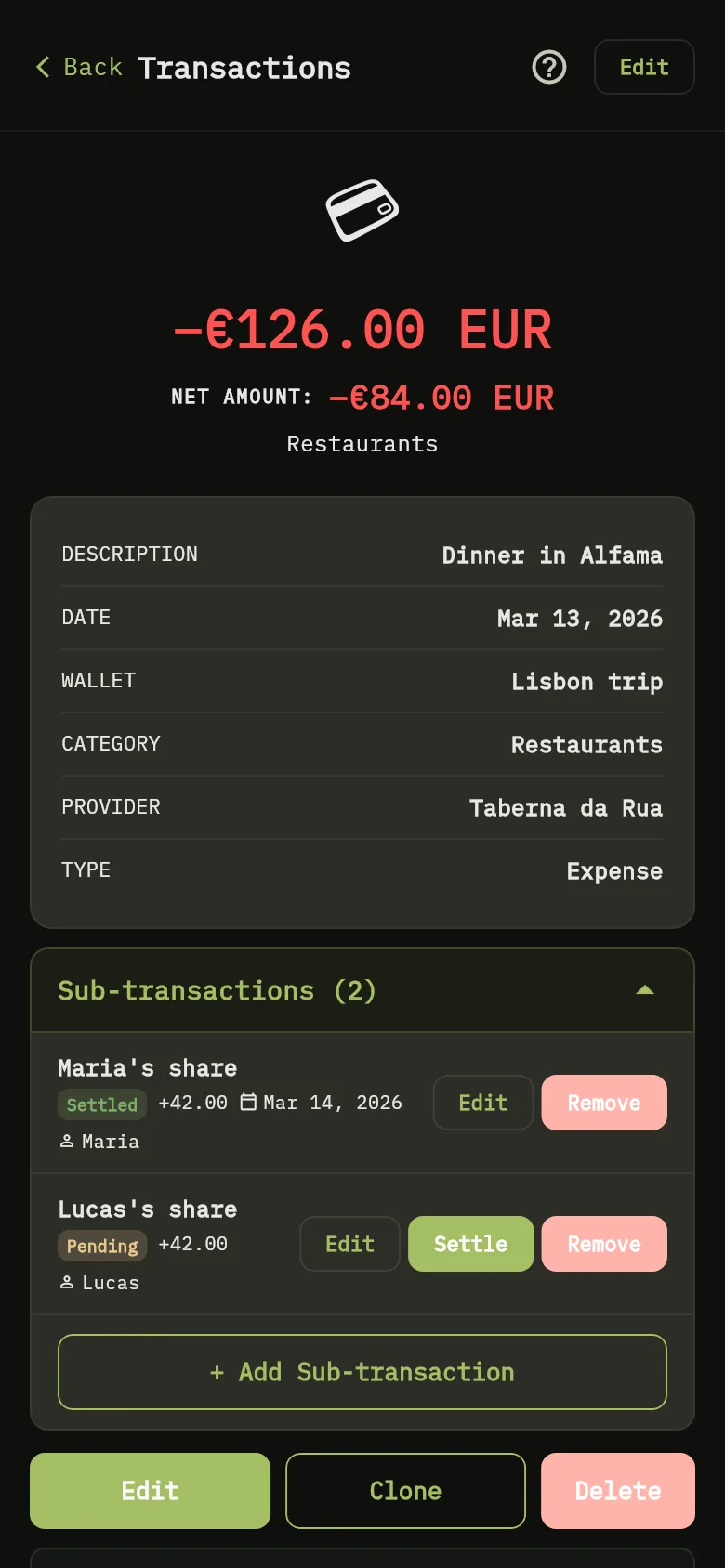
- Tap Transactions, then tap the expense to open it.
- In the Sub-transactions section Marker 15, tap + Add Sub-transaction Marker 16.
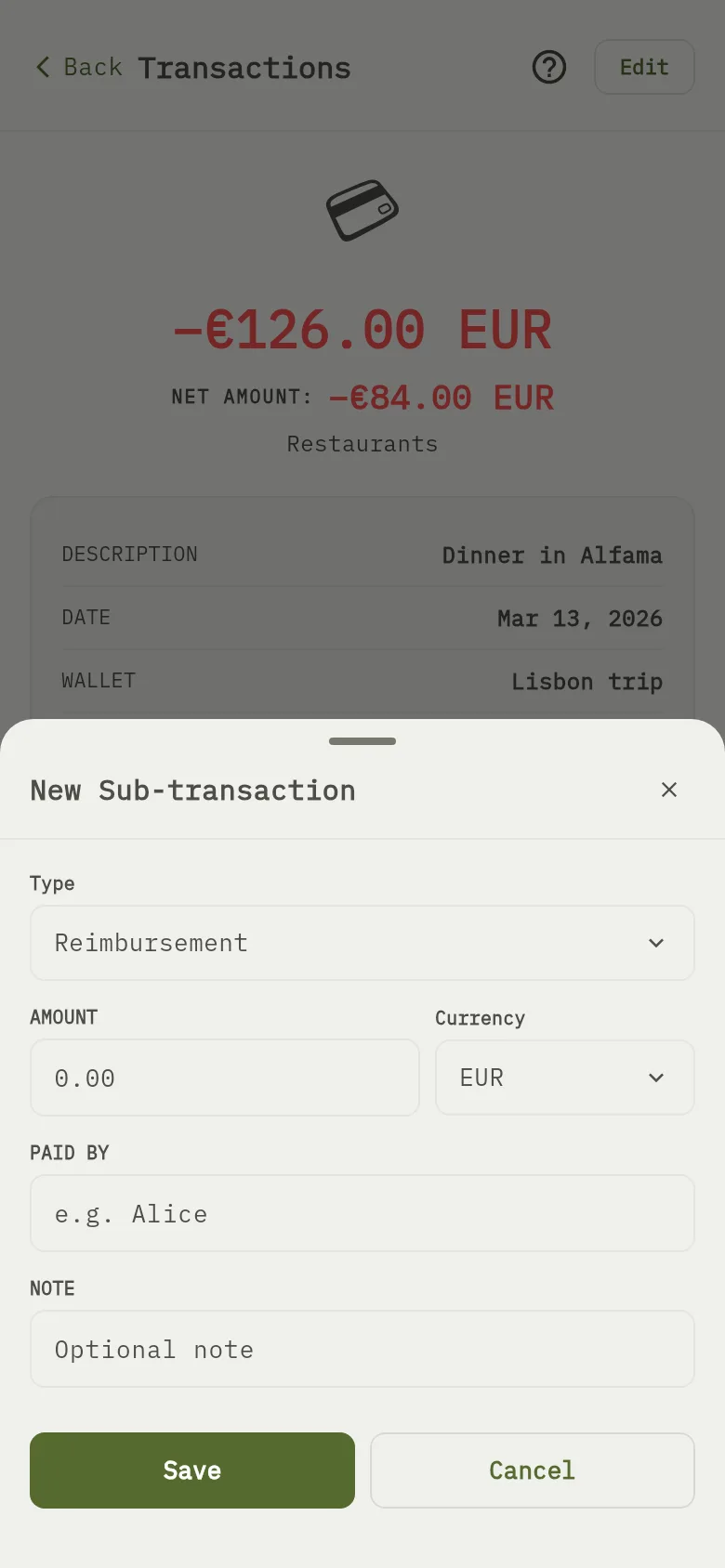
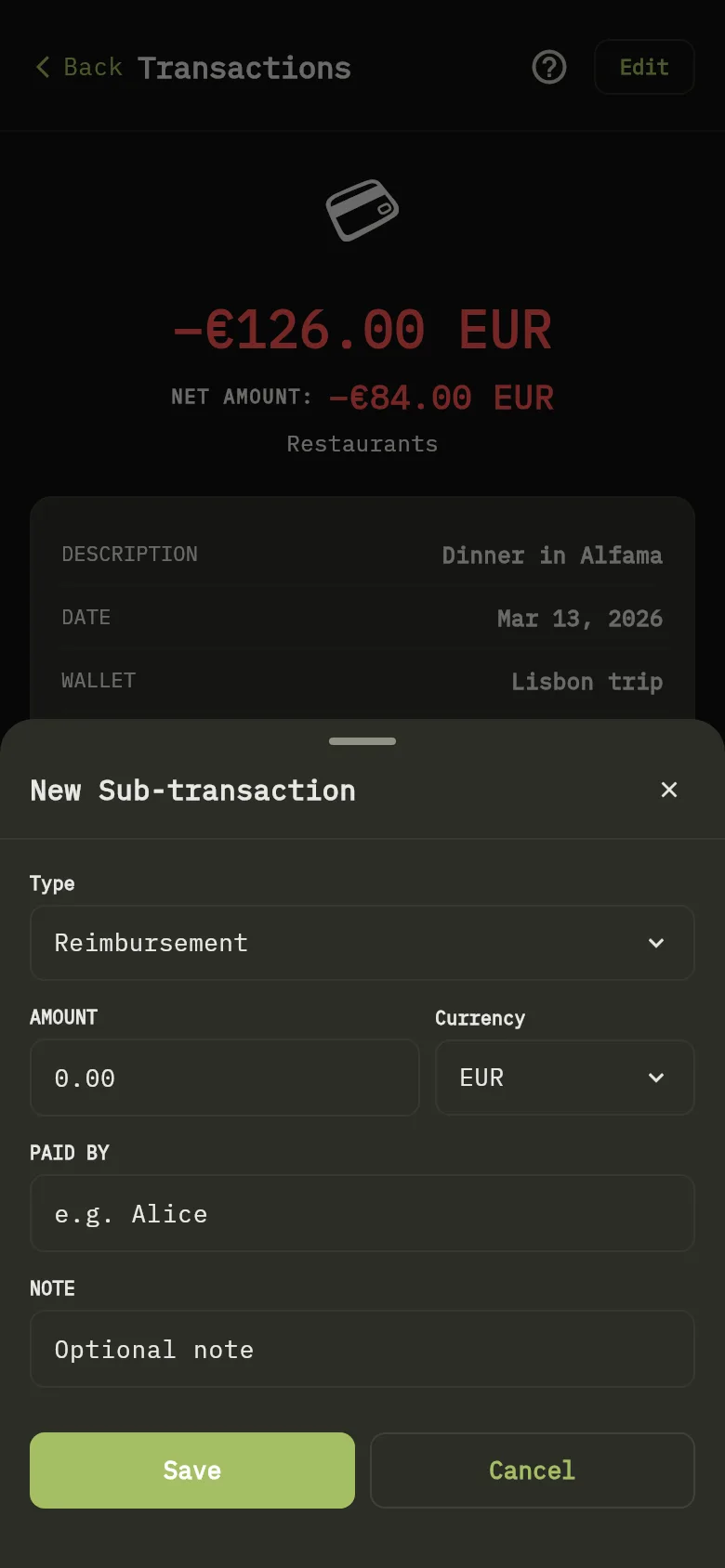
- Choose the Type Marker 17, Reimbursement if your friend will pay you back: only a settled Reimbursement lowers the final amount, a Split doesn’t. Type the Amount Marker 18 and the name in Paid By Marker 19, then tap Save Marker 20.
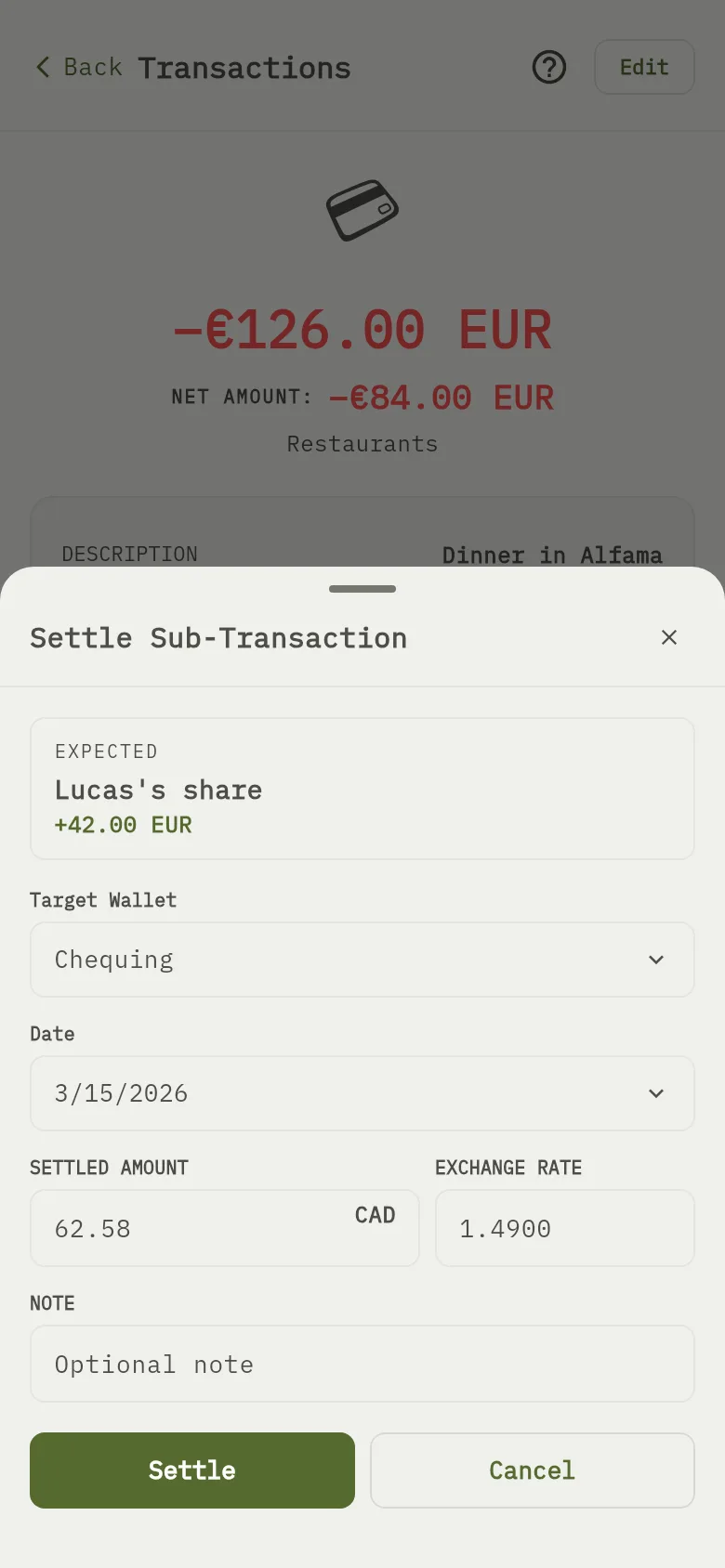
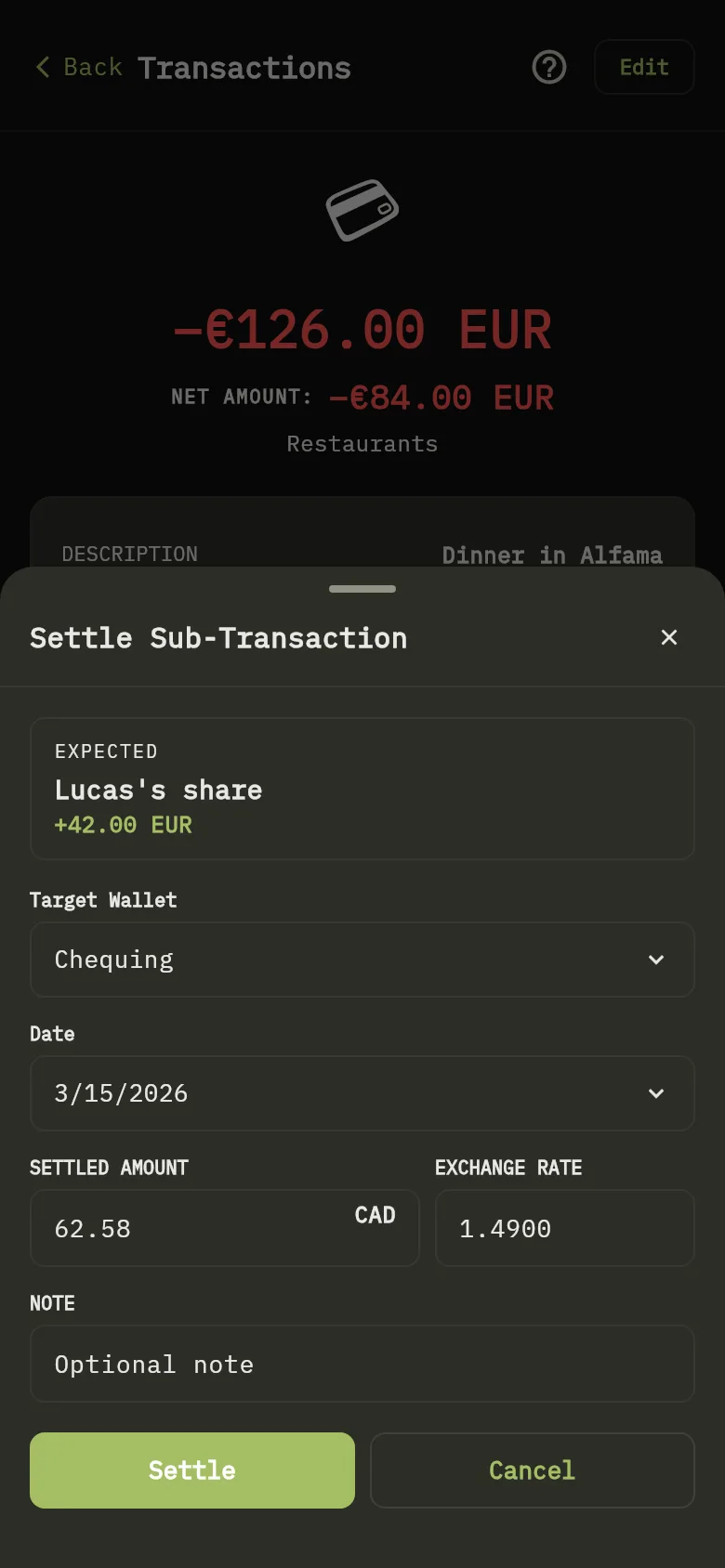
- When your friend pays you back, tap Settle on the share. Check the amount Marker 21, choose the Target Wallet Marker 22 and the date Marker 23. If the wallet is in another currency, check the Exchange Rate the sheet fills in. Then tap Settle Marker 8. The amount is added to that wallet.
- Edit and Remove change or delete a share. If you edit a settled share, check the balance of the wallet that received the money afterwards: the edit takes the amount back out of it. A later edit or Remove takes it out again, so check the receiving wallet’s balance.
- If you already recorded your friend’s share as a transaction of its own, open it and tap Convert to Sub-transaction of another. Pick the parent transaction, check the details, and tap Convert to Sub-transaction. The original is removed and added as a sub-transaction. The button only shows when you can delete the transaction.
What you see
A share is marked as settled once you settle it. A settled Reimbursement lowers the final amount of the expense: the web list shows it as Final next to the amount, and the mobile app shows it as NET AMOUNT on the transaction. The web panel’s Net amount still shows the full amount.
Find shares that are still pending
A share that nobody has settled yet also appears on Home, under To settle, with who it is from, the amount, and the description and date of its expense. Select it to open the expense and settle it there. Once settled, it leaves the list. You see only shares on expenses that you can change.
Related
Share a wallet and choose their role and Edit or delete a transaction.