
Invite a friend
Create an invitation link or QR code, and accept a friend’s invitation, so you can share wallets.
Connect with a friend first. Once you are friends, you can share a wallet with them.
Before you start
Every plan can invite friends and accept invitations. Sharing a wallet later needs the Collaboration plan: see Compare the plans.
An invitation link works once and expires after 14 days.
Steps
Web
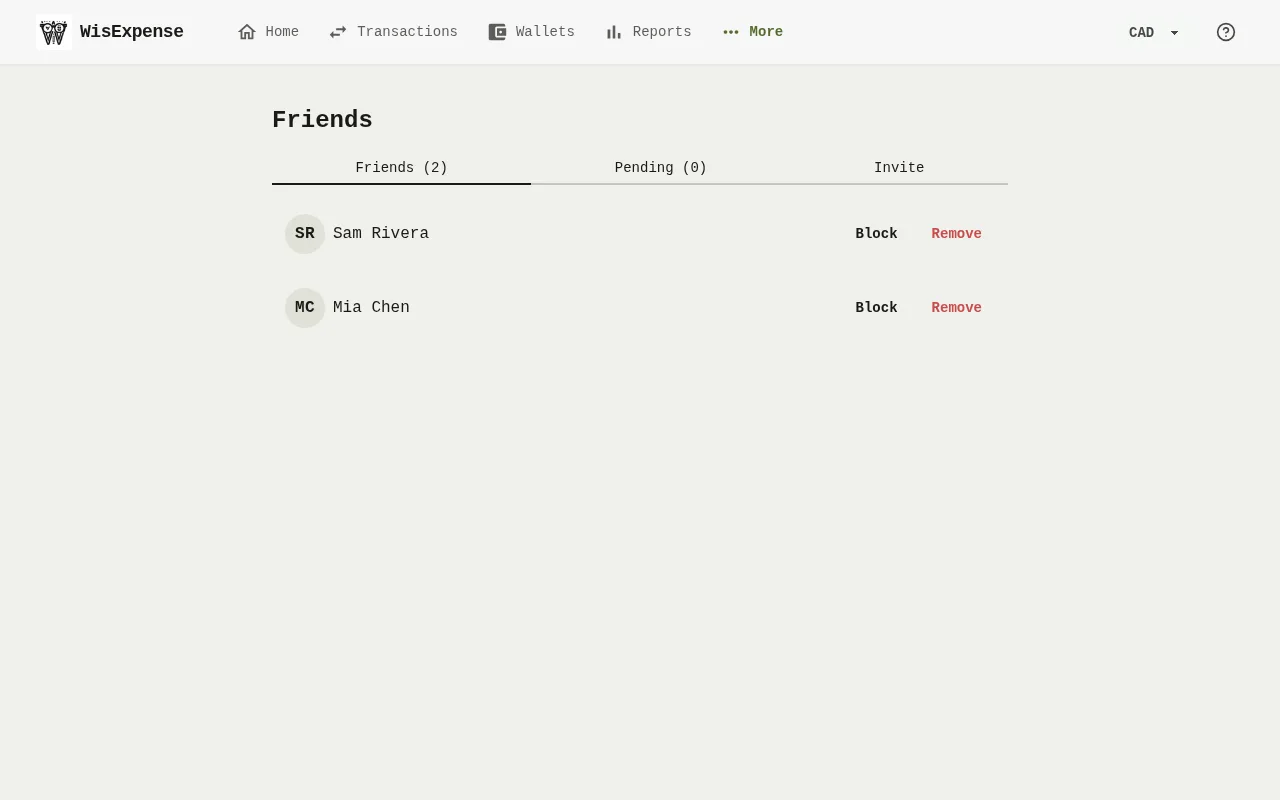

- Select Friends in the menu, then select the Invite tab Marker 1.
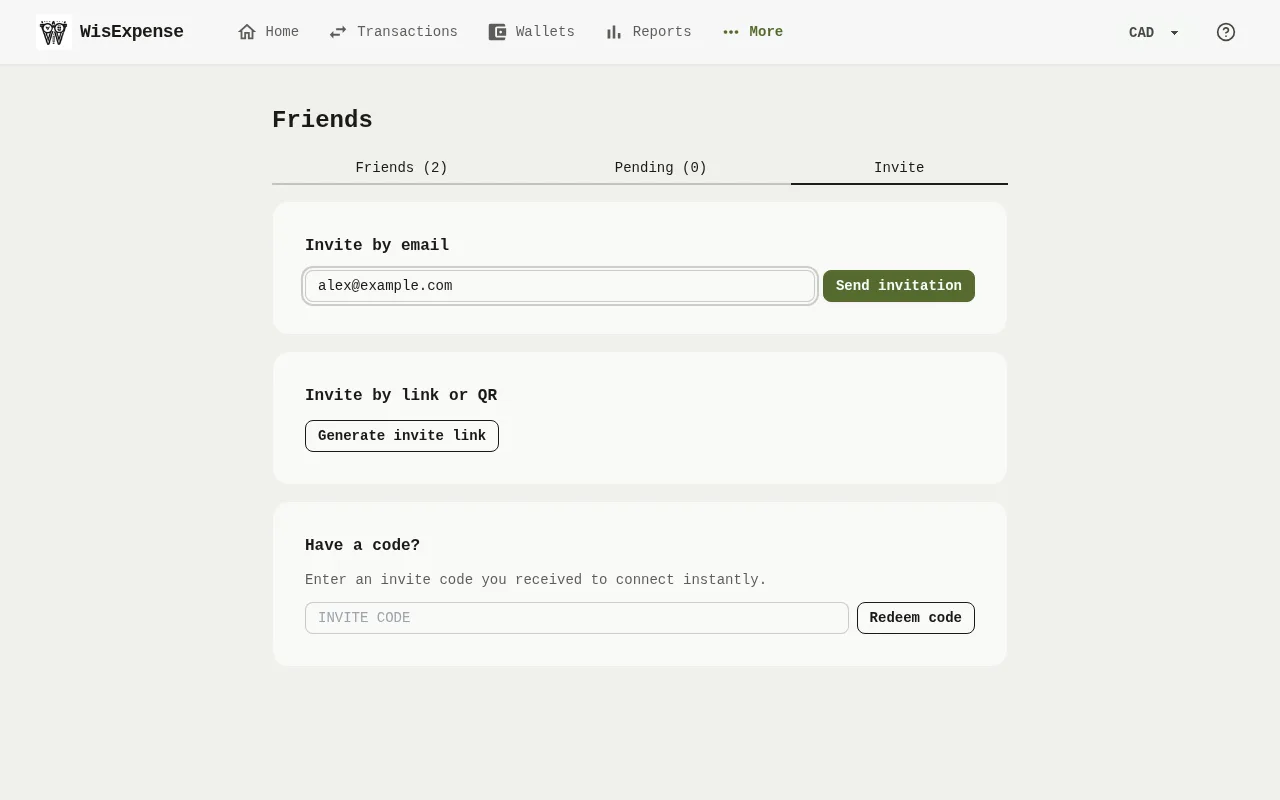

- Choose how to invite. Type your friend’s email Marker 2 and select Send invitation Marker 3, or select Generate invite link Marker 4. Either way the app creates an invitation and shows its link. It sends no email: the address you type only labels the invitation on the Pending tab.
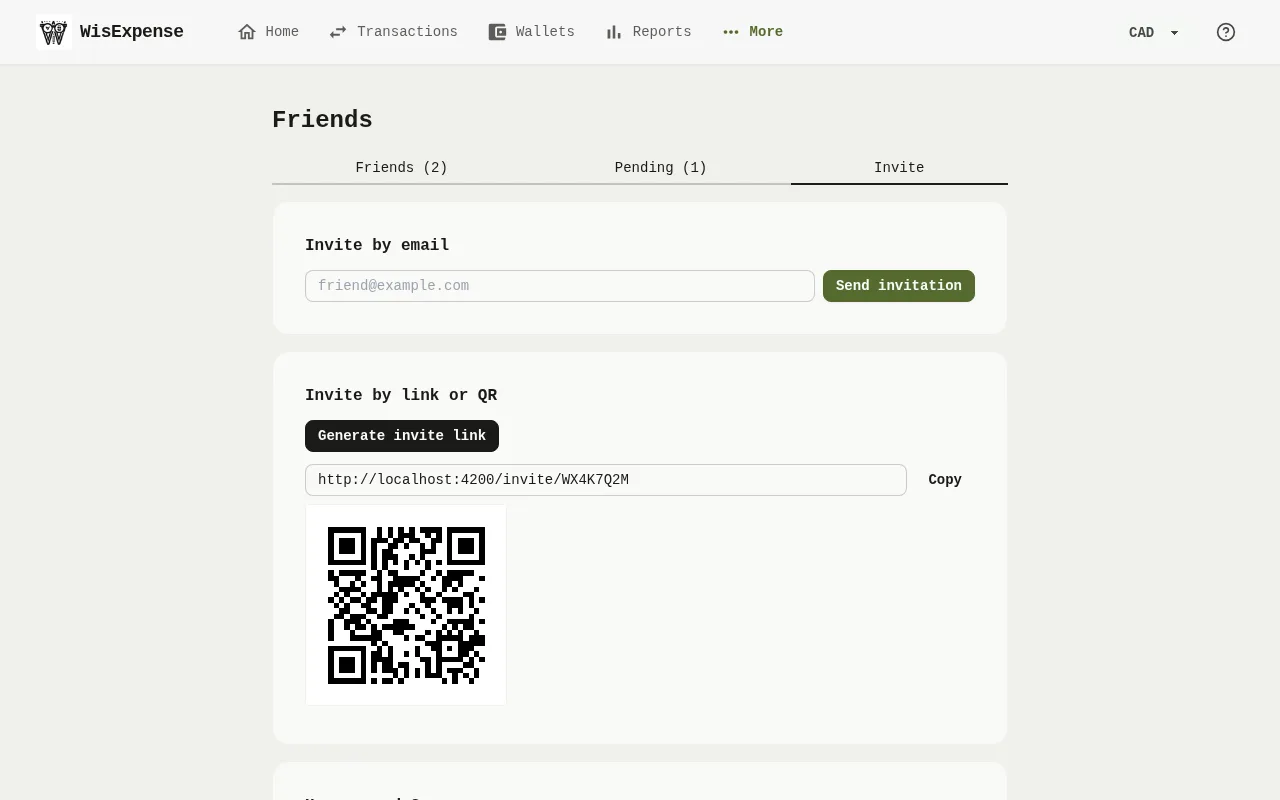
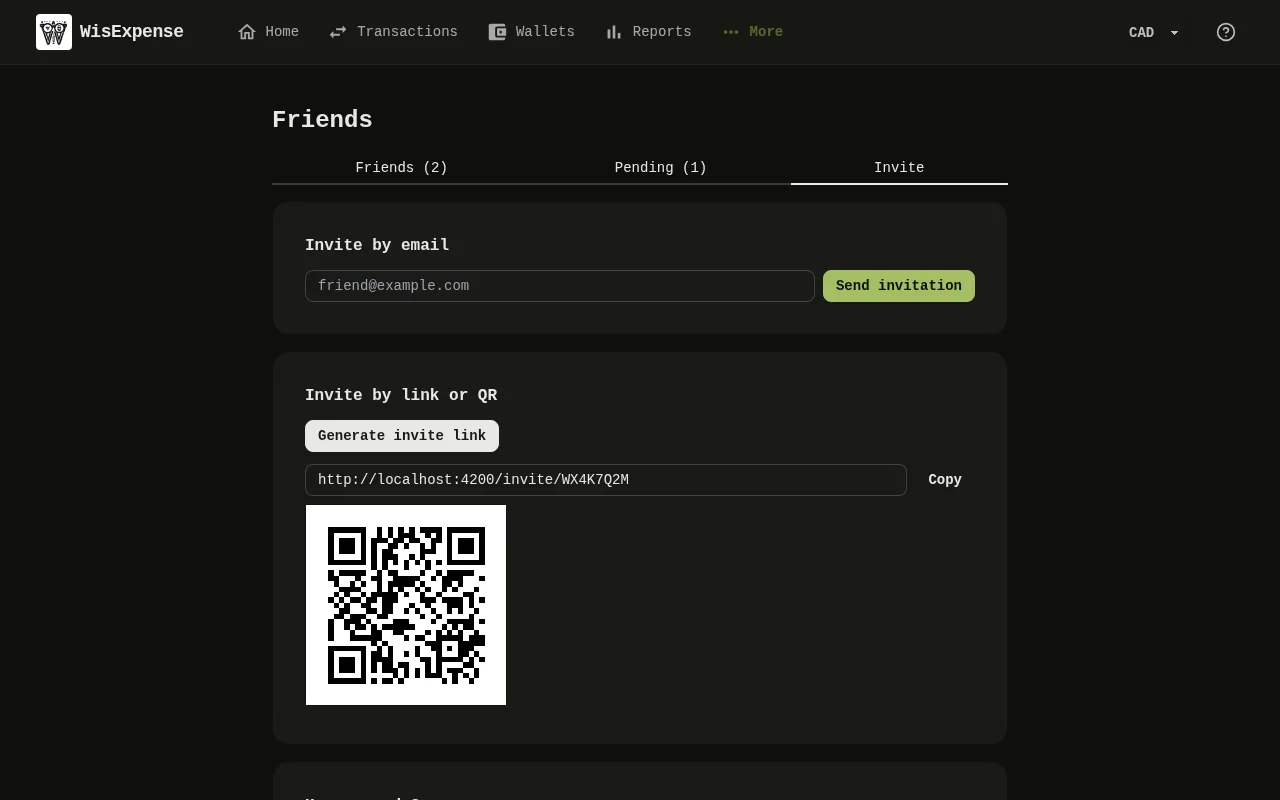
- The link Marker 5 and its QR code Marker 6 appear. Select Copy Marker 7 and send the link to your friend yourself, or show them the QR code.
- To take an invitation back, select the Pending tab Marker 8 and select Cancel next to it.
Mobile
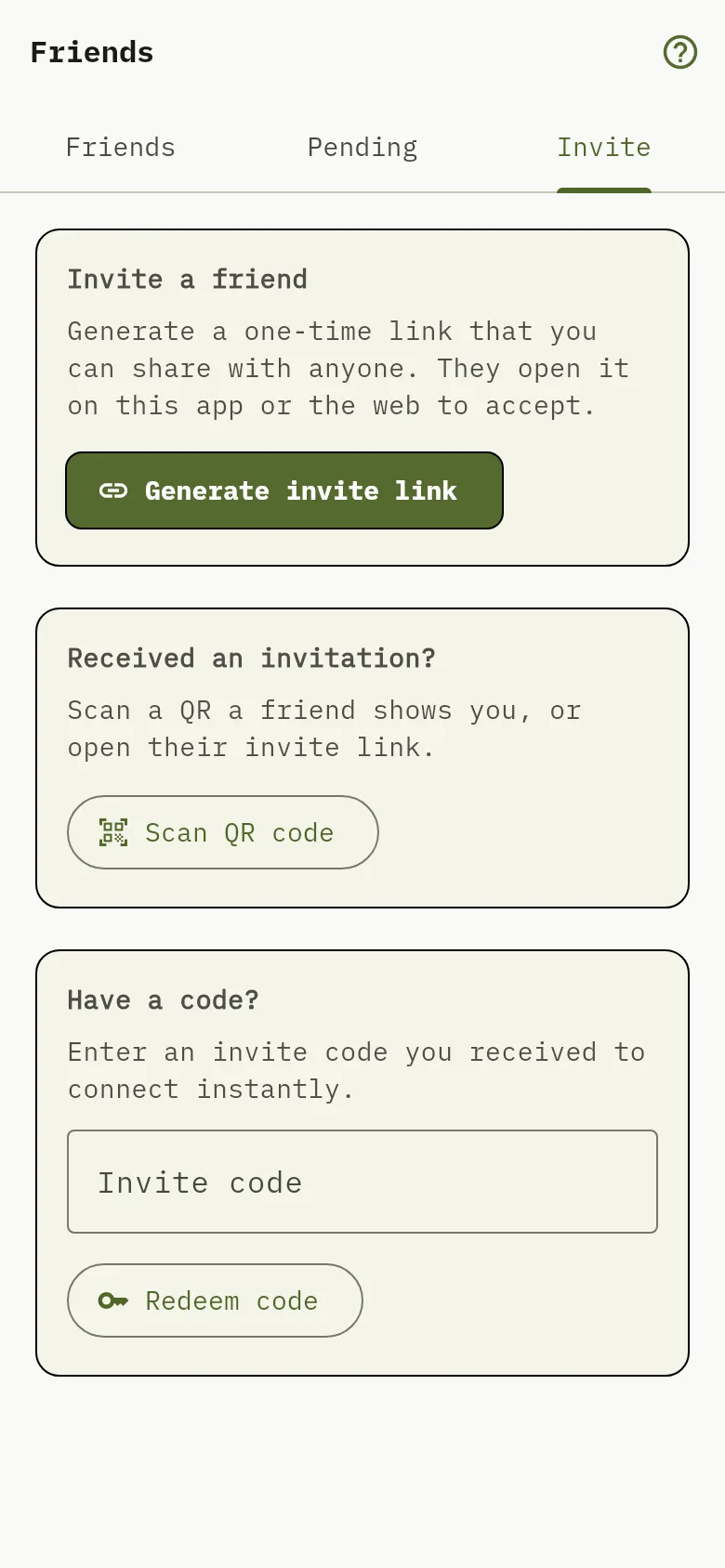
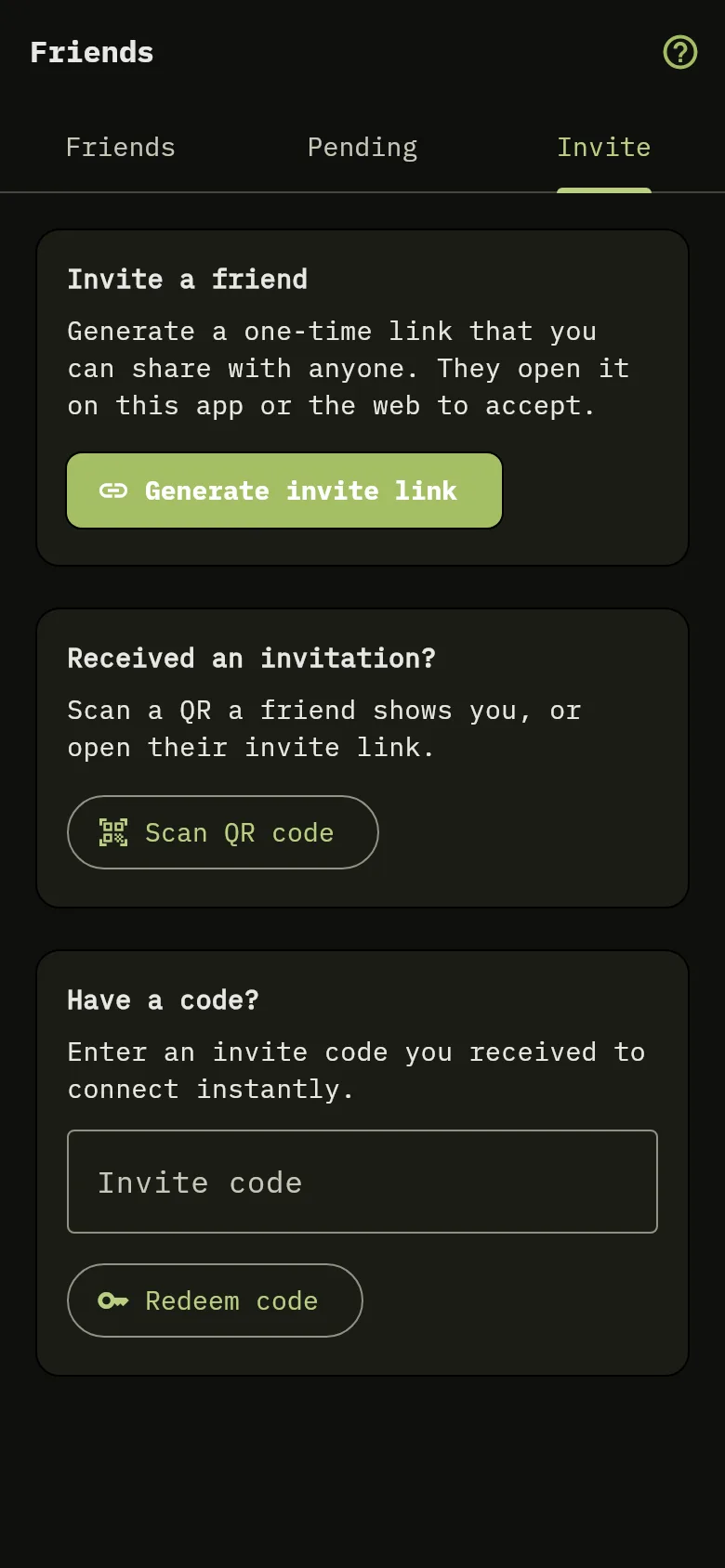
- Tap More, then tap Friends, then open the Invite tab.
- Tap Generate invite link Marker 9. The app shows a QR code and a link you can copy, and Share invite sends the link with your phone’s share menu.
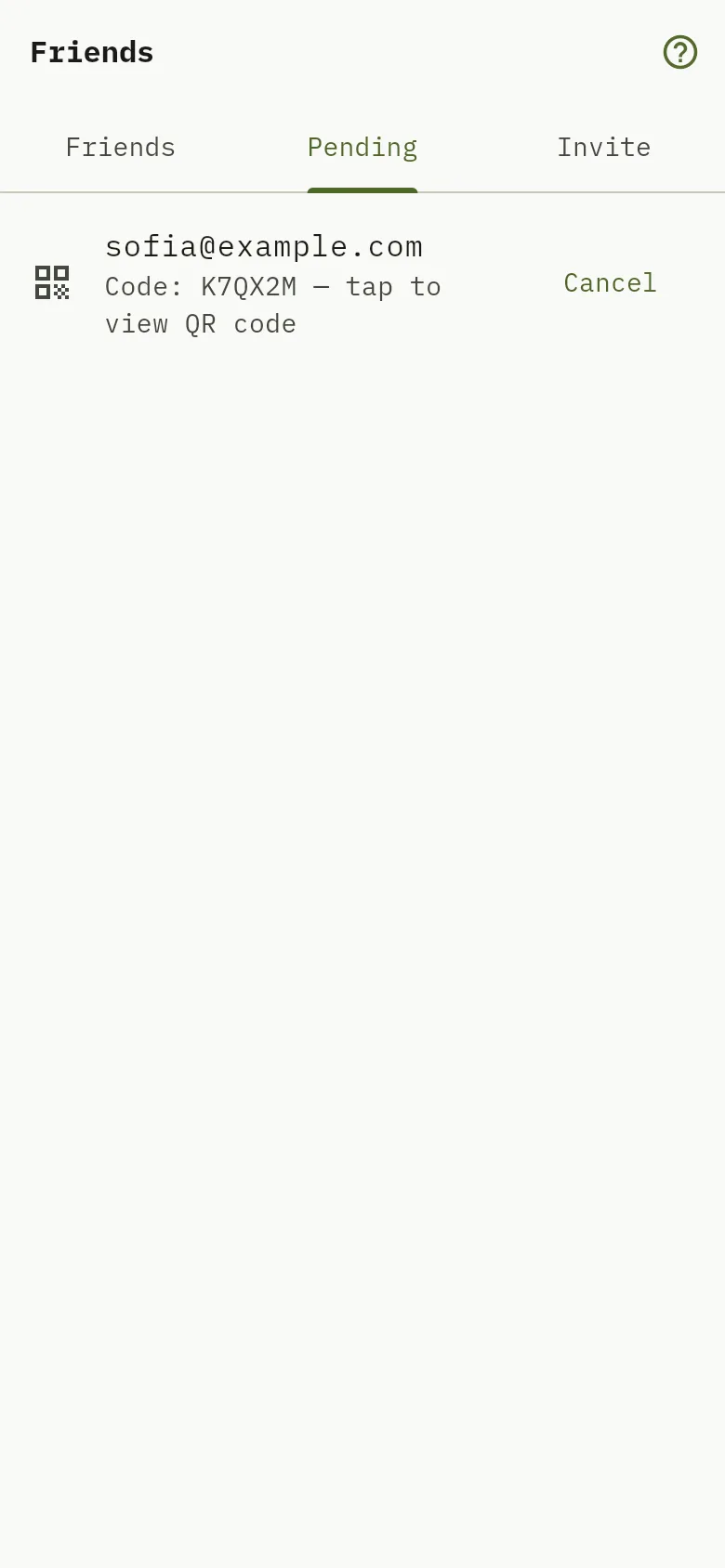

- To take an invitation back, open the Pending tab Marker 8 and tap Cancel.
Accept an invitation
Web
Open your friend’s link and sign in if the app asks. The app accepts the invitation and shows You are now connected!, then opens the Friends screen.
Mobile
Open your friend’s link, or on the Invite tab tap Scan QR code Marker 10 and scan the code your friend shows. If you only have the code, type it under Have a code? Marker 11 and tap Redeem code.
Tip
The mobile app has no email field. The mobile screens are in English in every language.
What you see
Your friend appears on the Friends tab for both of you. If the link has expired or was already used, the app says it couldn’t accept the invitation; create a new one.