
Track your progress
See what you planned for a goal, what you have spent and what is left, open its details and look at archived goals.
The Savings Goals screen shows how far along each goal is. Progress comes from the money you have set aside for the goal with designations, and from what you have spent from it.
Before you start
You need a goal, and at least one designation linked to it under Link to Goal (optional). Designations in other currencies are converted, so a goal can draw on wallets in different currencies.
Steps
Web
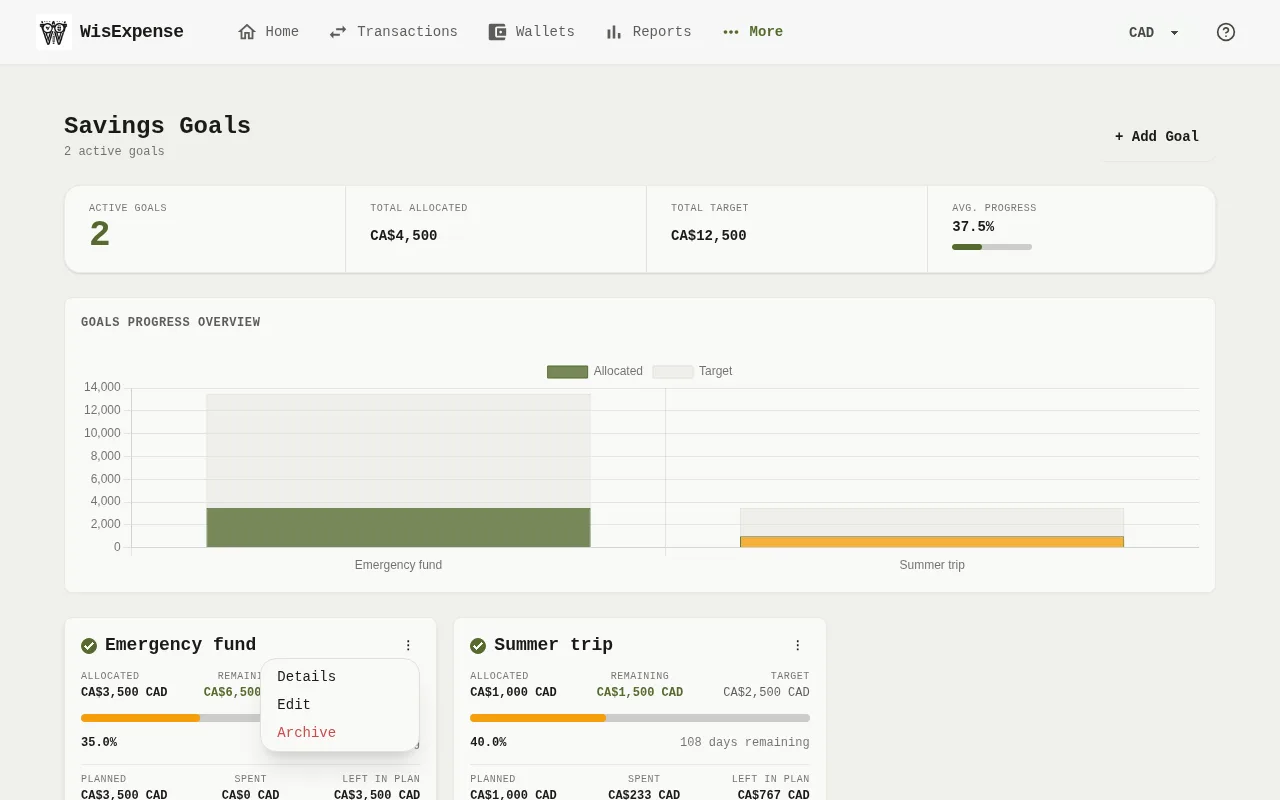
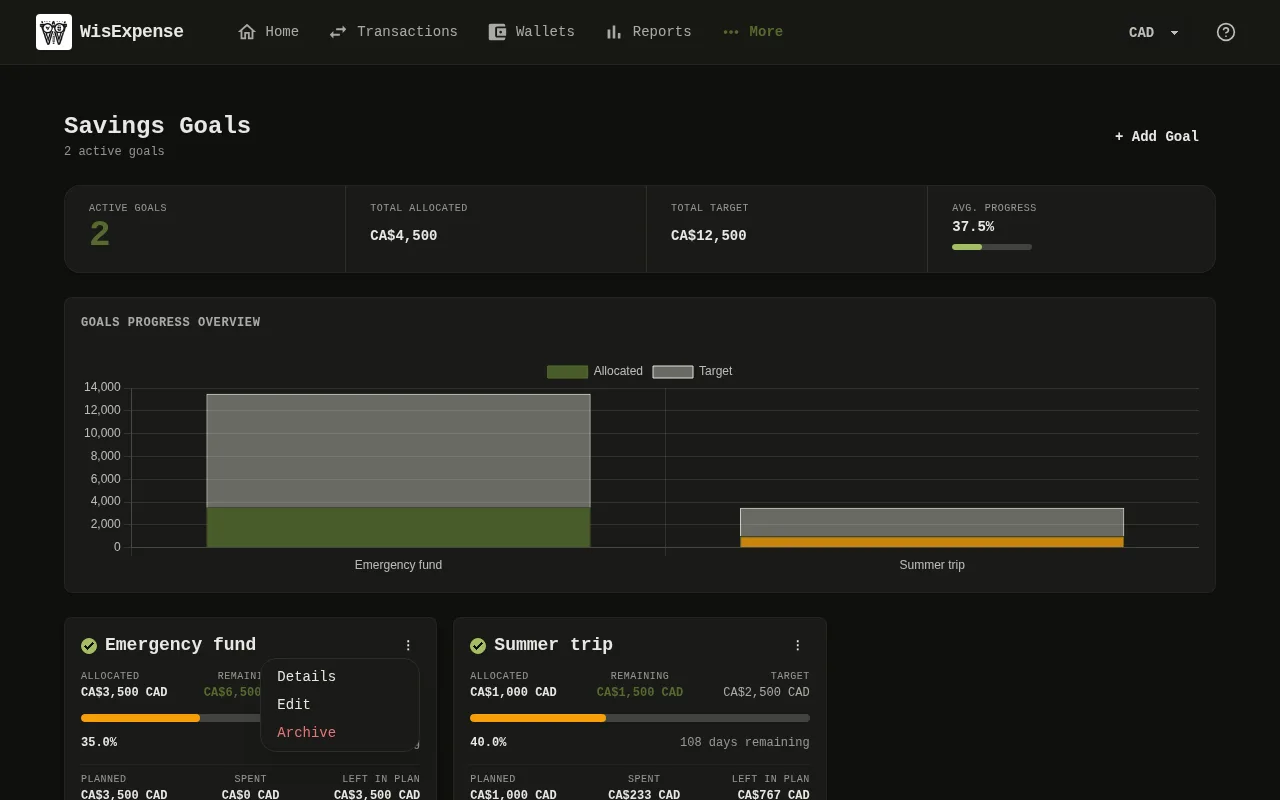
- Select Goals in the menu.
- Read the totals at the top: Active Goals and Total Allocated. When your goals have target amounts, you also see Total Target and Avg. Progress.
- Look at the chart Marker 1, Goals Progress Overview. It compares the allocated and target amounts, and appears when two or more goals are ticked. Tick or untick the box on a goal’s card to choose which goals it shows.
- Read each goal’s card Marker 2: the percentage in the ring, the allocated amount, Target, the amount remaining, the target date and the days left. The date shows Overdue once it has passed and Due today on the day. A goal without a target amount shows only the allocated amount and its date.
- Look at Planned, Spent and Left in plan on the card, with the bar Spending against plan under them. Planned is what you set aside for the goal, Spent is the expenses you linked to it, and the bar shows Over plan when you spent more than you planned.
- Under Contributing Designations, see which active designations add to the goal and the wallet each one is in.
Mobile
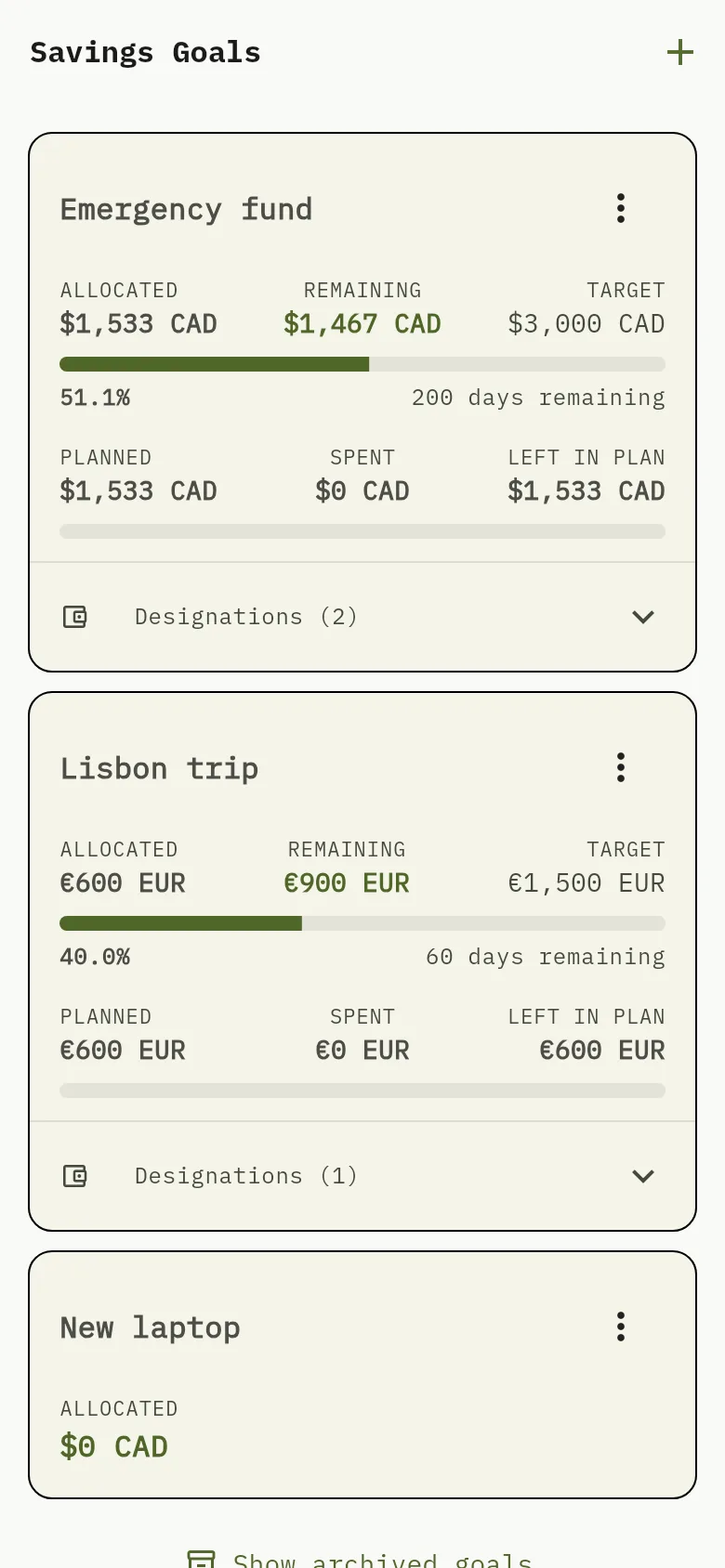
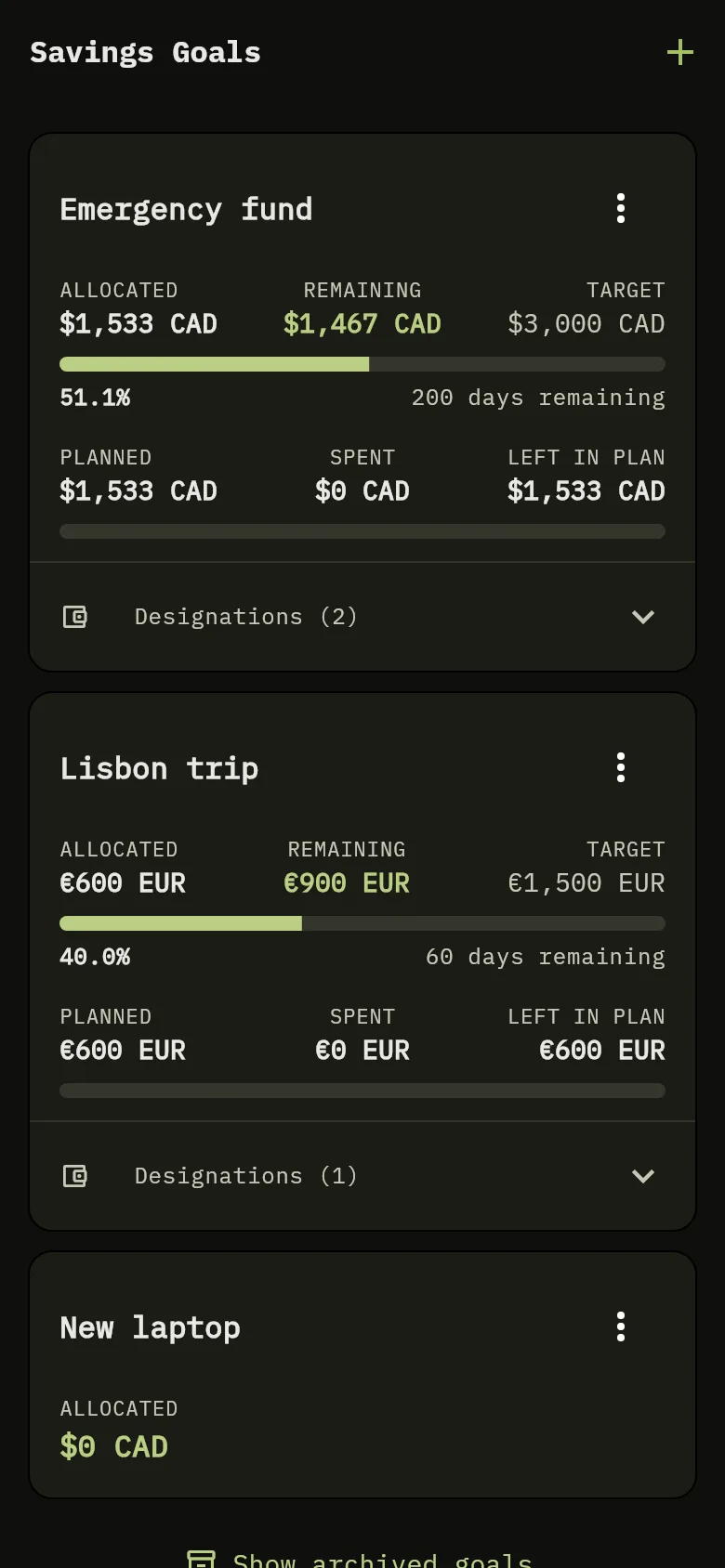
- Tap More at the bottom of the screen, then tap Savings Goals.
- Read each goal’s card Marker 3: the Allocated, Remaining and Target amounts, a progress bar with the percentage, and the days left. The date shows Overdue once it has passed, Due today on the day, and otherwise a count such as 60 days remaining. A goal without a target amount shows only the allocated amount and its days left.
- Look at Planned, Spent and Left in plan under the progress bar, and the bar Spending against plan below them. The bar shows Over plan when you spent more than you planned.
- Tap the Designations row at the bottom of a card to see which designations add to the goal: each one’s name, its wallet and amount, and the amount converted into the goal’s currency. The number next to it is how many designations are linked.
Open a goal’s details
The details show where the plan stands wallet by wallet, and which expenses you linked to the goal.
Web
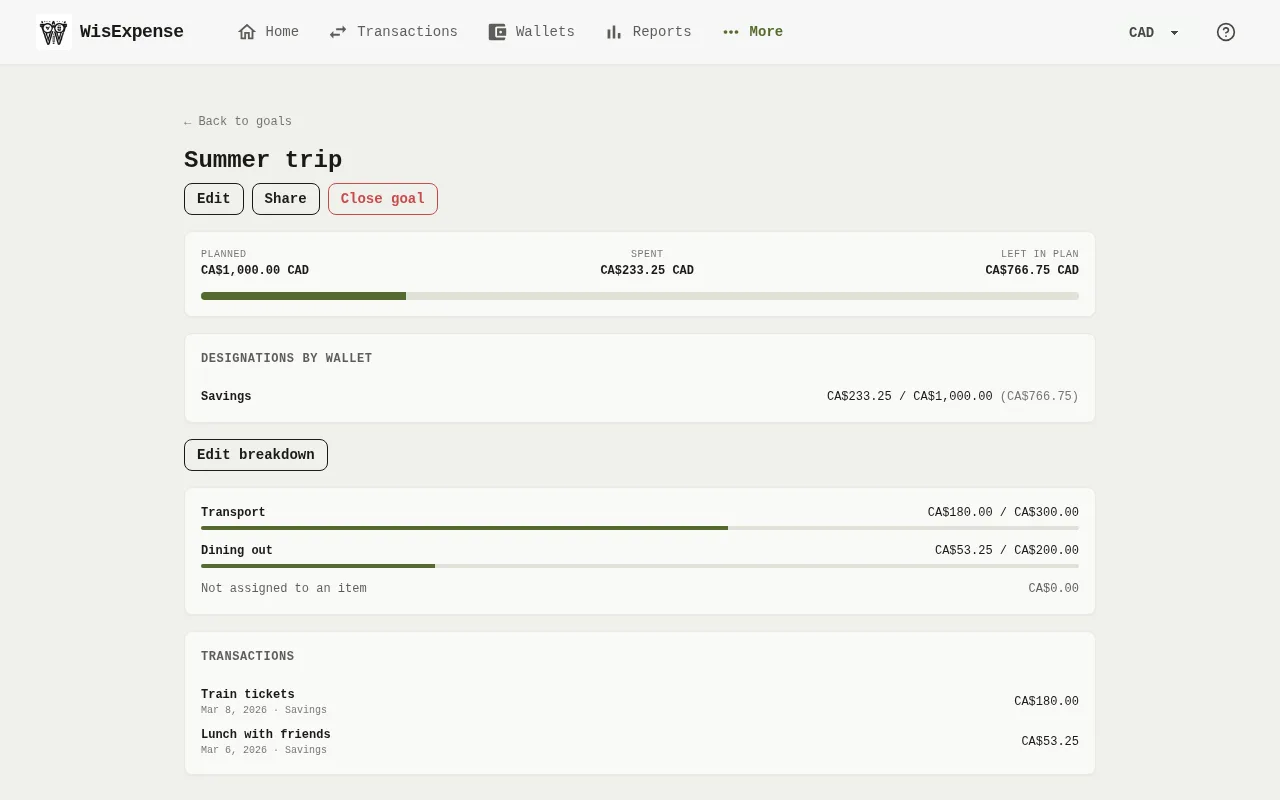
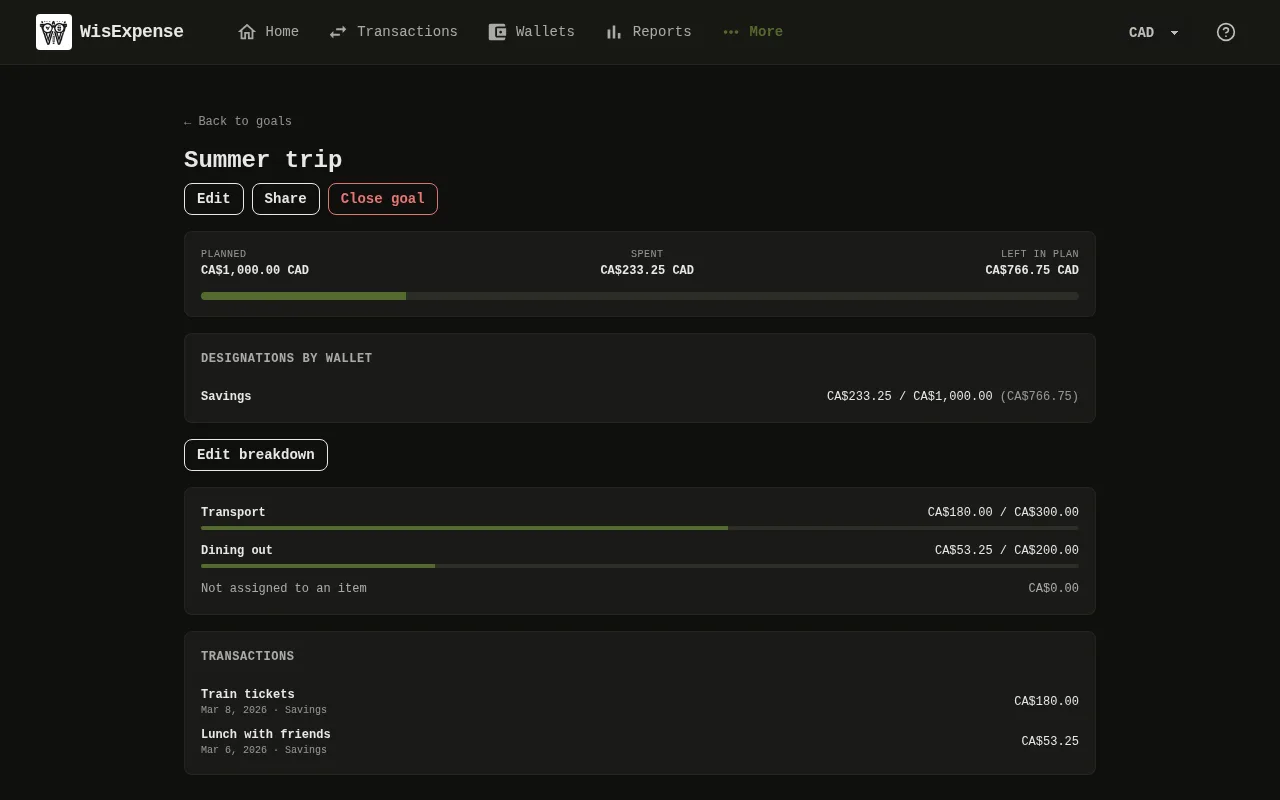
- On the goal’s card, select the three dots and then Details, or select the goal’s name.
- Read the plan Marker 4: Planned, Spent and Left in plan.
- Under Designations by wallet Marker 5, see each wallet’s spent amount, its planned amount and what is left of it.
- If the goal is broken down, each item Marker 6 shows what you spent against what you planned for it. Expenses not assigned to an item are listed as Not assigned to an item.
- Under Transactions Marker 7, read the expenses linked to the goal, newest first, with their date, wallet and amount. An expense paid from another wallet’s designation also shows “funded from” and the name of the wallet that paid.
Mobile
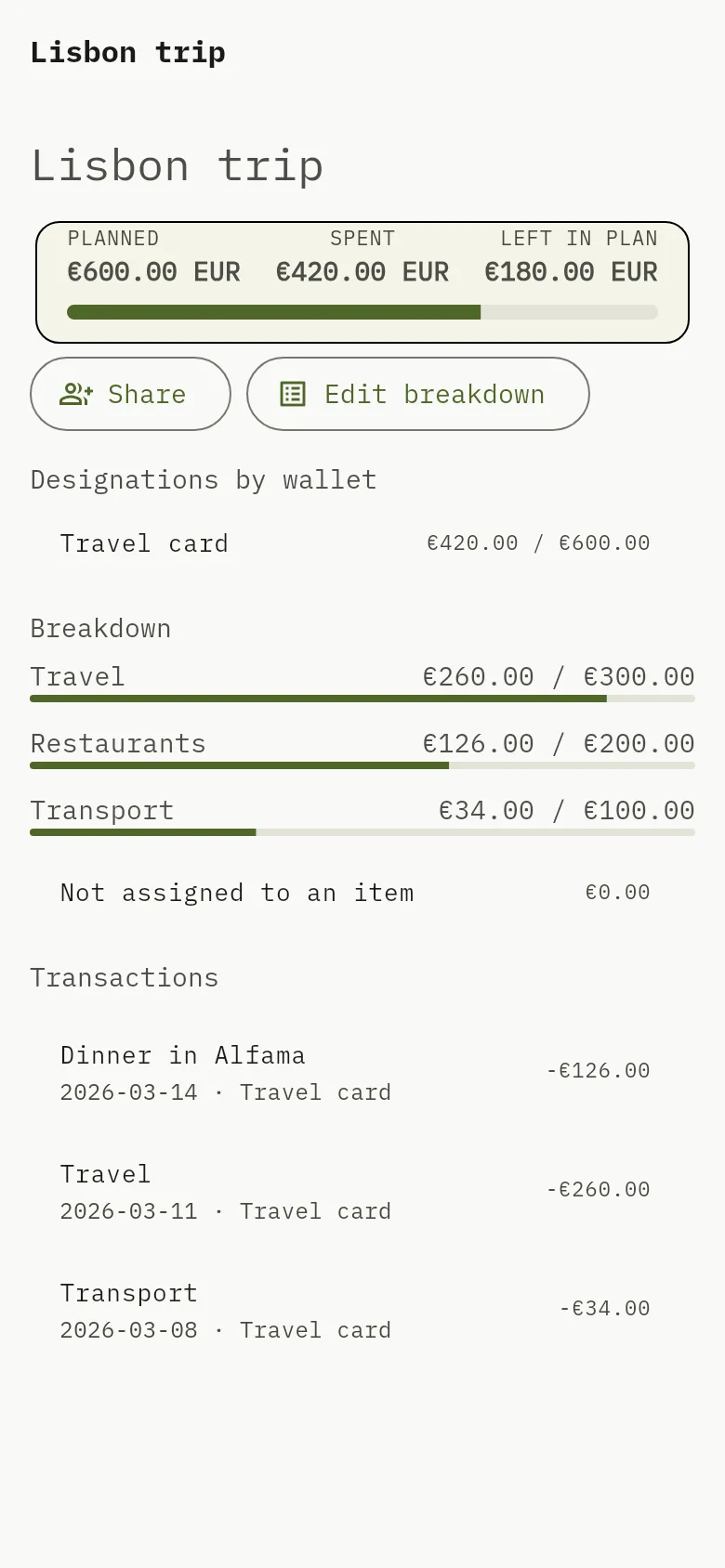
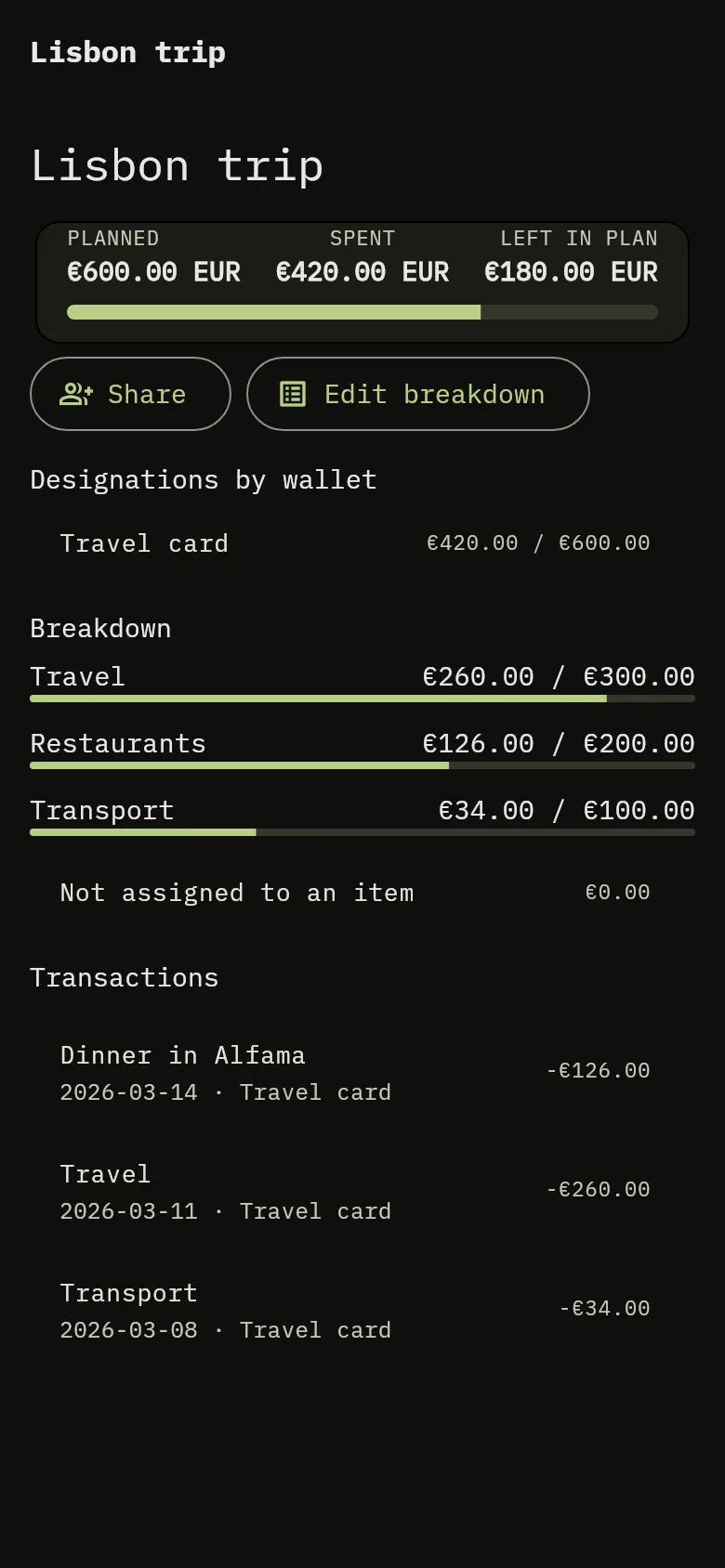
- On the goal’s card, tap the three dots and then Details, or tap the goal’s name.
- Read the plan Marker 4: Planned, Spent and Left in plan.
- Under Designations by wallet Marker 5, see each wallet’s spent amount and its planned amount.
- If the goal is broken down, each item Marker 6 shows what you spent against what you planned for it. Expenses not assigned to an item are listed as Not assigned to an item.
- Under Transactions Marker 7, read the expenses linked to the goal, with their date, wallet and amount. An expense paid from another wallet’s designation also shows “funded from” and the name of the wallet that paid.
The details update by themselves: when you link, change or remove an expense on another device, the amounts here change without you refreshing.
Look at archived goals
Archived goals are not loaded unless you ask for them, so the list stays quick.
- Select Show archived goals.
- Under Archived goals, tick the ones to load. Pick the archived goals to load for comparison. shows the choice; There are no archived goals. appears when you have none.
- Select Hide archived goals to put them away again.
A goal archived before outcomes were recorded is listed as archived with No outcome recorded; nothing is worked out for it afterwards.
Move a goal forward
Set more money aside: add a designation linked to the goal, or edit one with Edit Designation and raise its allocated amount.
Close a goal
When you’re done with a goal, close it: it is archived, and its plan and what you spent are kept so you can compare them later.
What you see
Each goal shows how much of its target is set aside, how much you planned, spent and have left, and the totals add up your active goals. The mobile screen shows the cards only, without the totals at the top and the comparison chart.
Related
Set a savings goal, Spend toward a goal, Close a goal and Set money aside with designations.