
Close a goal
Close a goal you are done with, see how the outcome compares with the plan and plan a similar goal.
Closing a goal archives it and keeps a record of how it went: what you planned, what you spent and the difference.
Before you start
You need to own the goal. A goal shared with you can’t be closed by you. A closed goal can’t be edited or reopened, and no new expense can be linked to it.
Close a goal
Web
- Open the goal’s details: select the three dots on its card, then Details.
- Select Close goal.
- Read the message in Archive Goal. Its plan and what was spent are saved so you can compare them later. Select Close goal to confirm.
You can also select Archive in the three-dot menu of the goal’s card.
Mobile
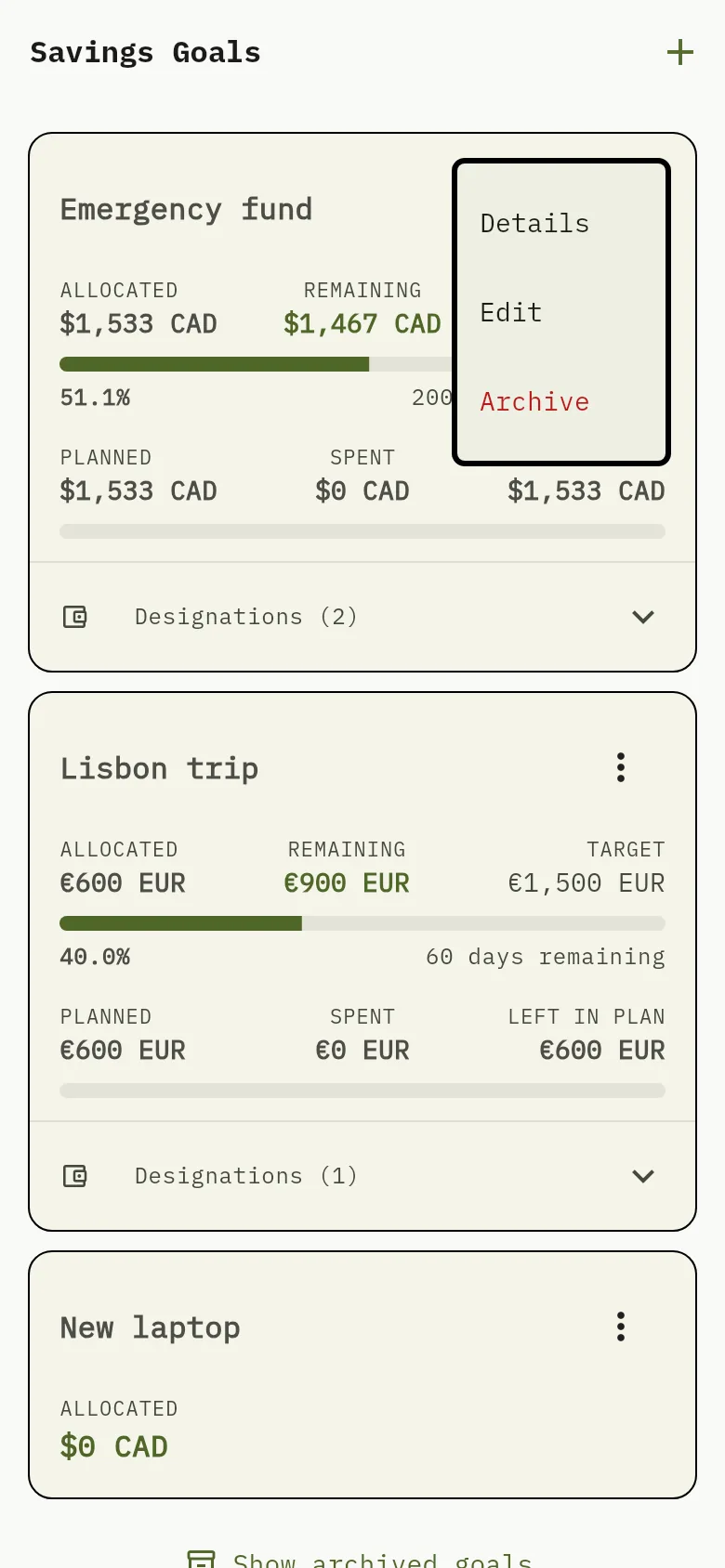
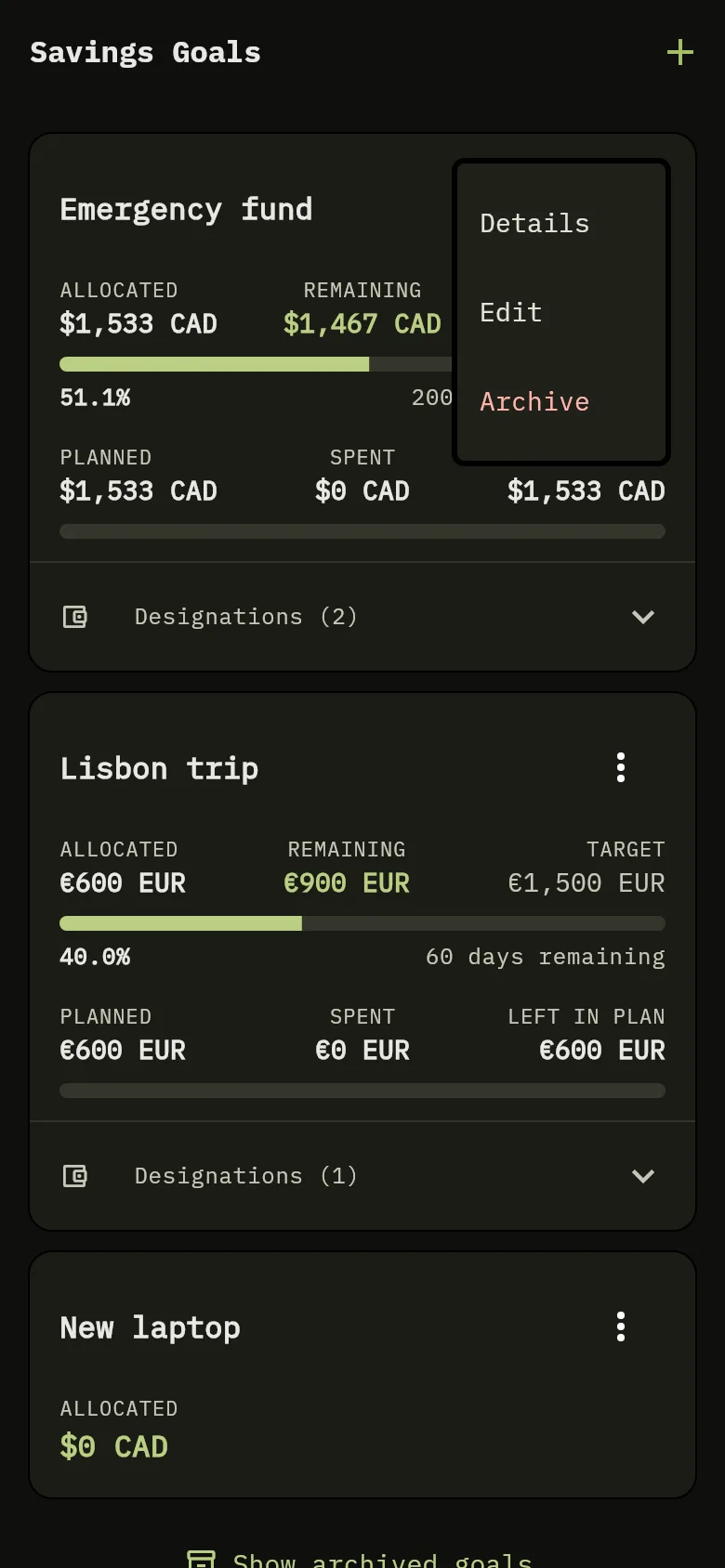
- Tap the three dots on the goal’s card Marker 1, then tap Archive Marker 2.
- Read the message in Archive Goal. Its plan and what was spent are saved so you can compare them later. Tap Archive again to confirm.
When a goal is closed, the money you had set aside for it and not yet spent is released: the wallets no longer hold that designation. The record still shows the plan as it was.
Read the outcome
Web
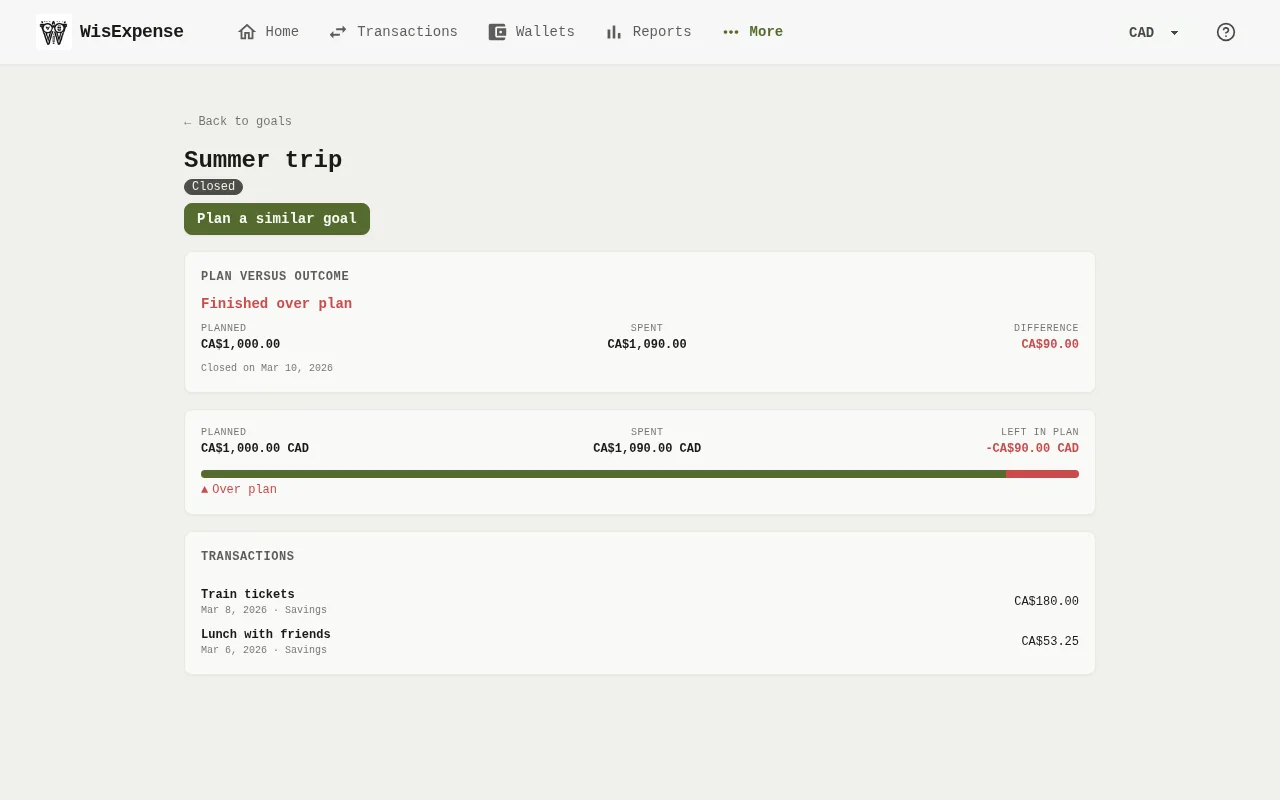
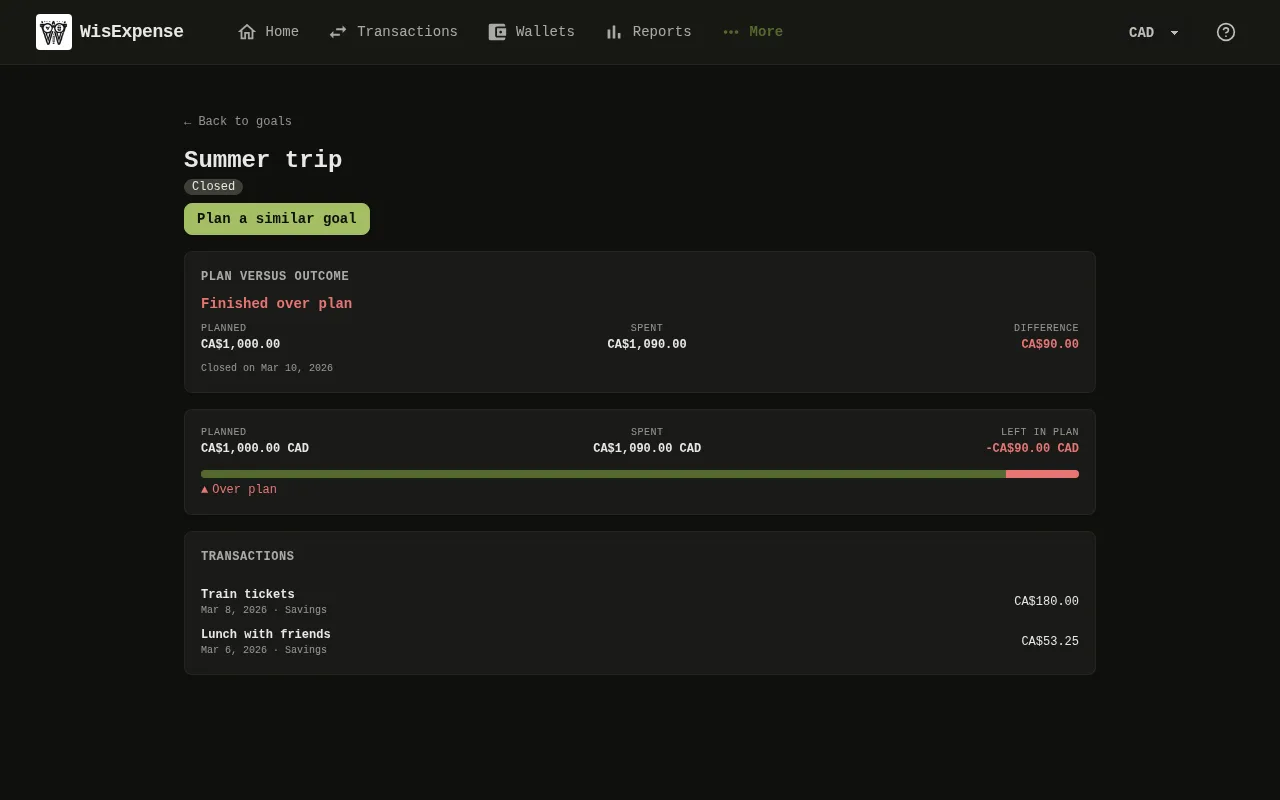
- Select Show archived goals on the goals screen, pick the goal, then select Details on its card.
- Read the Plan versus outcome card Marker 3. It shows the outcome, the Planned and Spent amounts, the Difference and the closing date.
Mobile
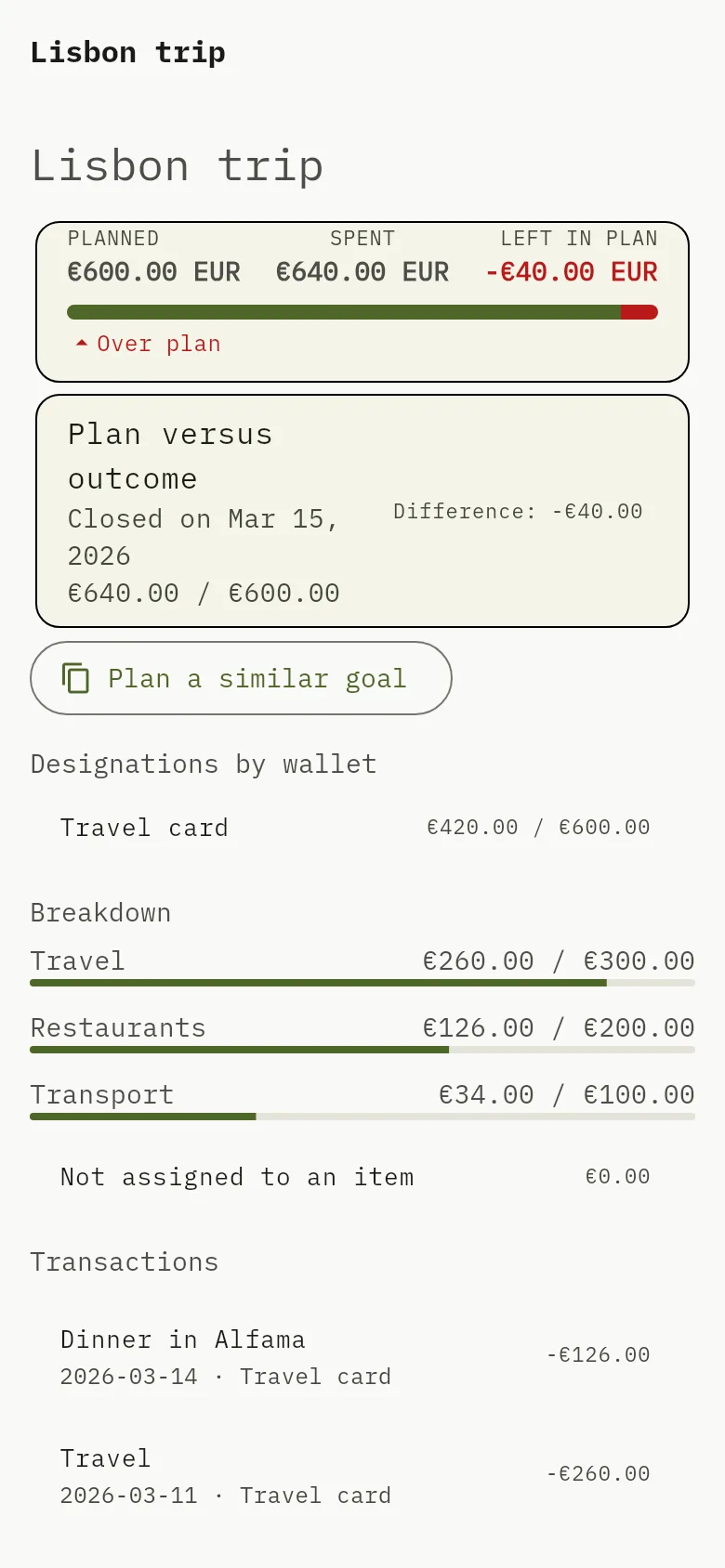
- Tap Show archived goals on the goals screen, pick the goal and open it.
- Read the Plan versus outcome card Marker 3. It shows the closing date, the planned and spent amounts and the Difference.
The outcome is one of three, and there is no gray area: Finished over plan when you spent more than you planned, Finished under plan when you spent less, and Achieved the plan exactly when the two are equal. If the goal had a breakdown, each item shows its plan against what was spent.
Plan a similar goal
Web
Select Plan a similar goal Marker 4 in the closed goal’s details, or on its card among the archived goals.
Mobile
Tap Plan a similar goal Marker 4 in the closed goal’s details.
A new goal opens, filled in with the name, target, currency and breakdown items of the closed one. No spending is copied. Change what you like and save it; the closed goal stays as it was.
What you see
The goal is gone from your active goals, and its details keep the plan and the outcome for good.
Related
Track your progress, Spend toward a goal and Set a savings goal.