WisExpenseOpen the app
Topics

Set a savings goal

Name something you’re saving for, with an optional target amount and target date.

Show steps for

A savings goal names something you are saving for, such as an emergency fund or a trip. It can have a target amount and a target date.

Before you start

You don’t need to prepare anything. A goal doesn’t hold money itself: it adds up the active designations linked to it, so link one after you save the goal.

Steps

Web
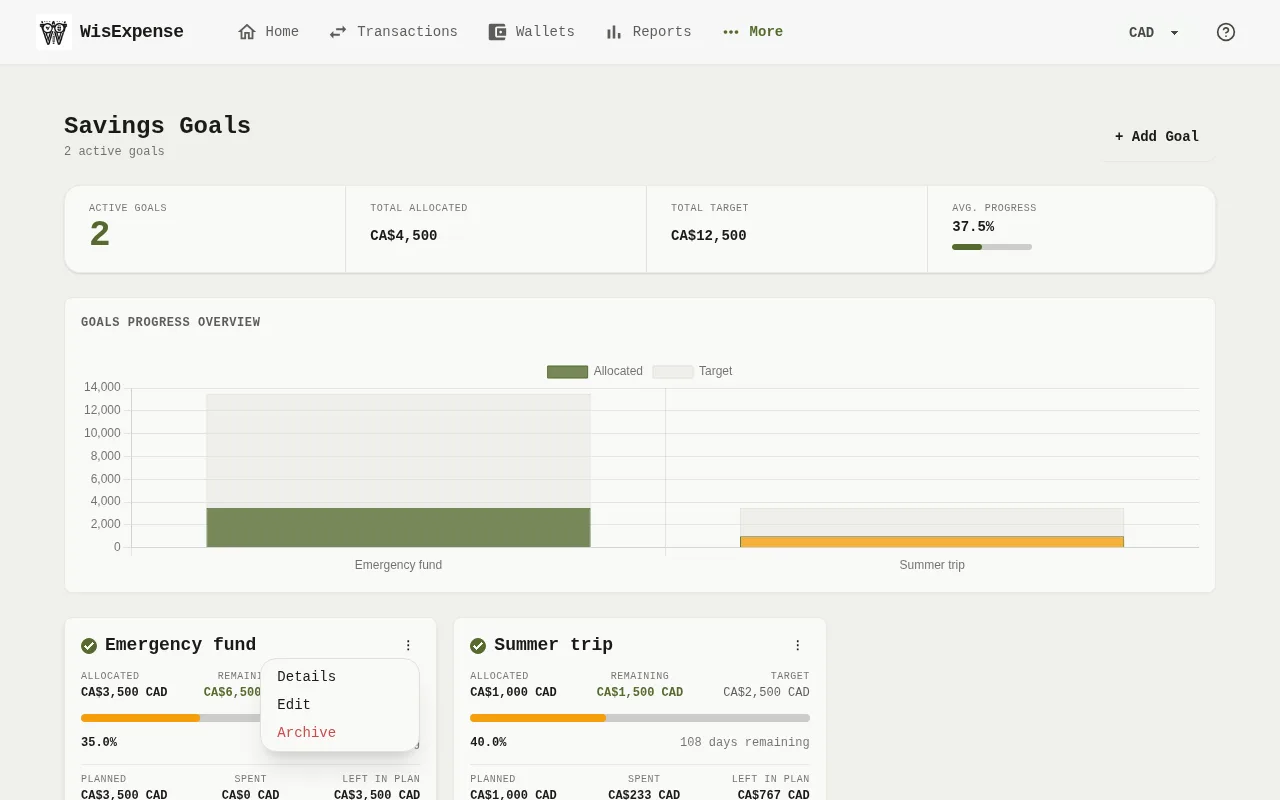
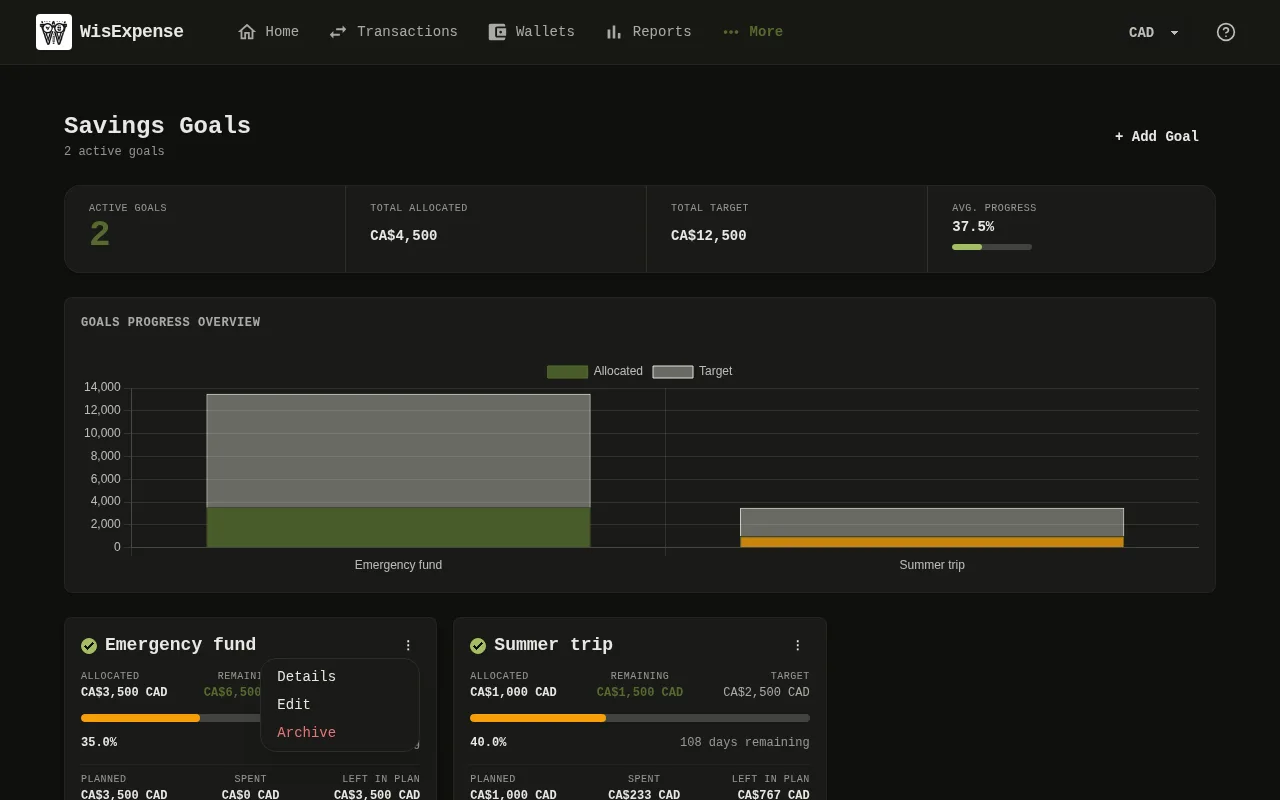
The Savings Goals screen of the web app, with the button to add a goal, the chart that compares goals and a card for each goal with its edit button. 1: Select + Add Goal; 10: Select the pencil on the goal’s card, change the fields and select Save.The Savings Goals screen of the web app, with the button to add a goal, the chart that compares goals and a card for each goal with its edit button. 1: Select + Add Goal; 10: Select the pencil on the goal’s card, change the fields and select Save.
  1. Select Goals in the menu.
  2. Select + Add Goal Marker 1.
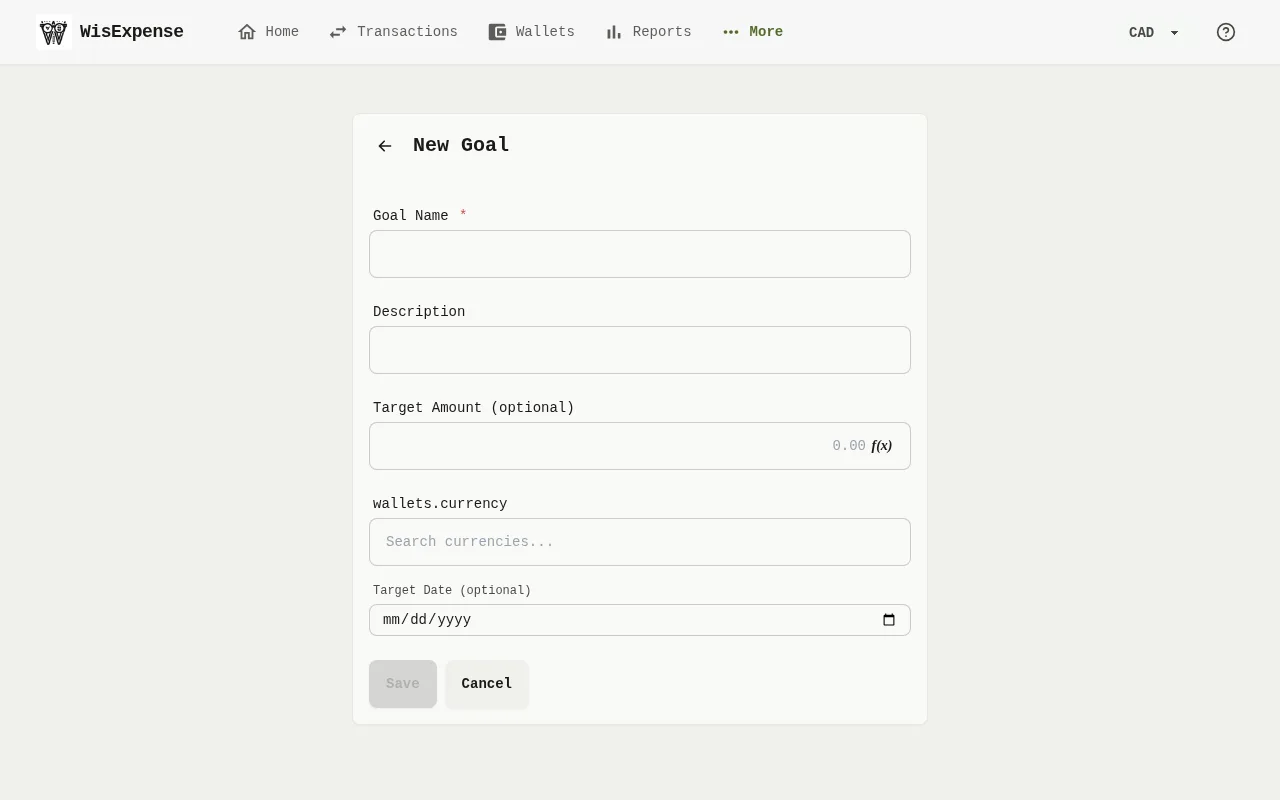
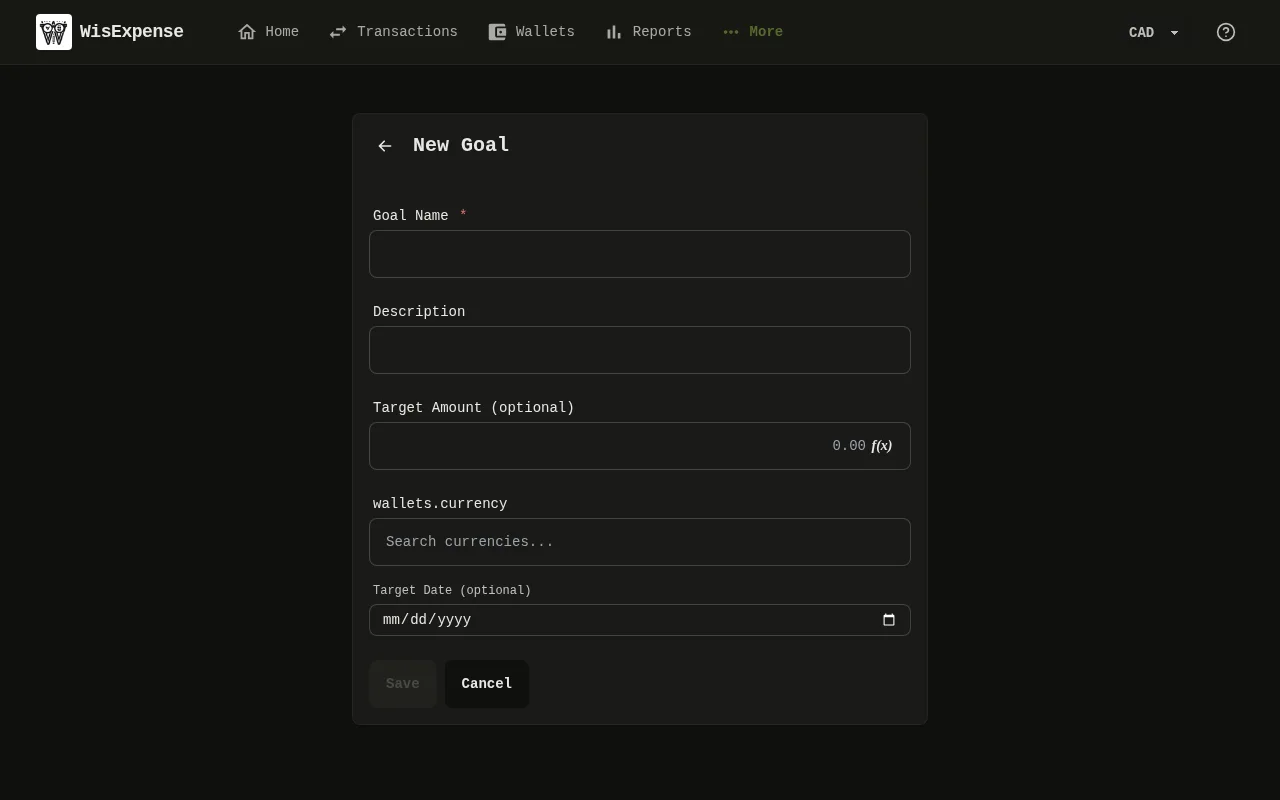
The new goal form of the web app, with the goal name, target amount and target date fields and the Save button. 2: Type the Goal Name, 2 to 100 characters. If you like, add a Description; 3: If you like, type the Target Amount (optional) and choose its currency; 4: If you like, choose a Target Date (optional); 5: Select Save. The button stays dimmed until the name is valid, and also if the target amount is below 0.01.The new goal form of the web app, with the goal name, target amount and target date fields and the Save button. 2: Type the Goal Name, 2 to 100 characters. If you like, add a Description; 3: If you like, type the Target Amount (optional) and choose its currency; 4: If you like, choose a Target Date (optional); 5: Select Save. The button stays dimmed until the name is valid, and also if the target amount is below 0.01.
  1. Type the Goal Name Marker 2, 2 to 100 characters. If you like, add a Description.
  2. If you like, type the Target Amount (optional) Marker 3 and choose its currency.
  3. If you like, choose a Target Date (optional) Marker 4.
  4. Select Save Marker 5. The button stays dimmed until the name is valid, and also if the target amount is below 0.01.

Mobile
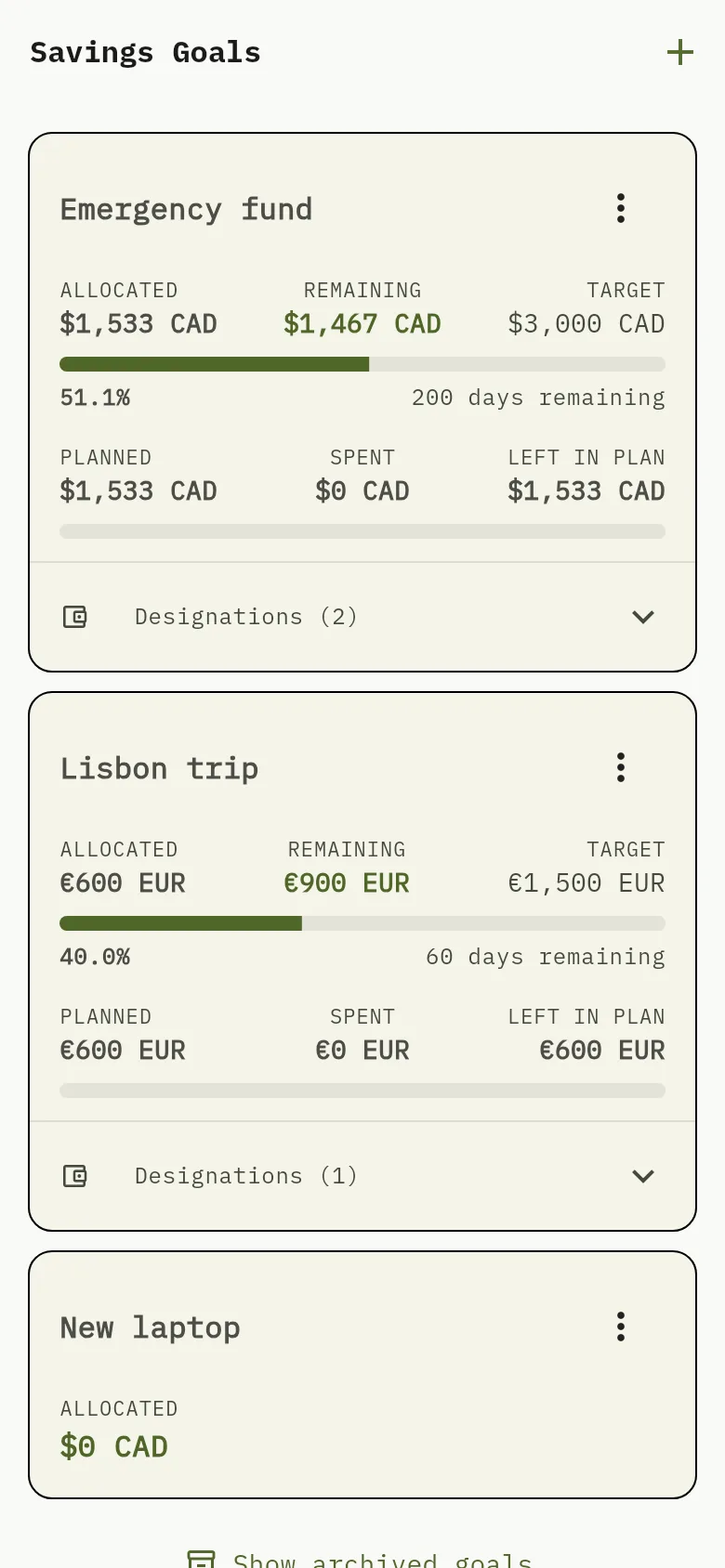
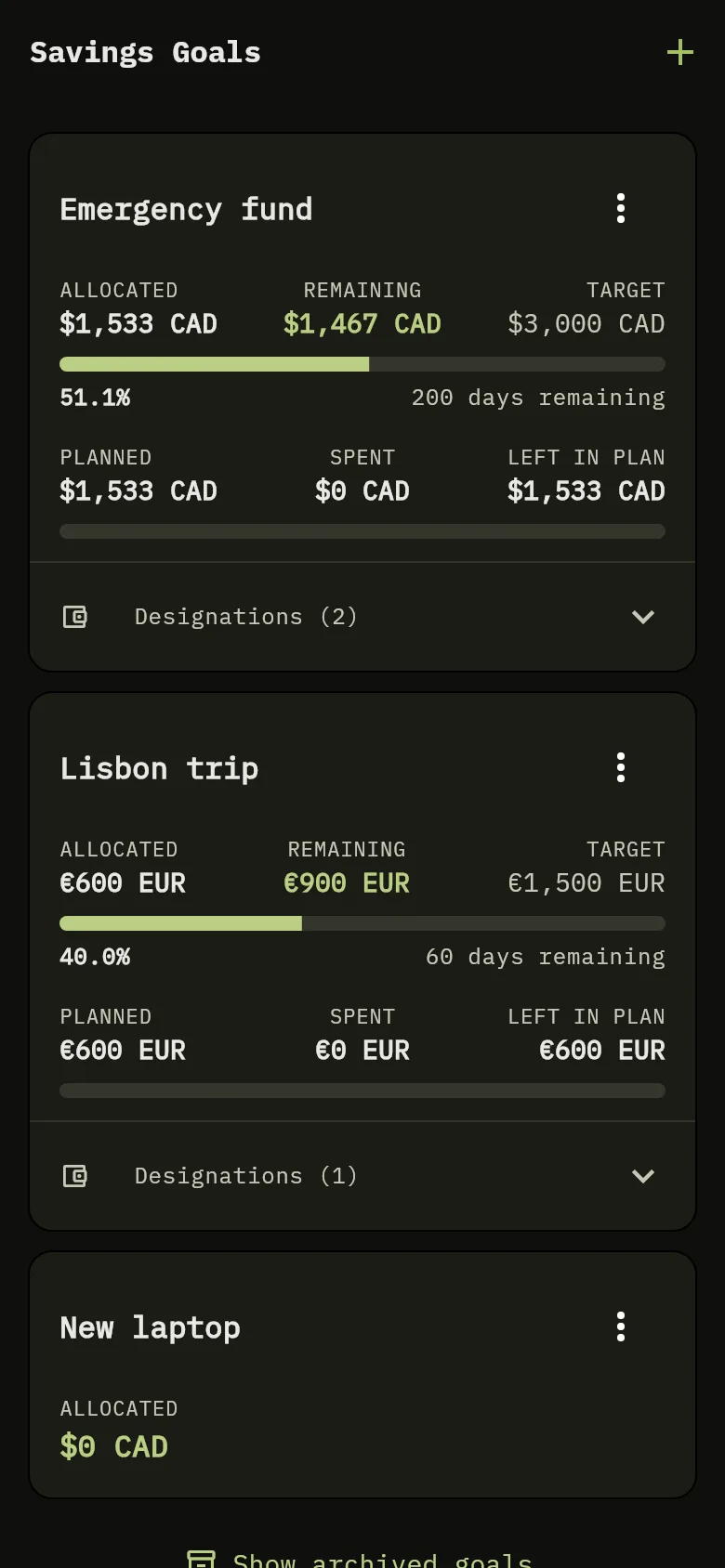
The Savings Goals screen of the mobile app, with the plus button at the top and a card for each goal. 6: Tap the plus button.The Savings Goals screen of the mobile app, with the plus button at the top and a card for each goal. 6: Tap the plus button.
  1. Tap More at the bottom of the screen, then tap Savings Goals.
  2. Tap the plus button Marker 6.
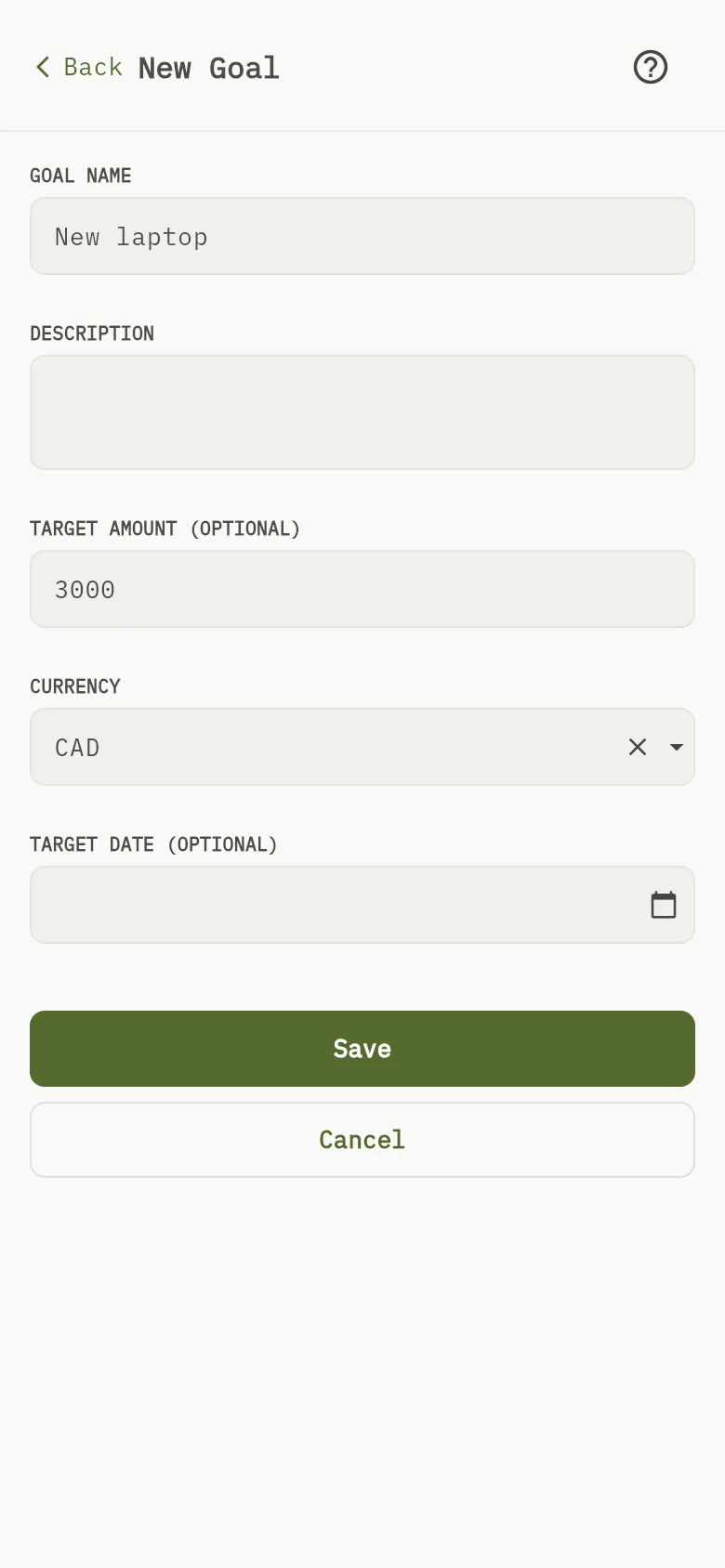
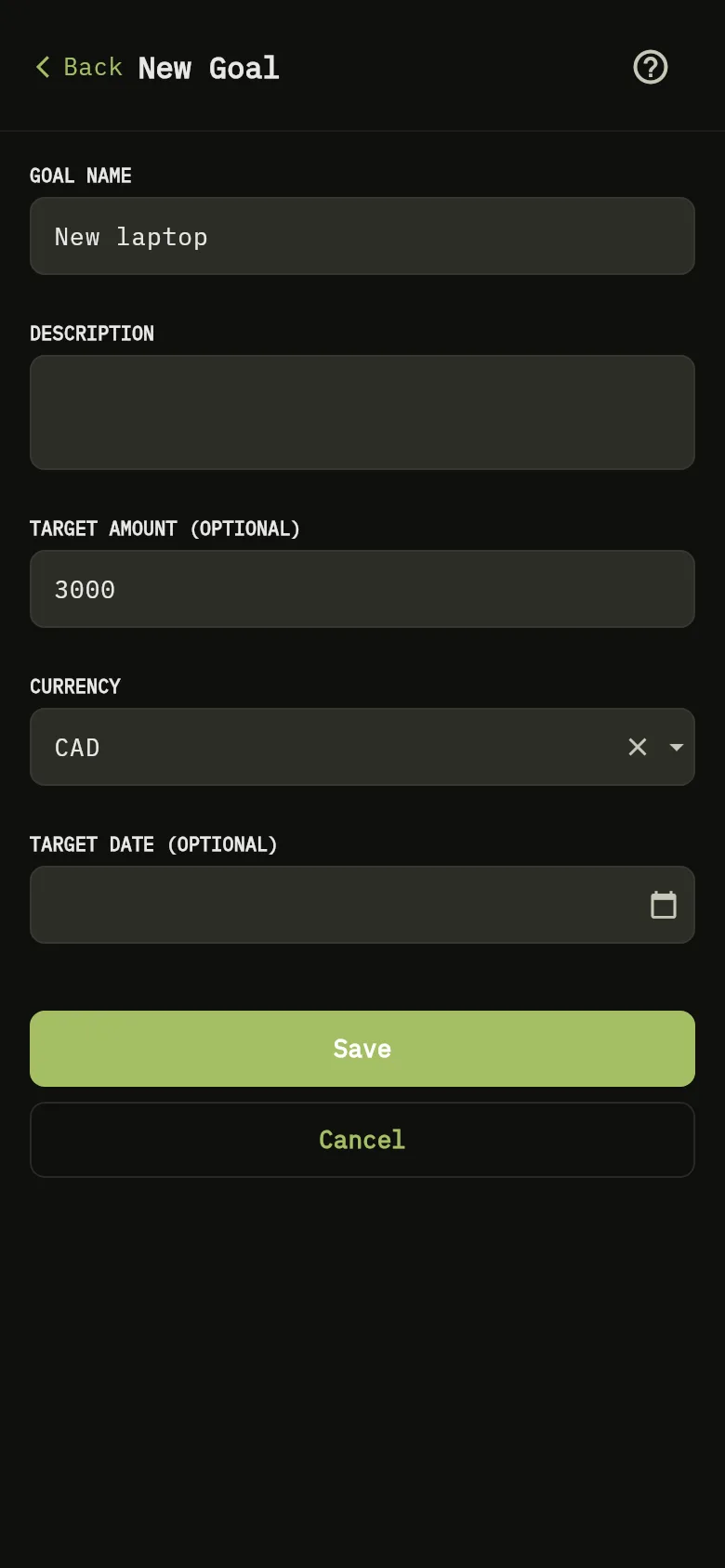
The new goal form of the mobile app, with the fields for the goal name, description, target amount, currency and target date, and the Save button. 2: Type the Goal Name. If you like, add a Description; 5: Tap Save. If the name is empty, the form asks for it instead of saving; 7: If you like, type the Target Amount (optional). In Currency, the currency starts as your default currency; change it if the goal is in another one; 8: If you like, type the Target Amount (optional). In Currency, the currency starts as your default currency; change it if the goal is in another one; 9: If you like, tap Target Date (optional) and pick a date, today or later.The new goal form of the mobile app, with the fields for the goal name, description, target amount, currency and target date, and the Save button. 2: Type the Goal Name. If you like, add a Description; 5: Tap Save. If the name is empty, the form asks for it instead of saving; 7: If you like, type the Target Amount (optional). In Currency, the currency starts as your default currency; change it if the goal is in another one; 8: If you like, type the Target Amount (optional). In Currency, the currency starts as your default currency; change it if the goal is in another one; 9: If you like, tap Target Date (optional) and pick a date, today or later.
  1. Type the Goal Name Marker 2. If you like, add a Description.
  2. If you like, type the Target Amount (optional) Marker 7. In Currency Marker 8, the currency starts as your default currency; change it if the goal is in another one.
  3. If you like, tap Target Date (optional) Marker 9 and pick a date, today or later.
  4. Tap Save Marker 5. If the name is empty, the form asks for it instead of saving.

Change a goal

Web

Select the pencil on the goal’s card Marker 10, change the fields and select Save.

Mobile

Tap the three dots on the goal’s card, tap Edit, change the fields and tap Save. The form is titled Edit Goal.

What you see

The goal appears on the Savings Goals screen. It shows nothing allocated until you link a designation to it: its card says No designations linked to this goal. On mobile, its card shows an allocated amount of zero until you link a designation.

Set money aside with designations and Track your progress.