WisExpenseOpen the app
Topics

Back up your data

Download an Excel file with everything you own in WisExpense, and keep it safe.

Needs the Premium plan

Show steps for

A backup is an Excel file (.xlsx) with the data you own: wallets, transactions, providers, categories, tags, budgets, recurring items and goals. You can download one whenever you like, and restore it later with Restore your data.

Before you start

Needs the Premium plan

Backing up on demand is part of the Premium and Collaboration plans. On other plans, the Download backup button explains this and offers See plans. Every plan can still download a backup when closing the account: see Delete your account.

You need a connection to the internet. Wallets that other people share with you belong to their owners, so they are not in your file.

Steps

Web
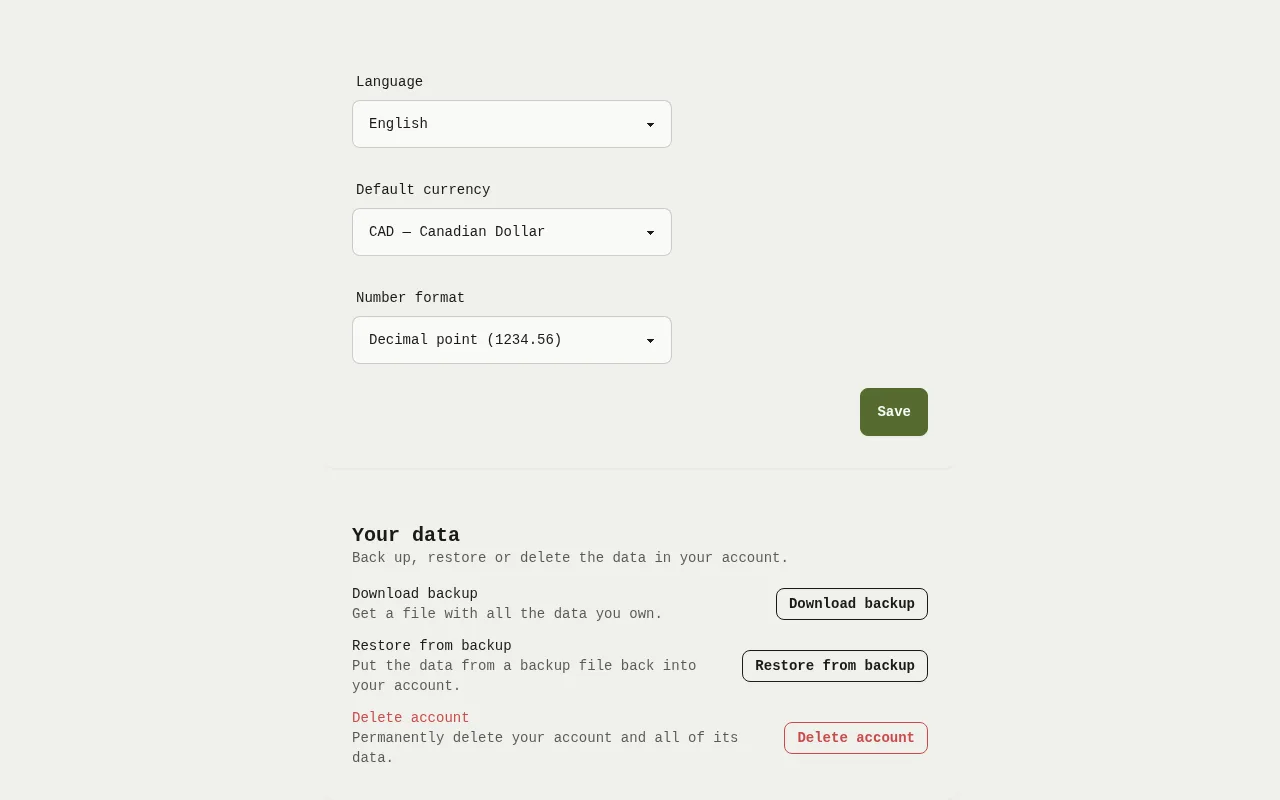
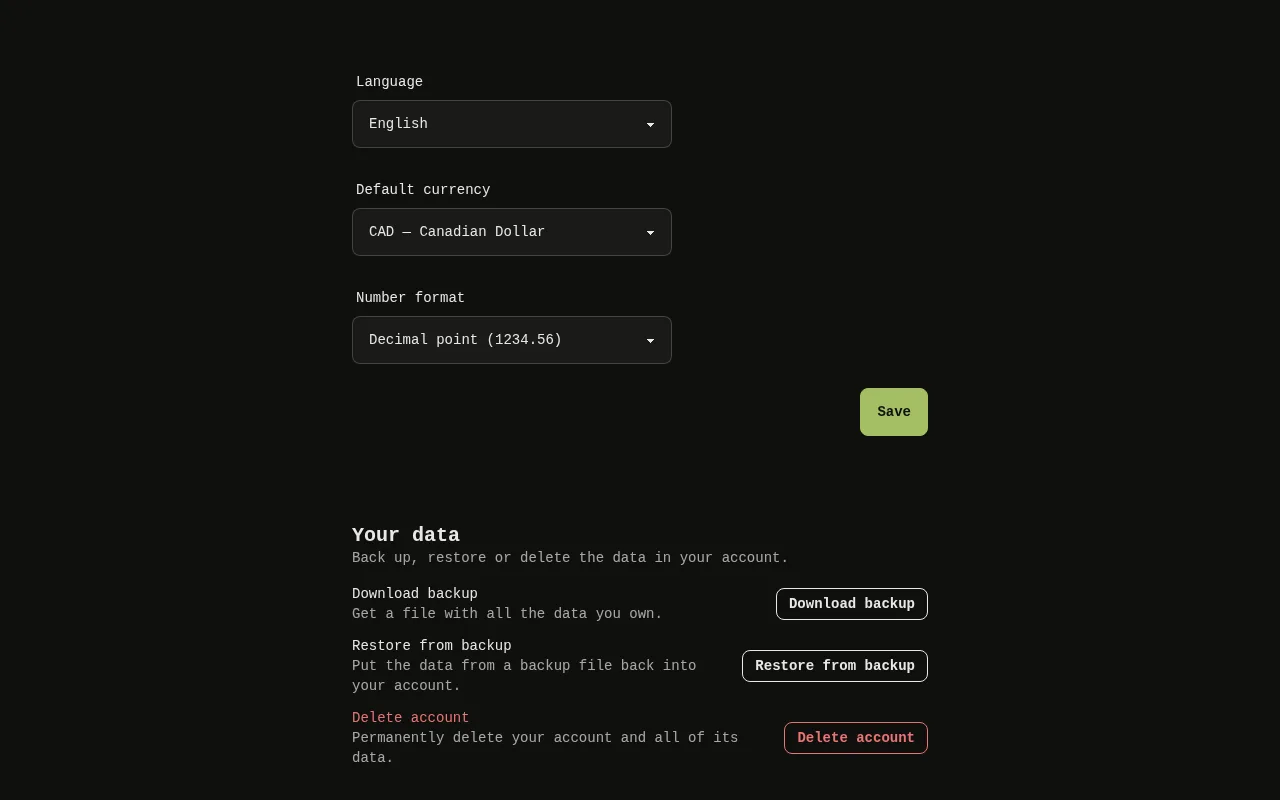
The Your data card on the Settings screen of the web app, with the Download backup, Restore from backup and Delete account buttons. 1: Select Download backup. The Download a backup window opens.The Your data card on the Settings screen of the web app, with the Download backup, Restore from backup and Delete account buttons. 1: Select Download backup. The Download a backup window opens.
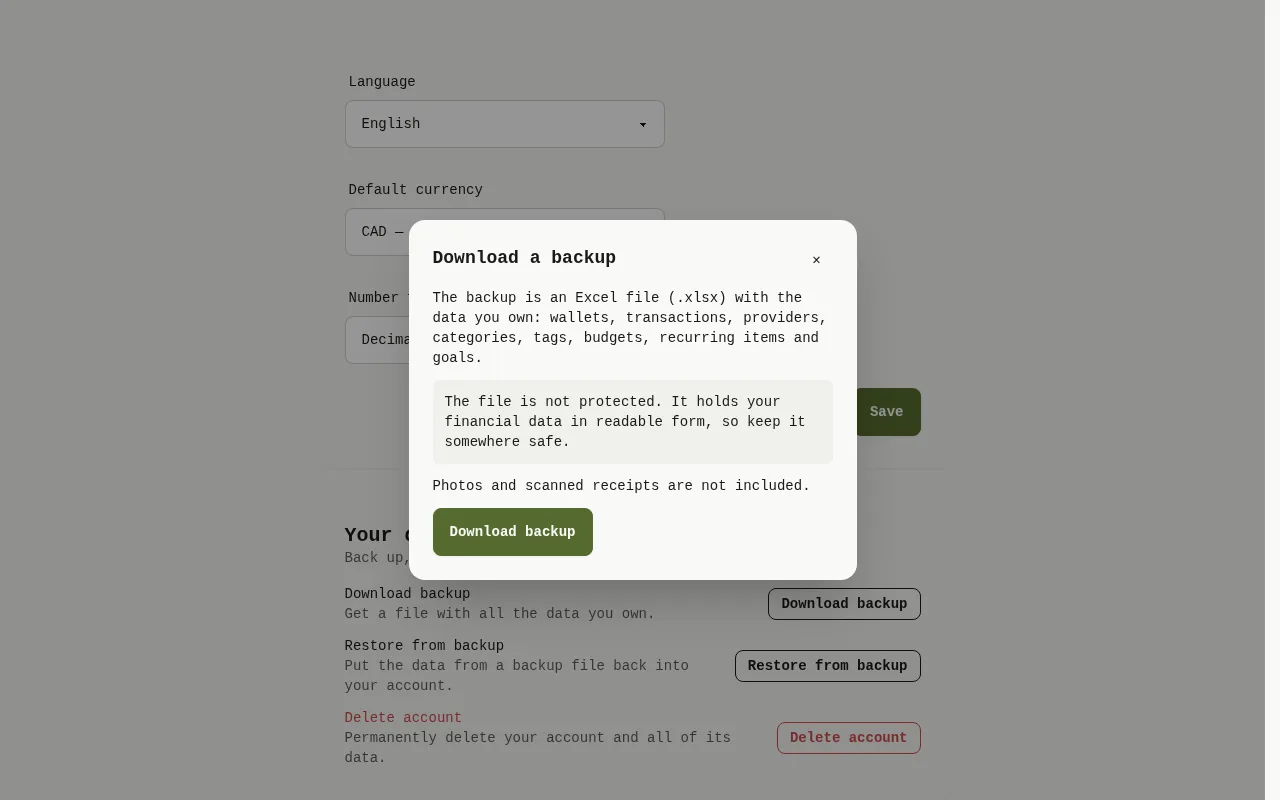
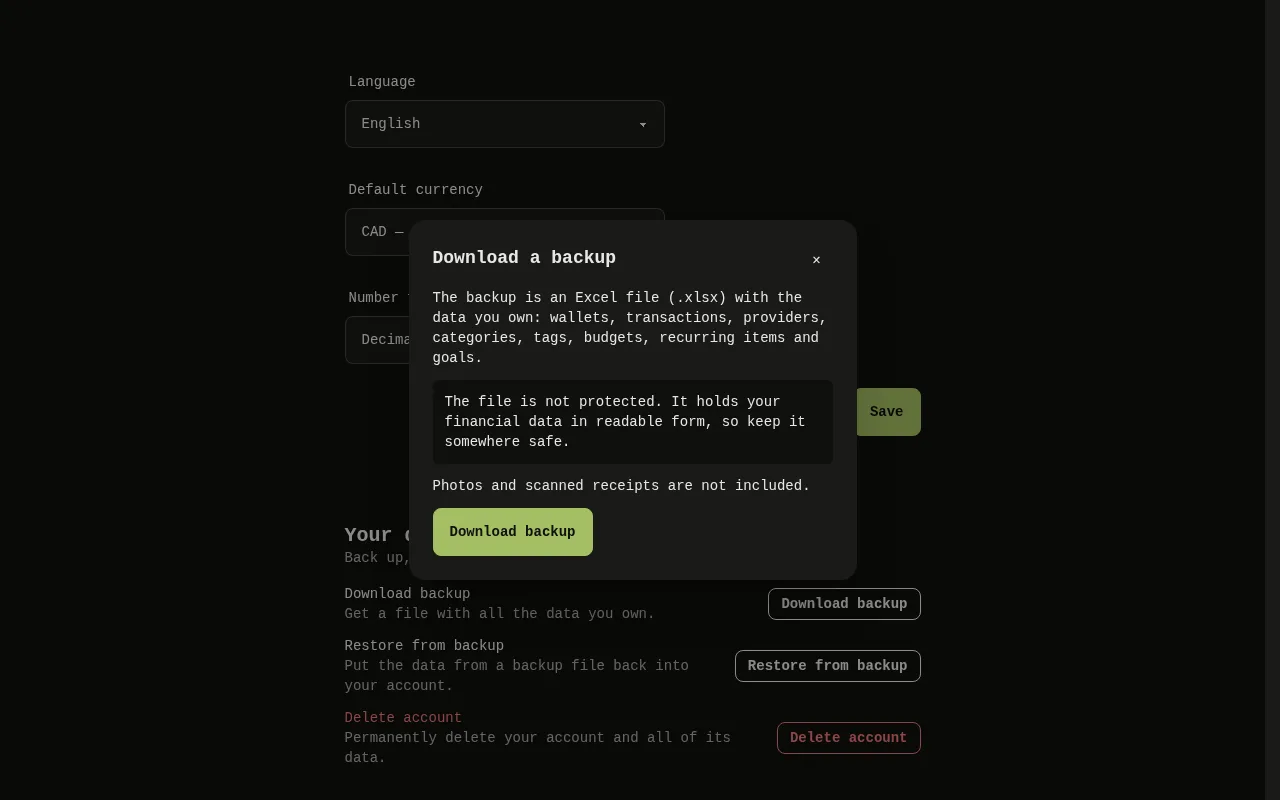
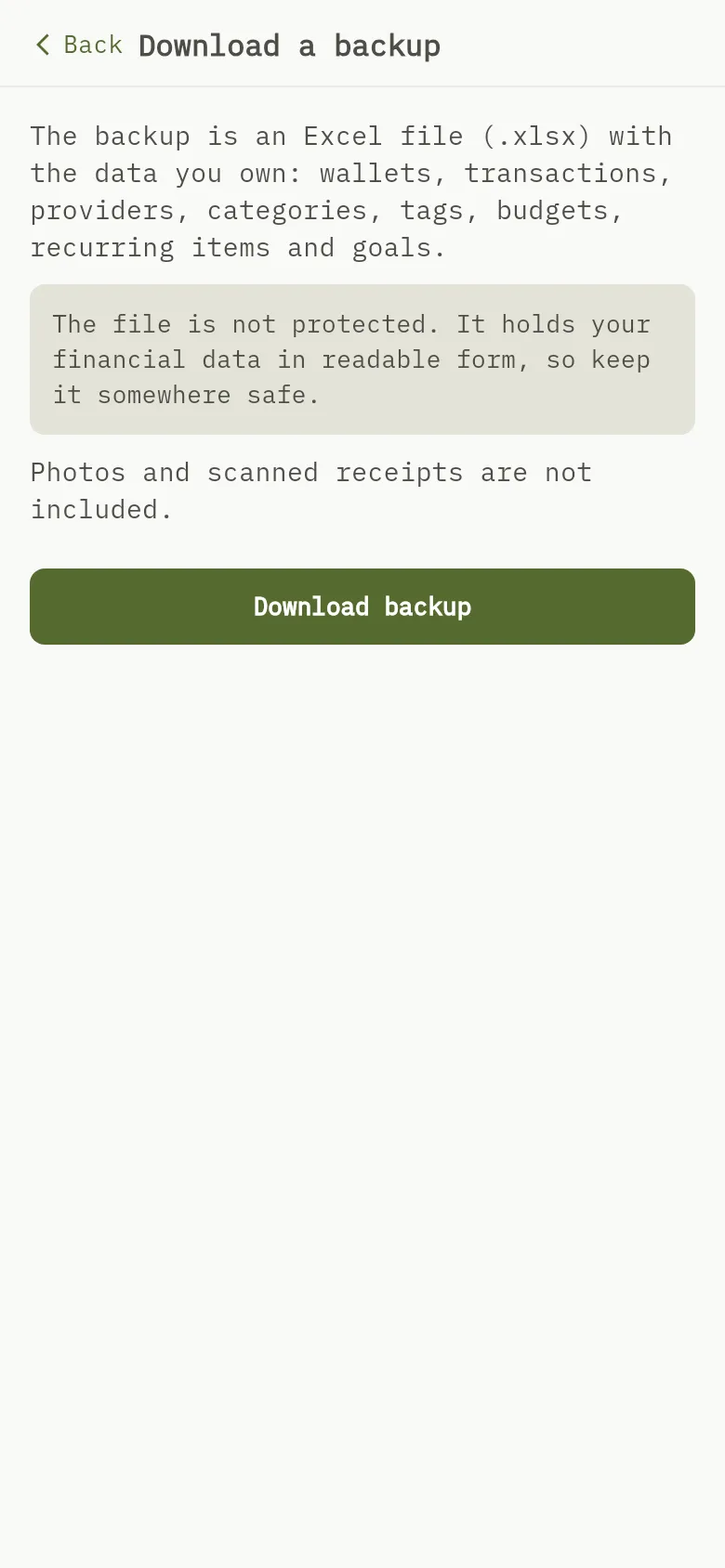
The Download a backup window of the web app: the warning that the file is not protected, the note that photos and scanned receipts are not included, and the Download backup button. 2: Read the warning and the note; 3: Read the warning and the note; 4: Select Download backup. The window reads Preparing your backup… and your browser saves the file.The Download a backup window of the web app: the warning that the file is not protected, the note that photos and scanned receipts are not included, and the Download backup button. 2: Read the warning and the note; 3: Read the warning and the note; 4: Select Download backup. The window reads Preparing your backup… and your browser saves the file.
  1. Select Settings in the menu at the top, then find the Your data card.
  2. Select Download backup Marker 1. The Download a backup window opens.
  3. Read the warning Marker 2 and the note Marker 3.
  4. Select Download backup Marker 4. The window reads Preparing your backup… and your browser saves the file.

Mobile
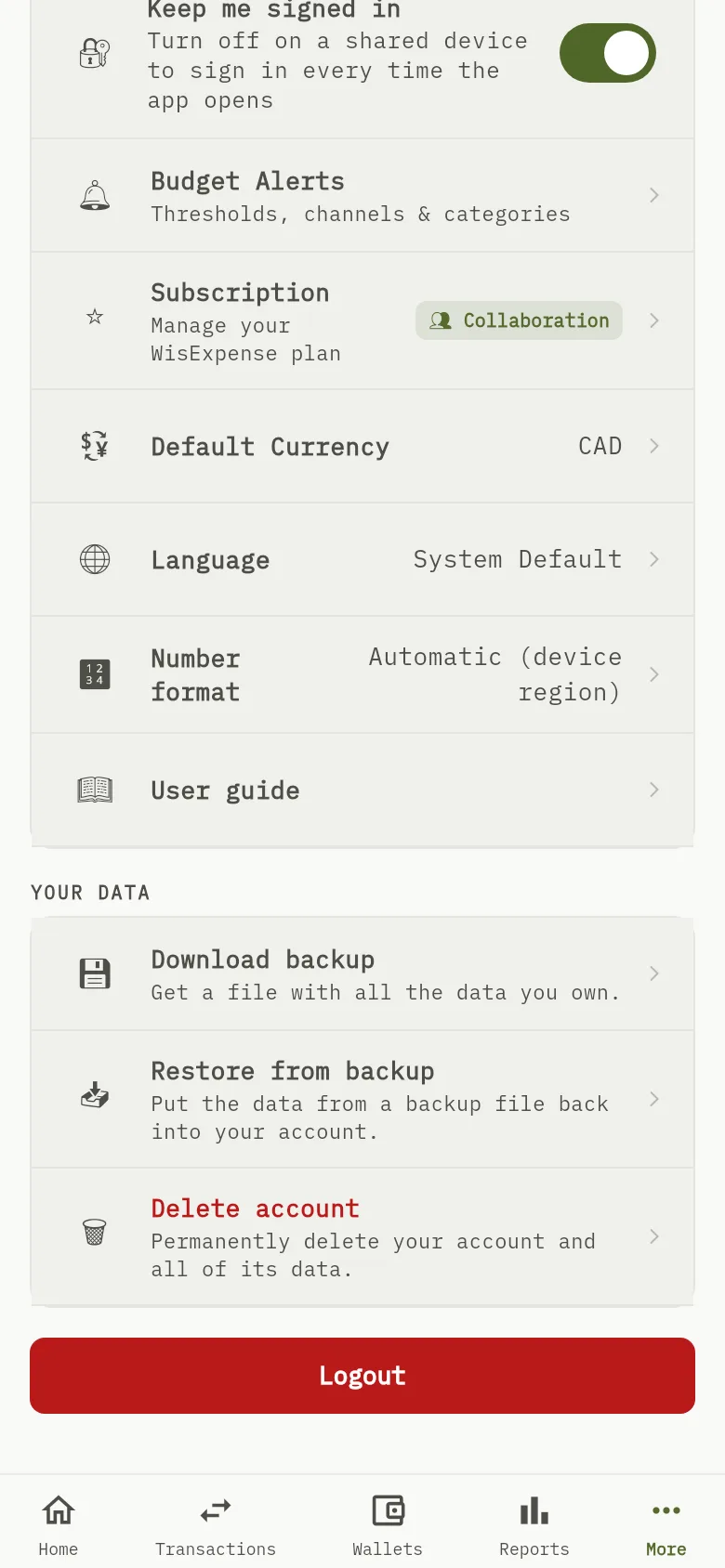
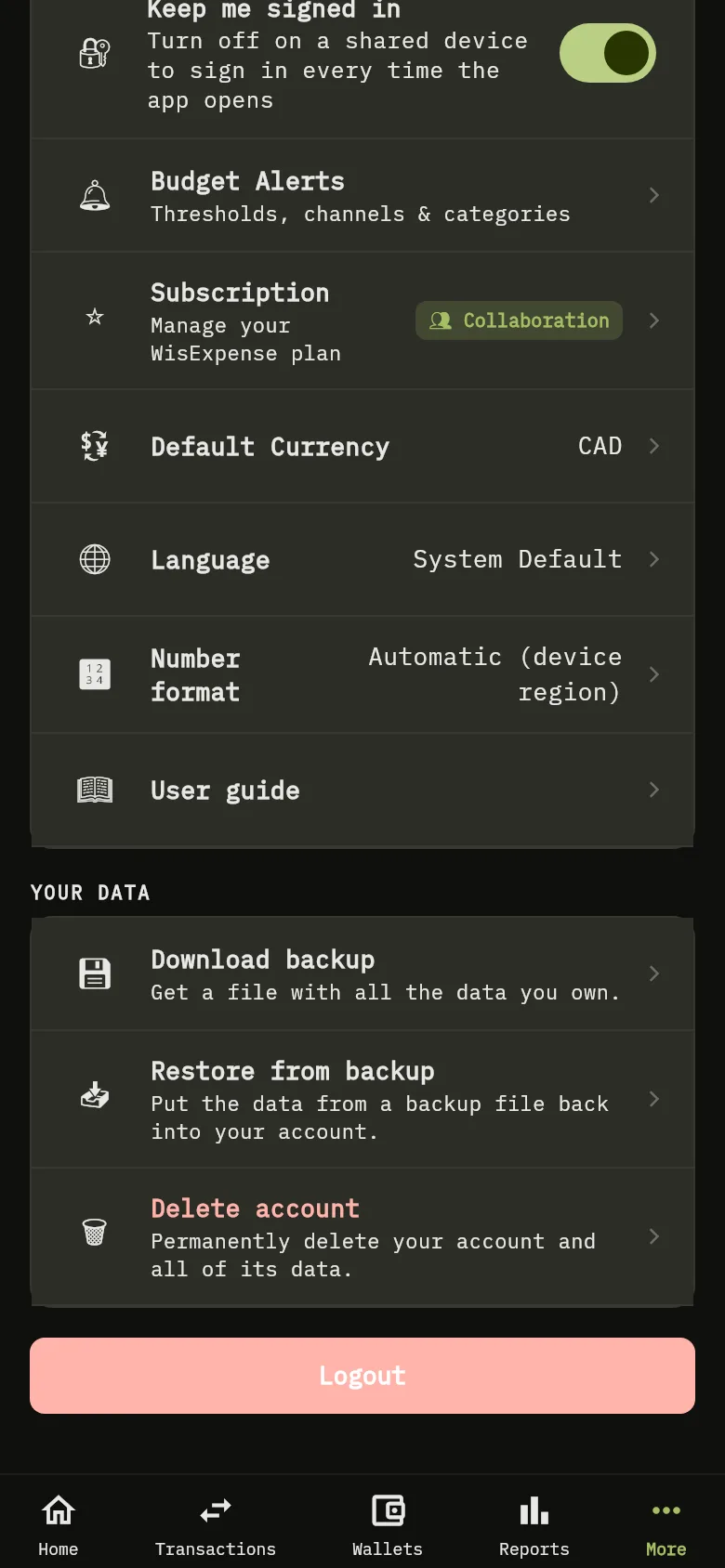
The Your data section of the More screen of the mobile app, with the Download backup, Restore from backup and Delete account rows. 1: Tap Download backup. The Download a backup screen opens.The Your data section of the More screen of the mobile app, with the Download backup, Restore from backup and Delete account rows. 1: Tap Download backup. The Download a backup screen opens.
The Download a backup screen of the mobile app: the warning that the file is not protected, the note that photos and scanned receipts are not included, and the Download backup button. 2: Read the warning and the note; 3: Read the warning and the note; 4: Tap Download backup. The screen reads Preparing your backup…, then your phone offers to save or share the file.The Download a backup screen of the mobile app: the warning that the file is not protected, the note that photos and scanned receipts are not included, and the Download backup button. 2: Read the warning and the note; 3: Read the warning and the note; 4: Tap Download backup. The screen reads Preparing your backup…, then your phone offers to save or share the file.
  1. Tap More, then scroll to Your data.
  2. Tap Download backup Marker 1. The Download a backup screen opens.
  3. Read the warning Marker 2 and the note Marker 3.
  4. Tap Download backup Marker 4. The screen reads Preparing your backup…, then your phone offers to save or share the file.

Warning

The file is not protected. It holds your financial data in readable form, so keep it somewhere safe. Photos and scanned receipts are not included.

What you see

A message reads Your backup was downloaded. Keep it somewhere safe. If your data kept changing while the backup was made, the app asks you to try again in a moment. If you make several backups in a row, it asks you to wait a little while.

Restore your data, Delete your account, Compare the plans.