
See your profile and change your photo
Check the name, e-mail and plan on your account, and change your profile photo.
Your profile shows who you are in WisExpense: your photo, name, e-mail and default currency. Friends who share a wallet with you see your photo and name.
Before you start
You don’t need to prepare anything. You sign in with your e-mail address, which is confirmed when you sign up, so there is nothing to verify here.
Steps
Web
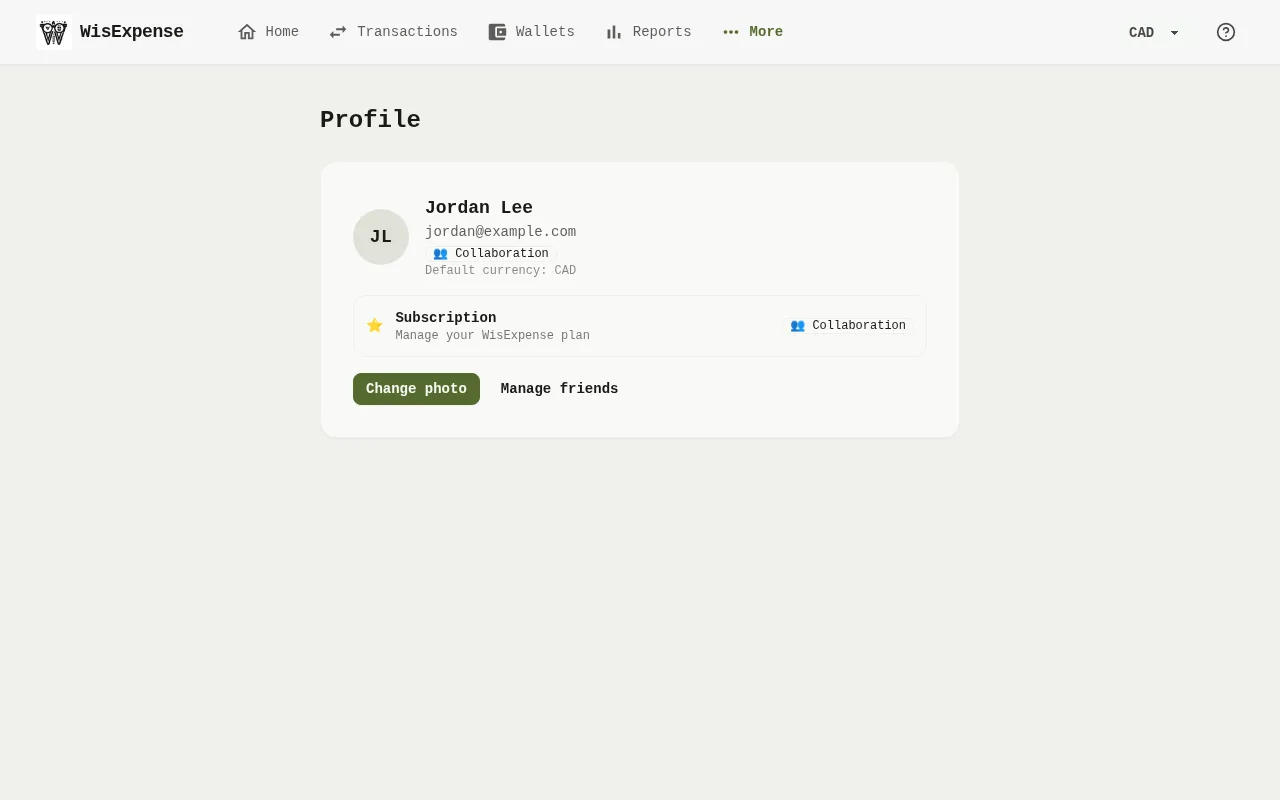
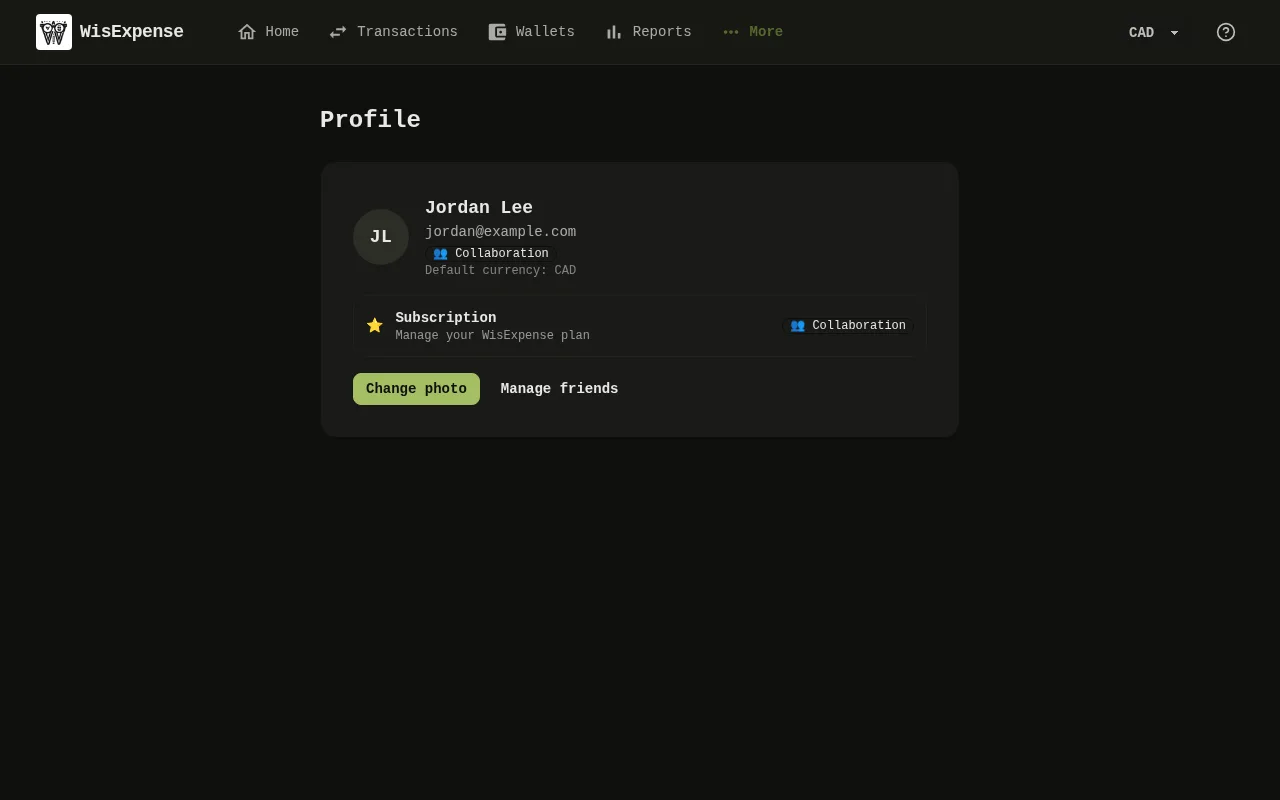
- Select your photo or initials in the menu at the top, or open the menu and select Profile. Your name, e-mail and default currency are on the card.
- Select Change photo Marker 1.
- Select Choose photo and pick a PNG, JPEG or WebP image from your computer.
- Move the frame to crop the photo. The preview beside it shows how it will look.
- Select Save. To leave without changing it, select Cancel.
Manage friends Marker 2 opens your friends list.
Mobile
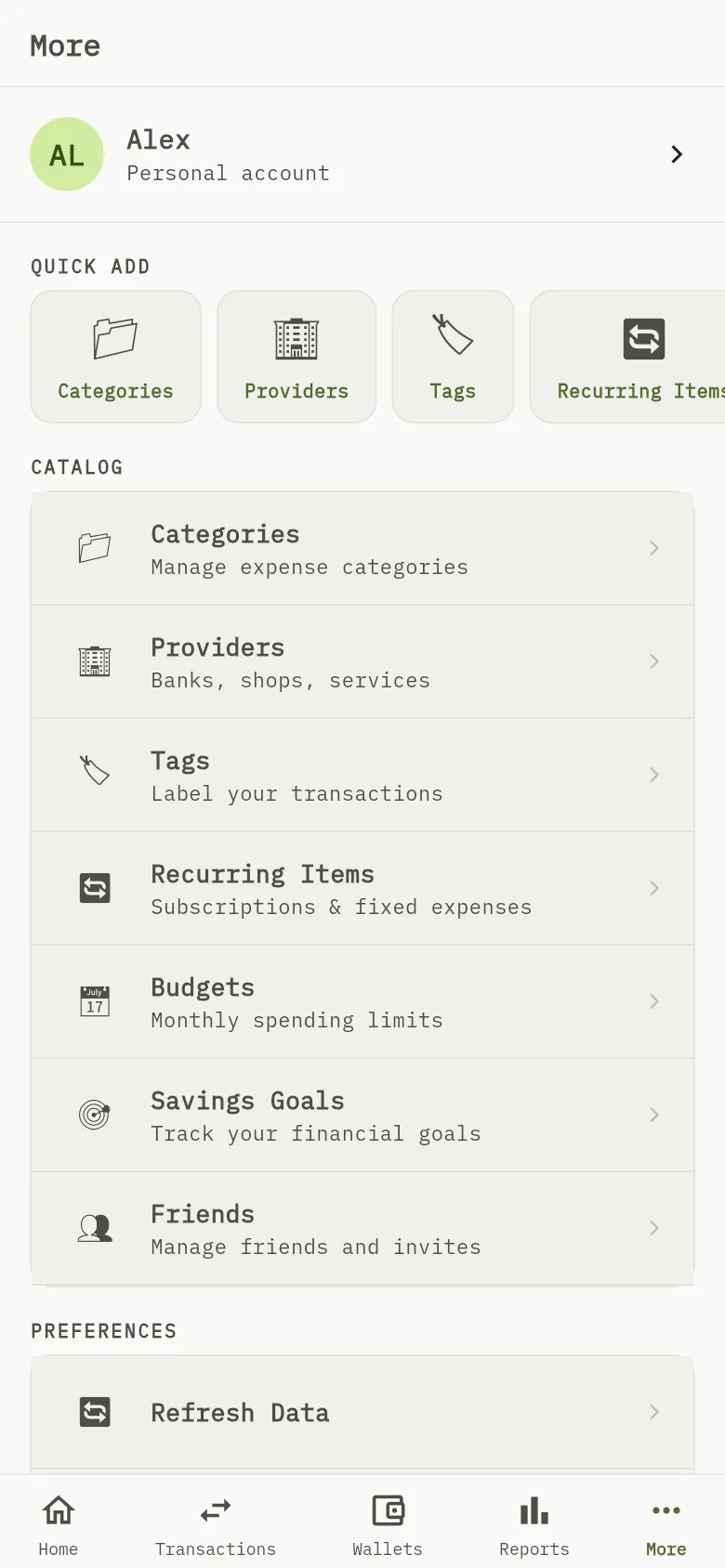
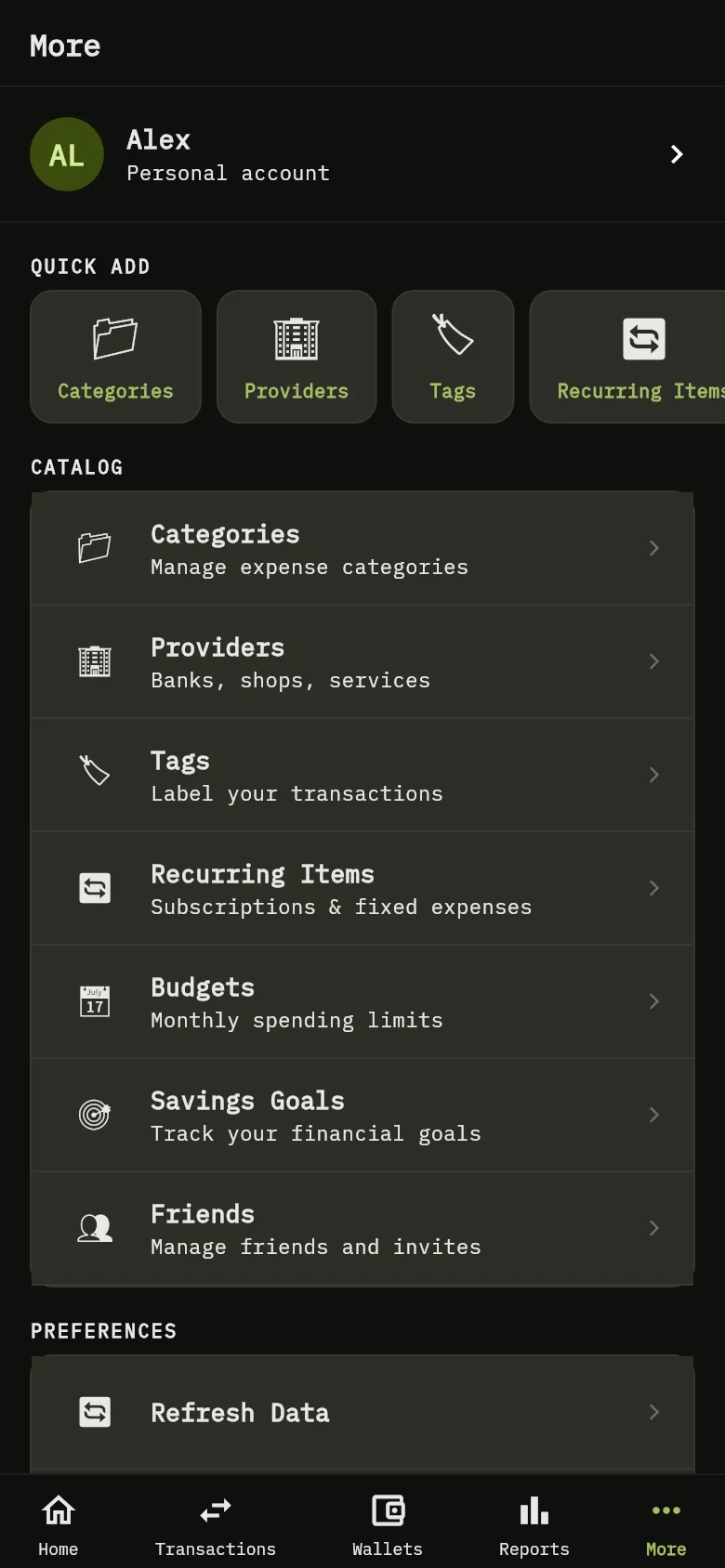
- Tap More, then tap your photo and name at the top Marker 3. The profile shows your photo, name, e-mail, plan and default currency.
- Tap the camera button. It reads “Change photo” in English, whatever your app language.
- Choose “Take photo (Camera)” or “Choose from Gallery”. These are also in English.
- Crop the picture to a square, then confirm. A short message says “Photo updated”.
Tip
Your name and e-mail come from your sign-in account. You can’t edit them in WisExpense. To change the default currency, see Choose your language, theme, currency and number format.
What you see
Your new photo replaces the old one on your profile and wherever friends see you.
Related
Choose your language, theme, currency and number format, Find your way around.