
Choose your language, theme, currency and number format
Switch the app’s language, light or dark theme, default currency and the decimal mark you type in amounts.
Preferences set the app’s language and look, the currency your totals start in, and which decimal mark you type when you write an amount as a formula.
Before you start
You don’t need to prepare anything.
Steps
Web
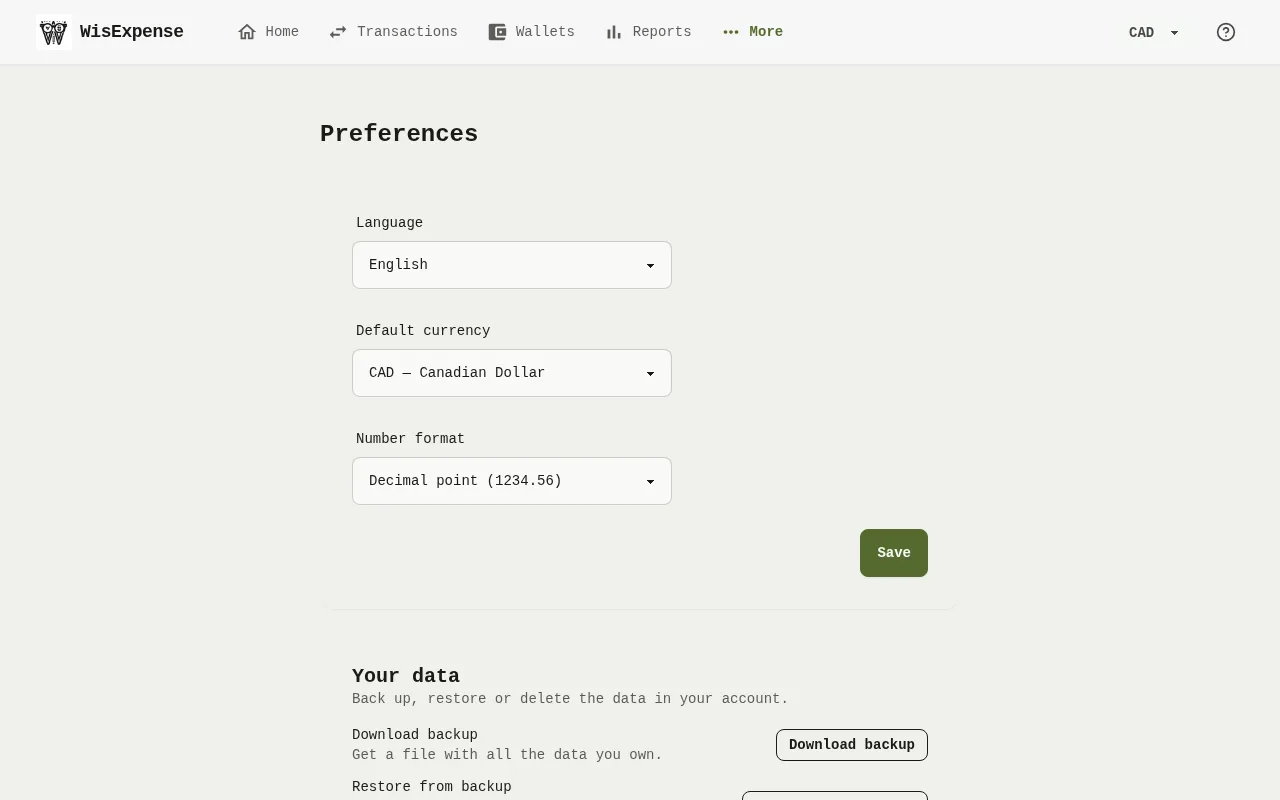
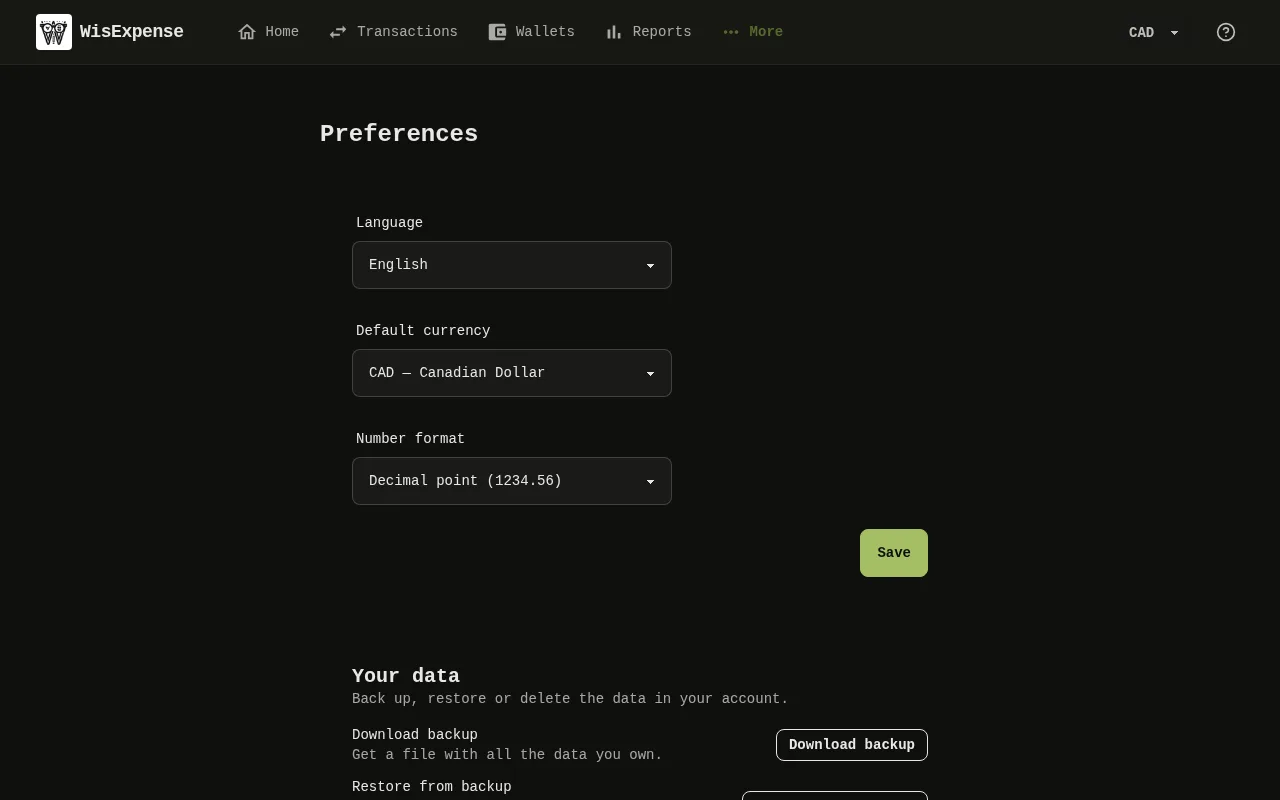
- Select Settings in the menu at the top. The Preferences screen opens.
- Choose a Language Marker 1: English, Spanish, French, Portuguese, Italian or German. Device Default follows your browser, but only when it is set to English, Spanish or French. Otherwise the app stays in English.
- Choose your Default currency Marker 2. Your totals appear in it until you pick another currency in the menu.
- Choose a Number format Marker 3. This is the decimal mark you type in amounts: Decimal point (1234.56), Decimal comma (1234,56), or Automatic (device region), which follows your browser.
- Select Save Marker 4. A message says the preferences were saved.
To switch between light and dark, select the moon or sun button in the menu bar. The web app remembers your choice in that browser.
Mobile
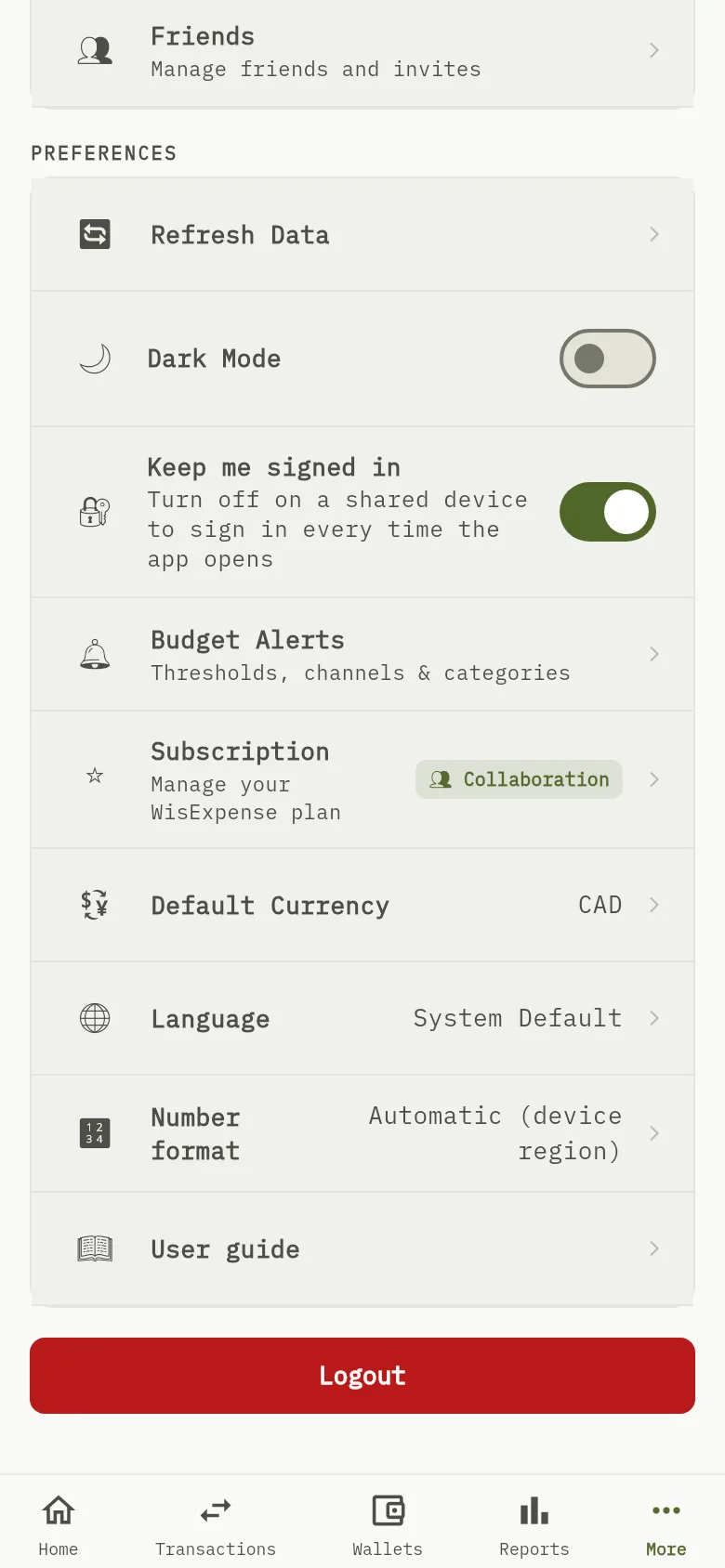
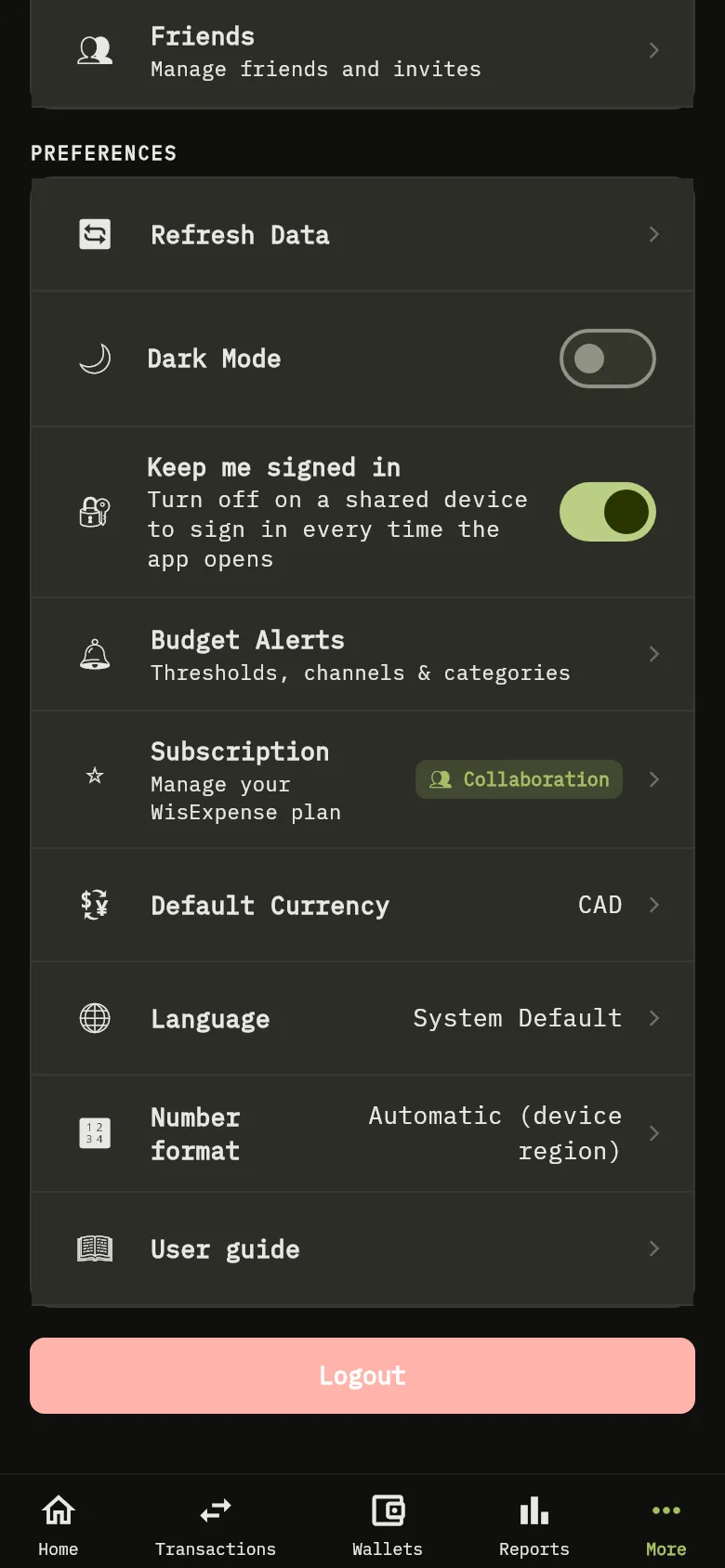
- Tap More, then scroll to Preferences.
- Turn Dark Mode Marker 5 on or off. Your choice stays on this device.
- Tap Language Marker 1 and choose a language, or System Default to follow your phone. This also stays on this device.
- Tap Default Currency and choose a currency. Your totals appear in it, but only until the app reloads your data. To keep it, set your default currency in the web app.
- Tap Number format and choose a decimal mark for amounts: a point, a comma, or Automatic (device region).
Tip
Your number format belongs to your account, so it follows you from the web app to the mobile app. Your default currency is saved to your account only when you set it in the web app. Language and theme are chosen separately in each app.
What you see
The app changes theme as soon as you choose it. On mobile the language changes at once too, and on the web it changes when you select Save. Amounts you type as a formula use the decimal mark you chose.
Related
See your profile and change your photo, Find your way around.