
Recurring items
Keep a list of the payments you expect, with an amount, so you can add them to any budget period.
A recurring item is a payment you expect again and again, such as rent, a subscription or a utility bill. It is fixed when the amount never changes and variable when it does.
Before you start
You don’t need to prepare anything.
Steps
Web
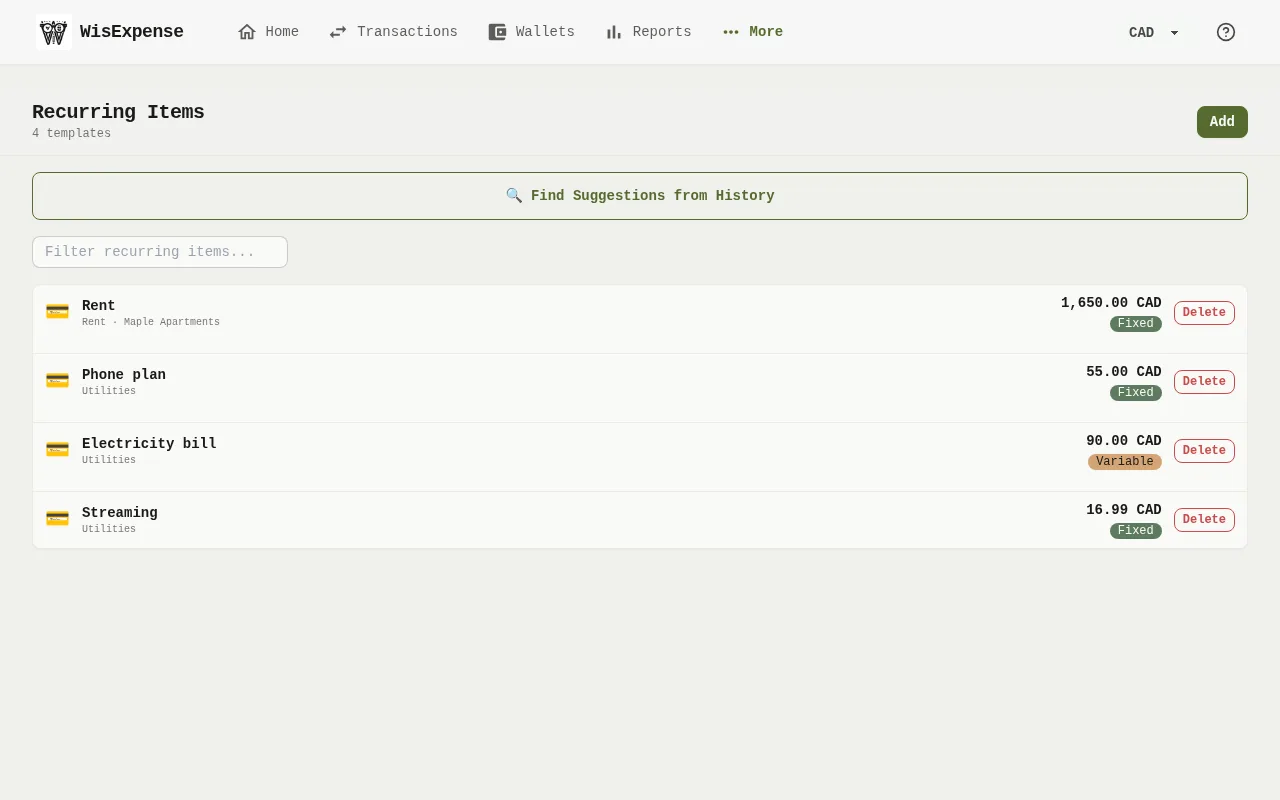
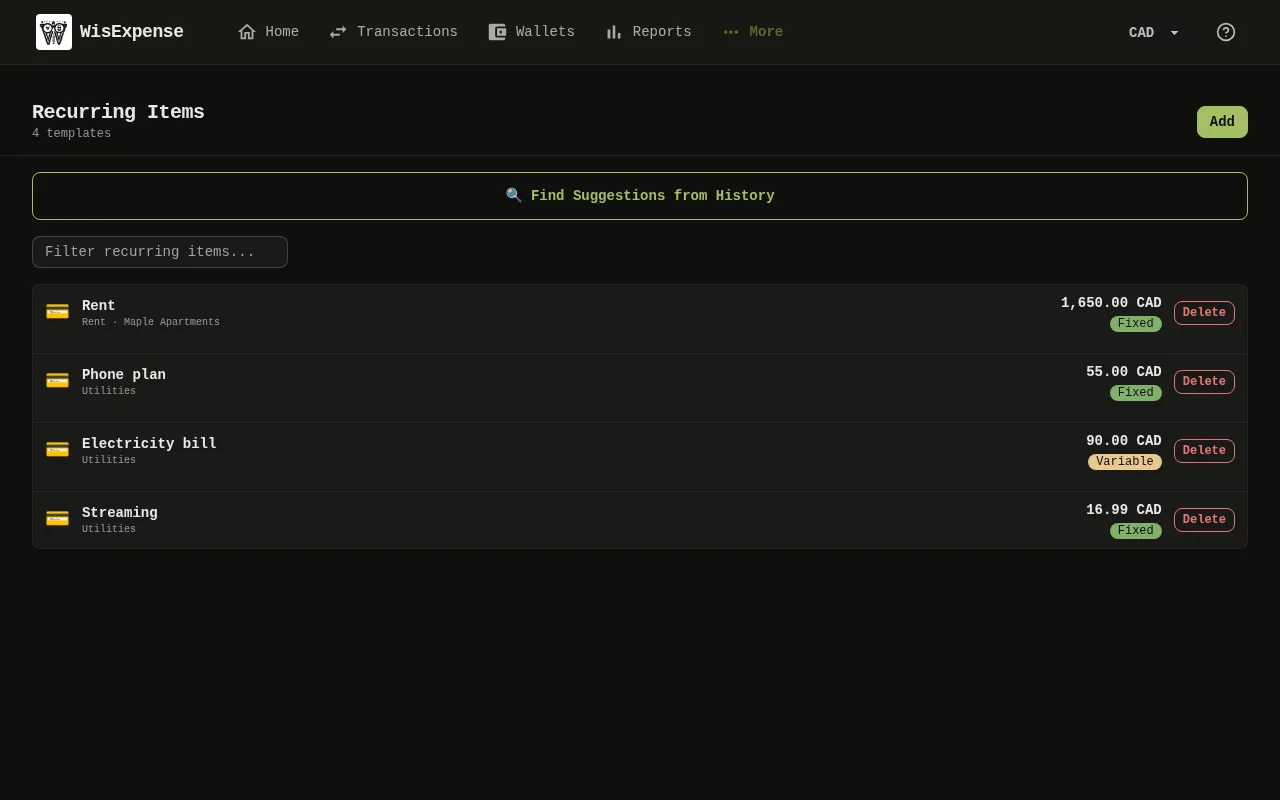
- Open Catalog in the menu and select Recurring Items. To find one, type in the filter box Marker 1.
- Select Add Marker 2.
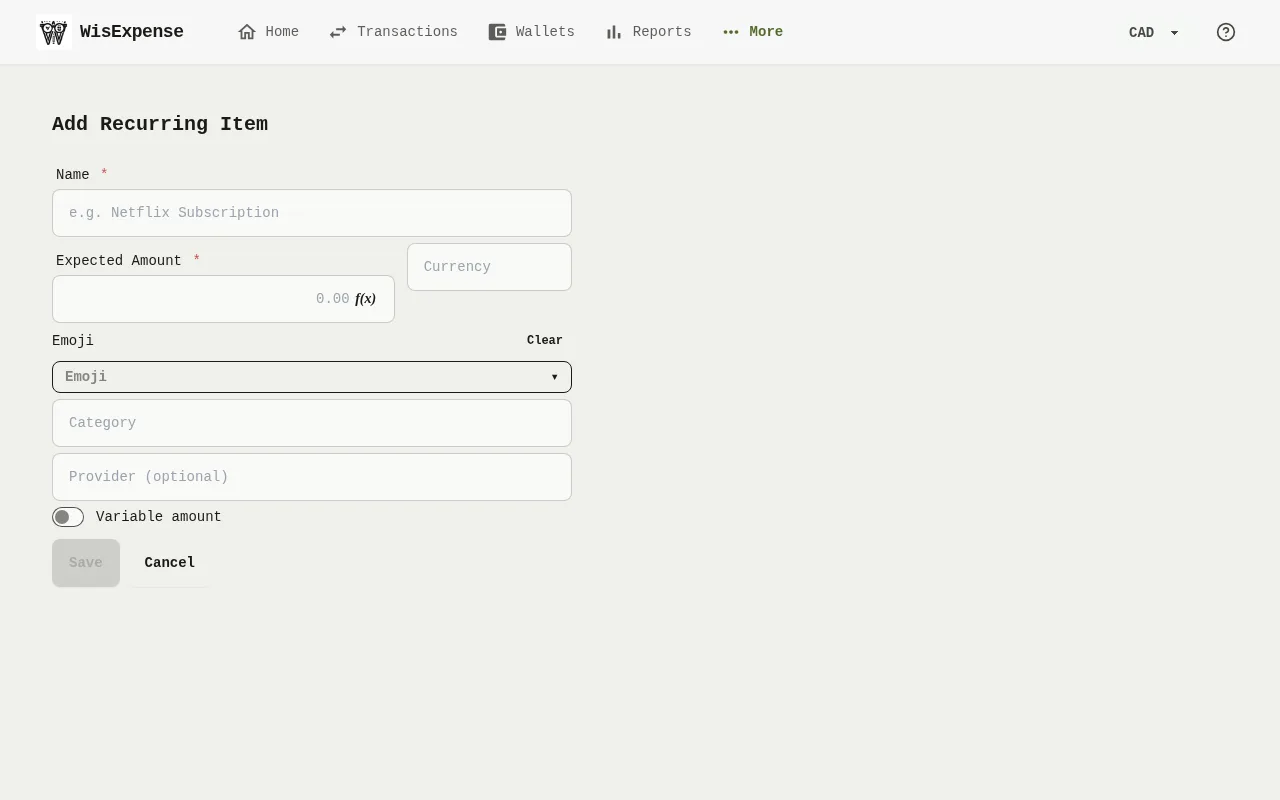
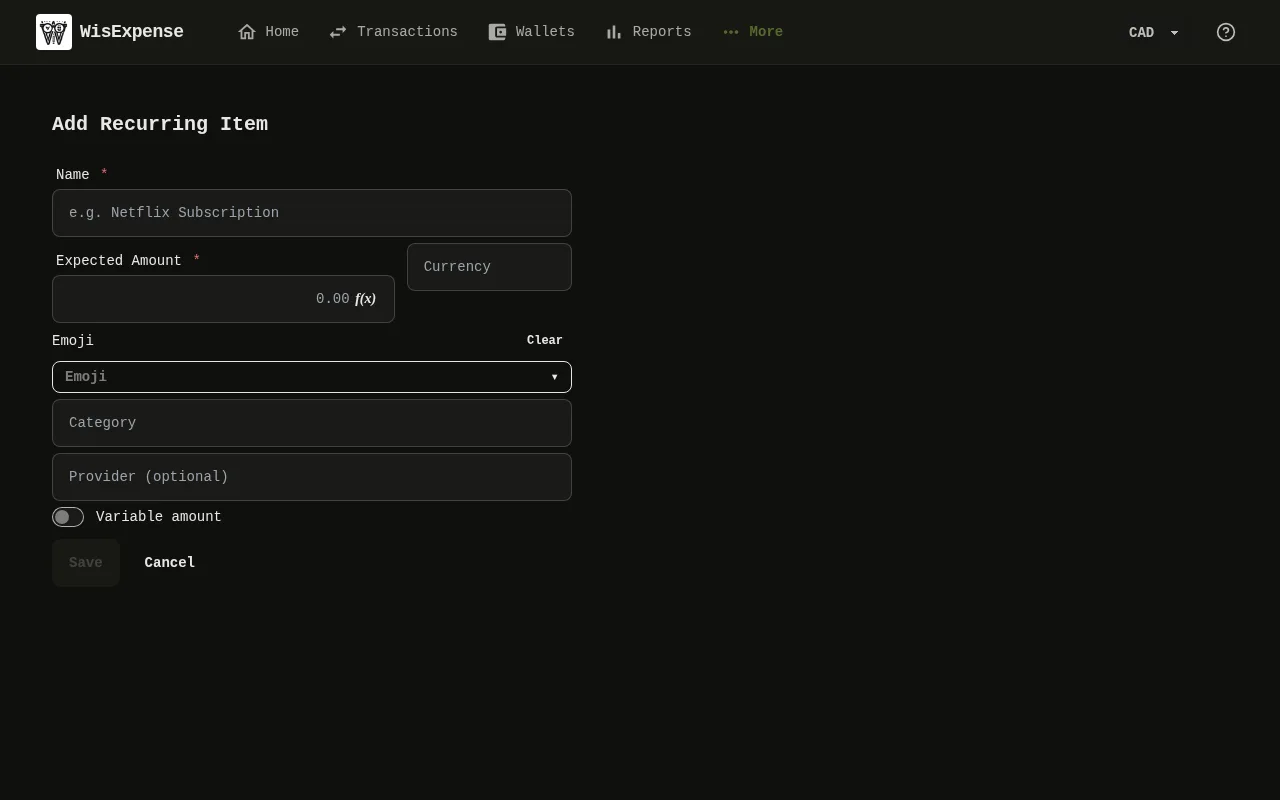
- Type the Name Marker 3 and choose a Category Marker 4.
- Type the Expected Amount Marker 5. If the amount changes each time, tick Variable amount Marker 6.
- Select Save Marker 7.
Mobile
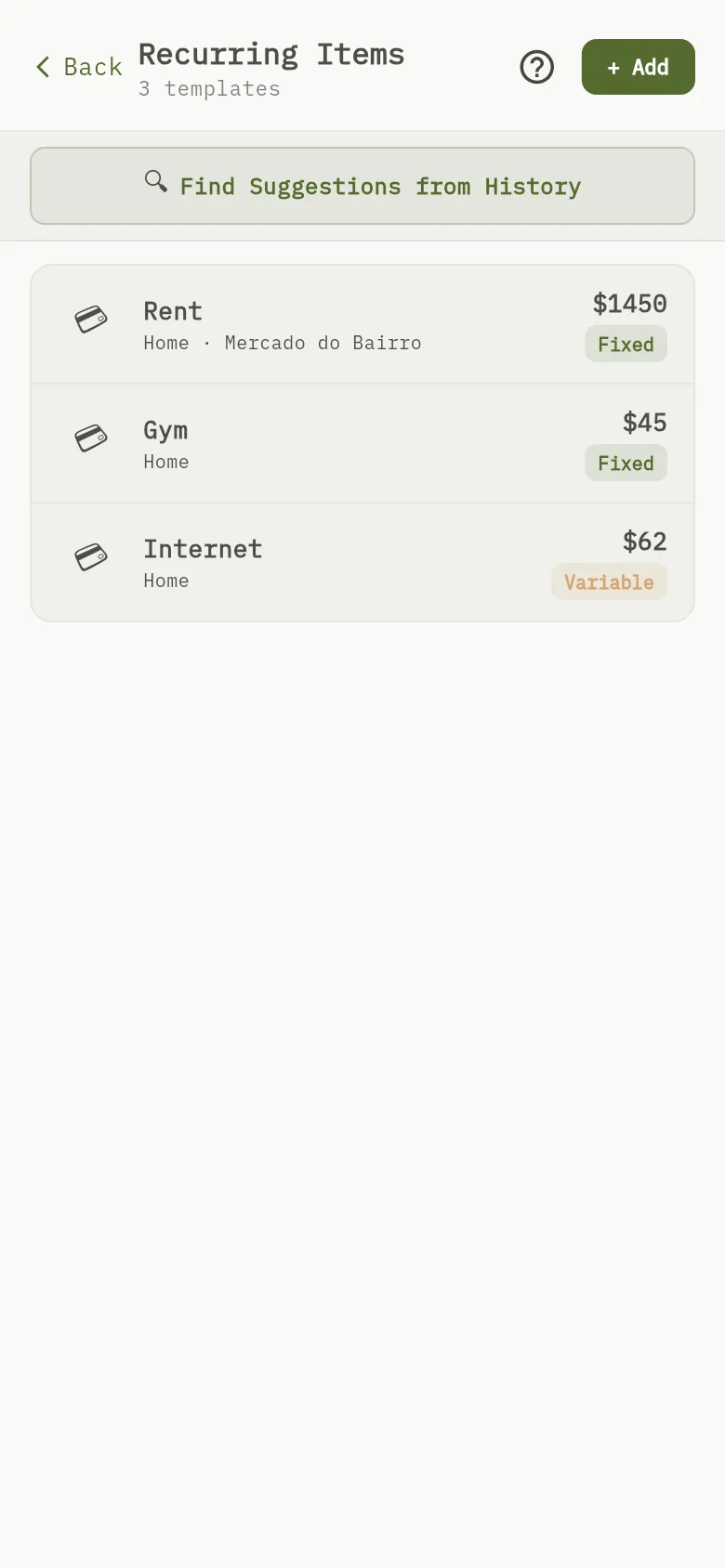
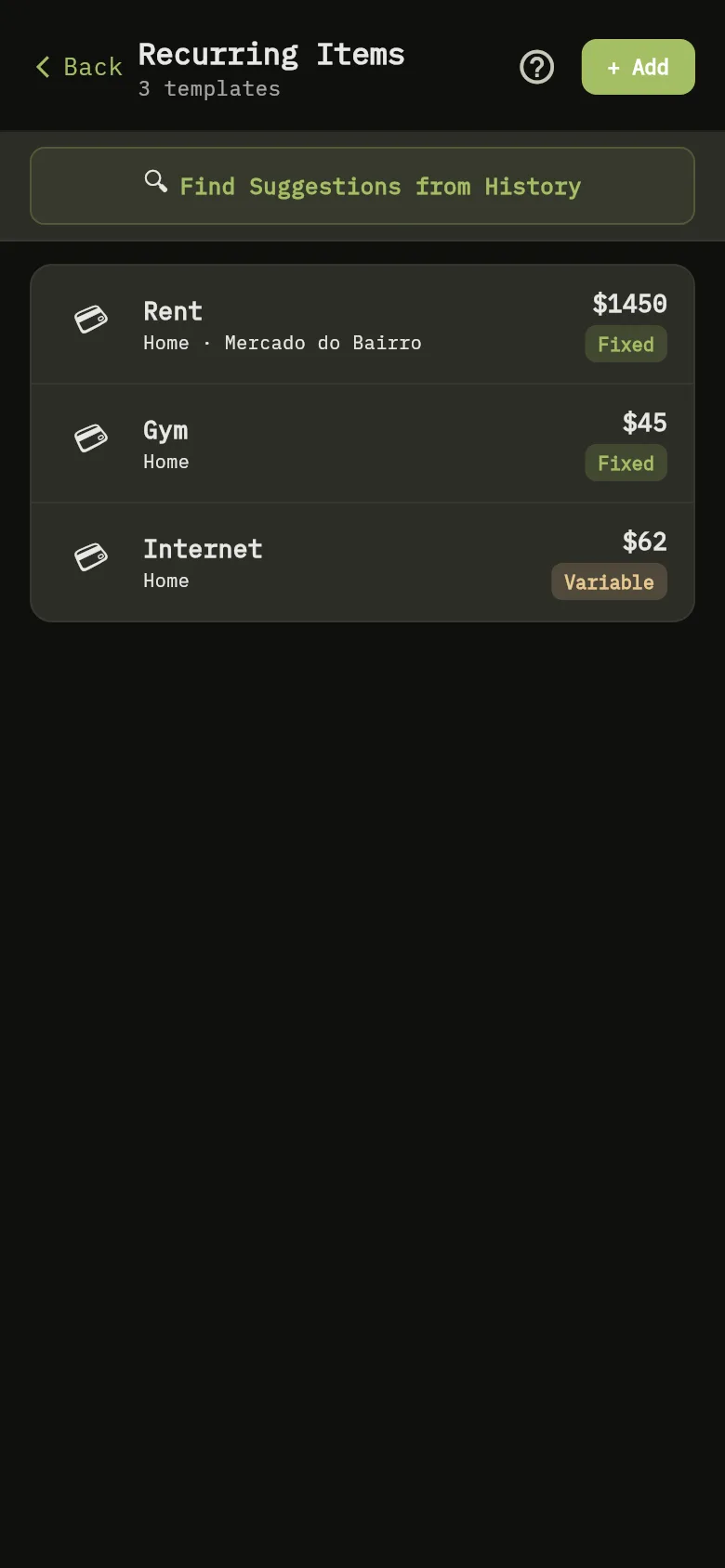
- Tap More, then tap Recurring Items under Catalog.
- Tap + Add Marker 8.
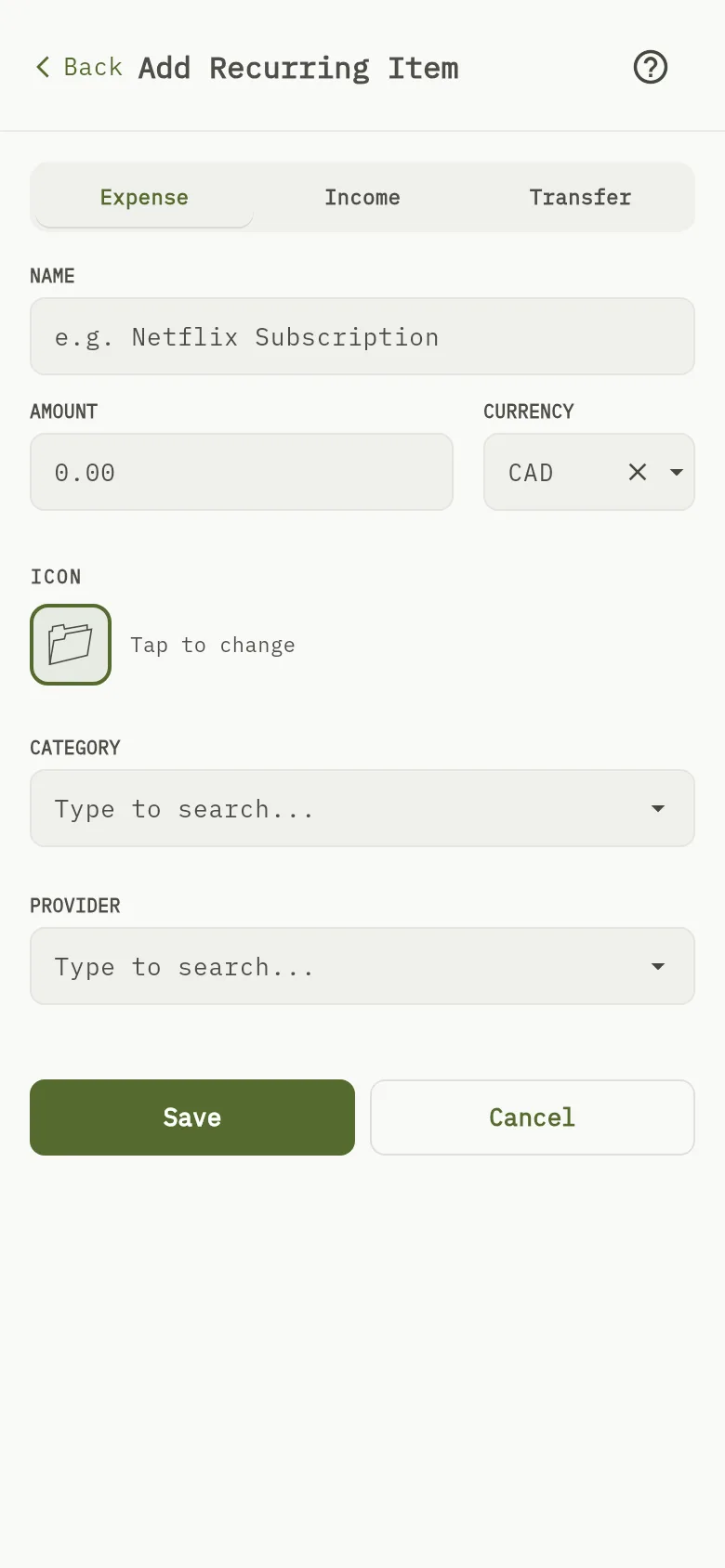
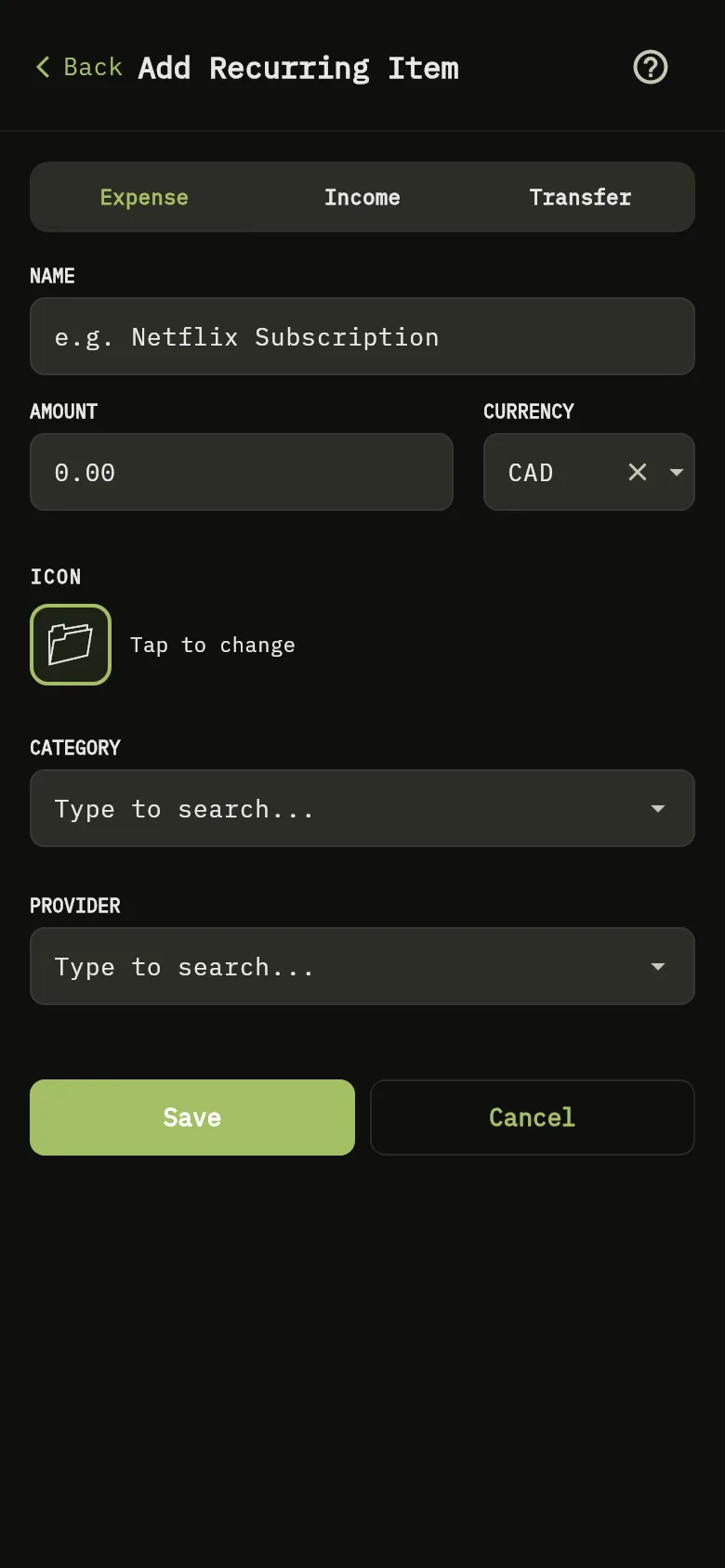
- Type the Name Marker 3 and the Amount Marker 9, then choose a Category Marker 4 and, if you like, a Provider Marker 10.
- Tap Save Marker 11.
Find recurring items from your history
On the web, select Find Suggestions from History Marker 12 to let WisExpense look for payments that repeat in your transactions. Tick the ones you want and select Add Selected to Catalogue.
Change or remove an item
On the web, select Edit in an item’s row Marker 13 to change it, or Delete to remove it. On mobile, tap the item to change it. The mobile app doesn’t remove recurring items.
See what is coming due
Items that you added to a budget period and that are still pending show on Home, under Coming due, earliest first. An item whose date has passed carries the word Overdue. Select the item to open a new expense with its date, category and provider filled in. The menu at the right of the item offers Match, to link an expense you already recorded, Edit, to change its due date or provider, and Remove, to take it out of the period. Match lists expenses around the item’s due month, with the item’s provider first, and Show all currencies widens the list beyond the item’s currency.
What you see
The item appears in your list, marked as fixed or variable, and you can add it to a budget period.