
Create a budget period
Start a budget for a month: set its dates and how much you plan to spend in each category.
A budget period is a stretch of time, such as a month, with an amount planned for each category. As you record transactions, WisExpense compares what you spent with what you planned.
Before you start
You need the categories you want to budget for. See Choose the categories you use.
Steps
Web
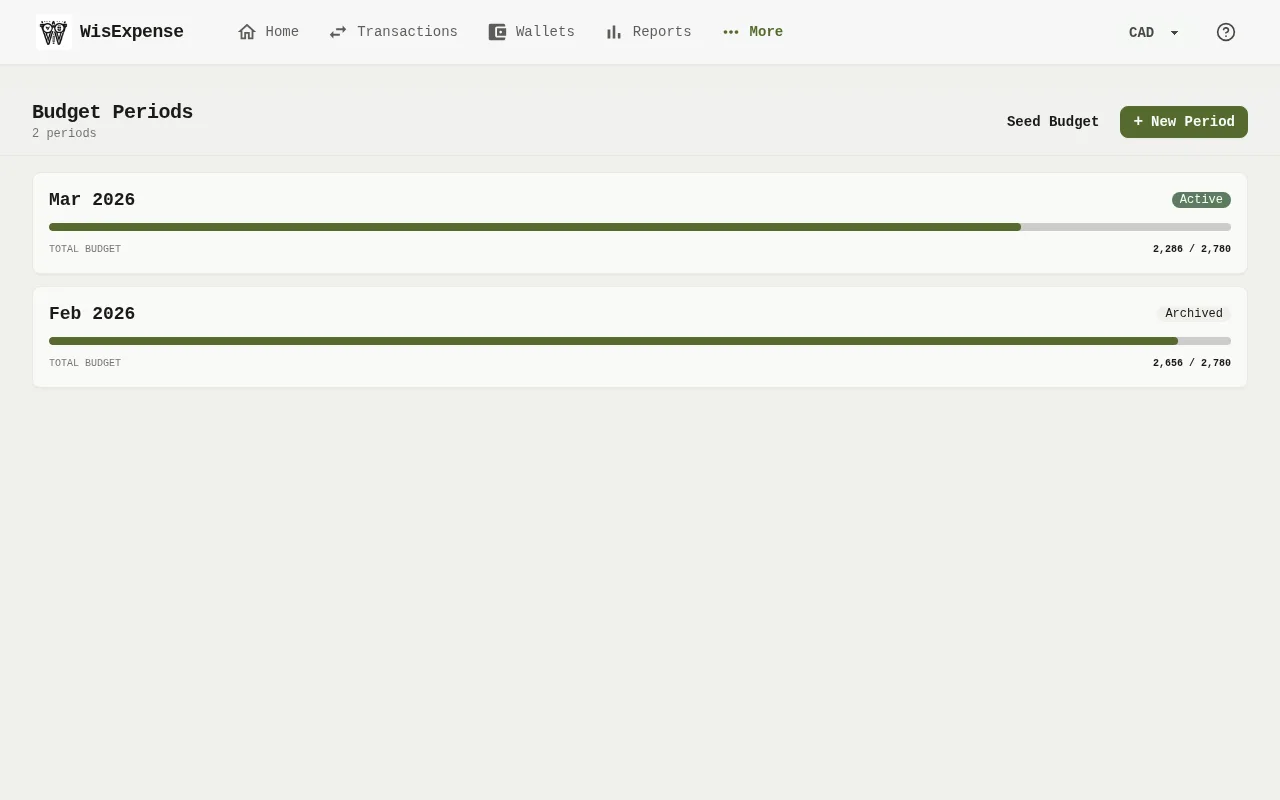
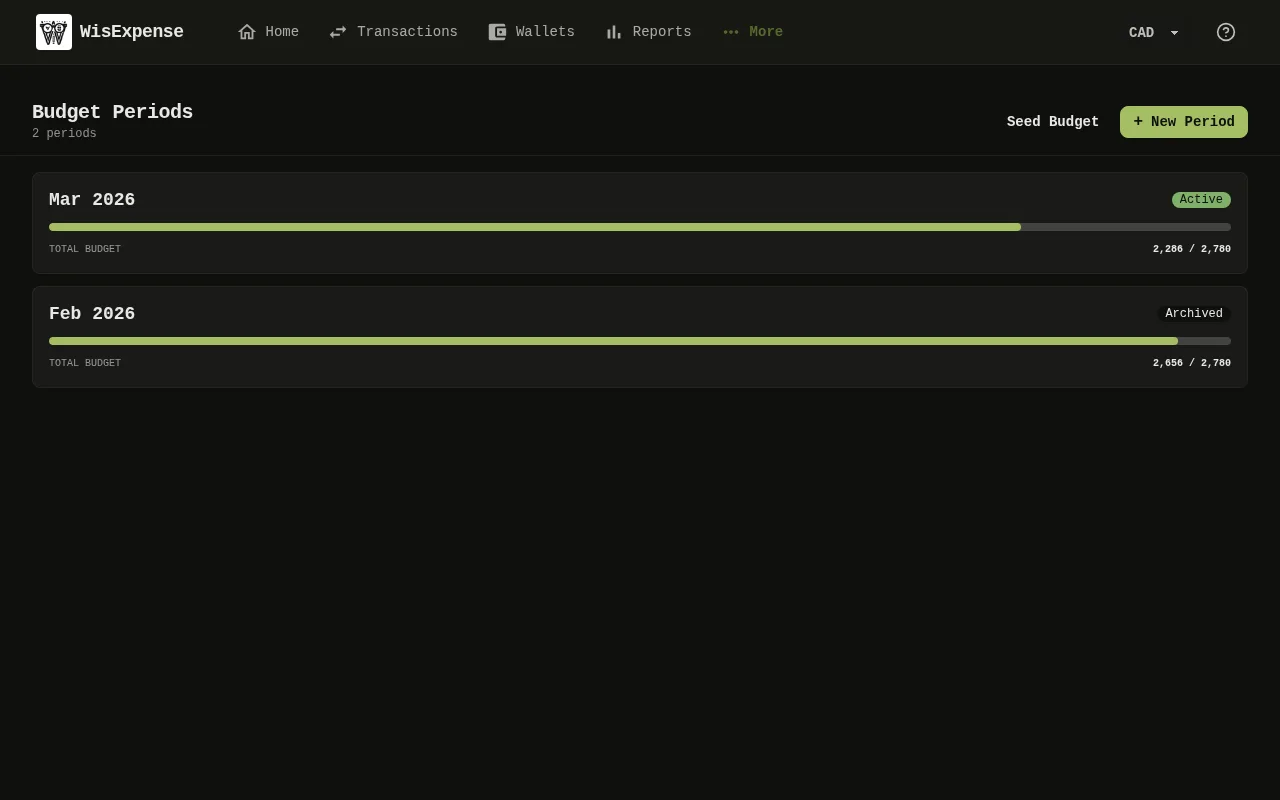
- Open Budgets in the menu and select New Period Marker 1.
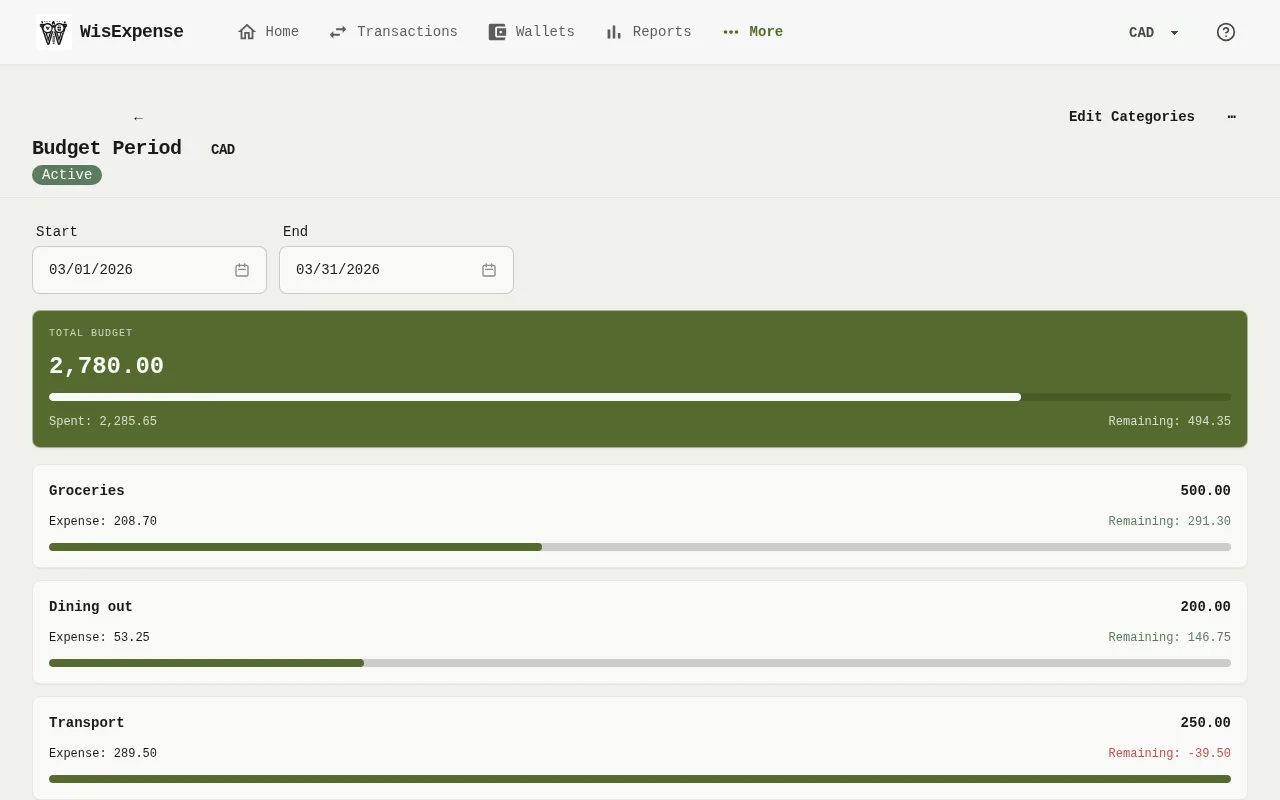
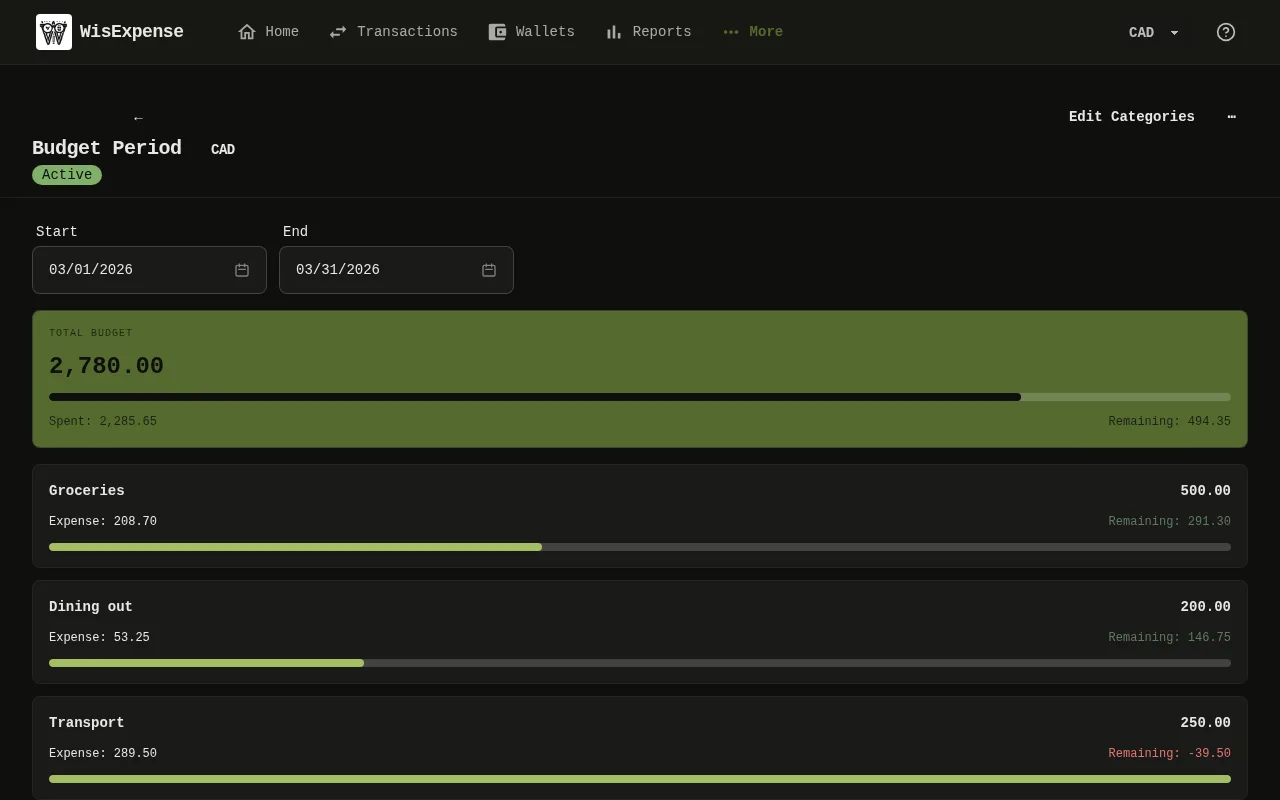
- Check the Start and End dates Marker 2. If you change them, select Save Dates.
- Select Edit Categories Marker 3.
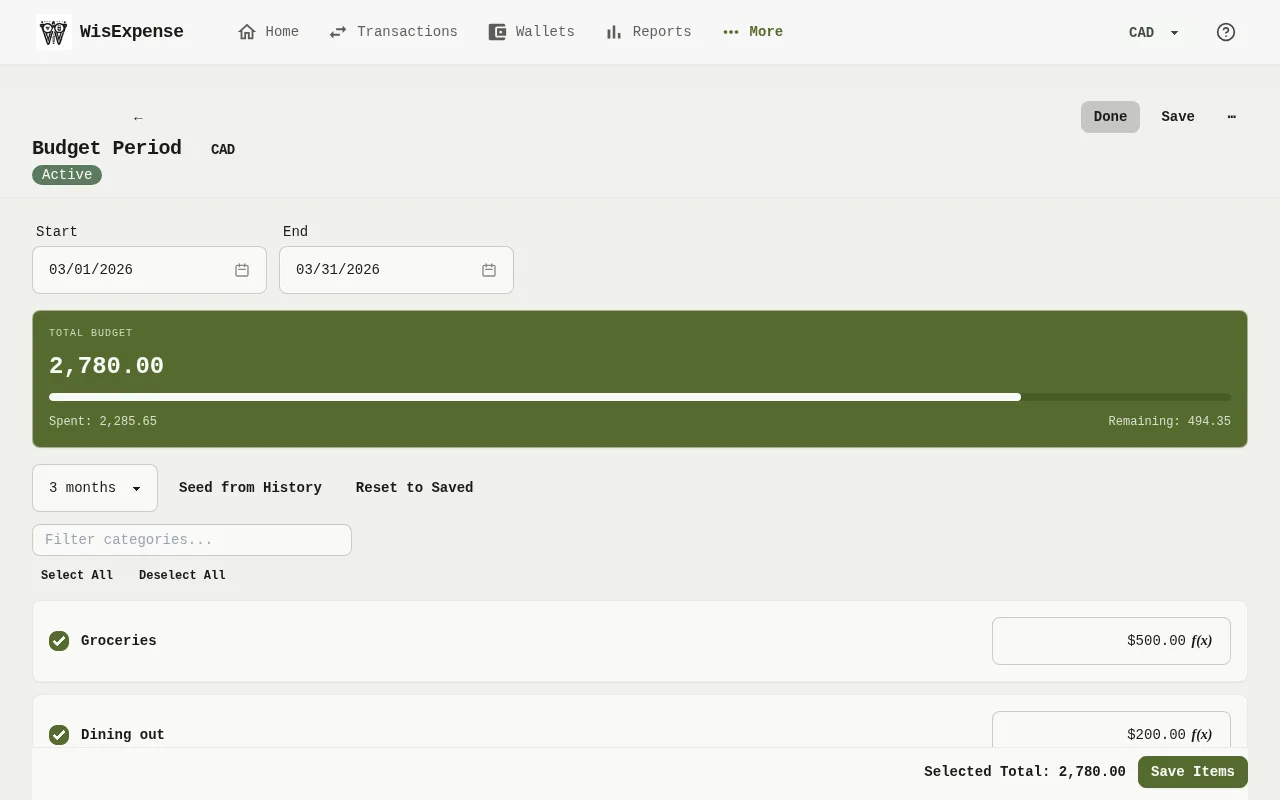
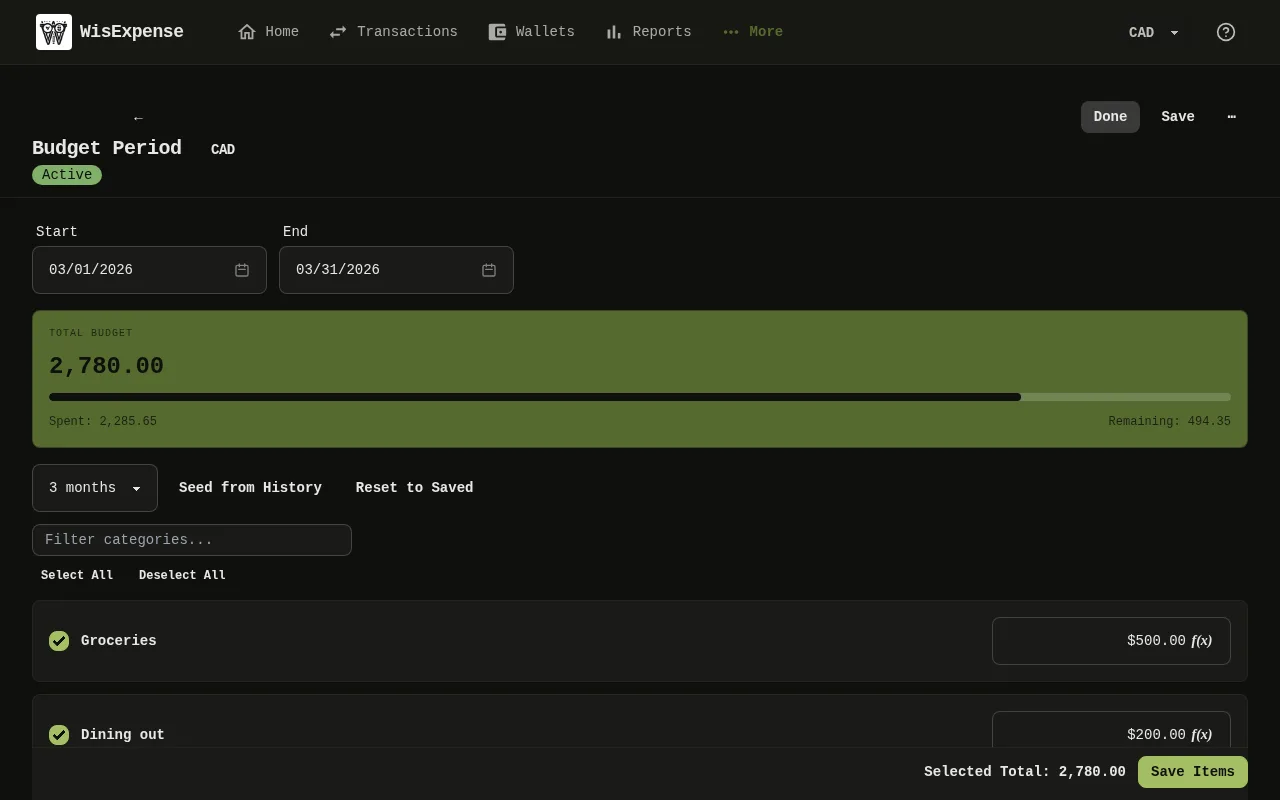
- For each category you plan for, tick Include and type its Amount Marker 4. The Save Items bar shows the total Marker 5.
- To start from what you spent before, select Seed from History Marker 6. You can also select Seed Budget Marker 7 on the list of periods, choose the Lookback Marker 8, and select Apply Selections Marker 9.
- Select Save Items.
Mobile
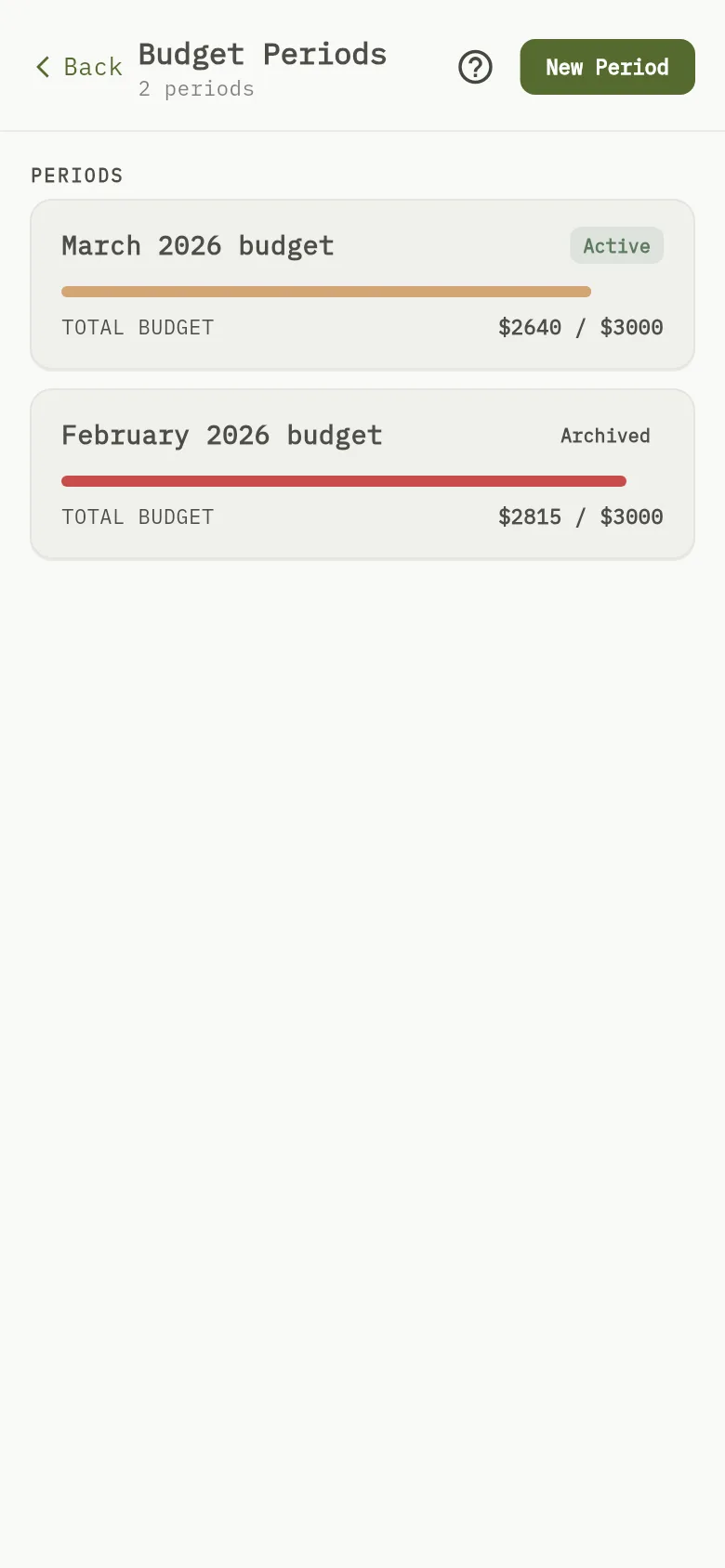
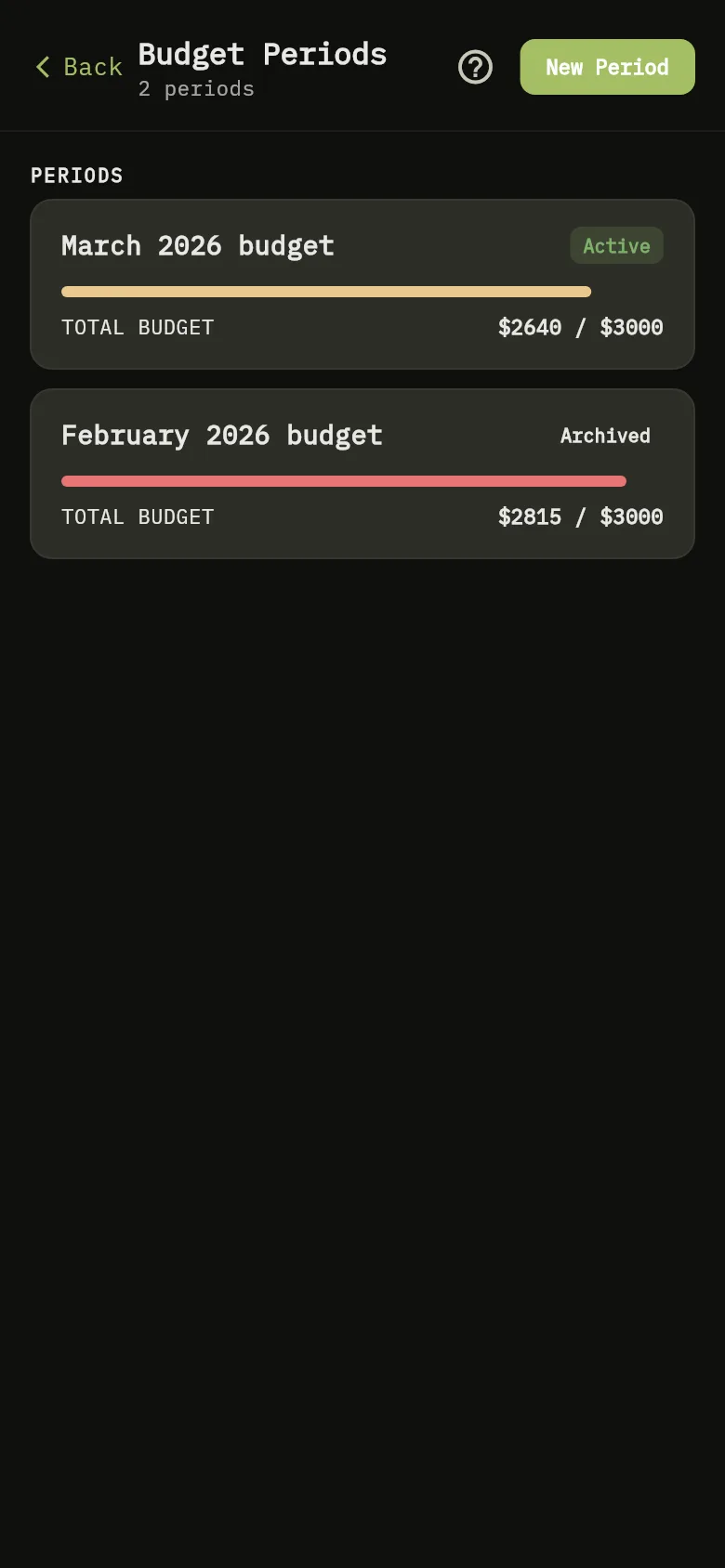
- Tap More, then tap Budgets. Tap New Period Marker 10. The new period is monthly and starts today.
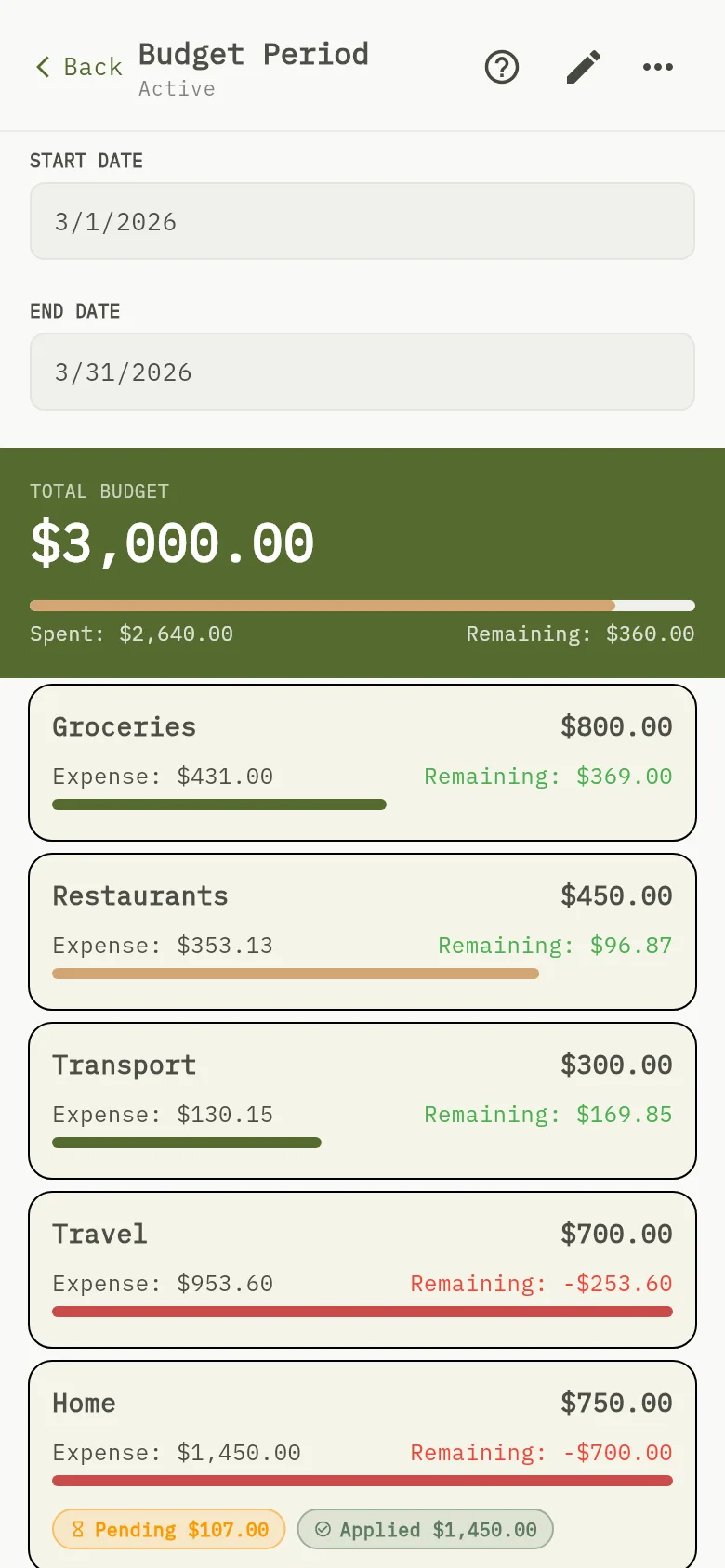
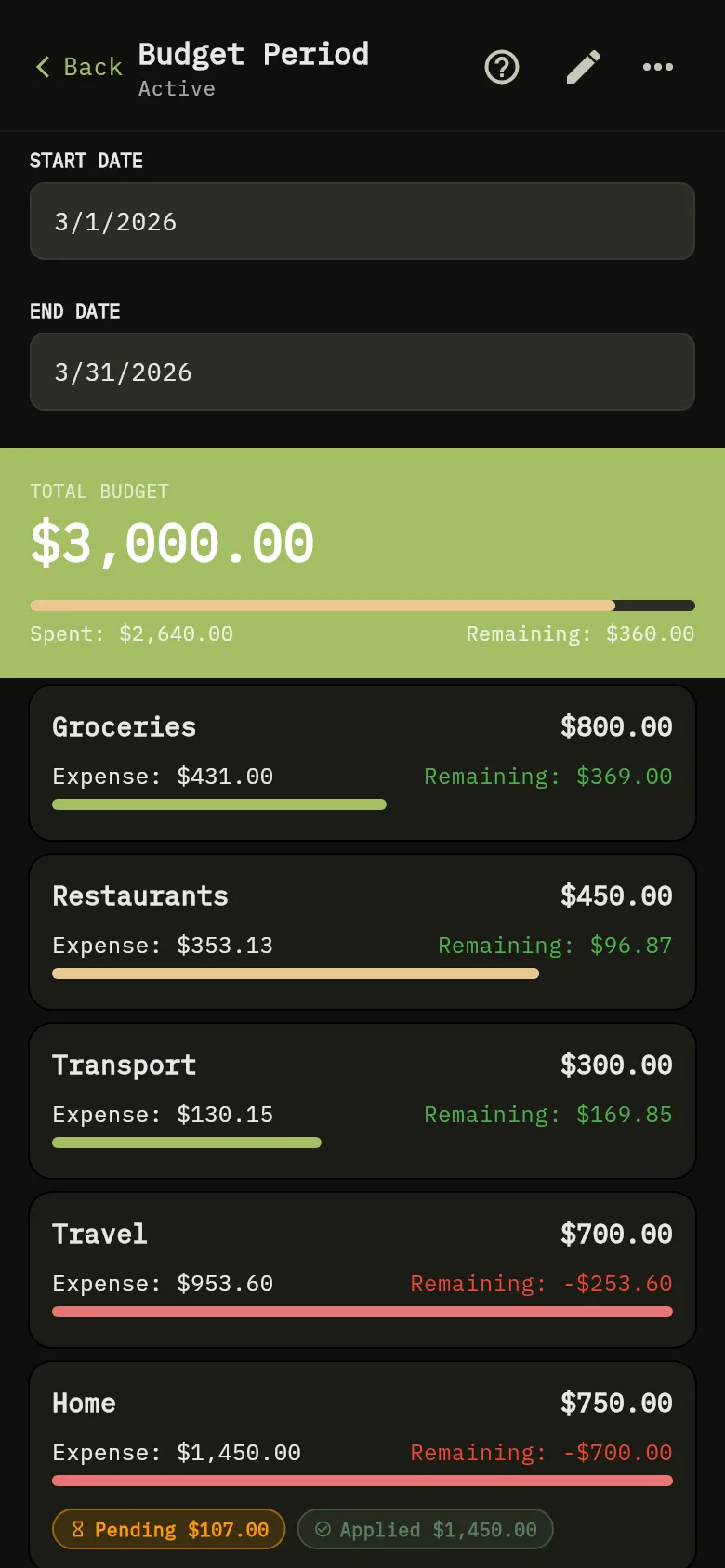
- Check the Start Date and End Date Marker 2. To change them, tap a date.
- Tap the pencil Marker 3 to edit the categories.
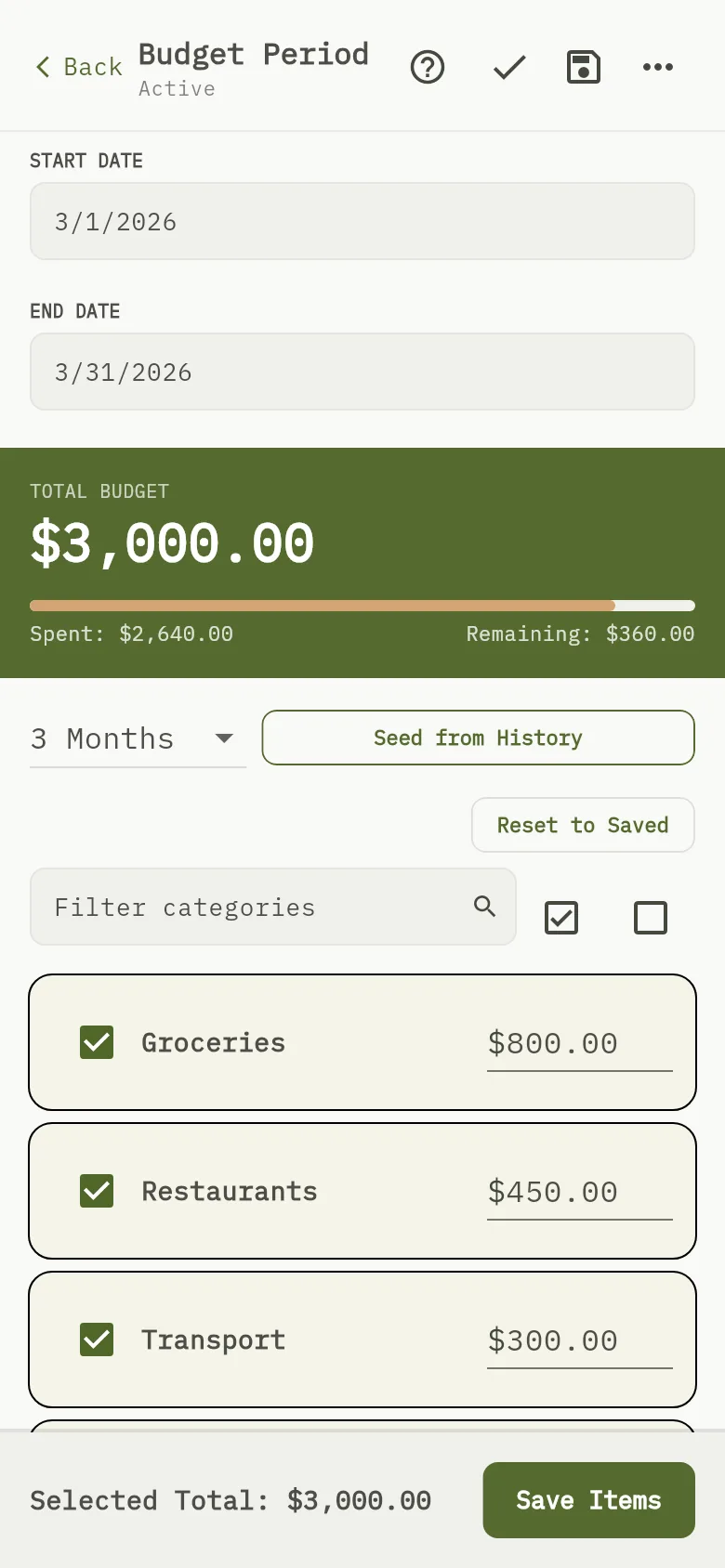
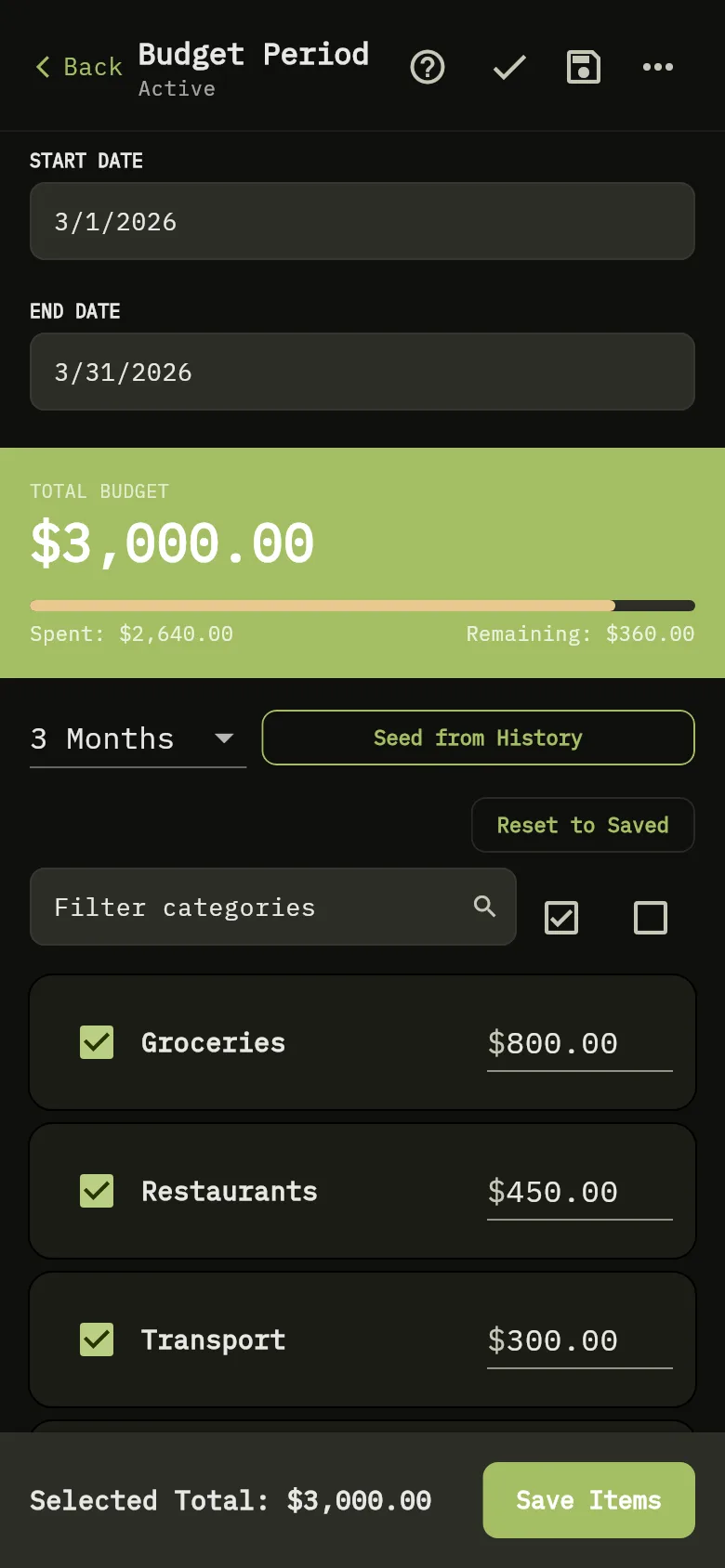
- Tick the categories you plan for and type an amount for each. To start from what you spent before, choose a number of months and tap Seed from History Marker 11.
- Tap Save Items.
Tip
On the web, the Free plan runs one active period at a time: while one is active, New Period asks you to upgrade.
What you see
The period lists the categories you chose and their amounts. Its total adds them up, and it shows how much you have spent against it.
Related
Add recurring items to a budget period, Get alerts when you overspend.