WisExpenseOpen the app
Topics

Find your way around

Learn what the home screen shows and how to reach wallets, transactions and reports.

Show steps for

The home screen shows your money at a glance and leads to everything else.

Before you start

Sign in to the web app or the mobile app. If you have no wallet yet, create your first wallet so the home screen has something to show.

Steps

Web
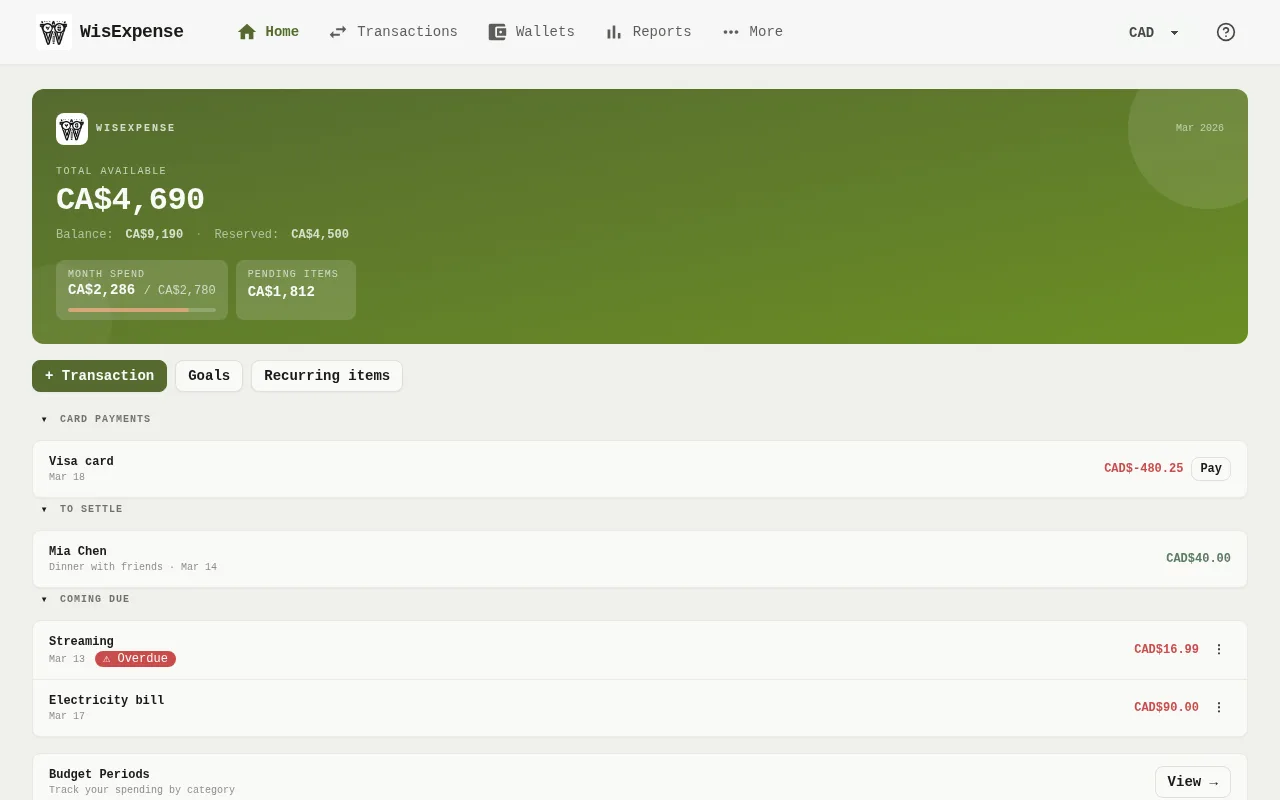
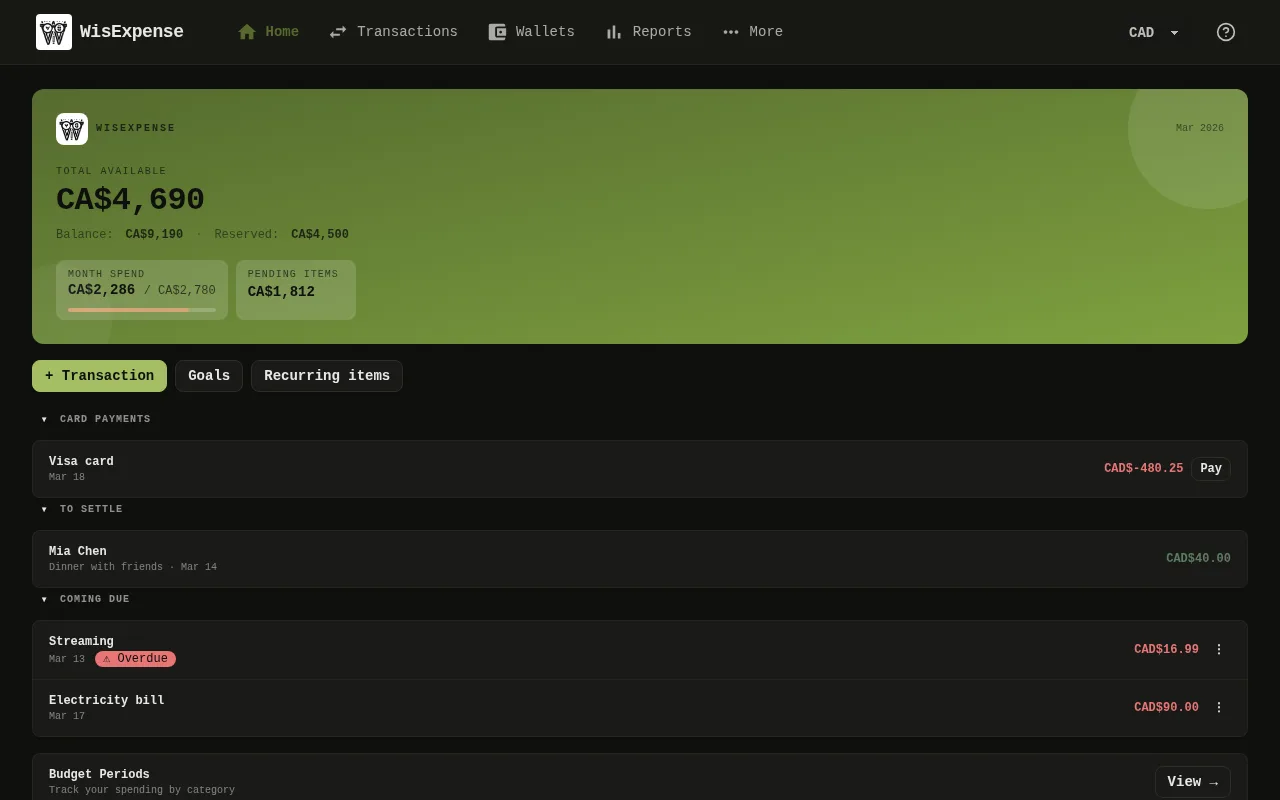
The web app’s home screen: a green banner with the total available, a row of buttons, and below them the lists of card payments, sharing to settle and items coming due. 1: Read Total Available: your Balance minus what is Reserved, in your viewing currency; 2: Select + Transaction to record money you spent or received; 3: Under the buttons, read what needs your attention. Card payments lists credit cards you owe money on (it shows only when you have a card). To settle lists shares that friends still owe you. Coming due lists recurring items that are due soon. Select a heading’s arrow to fold the list. Home no longer lists your latest transactions: open Transactions for those; 4: Under the buttons, read what needs your attention. Card payments lists credit cards you owe money on (it shows only when you have a card). To settle lists shares that friends still owe you. Coming due lists recurring items that are due soon. Select a heading’s arrow to fold the list. Home no longer lists your latest transactions: open Transactions for those; 5: Under the buttons, read what needs your attention. Card payments lists credit cards you owe money on (it shows only when you have a card). To settle lists shares that friends still owe you. Coming due lists recurring items that are due soon. Select a heading’s arrow to fold the list. Home no longer lists your latest transactions: open Transactions for those; 6: Use the menu at the top to move around. Home, Transactions, Wallets, and Reports are four of the sections. More holds the rest: Budgets, Goals, Catalog, Friends, and your preferences.The web app’s home screen: a green banner with the total available, a row of buttons, and below them the lists of card payments, sharing to settle and items coming due. 1: Read Total Available: your Balance minus what is Reserved, in your viewing currency; 2: Select + Transaction to record money you spent or received; 3: Under the buttons, read what needs your attention. Card payments lists credit cards you owe money on (it shows only when you have a card). To settle lists shares that friends still owe you. Coming due lists recurring items that are due soon. Select a heading’s arrow to fold the list. Home no longer lists your latest transactions: open Transactions for those; 4: Under the buttons, read what needs your attention. Card payments lists credit cards you owe money on (it shows only when you have a card). To settle lists shares that friends still owe you. Coming due lists recurring items that are due soon. Select a heading’s arrow to fold the list. Home no longer lists your latest transactions: open Transactions for those; 5: Under the buttons, read what needs your attention. Card payments lists credit cards you owe money on (it shows only when you have a card). To settle lists shares that friends still owe you. Coming due lists recurring items that are due soon. Select a heading’s arrow to fold the list. Home no longer lists your latest transactions: open Transactions for those; 6: Use the menu at the top to move around. Home, Transactions, Wallets, and Reports are four of the sections. More holds the rest: Budgets, Goals, Catalog, Friends, and your preferences.
  1. Read Total Available Marker 1: your Balance minus what is Reserved, in your viewing currency.
  2. Select + Transaction Marker 2 to record money you spent or received.
  3. Under the buttons, read what needs your attention. Card payments Marker 3 lists credit cards you owe money on (it shows only when you have a card). To settle Marker 4 lists shares that friends still owe you. Coming due Marker 5 lists recurring items that are due soon. Select a heading’s arrow to fold the list. Home no longer lists your latest transactions: open Transactions for those.
  4. Use the menu at the top to move around Marker 6. Home, Transactions, Wallets, and Reports are four of the sections. More holds the rest: Budgets, Goals, Catalog, Friends, and your preferences.

Mobile
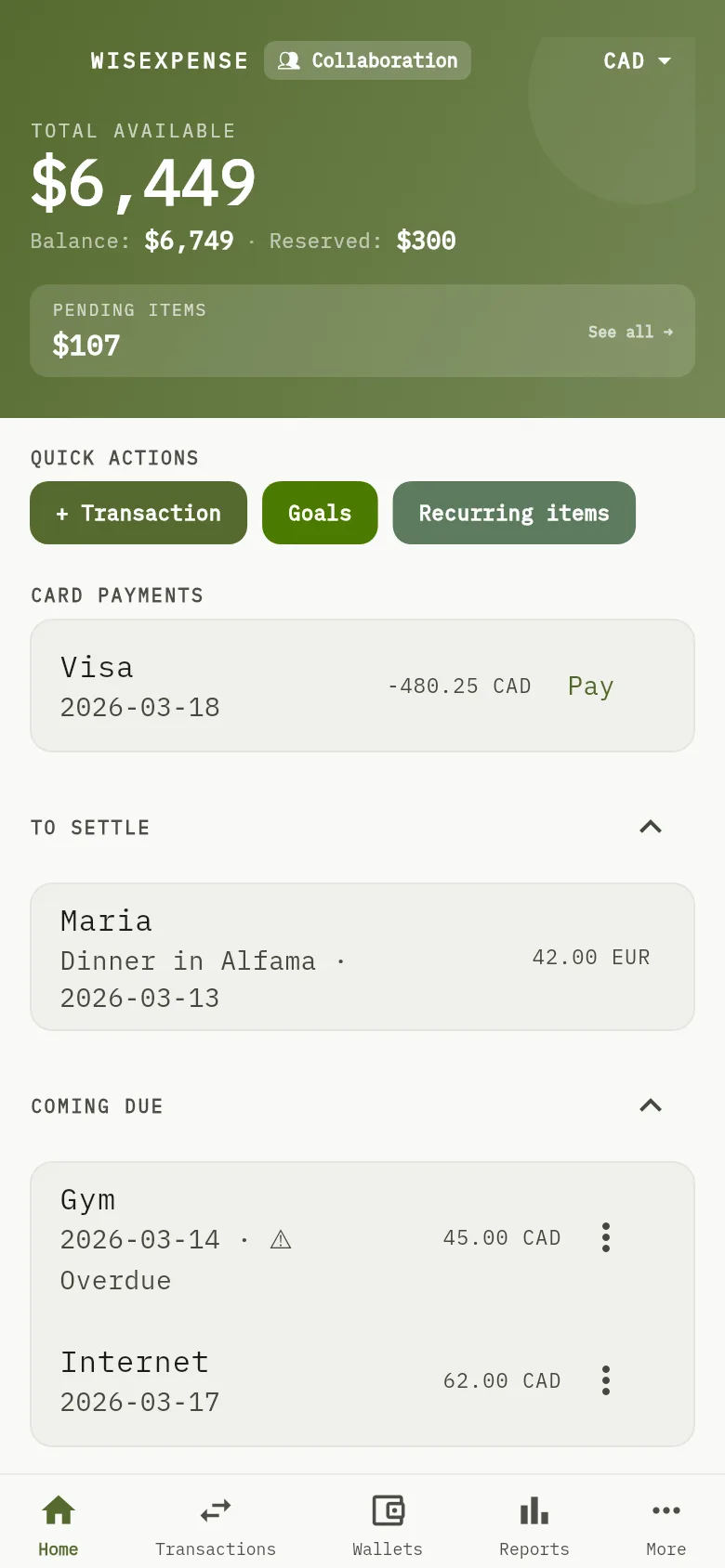
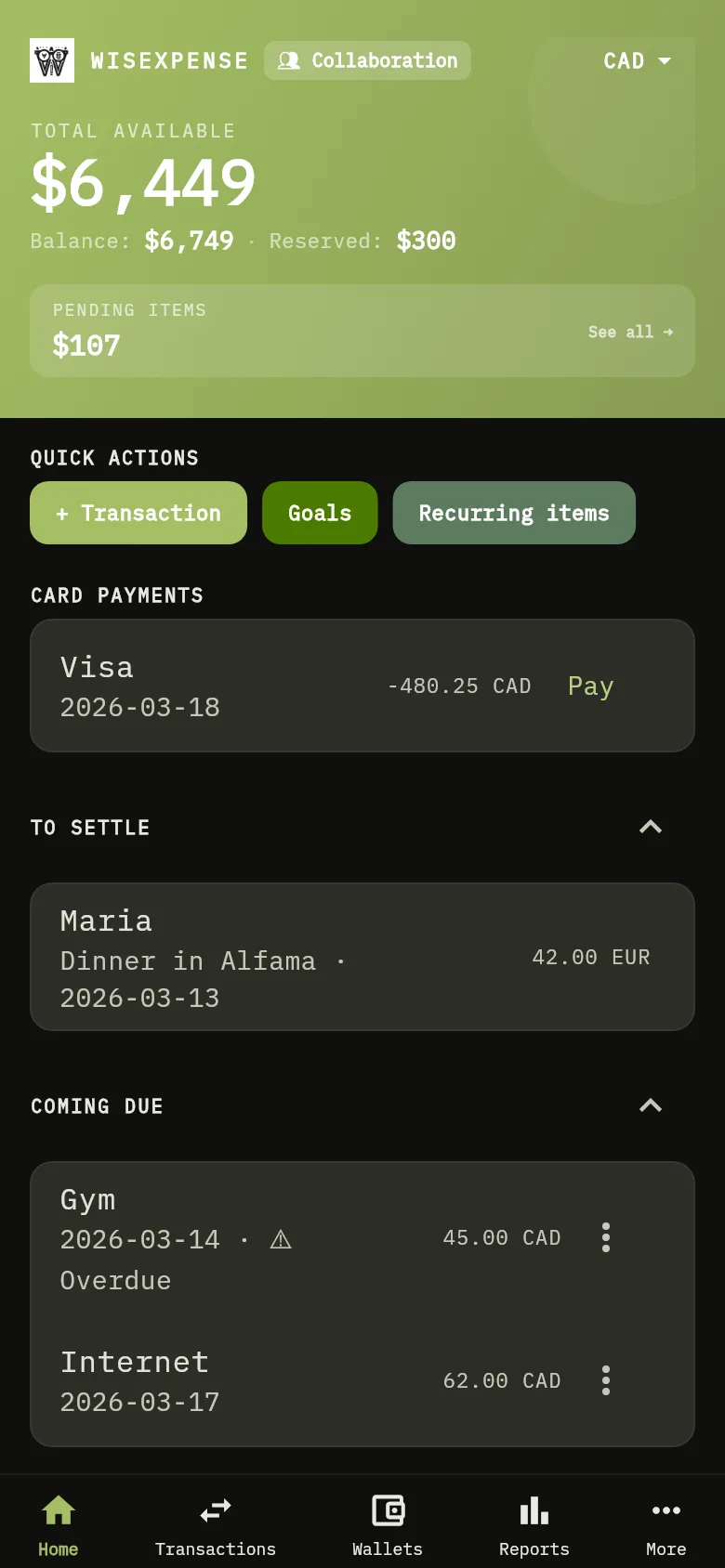
The mobile app’s home screen: the total available at the top, the quick actions, and the lists of card payments, sharing to settle and items coming due. 3: Below the quick actions, read what needs your attention. Card payments lists credit cards you owe money on (it shows only when you have a card). To settle lists shares that friends still owe you. Coming due lists recurring items that are due soon. Tap a heading’s arrow to fold the list; 4: Below the quick actions, read what needs your attention. Card payments lists credit cards you owe money on (it shows only when you have a card). To settle lists shares that friends still owe you. Coming due lists recurring items that are due soon. Tap a heading’s arrow to fold the list; 5: Below the quick actions, read what needs your attention. Card payments lists credit cards you owe money on (it shows only when you have a card). To settle lists shares that friends still owe you. Coming due lists recurring items that are due soon. Tap a heading’s arrow to fold the list; 7: Read the banner at the top. TOTAL AVAILABLE is your Balance minus what is Reserved; 8: Under QUICK ACTIONS, tap + Transaction to record money, or jump to Wallets, Reports or Budgets.The mobile app’s home screen: the total available at the top, the quick actions, and the lists of card payments, sharing to settle and items coming due. 3: Below the quick actions, read what needs your attention. Card payments lists credit cards you owe money on (it shows only when you have a card). To settle lists shares that friends still owe you. Coming due lists recurring items that are due soon. Tap a heading’s arrow to fold the list; 4: Below the quick actions, read what needs your attention. Card payments lists credit cards you owe money on (it shows only when you have a card). To settle lists shares that friends still owe you. Coming due lists recurring items that are due soon. Tap a heading’s arrow to fold the list; 5: Below the quick actions, read what needs your attention. Card payments lists credit cards you owe money on (it shows only when you have a card). To settle lists shares that friends still owe you. Coming due lists recurring items that are due soon. Tap a heading’s arrow to fold the list; 7: Read the banner at the top. TOTAL AVAILABLE is your Balance minus what is Reserved; 8: Under QUICK ACTIONS, tap + Transaction to record money, or jump to Wallets, Reports or Budgets.
  1. Read the banner at the top Marker 7. TOTAL AVAILABLE is your Balance minus what is Reserved.
  2. Under QUICK ACTIONS Marker 8, tap + Transaction to record money, or jump to Wallets, Reports or Budgets.
  3. Below the quick actions, read what needs your attention. Card payments Marker 3 lists credit cards you owe money on (it shows only when you have a card). To settle Marker 4 lists shares that friends still owe you. Coming due Marker 5 lists recurring items that are due soon. Tap a heading’s arrow to fold the list.
  4. Scroll down to the budget summary, which shows how much of your active budget period you have spent. Home no longer lists your latest transactions: open Transactions for those.
  5. Use the tabs at the bottom to move around: Home, Transactions, Wallets, Reports and More. More holds Categories, Providers, Tags, Budgets, Savings Goals, Friends and your preferences.

What you see

You know where your balance, what needs your attention and the main sections are.

Create your first wallet, Record your first expense, Settle a share, Recurring items and Track credit card payments.